
ProVision supports vendor-specific attributes (VSAs) for use with RADIUS authentication. To use these attributes, you must perform the following procedures:
Add the VSA to the Radius Installation
To use the VSA, the attributes must be defined on the RADIUS server. Add the following RADIUS dictionary file to your RADIUS server and name it dictionary.6connect:
VENDOR 6connect 36009

BEGIN-VENDOR 6connect

ATTRIBUTE 6connect_user_group 10 string
#A 6connect User Group to which this user belongs.

END-VENDOR 6connect
Make sure to add the following to the primary dictionary file: $INCLUDE dictionary.6connect
Configure Radius Accounts
On the Radius server, configure the user accounts that will have access to the ProVision system.
Setting up a RADIUS account
An example of a ProVision account configuration for the user file on a Freeradius system for ProVision is below:
Example
To add a new radius user, edit the 'users' file found at /etc/raddb/users and add a block like:
username Cleartext-Password := "somepass"
6connect_user_group = "Global Admins,Group 2,Group 1,Group Nonexistant"
The Radius server must be restarted every time you add, remove, or modify users. To restart the Radius server, use this command:
/etc/init.d/radiusd restart
Note on RADIUS attributes
There are many Radius attributes, but '6connect_user_group' is the one used by ProVision. It is a comma-separated list of all the group names that the user belongs to.
Test Radius Accounts
To query a radius server, use the following command format:
radtest [USERNAME] [USERPASSWORD] [SERVER] 0 [SECRET]
Example
radtest username somepass 198.51.100.0 0 6connect
A successful response will look like this:
Sending Access-Request of id 198 to 198.51.100.0 port 1812
User-Name = "username"
User-Password = "somepass"
NAS-IP-Address = 67.221.240.229
NAS-Port = 0
Message-Authenticator = 0x00000000000000000000000000000000
rad_recv: Access-Accept packet from host 198.51.100.0 port 1812, id=198, length=69
Attr-10 = 0x476c6f62616c2041646d696e732c47726f757020322c47726f757020312c47726f7570204e6f6e6578697374616e74
A rejected response may look like this:
Sending Access-Request of id 68 to 198.51.100.0 port 1812
User-Name = "usernamebro"
User-Password = "somepass"
NAS-IP-Address = 67.221.240.229
NAS-Port = 0
Message-Authenticator = 0x00000000000000000000000000000000
rad_recv: Access-Reject packet from host 198.51.100.0 port 1812, id=68, length=20
Configure ProVision for Radius Authentication
To configure the use of Radius authentication with ProVision, follow the steps below.
-
Log into ProVision
-
Go to Admin -> Authentication
-
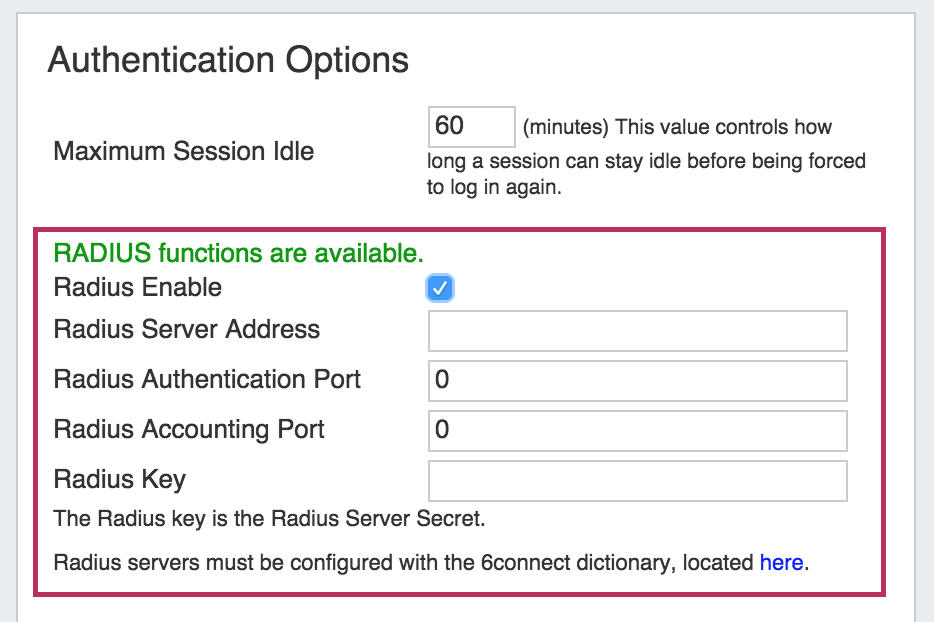
Ensure that Radius functions are marked as available. Radius functions are always available on cloud instances. Radius functions are available on VM Images and Local Installations only if the relevant PHP Pear Radius Libraries have been installed.
-
Click the Radius Enable checkbox.
-
Fill in the hostname or ip address, authentication ports, accounting port, and shared Radius key as specified.
Setting default login options
In the login screen, you would select the authentication method from the dropdown. If you like, you can set the default login option in the following way:
Go to the /data/globals.php and open in vi (or other editor). Add in the following text as the last line of the file (before the closing ?>)
define('DEFAULT_LOGIN_TYPE', 'radius');
Acceptable values are "local", "radius" and "ldap". If this line is not present in globals.php, the default option is "local".