ProVision 5.0.4 is a minor release with bug fixes and improvements
PHP Compatibility
Please note that ProVision 5.x requires php 5.5.+. For local installations, please upgrade php prior to installing the upgrade. Also ensure that the correct Sourceguardian php extension is loaded for the new version of php.
New Features
DNS Audit Tools (Alpha):
Introducing a first version of DNS audit tools to perform a simple audit of both forward and reverse DNS. The tools set includes UI, API end points, and a command line interface. The audit results include the DNS as found in the ProVision database, the results from a resolver, and if there is a conflict in these two pieces of information.
Access the UI version of the Tool by going to the desired block in IPAM Manage, click on the Action Menu (wrench), then select "DNS Audit (Alpha):
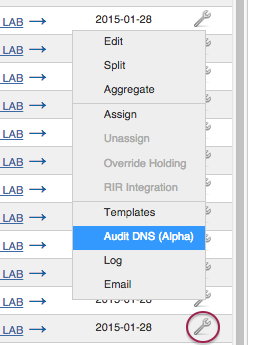
This takes you to the DNS Audit page.
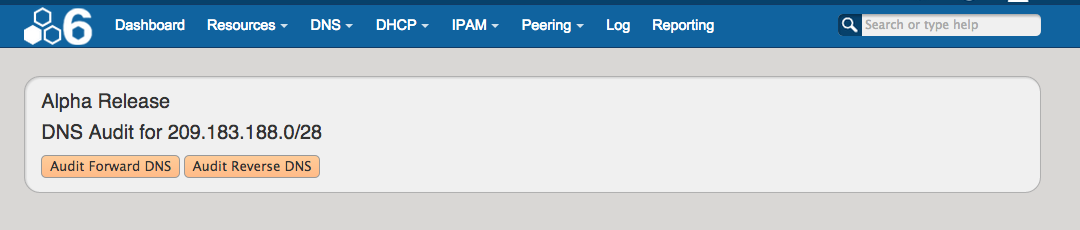
From there, select the "Audit Forward DNS" or "Audit Reverse DNS" buttons to provide a list of IPs, the Reverse Values, Conflict Status, and Resolved Host(s).

DNS Audit Tools: Additional File and Example Information:
Juniper Logical Systems support for Peering:
ProVision now supports Juniper Logical Systems for Peering, with the Logical Systems information tied to the router resource. UI elements have been added as follows:
-
A Logical Systems field appears in the the Peering "Add Router" dialog when a Juniper router is selected.
To add Logical Systems to a router, go to the Peering Tab and click on the "Add Router" button. Select the Juniper router make/model, and the Logical System text field will appear. Enter the Logical System and router information, peer group information, and hit "Add Router" when complete. For routers with multiple associated Logical Systems, you may create duplicate router resources with different logical systems information.
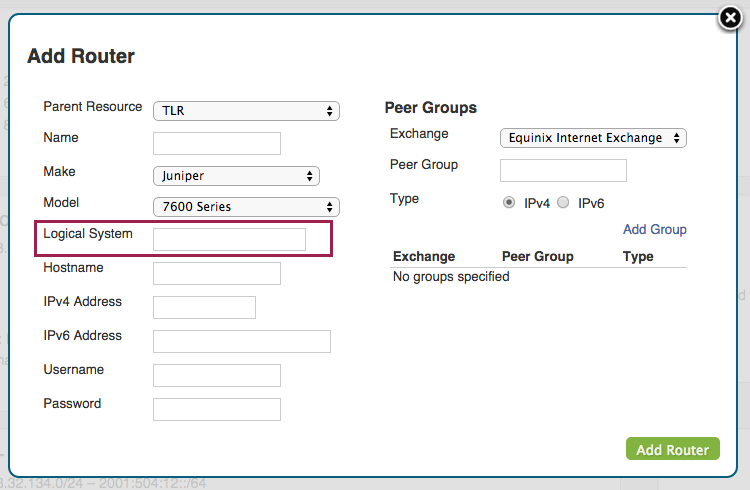
Associating the router with a peer group is necessary to link the router to a particular exchange.
Please be sure to add the Peer Group information either in the "Add Router" dialog or in the Peer Group Gadget prior to adding sessions.
-
Peering - Main - Add Session: Router drop down indicates the router, then Logical System info in parenthesis (e.g. "Juniper (test)") .
After having added a Logical System to a router, that router + Logical System combination will be available to select in the Peering - Add Session dialog box. The Peer Group associated with that router / Logical System will automatically be selected. Continue to fill in your session information, then hit "Save".
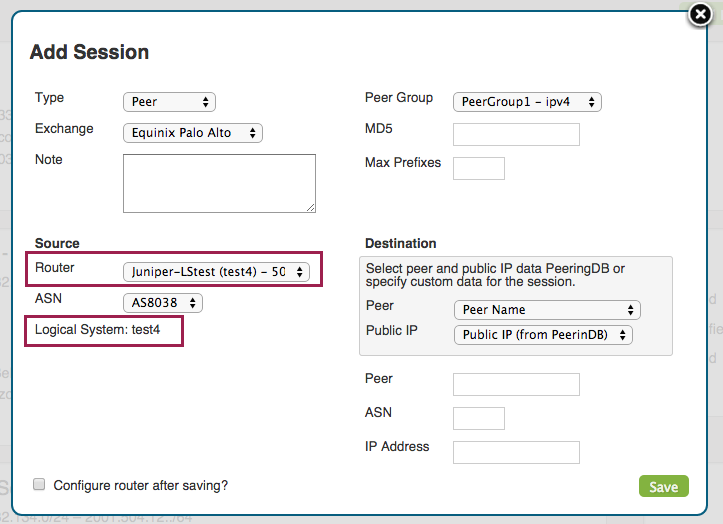
When viewing your session in the Sessions list, your router will appear with the Logical Systems information in parenthesis.

-
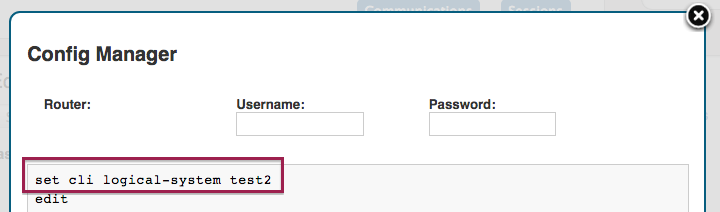
Peering - Main - Config Manager: When configuring a session that is part of an Logical System, the first line of the config displayed should be "set cli logical-system ﹤name﹥"
-
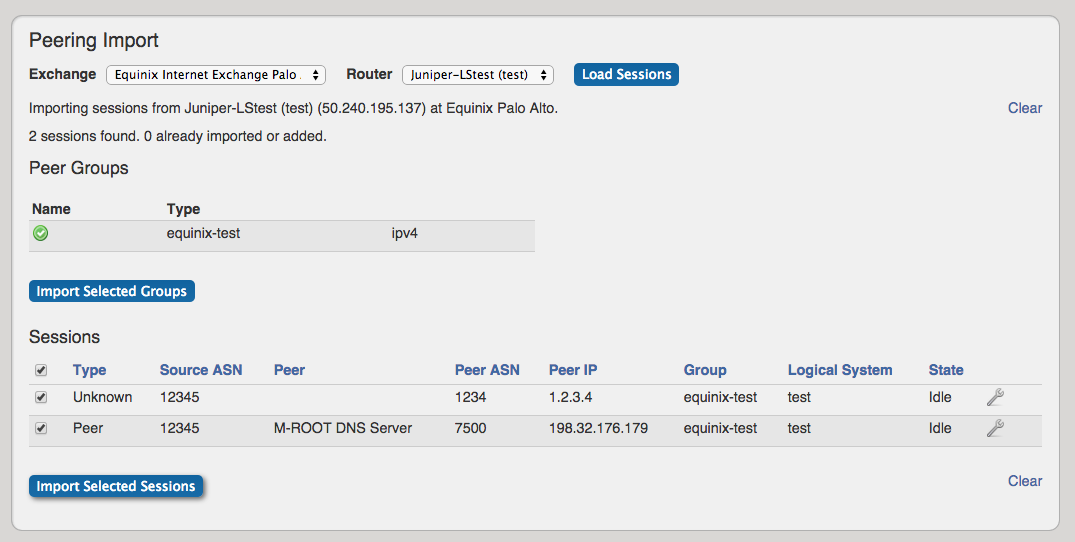
Peering - Import: When importing sessions from a Juniper router, the Router drop down indicates the router, then Logical System info in parenthesis (e.g. "Juniper (test)"). Also, there is now a Logical System column in the results.
Improvements
DNS UI Updates:
Various user interface improvements have been made to the DNS Admin section. Documentation has been updated to reflect these changes on the DNS Admin page.
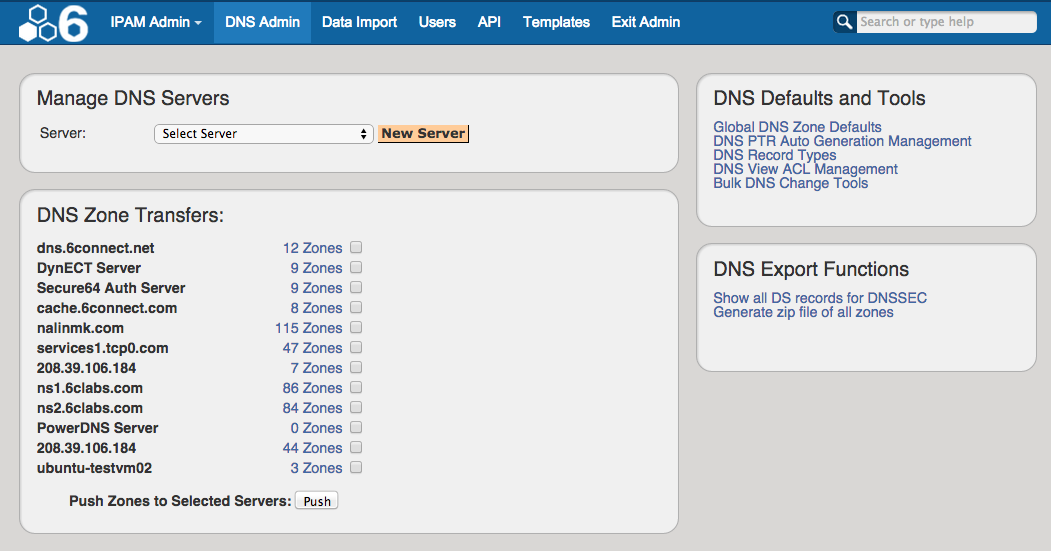
Selected changes include:
-
"DNS Configuration" has been renamed "DNS Global Defaults", and is accessed from the "Global DNS Zone Defaults" link. The default options list has been simplified.
-
"Nameserver Management" has been renamed "Default Nameservers", and is accessed from the "Global DNS Zone Defaults" link.
-
"Bulk Zone Assignment" and "Bulk Record Changes" are now accessed from the "Bulk DNS Change Tools" link.
CFR- 97: Tests/ directory are now excluded from local and hosted builds
Bug Fixes
IM-1564: Treeview search fixed
IM-1722: Fixed DynECT page display warning
IM-1710: Improved integration with mysql
IM-1742: Chart view now respects permissions
IM-1770: Default nameservers can now be removed
IM-1771: Resolved issue where DNS was missing pointer generation for valid PTR records
IM-1772: Generating API key no longer displays array bounds error
IM-1774: Resolved an issue in IP Import preventing row edits after defining columns
IM-1781: Update DNS links appear below hostname field for applicable resources with an assigned /32 block