Check User Permissions by Resource
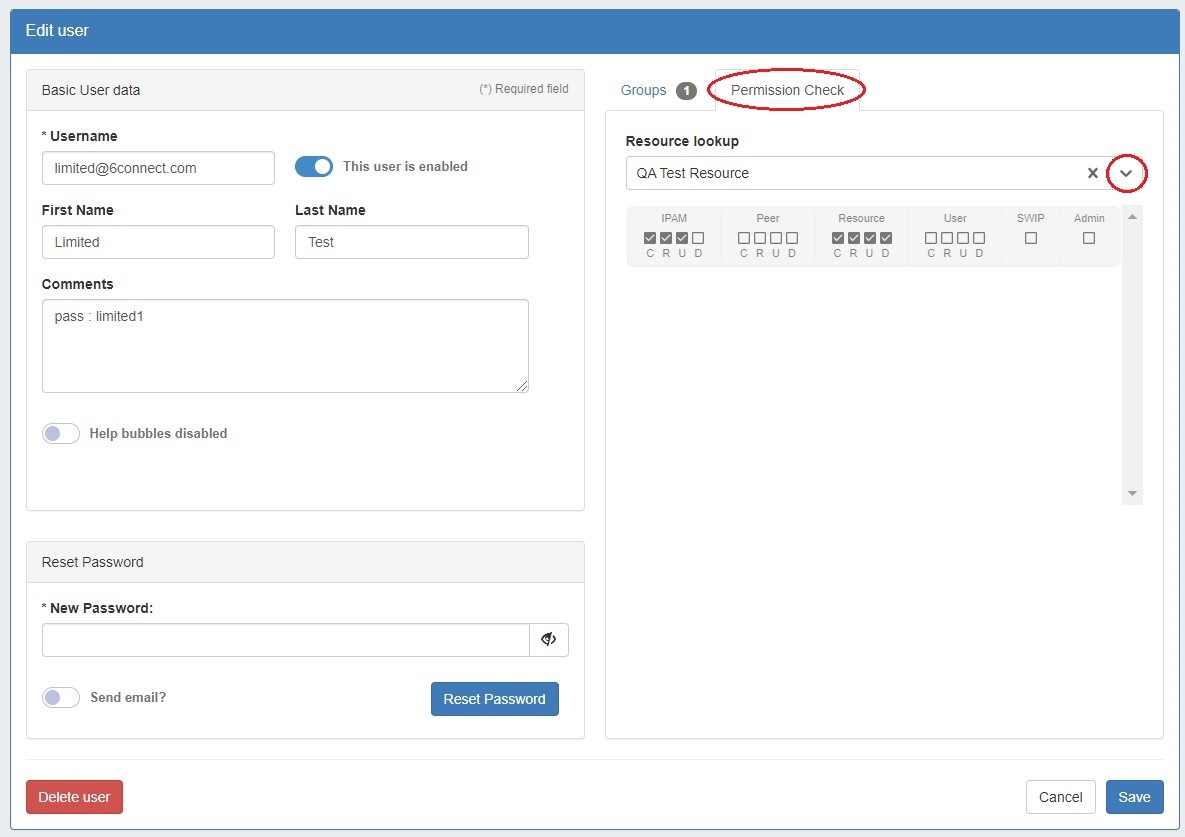
To verify the permissions of a certain user for a specific resource, open "User Details" for the user from the action menu or by clicking on their username.

On the Edit User screen, click on the "Permission Check" tab on the right, then select a Resource from the "Resource lookup" dropdown.
The resulting output will display the detailed permissions for that user and resource combination.
User Permissions Chart
The User Permissions Chart is accessed from the top of the Users tab page, and displays a color-coded resource permission tree for a selected user/group combination.
Click the "Chart view" sub-tab and the chart page will open.

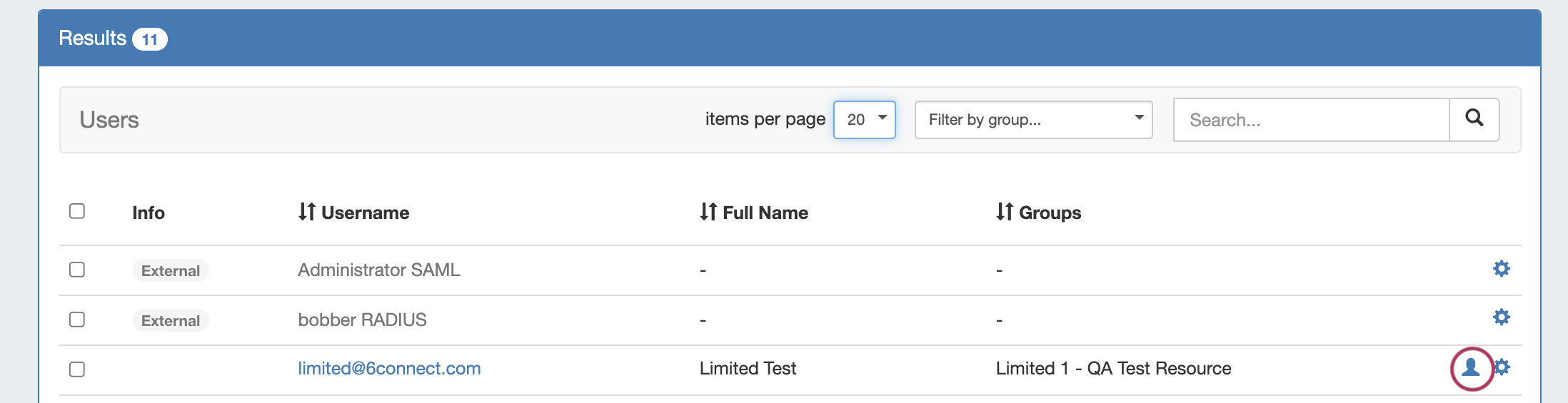
You may also access the User Permissions Chart by clicking the User icon for the user from the Users List.
Once in Chart View, you can graphically view the permissions level of a user by selecting their user name and group from the dropdowns at the top of the chart.
The resulting chart will be color coded depending on permissions level.
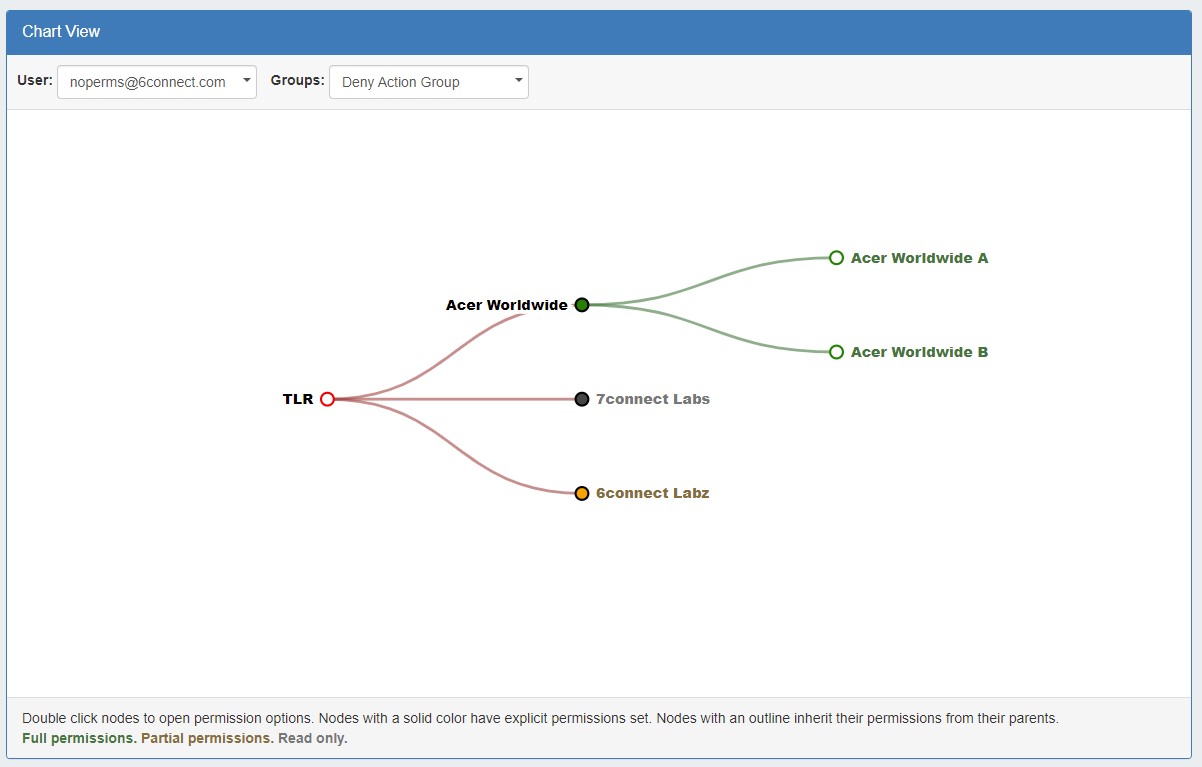
Single clicking on a filled circle resource node will expand and collapse the node.
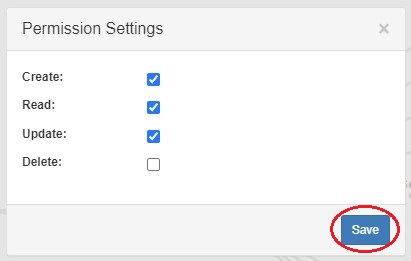
Double clicking on a resource will open up the Edit Permissions box, where CRUD permissions may be updated for allowed Resources. Check / Uncheck the desired permissions level, and click save.