
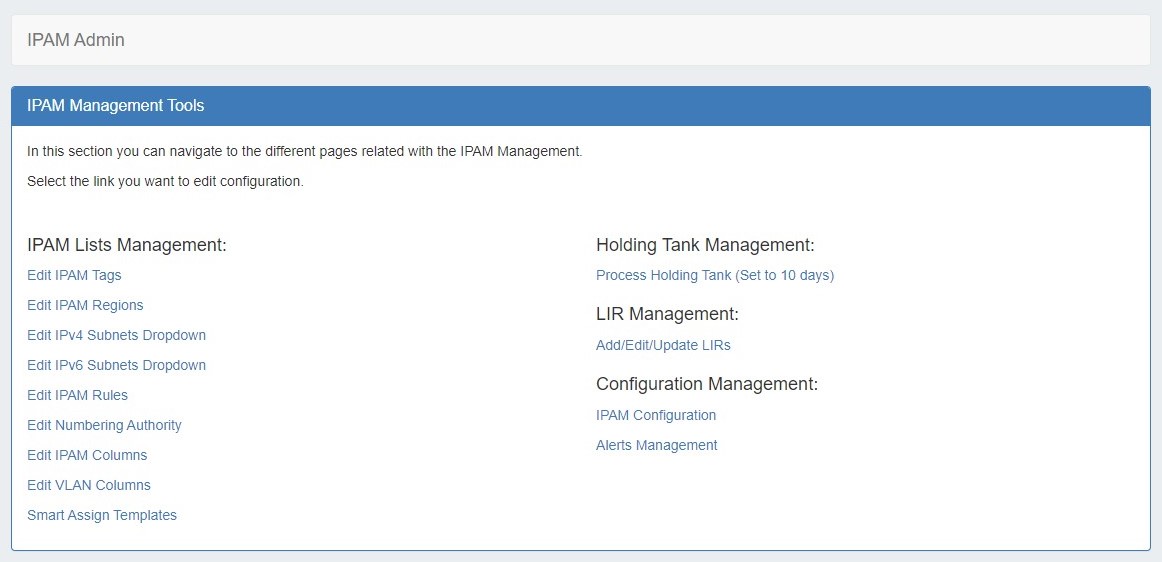
IPAM Administration is accessed through the Admin area. It includes sections to manage IPAM Lists, the Holding Tank, LIR, Smart Assign Templates, and IPAM Configuration.
IPAM Management Tools
The IPAM Management Tools area is divided into multiple groupings:
-
IPAM Lists Management: These links are to the respective IPAM Lists that are available for customization - tags, regions, subnets, IPAM Rules, Numbering Authority, and IPAM / VLAN Columns, and Smart Assign Templates.
-
Holding Tank Management: When IPv4/IPv6 resources are reclaimed, they are placed into the "Holding Tank". This feature allows for a block to stay out of the available address pools until the administrator approves it.
-
LIR Management and Use: Multiple LIRs are supported from the UI. This allows users to select from various LIRs when they want to update SWIP/RPSL information for a subnet allocation. You may also select to perform an RIR Audit for SWIP management.
-
Configuration Management: Configure your IPAM settings or IPAM Alerts. Alerts Management allows users to view, edit, and manage all IPAM Alerts set on aggregates or IP blocks.
For IPAM Configuration items, see the area below. For other areas, please follow the links provided under Additional Information.
IPAM Configuration
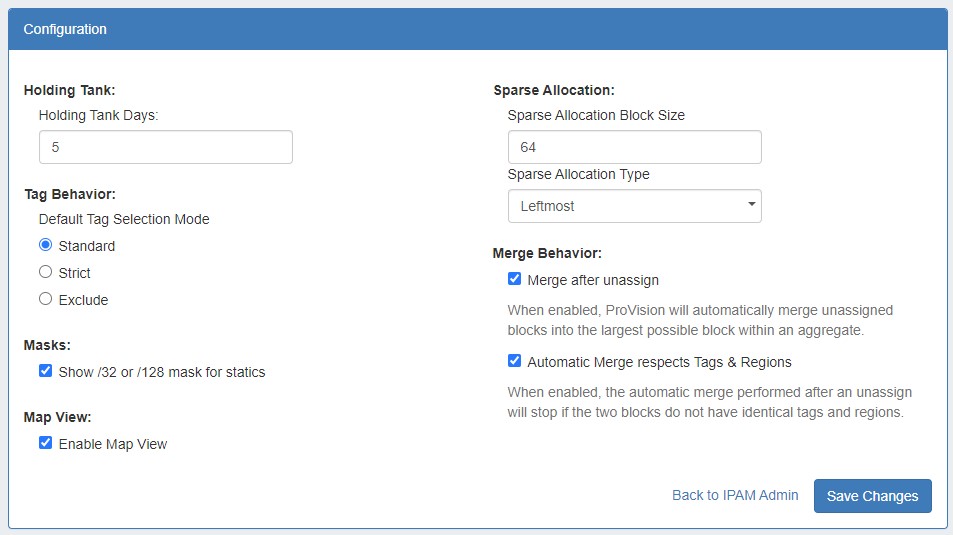
The following options are available for IPAM Configuration:
-
Holding Tank Days: This is the number of days that a block will be held in "Holding" status before being available to be moved to the Available pool, and thus ready to be assigned. By default this is initially set to 30 days.
-
Default Tag Selection Mode: Set which radio button will be selected by default when working with tags in the IPAM Gadget.
-
Show /32 or /128 mask for statics: Enable to show /32 or /128 masks.
-
Enable Map View: Select to enable a map view of assigned aggregates on the IPAM tab, determined by assigned region.
-
Sparse Allocation Block Size: Sets the size of the blocks generated for IPv6 Sparse Allocation.
-
Sparse Allocation Type: Sets the Sparse Allocation scheme to Leftmost, Rightmost, or Center.
-
Merge after unassign: Select to automatically merge adjacent blocks when they become available after unassign.
-
Automatic Merge respects Tags & Regions: When "Merge after unassign" is selected, the automatic merge will stop if the two blocks do not have matching tags and regions.
When edits are complete, click "Save Changes".