
9.0.0 8.3.0 8.2.0-8.2.1 8.1.0-8.1.1 8.0.0-8.0.3 7.4.0-7.4.6 7.3.0-7.3.2 7.2.0-7.2.1 7.1.0-7.1.2 7.0.0-7.0.2 6.1.0-6.1.2 View All PV Cloud PV Local Installs
Auto Light Dark
Auto Light Dark
9.0.0 8.3.0 8.2.0-8.2.1 8.1.0-8.1.1 8.0.0-8.0.3 7.4.0-7.4.6 7.3.0-7.3.2 7.2.0-7.2.1 7.1.0-7.1.2 7.0.0-7.0.2 6.1.0-6.1.2 View All PV Cloud PV Local Installs

Local Installations: Peering Setup

Peering Setup

PeeringDB Options: (ProVision v7.0+)

ProVision directly interfaces with PeeringDB's API to update exchange and peering data, caching the data for a default time of 12 hours.

This requires a PeeringDB account, and for the account credentials to be set in ProVision. The credentials may either be hard coded into globals.php, or set into the database via the Admin/Peering GUI. See Admin Settings and Peering for detailed information.

Additional Peering constants may be added into globals.php to change the PeeringDB URL between the main and beta site (some users may find the beta site to have faster response times), and to adjust the PeeringDB cache TTL.

For real-time updates, TTL may be set to 0. However, some users may experience severe lag with a TTL = 0; we recommend using a 10 to 15 minute or greater TTL if this occurs. 

Peering Constants

In globals.php, the following constants can be defined to tweak the Peering internals:

Peering Constants Descriptions and Syntax...

PEERINGDB_USERNAME

define('PEERINGDB_USERNAME', 'username');

Default value: none

The username for the account used to connect to the PeeringDB API

Instead of saving the username and password in the database, the values can be hard coded into globals.php

PEERINGDB_PASSWORD

define('PEERINGDB_PASSWORD', 'mypass');

Default value: none

The password for the account used to connect to the PeeringDB API

PEERINGDB_URL

define('PEERINGDB_URL', 'https://www.peeringdb.com/api/');

Default value: https://www.peeringdb.com/api/

The URL of the PeeringDB API. Alternate value: https://beta.peeringdb.com/api/

Note: PeeringDB URL Change - (Affects only v8.0.1 and earlier)

Previous versions of PeeringDB allowed authenticated requests to https://www.peeringdb.com/api/. As of March 2022, PEERINGDB_URL must be set to https://www.peeringdb.com/api/ for authenticated requests to succeed.

Customers updated to v8.0.2 and later do not need to take any action and are not affected.

Local customers using versions 8.0.1 or earlier, and who are using Peering (or wish to start using Peering), should perform the following update(s) as applicable to their situation:

A) Existing local customers who already have their peeringdb account details saved in Provision should update PEERINGDB_URL in globals.php to:   

define('PEERINGDB_URL', 'https://www.peeringdb.com/api/');

B) Customers who wish to begin using Peering (thus, do not already have saved peeringdb account details) will not be able to add their account via the GUI prior to v8.0.2. An attempt to do so will fail the "valid account test", which uses a hardcoded string value.

Instead, affected users must do both of the following:

B1) Save peeringdb account details using the API:

https://[$your instance]/APIv2/spec.php?family=peering#/default/save_account

B2) Update PEERINGDB_URL in globals.php to:

define('PEERINGDB_URL', 'https://www.peeringdb.com/api/');

PEERINGDB_CACHE_TTL

define('PEERINGDB_CACHE_TTL', 43200);

Default value: 43200 (12 hours)

How often (in seconds) to purge the cached PeeringDB API calls. If a customer wants real time access, this can be set to 0. 

If experiencing major lag issues with real time access, it is recommended to increase to increase the cache TTL from 0 to 5, 10, or 15 minutes. 

PeeringDB API Sync (ProVision v8.2+)

Local Installations may opt to sync peering data via the PeeringDB API:

ProVision only requires a Read Only API Key. For information on PeeringDB API keys, please refer to: https://docs.peeringdb.com/howto/api_keys/.

To set a PeeringDB Account, go to Admin Settings → Peering, and enter the Read Only PeeringDB API key. Click "Test" to verify the connection.
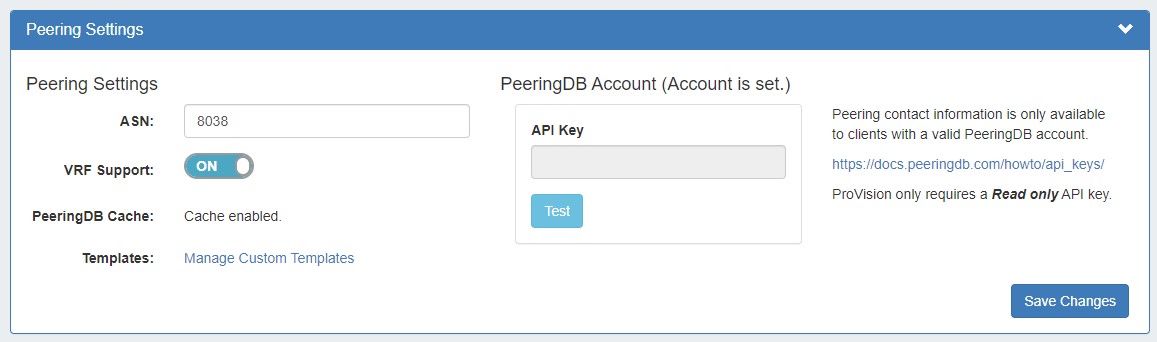
8.1.0 Peering Settings.jpg

When done, click "Save Changes". If successful, the phrase "Account is set" will display above the API key form.