
Easily manage your ProVision backups using the provided tools in the backup server web interface. You can schedule tasks to run periodically with the Task Scheduler or configure the retention period and the HDD quota percent in the Backup Settings Management section.
Backup Management
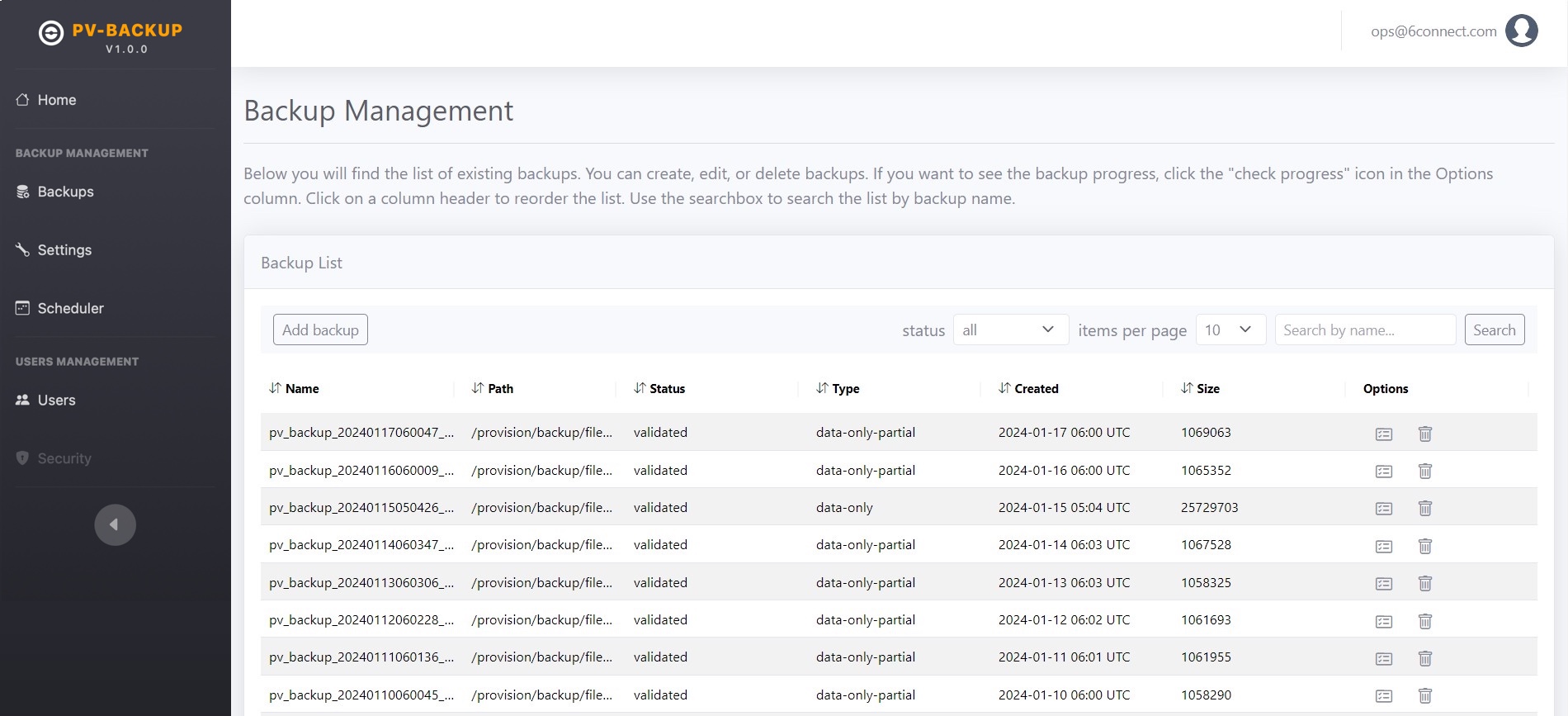
The list provides the following information:
-
Name: Name of the backup, usually the filename.
-
Path: Full path to the file on the server.
-
Status: Processing (the backup is being processed), validated (the backup is validated), failed (failed to create or validate the backup), deleted (deleted file because of retention period).
-
Type: Data-only (the backup has full database dump and no code), data-only-partial (the backup has database dump without several log, monitoring etc, tables), full (full database + code backup).
-
Created: Date of creation.
-
Size: In bytes.
-
Options: Show backup process, delete.
Adding a Backup
Manually request a backup of specific type by clicking the "Add Backup" button at upper left of the backups list. Select the type of backup from the dropdown and click "Create Backup".
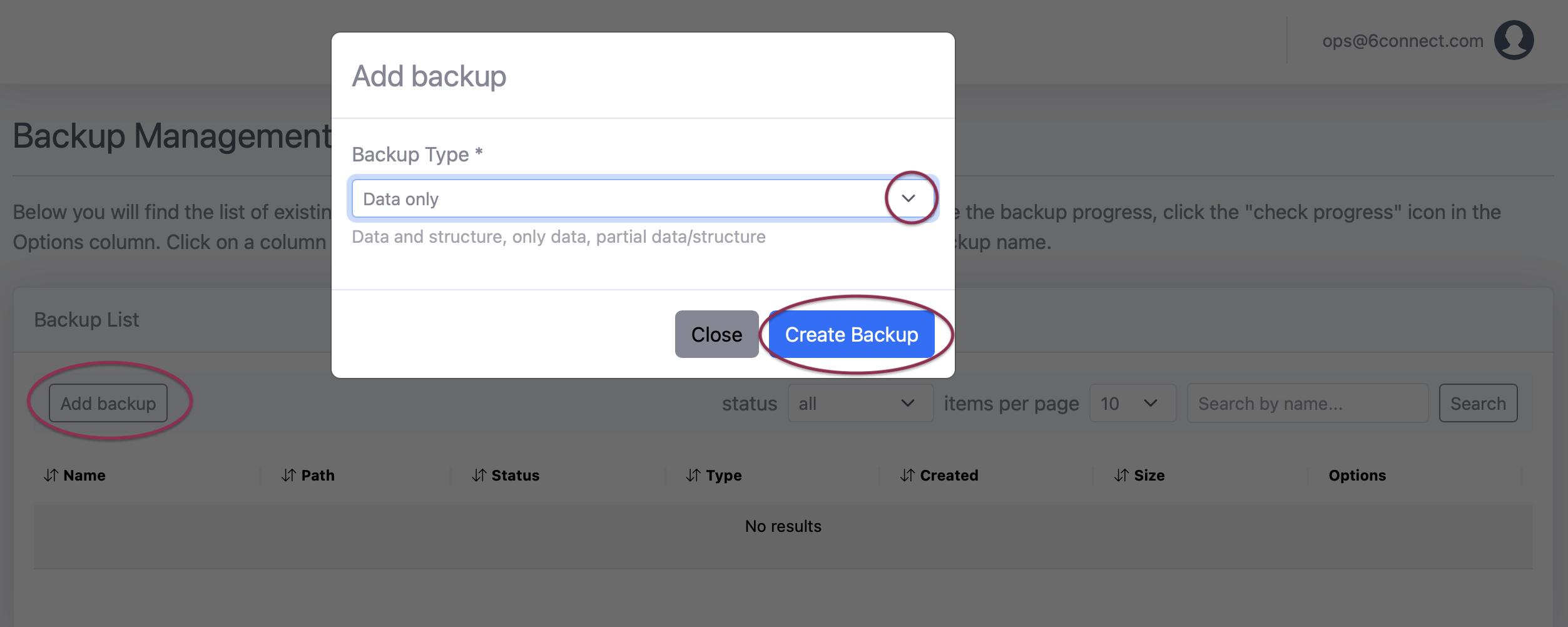
After selecting the backup, a new row is added to the list. Click on the progress icon in the "Options" column to monitor the progress of the backup.
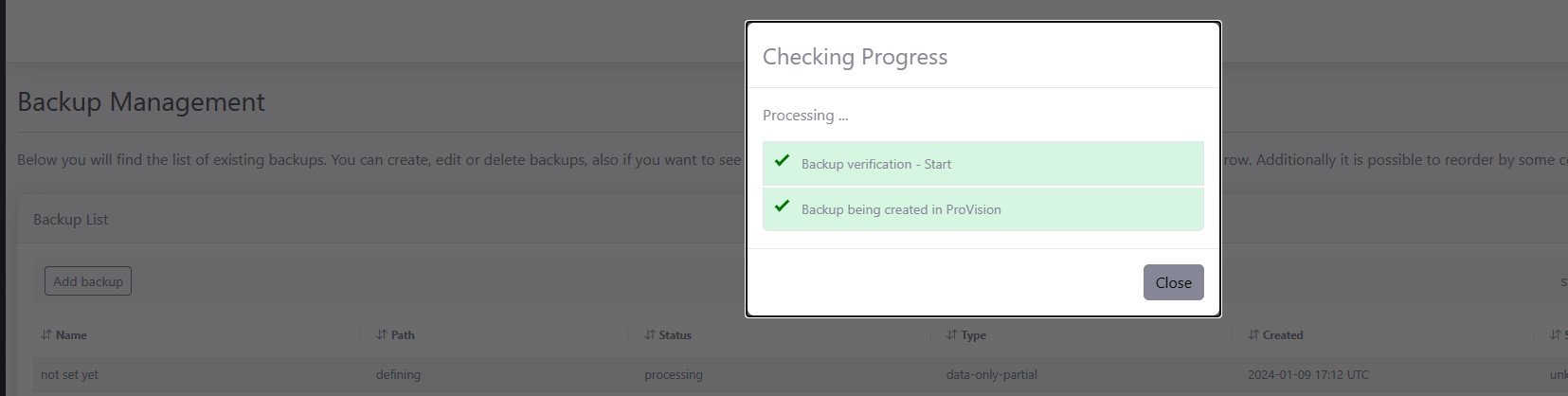
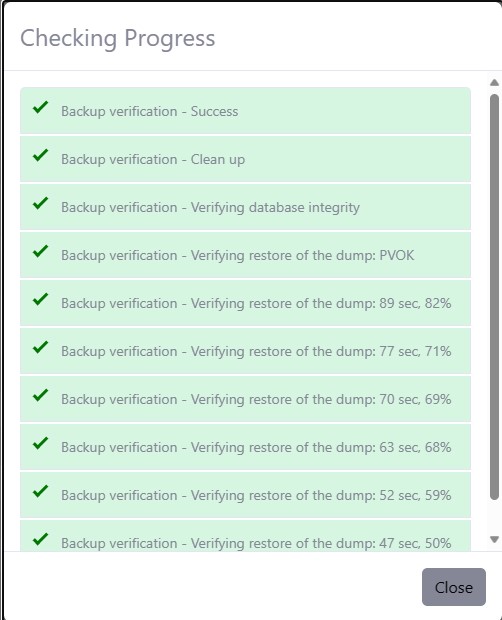
A backup being created in ProVision may take some time depending on the size of the database.
Backup Settings Management
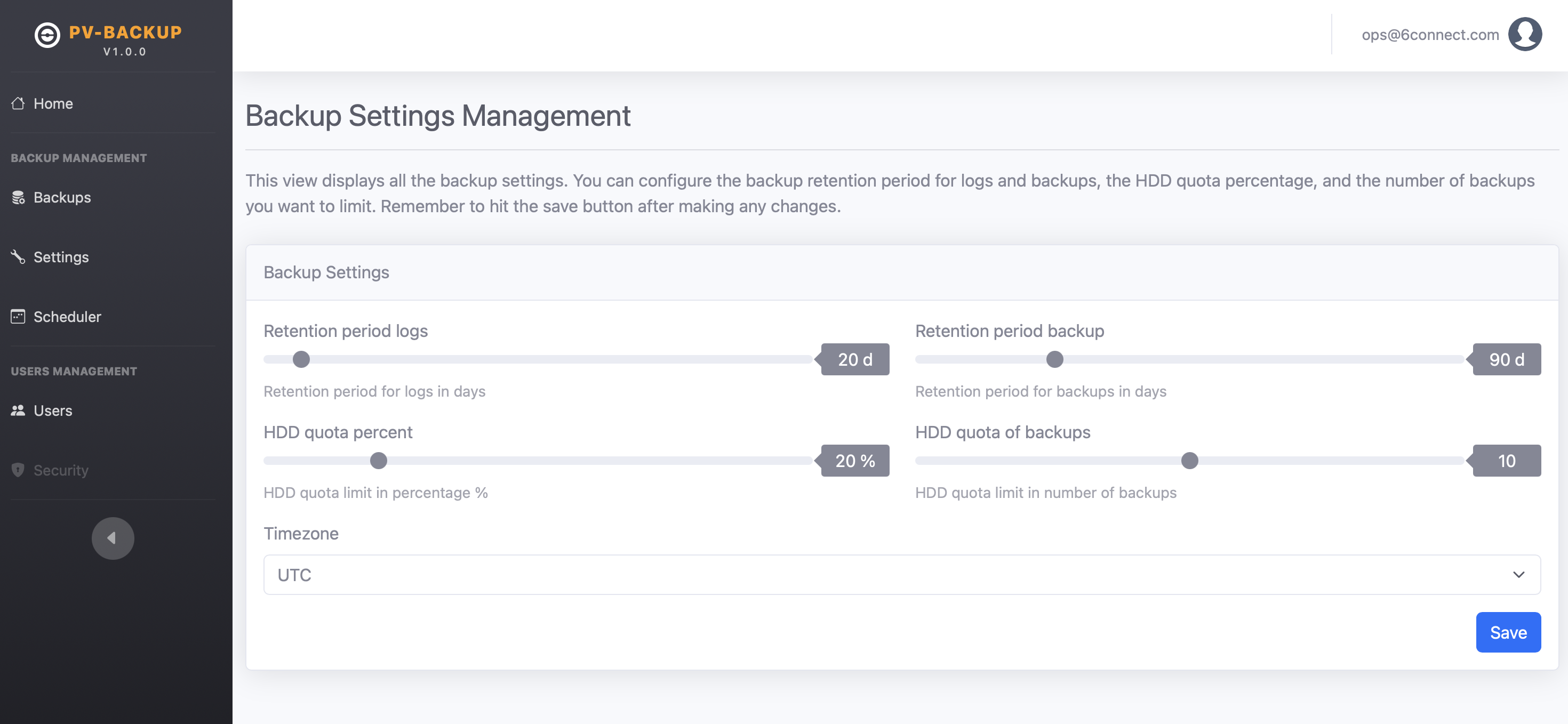
Adjust the sliders to set:
-
Retention period logs: How many days to keep the logs.
-
Retention period backups: How many days to keep a backup file.
-
HDD quota percent: When the storage reaches this percent an email will be sent. This checks only the utilization of the partition where the backups are stored, not every partition of the system.
-
HDD quota of backups: How may backups to keep (eg. last 10).
Click "Save" after making any changes.
Task Scheduler
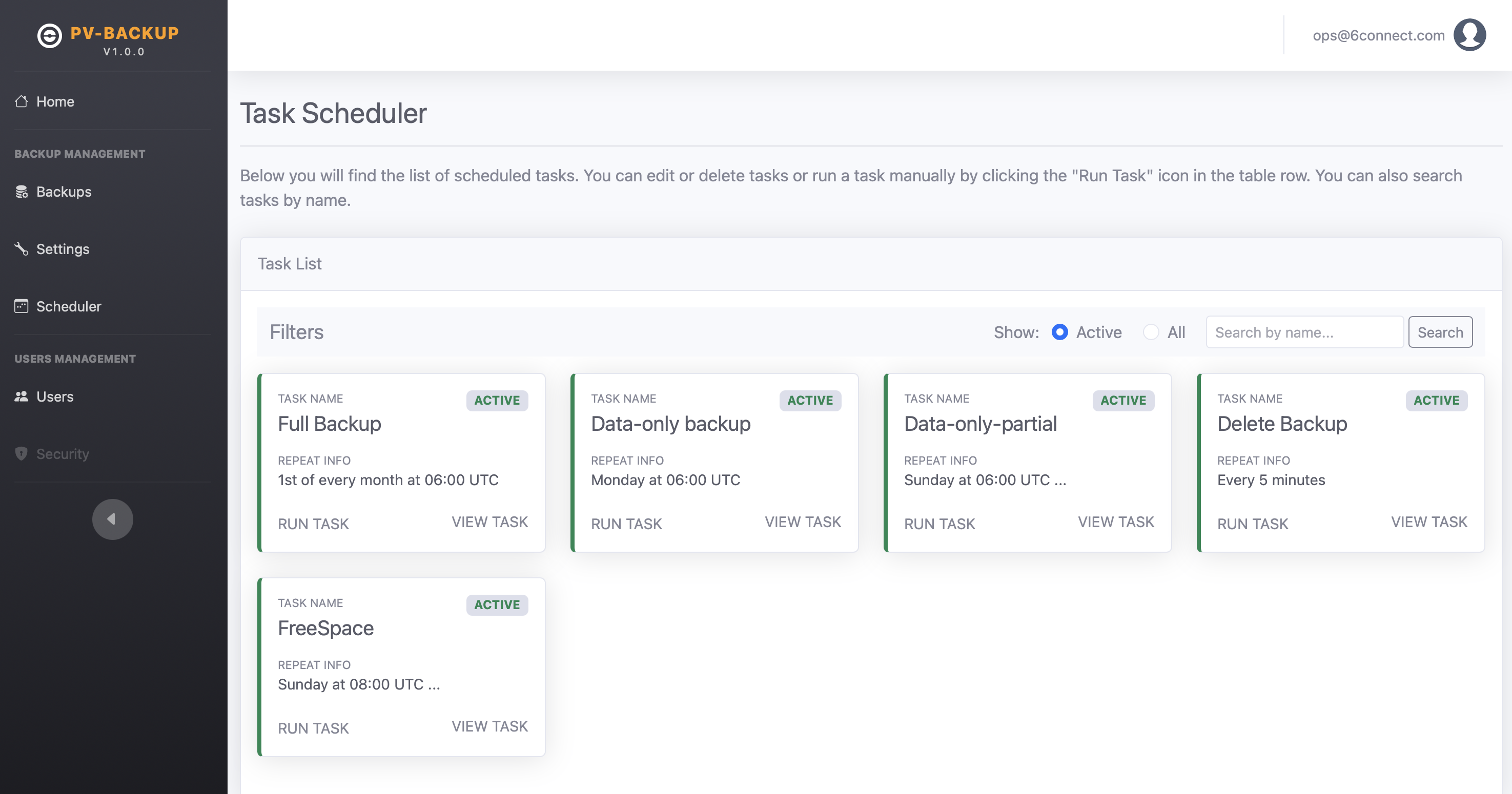
There are currently five pre-defined system tasks:
-
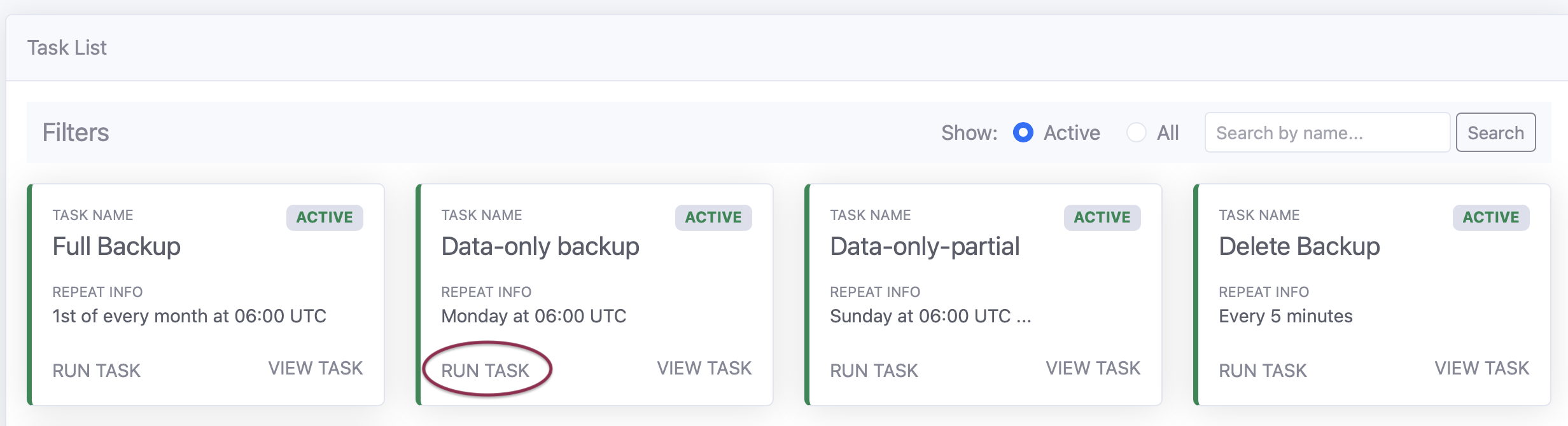
Full Backup: Creates a full backup (data+code). By default, on the 1st of every month 6:00 UTC.
-
Data-only backup: Creates a data-only backup (full data, no code). By default, every Monday 6:00 UTC.
-
Data-only-partial: Creates a data-only-partial (data without log/monitoring tables, no code). By default every day of the week 6:00 UTC, except Monday.
-
Delete Backup: Deletes expired backups and logs (related to Retention period logs/backup and HDD quota of backups). By default every 5 mins.
-
FreeSpace: Checks the remaining free space and sends email notification if the free space is below the threshold. By default every day 8:00 UTC.
Editing or Executing a Task
Users can manually execute each task or modify its schedule.
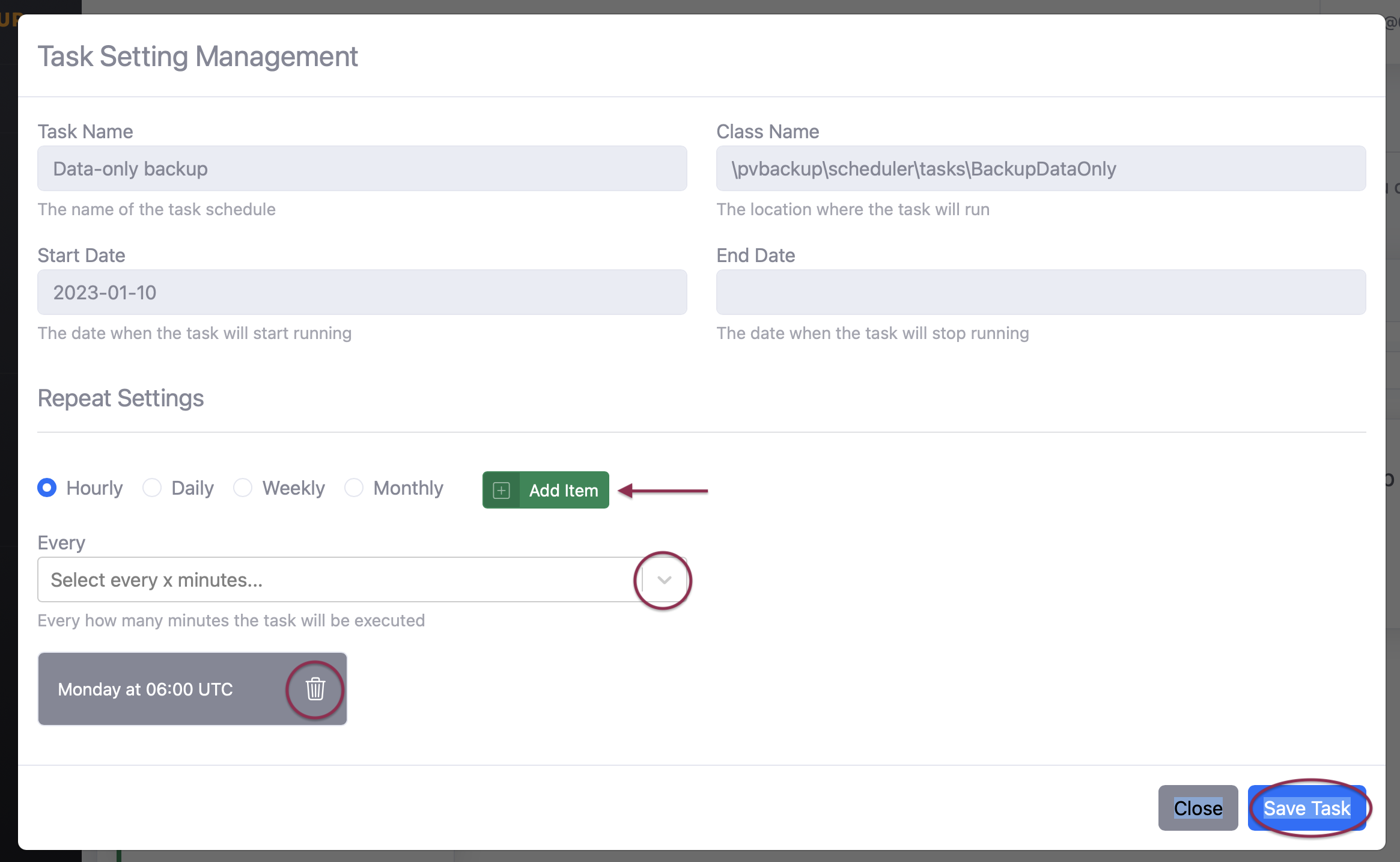
To view task settings, click "View Task".
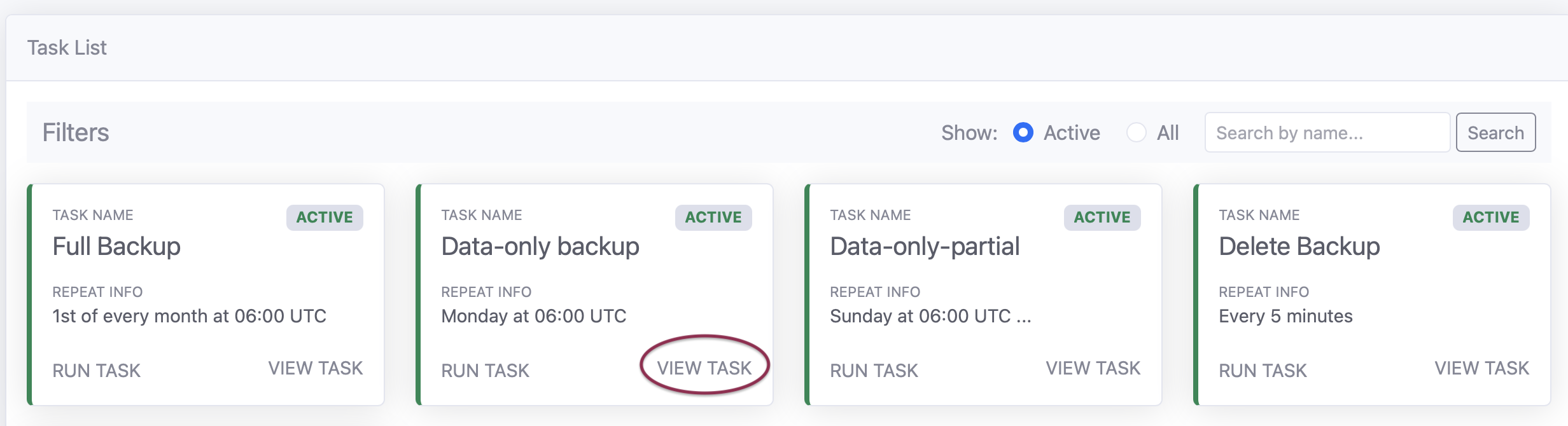
Make any changes you wish to the schedule settings and click "Save Task".
To manually run a task, click "Run Task".
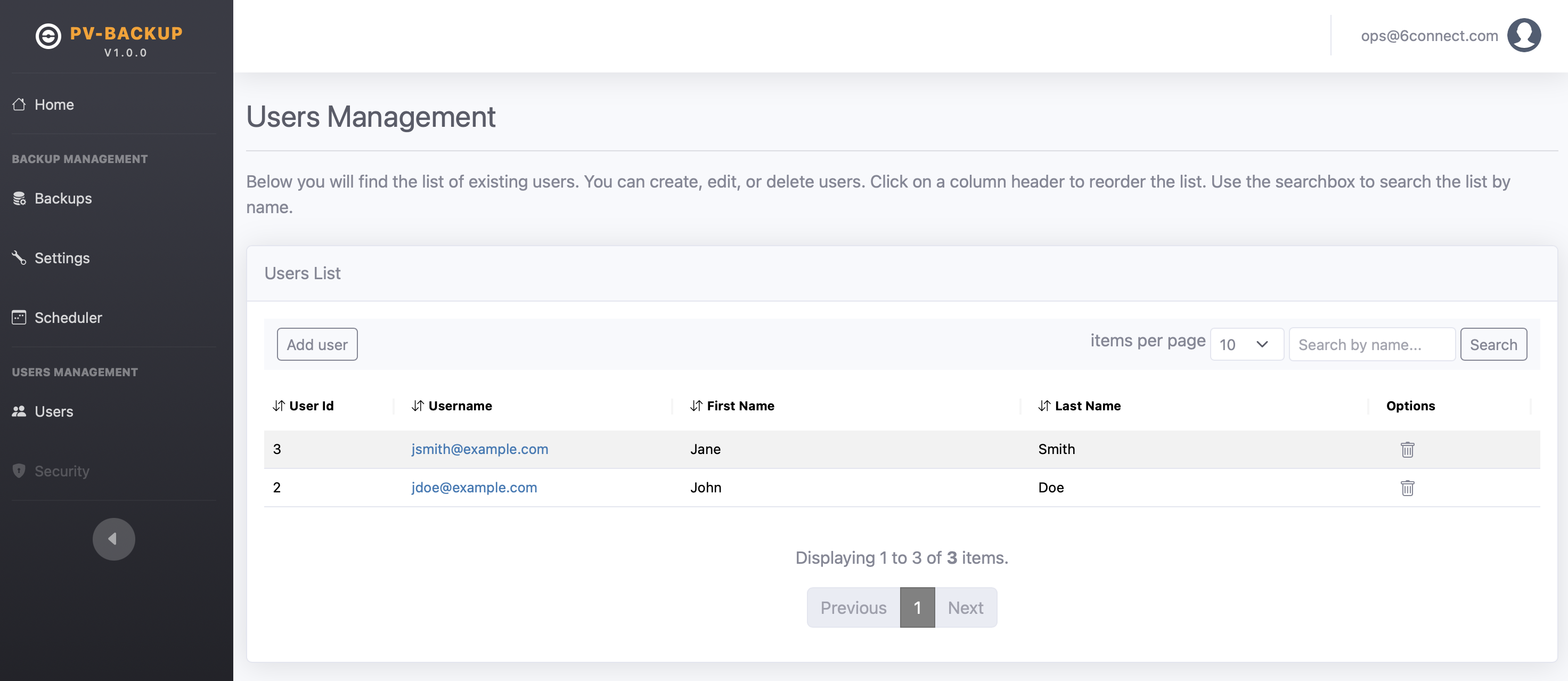
Users Management
Adding a User
Click "Add User" at upper left to create a user.
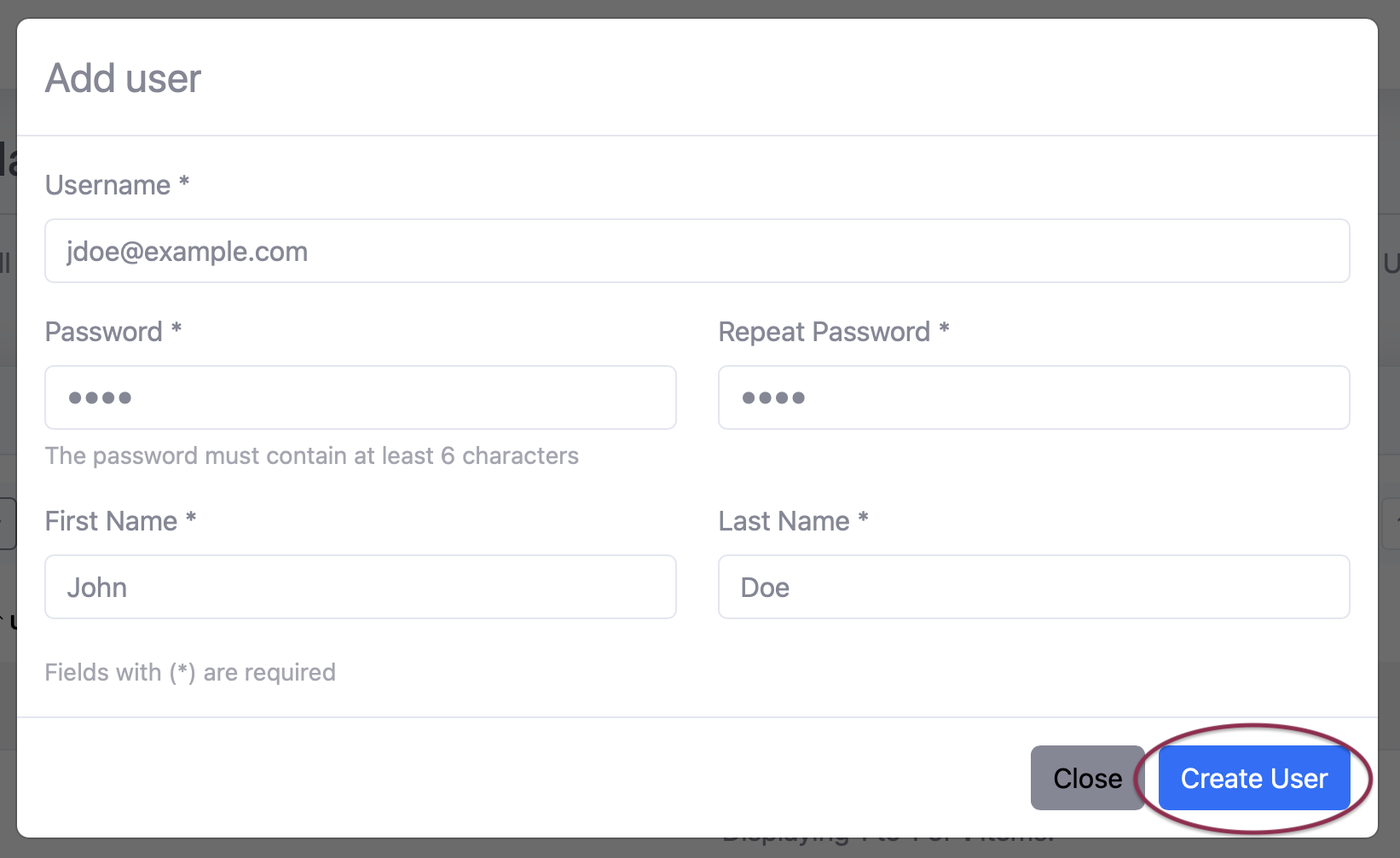
Enter user details and click "Create User".