
This is a beta feature
The Reverse API endpoint builder is accessed from the Admin section of ProVision, under the API tab.
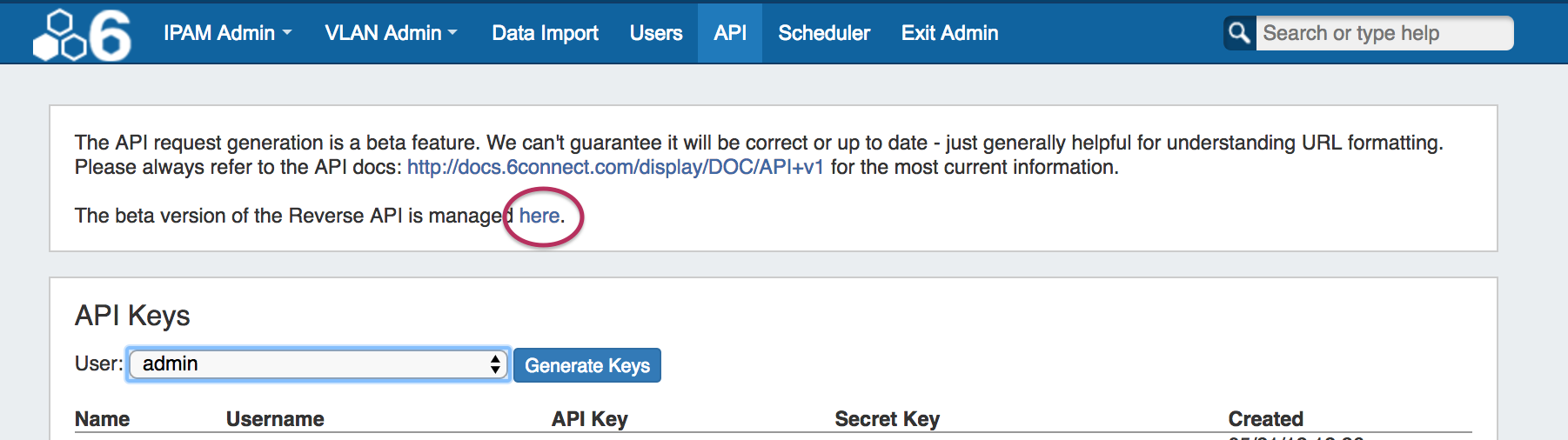
Clicking on the link circled above will take you to the Reverse API Endpoint Builder interface.
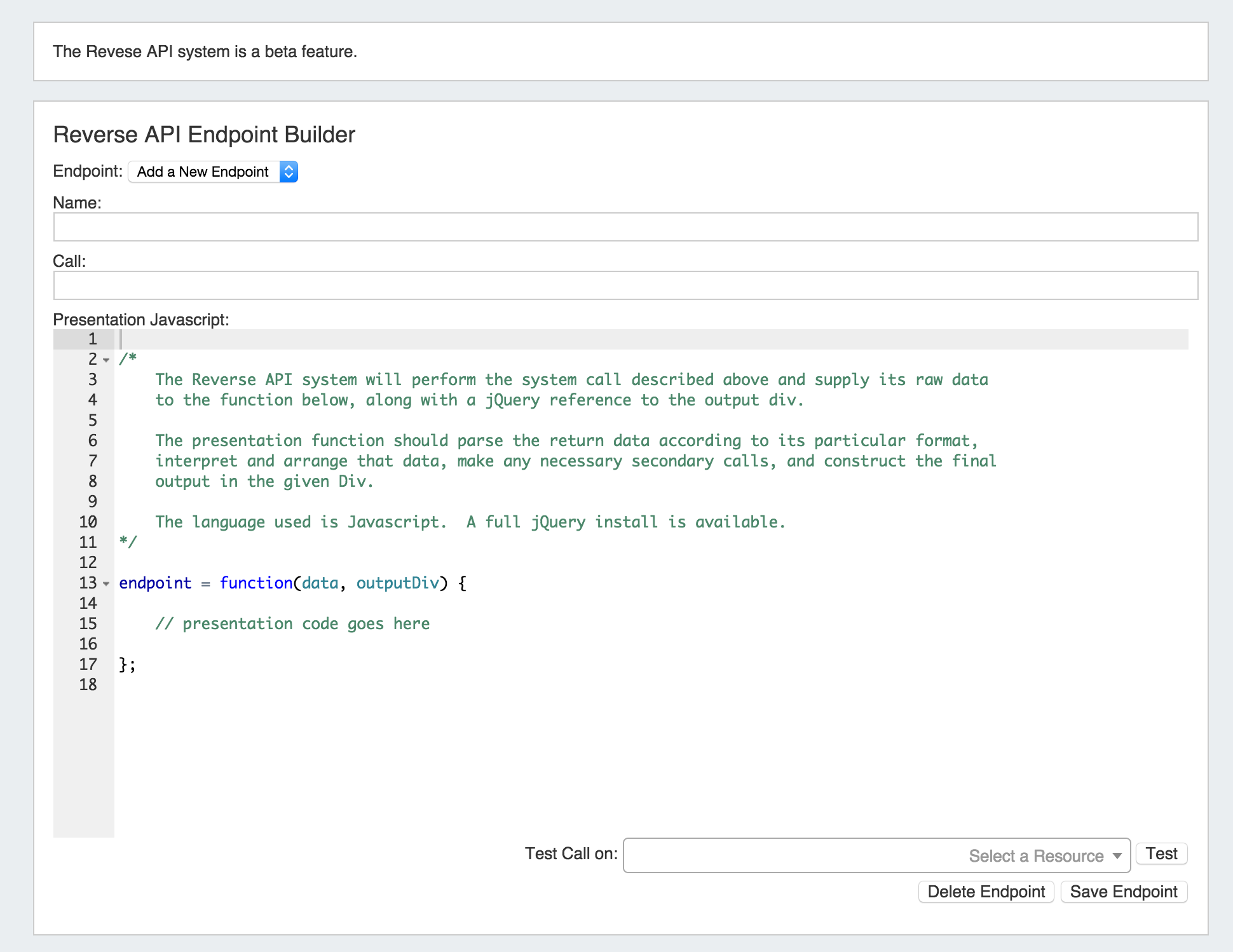
Add a New Endpoint
To add a new endpoint
1) Select "Add a New Endpoint" next to "Endpoint".

2) Type in the desired endpoint name and call

3) Review / Edit the presentation Javascript as desired for your output
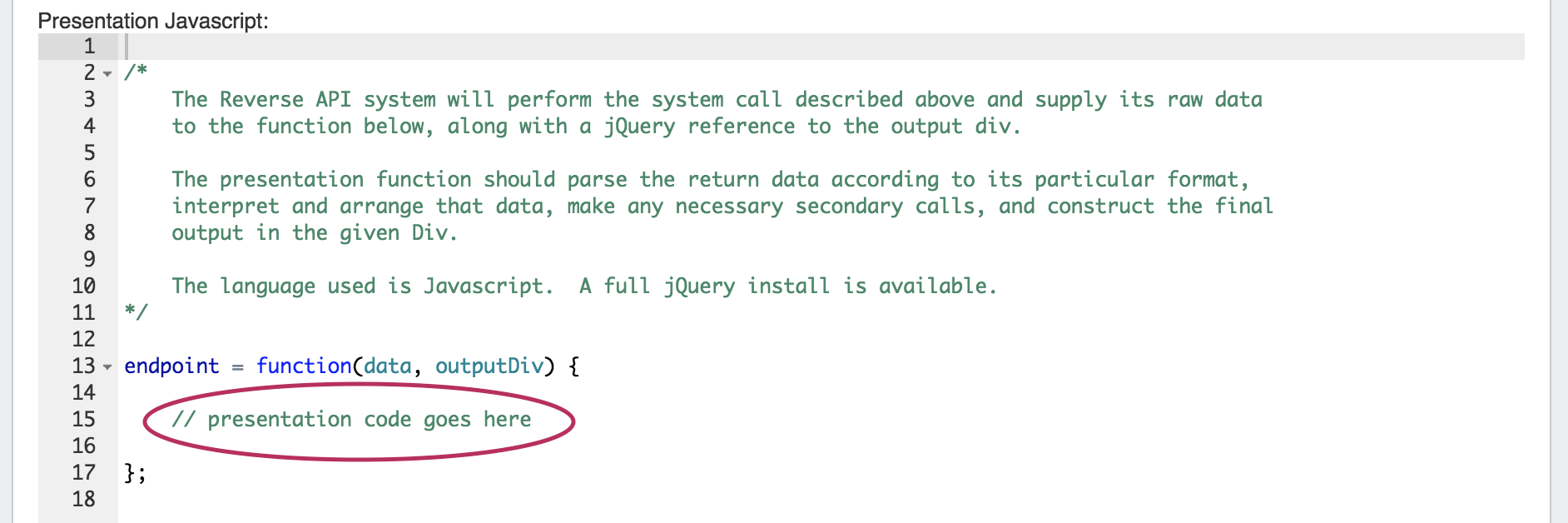
4) Save your new endpoint

5) Test the call on a selected Resource by selecting a Resource from the dropdown, then hitting the "Test" button.

Note: The selected Resource must have a Reverse API gadget enabled section! See Customizing Sections and Gadgets for information on enabling gadgets for a section.
Delete an Endpoint
1) Select the endpoint name next to "Endpoint".
2) At the bottom of the screen, click "Delete Endpoint"

Edit an Endpoint
1) Select the endpoint name next to "Endpoint".
4) Save the endpoint