
Overview
ProVision's Portable Gadgets are drop-in code snippets that use the ProVision API to bring in data to other systems or web pages. Portable Gadgets allow for quick data access and increased integration.
Currently, four Gadgets are available: Global Search, IPAM Search, DHCP Search, and Log. Each Gadget comes in various default option types for display style, number of records return, or behavior. Additional client-side style customizations may be made to further integrate the gadget with company styles.
Global Search
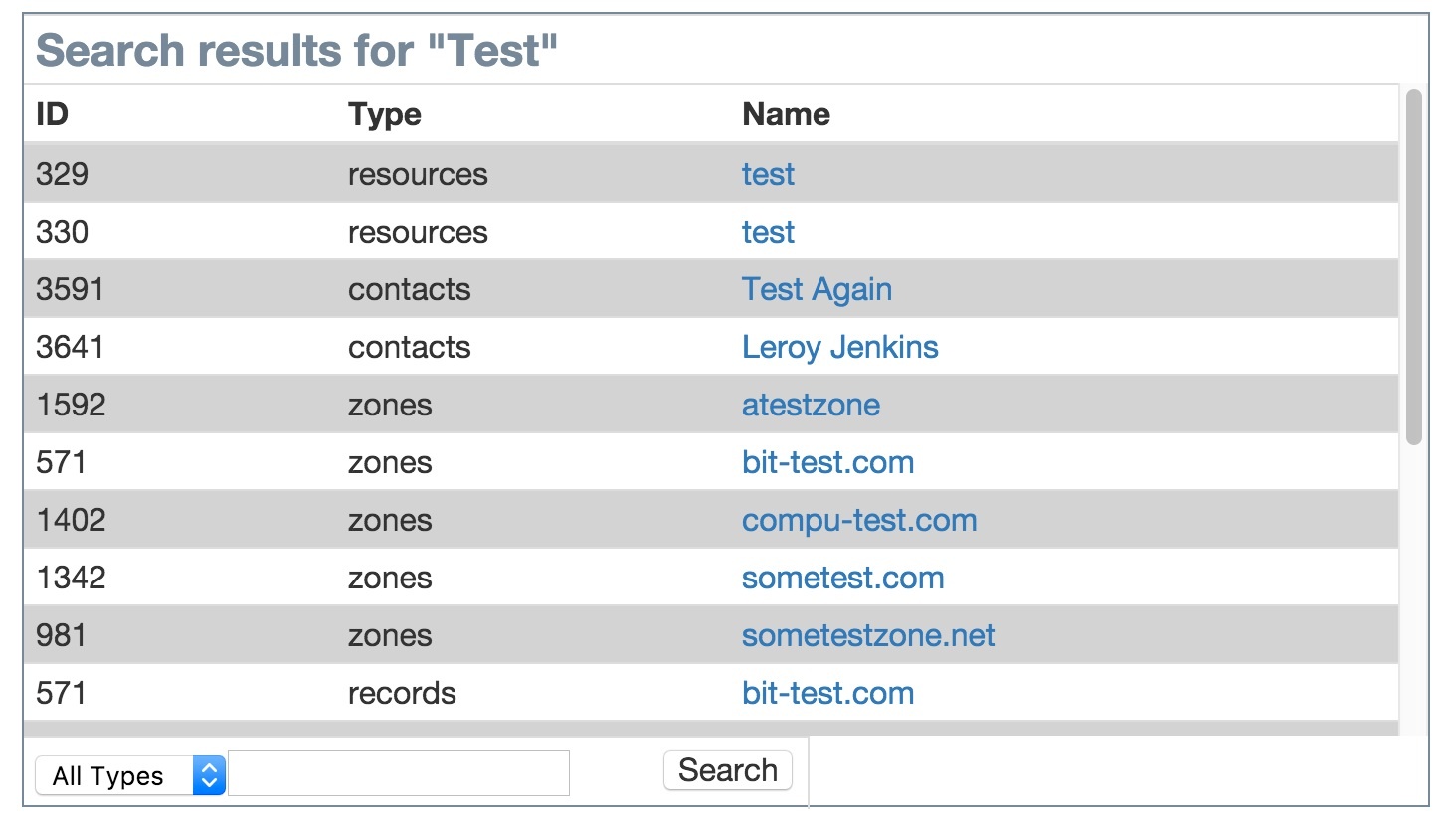
The Global Search Gadget utilizes ProVision's global search API to searching by name string and return ID, Type, and the Name. The search may be limited to specific types (IPAM, Resources, Zones, Records, Contacts, or All Types) if desired.
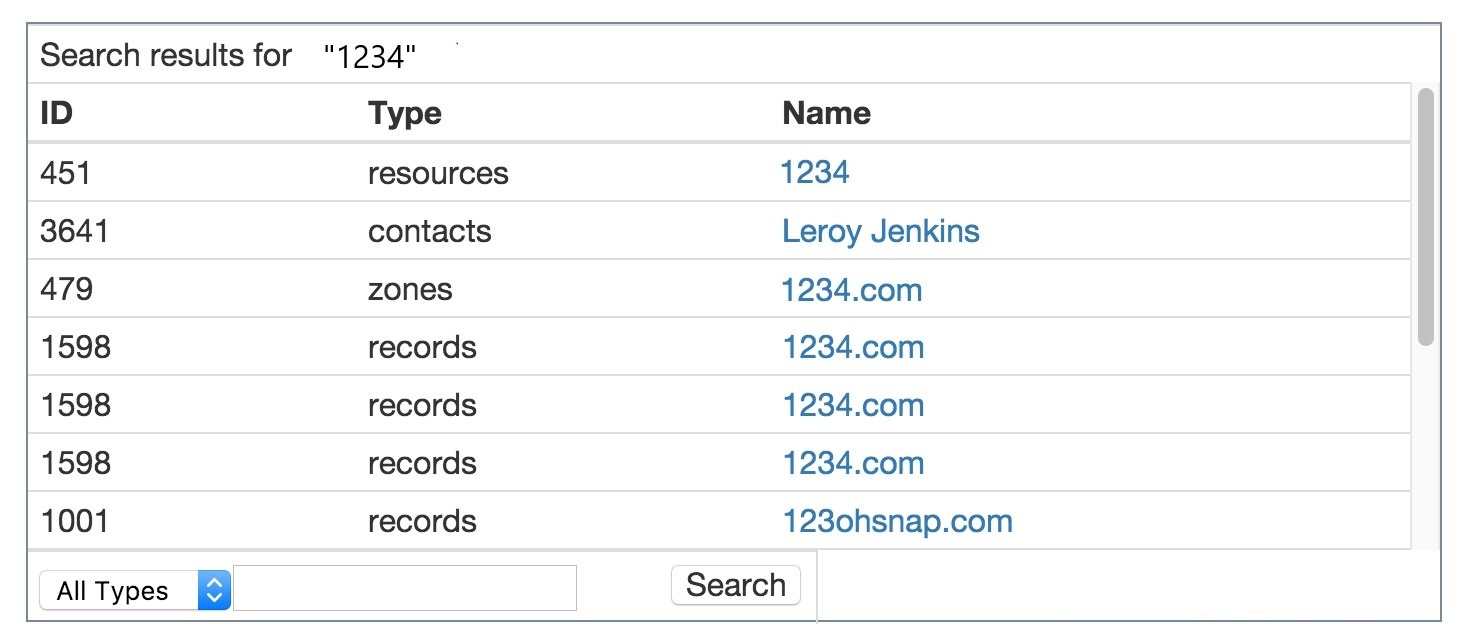
Global Search Option Types:
Global Search Type I
-
Returns 5 records per Type
-
Auto Width, height set to 300px
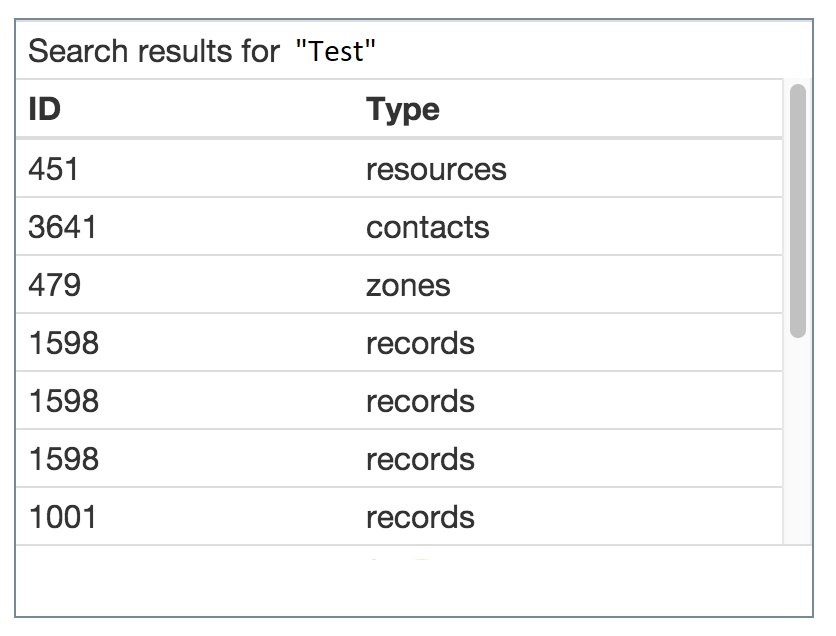
Global Search Type II
-
Returns 5 records per Type
-
No search input provided
-
Fixed size ( 400px wide x 300px high)
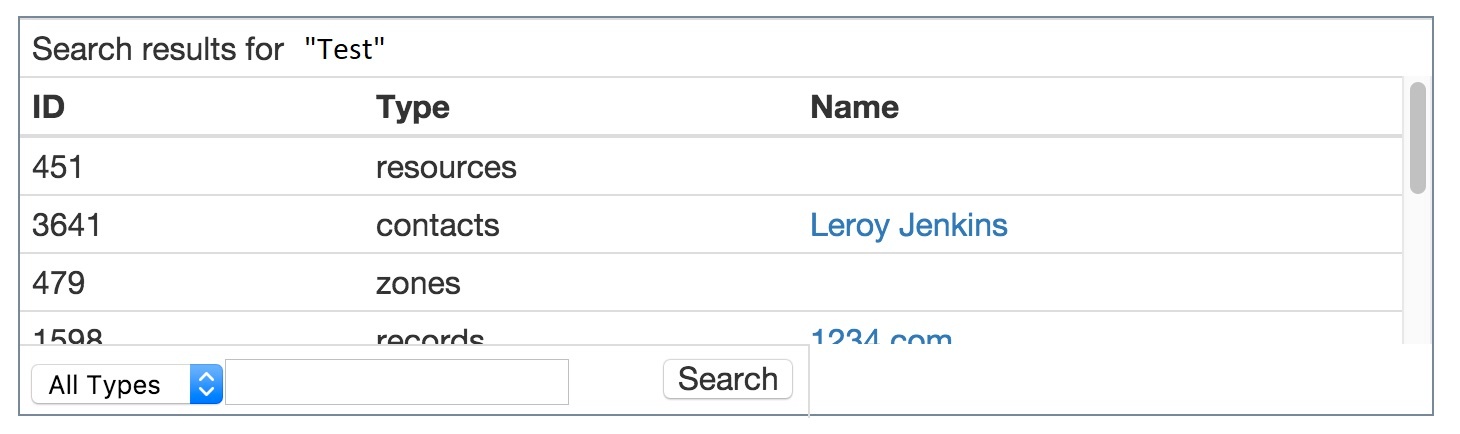
Global Search Type III
-
Returns 3 records per Type
-
Auto Width, height set to 200px
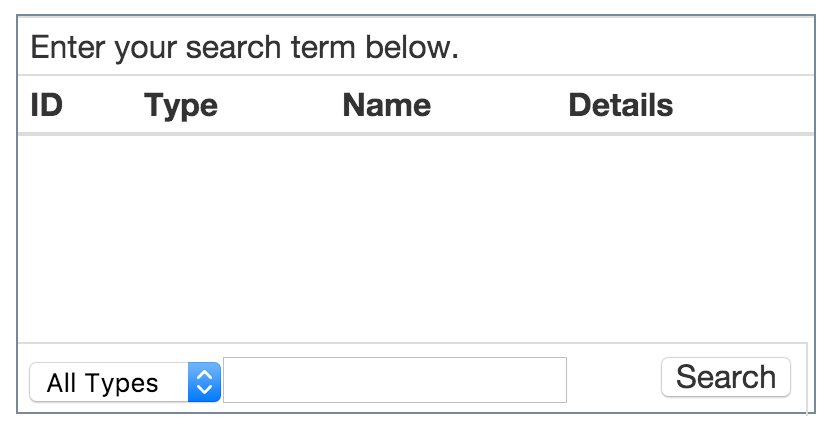
Global Search Type IV
-
No search on load
-
Links stay in current window
-
Fixed size (400px wide x 200px high)
Global Search Type V
-
Type I functionality restyled with CSS
IPAM Search
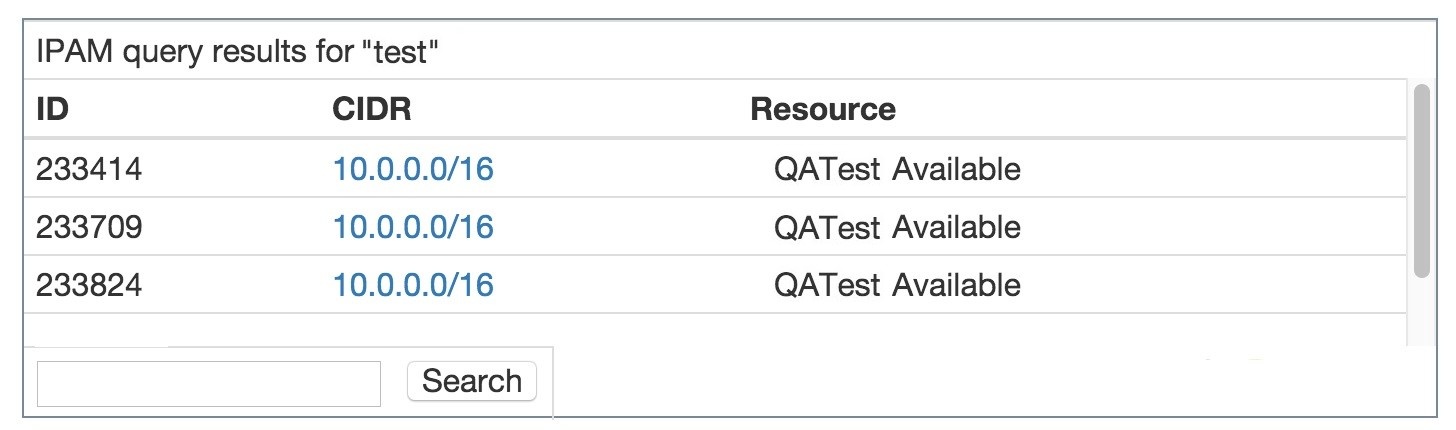
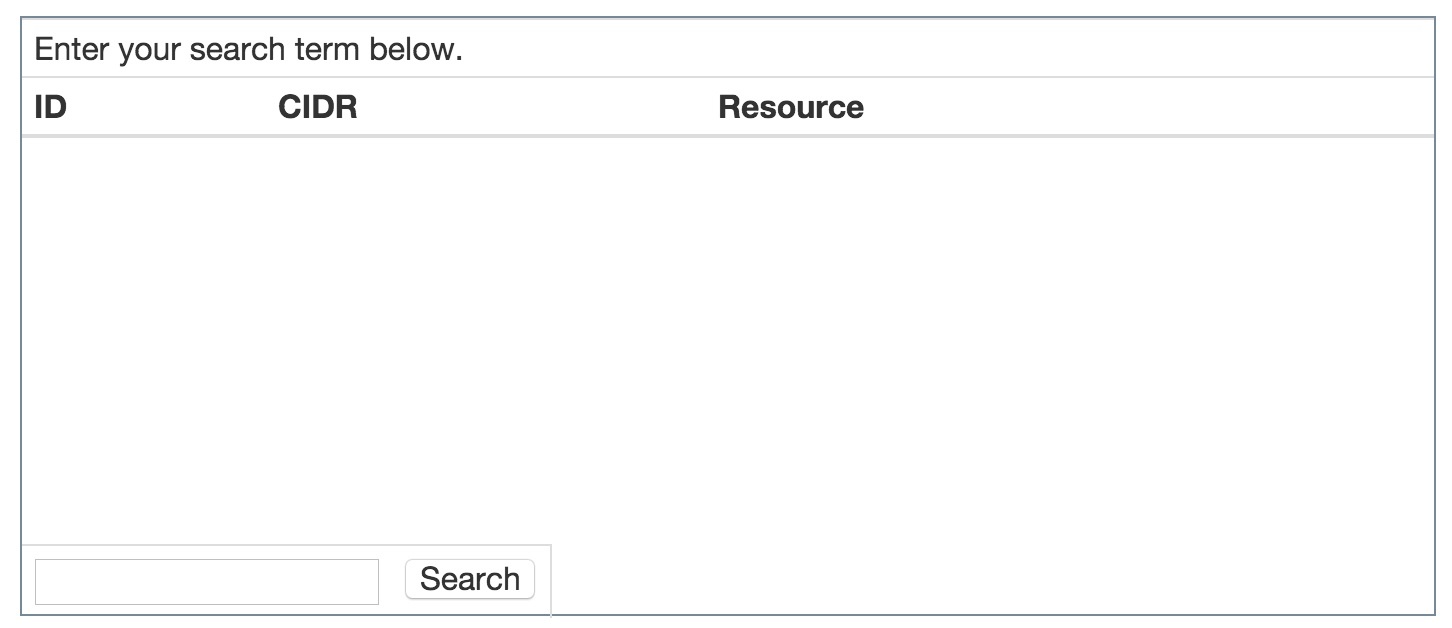
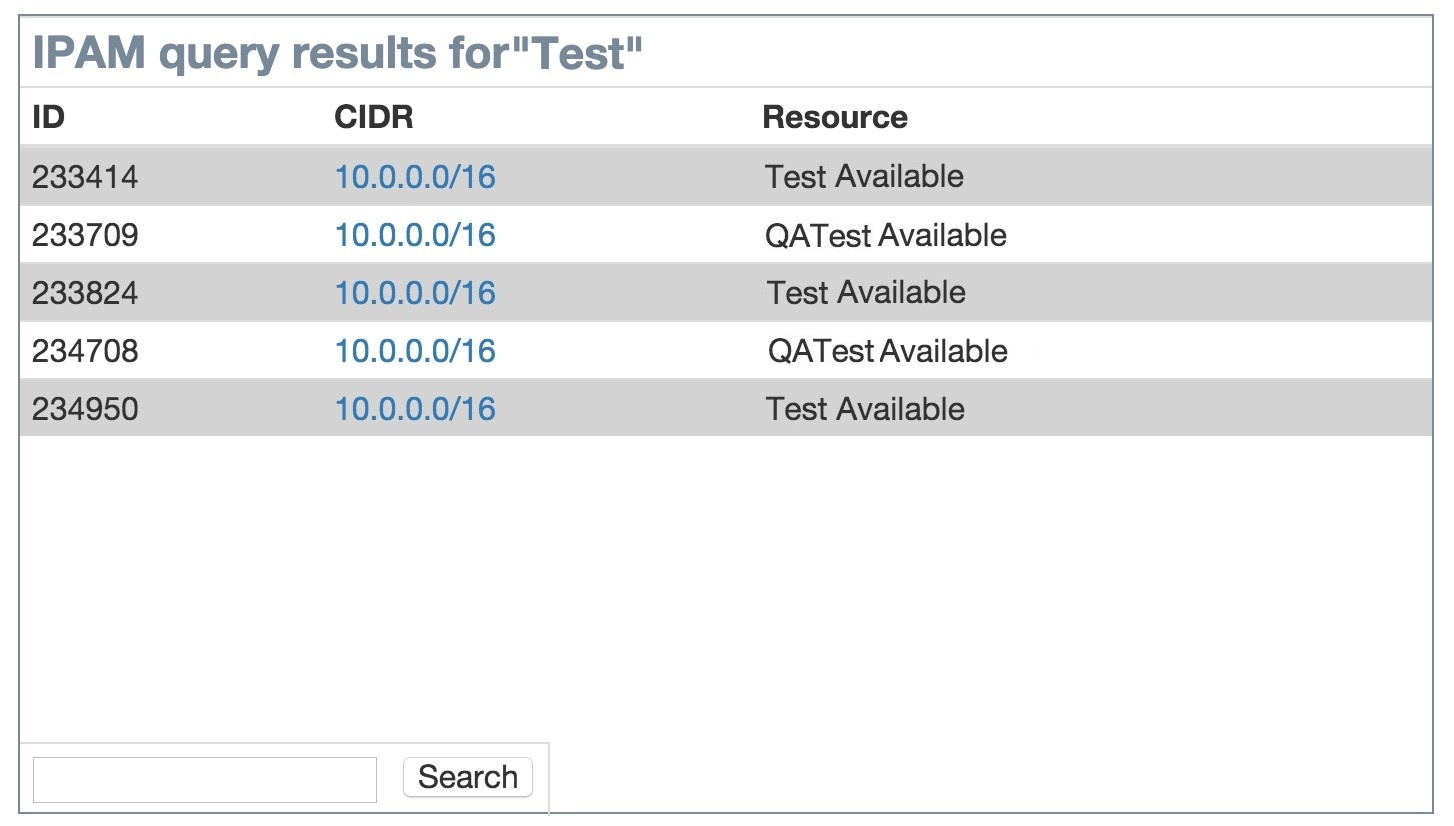
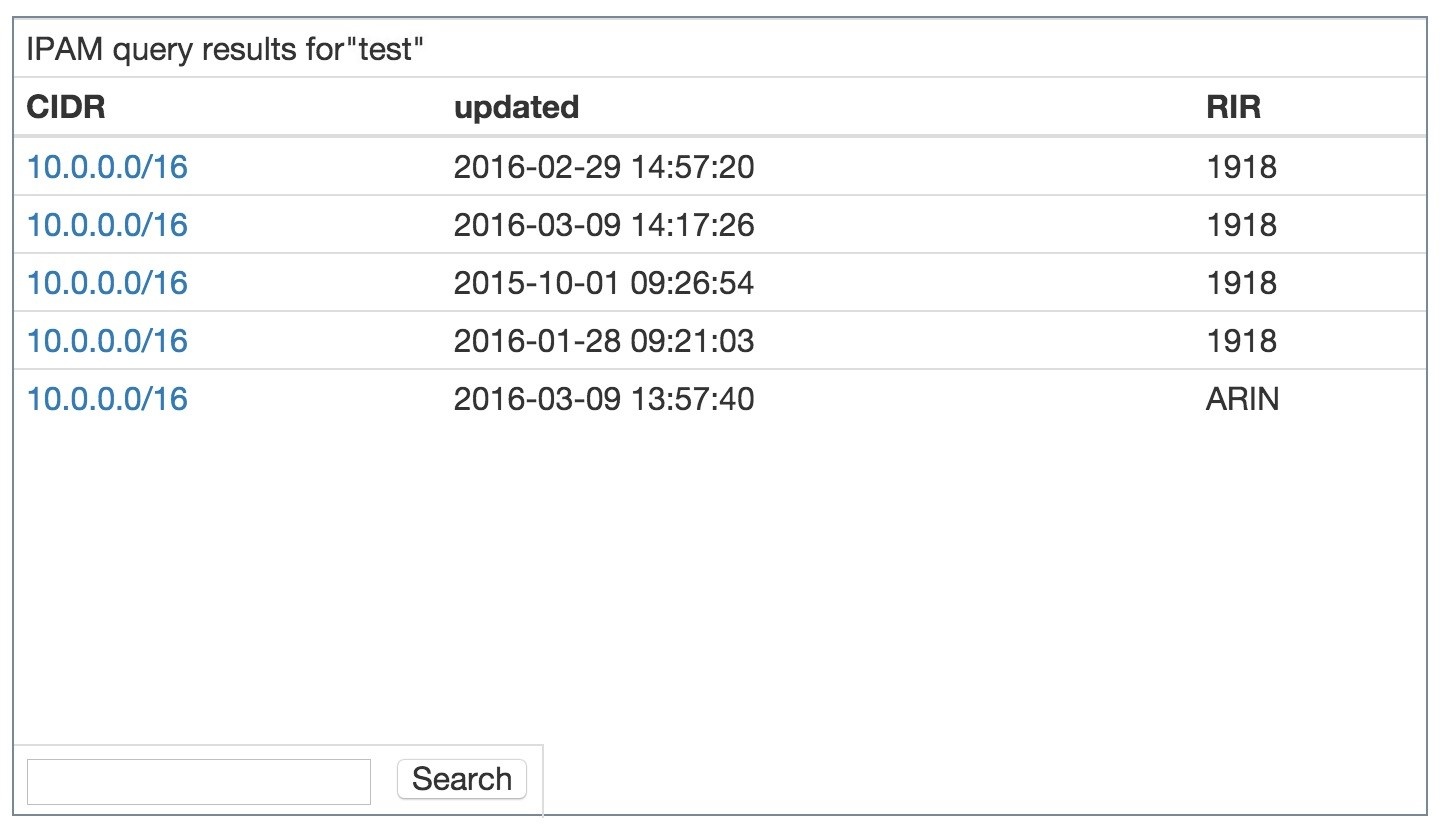
The IPAM Search Gadget utilizes ProVision's IPAM API to return ID, CIDR, and Resource Name results searching by an IPAM Resource name string.
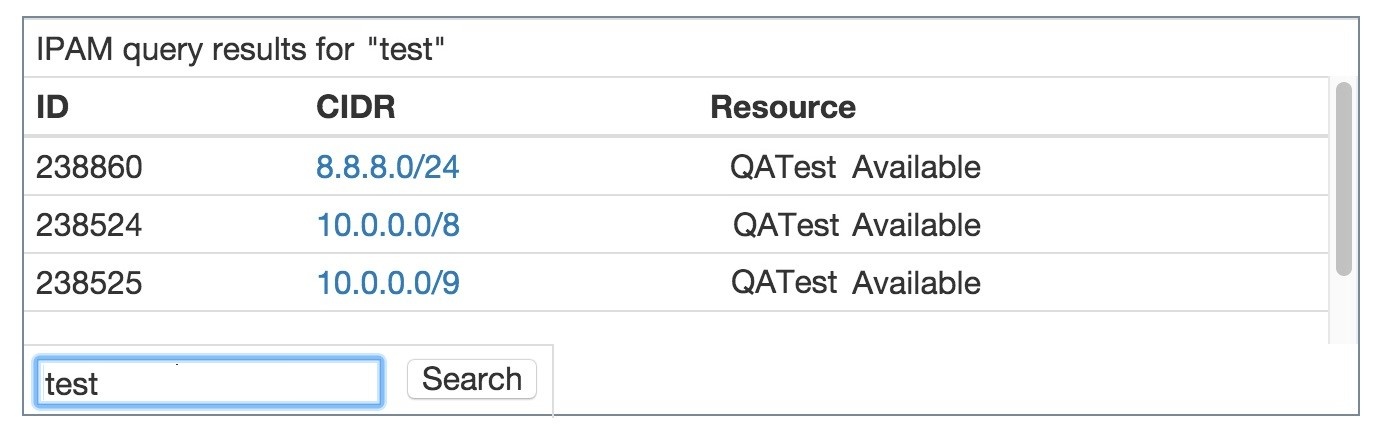
IPAM Option Types
IPAM Option Type I
-
Returns 5 records per Type
-
Auto Width, height set to 200px
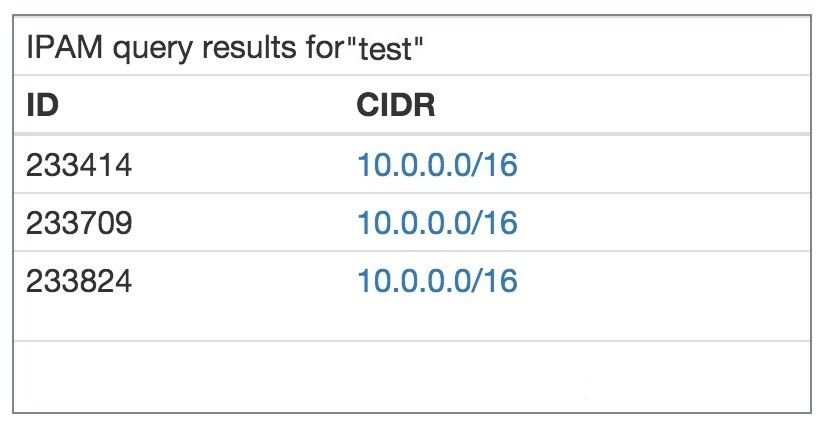
IPAM Option Type II
-
Returns 3 records per Type
-
No search input provided
-
Fixed size ( 400px wide x 200px high)
IPAM Option Type III
-
-
No search on load
-
Links stay in current window
-
Auto Width, height set to 300px
-
IPAM Option Type IV
-
Type I functionality restyled with CSS
-
Auto Width, height set to 400px
IPAM Option Type V
-
Customizable Fields
-
Auto Width, height set to 300px
DHCP Search
The DHCP Search Gadget utilizes ProVision's DHCP API to return results of varying types when searching for a name string. The search may be limited to specific types if desired.
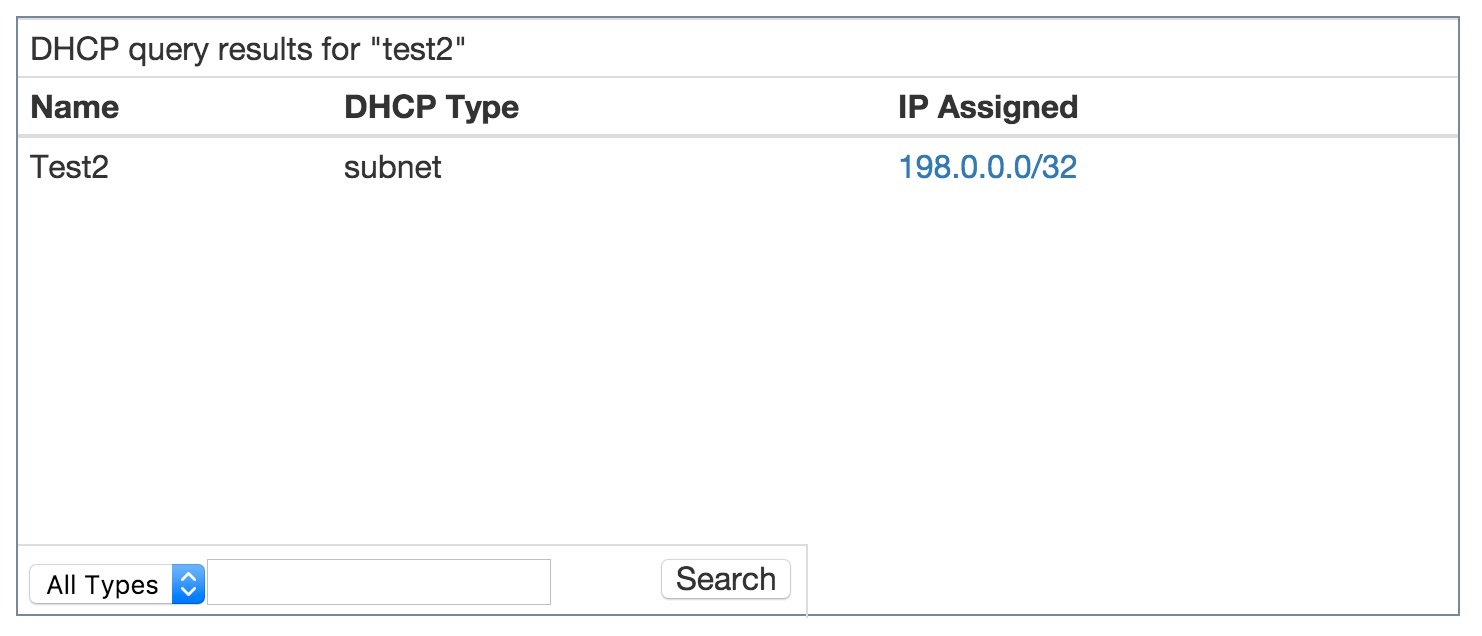
DHCP Option Types:
DHCP Option Type I
-
Returns 5 records per Type
-
Auto Width, height set to 300px
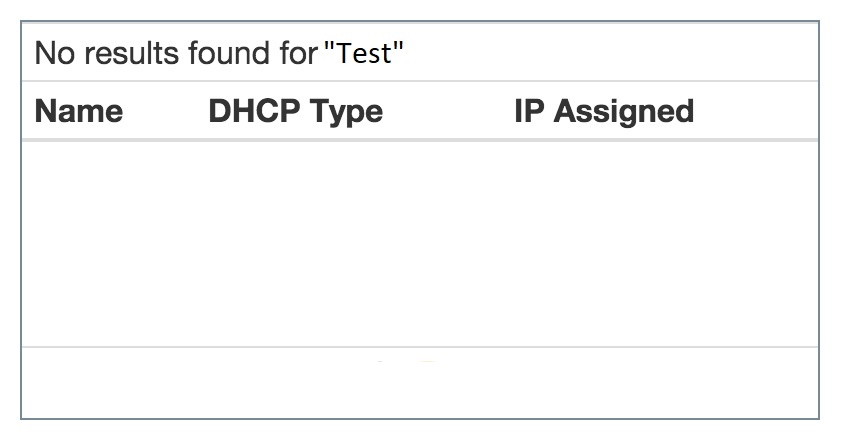
DHCP Option Type II
-
Returns 3 records per Type
-
No search input provided
-
Fixed size ( 400px wide x 200px high)
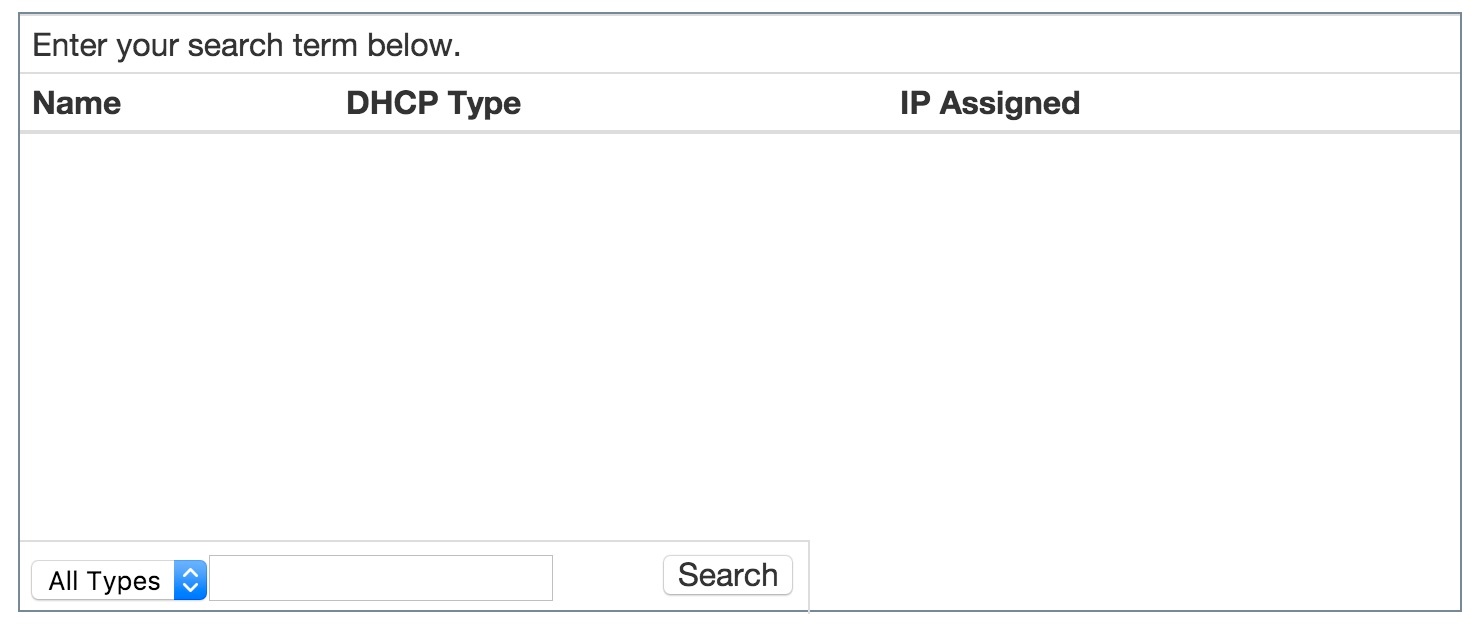
DHCP Option Type III
-
No search on load
-
Links stay in current window
-
Returns 5 records per Type
-
Auto Width, height set to 300px
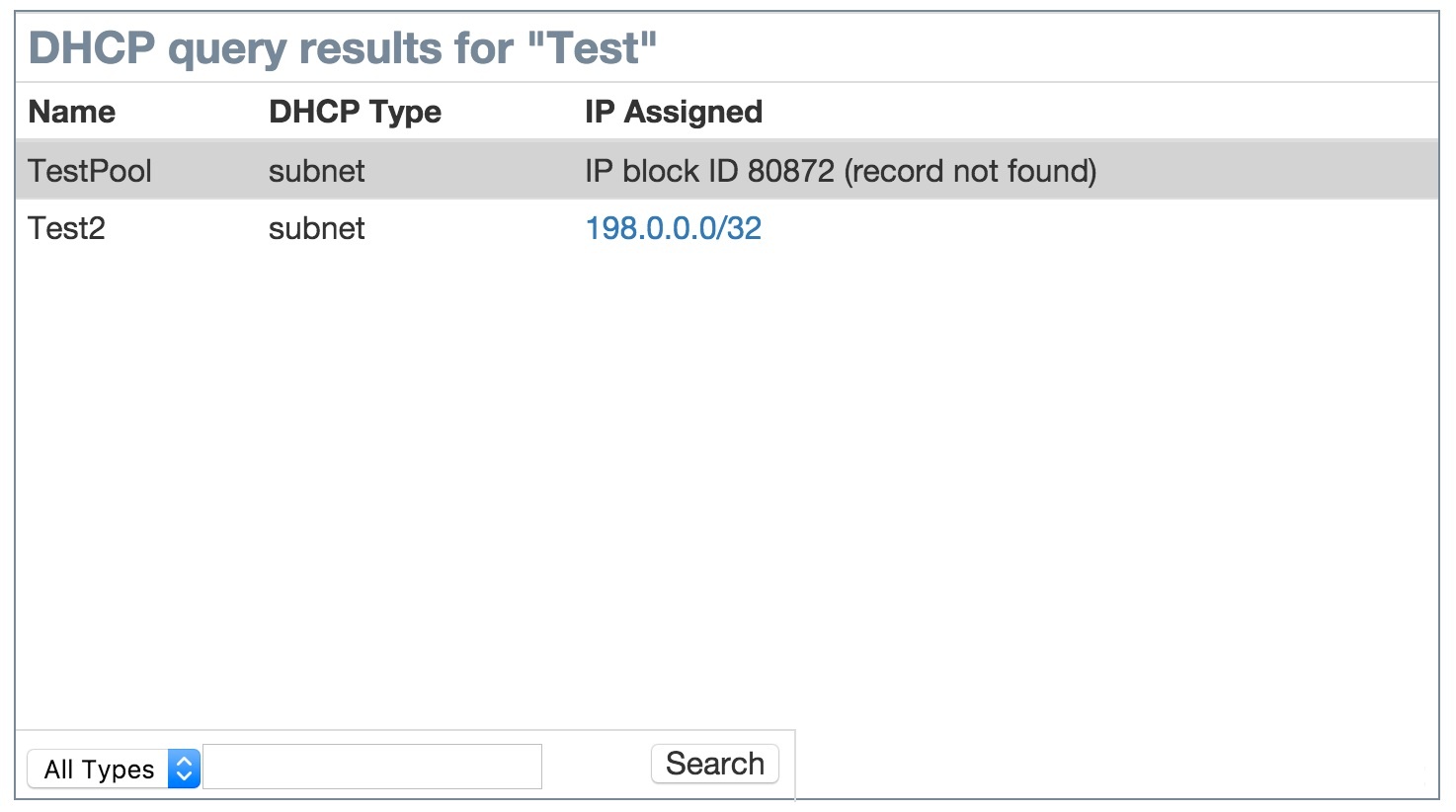
DHCP Option Type IV
-
Type I functionality restyled with CSS
-
Returns 5 records per Type
-
Auto Width, height set to 300px
Log:
The Log Gadget provides detailed information on actions performed in ProVision. Actions may be filtered by Level, Category, Log ID, User, and Time (specific or a range), as well as results-per-page option set. Additional filtering options allow targeting of specific log entries.
Clicking on the blue arrow at the beginning of each log entry shows additional details about that log item.
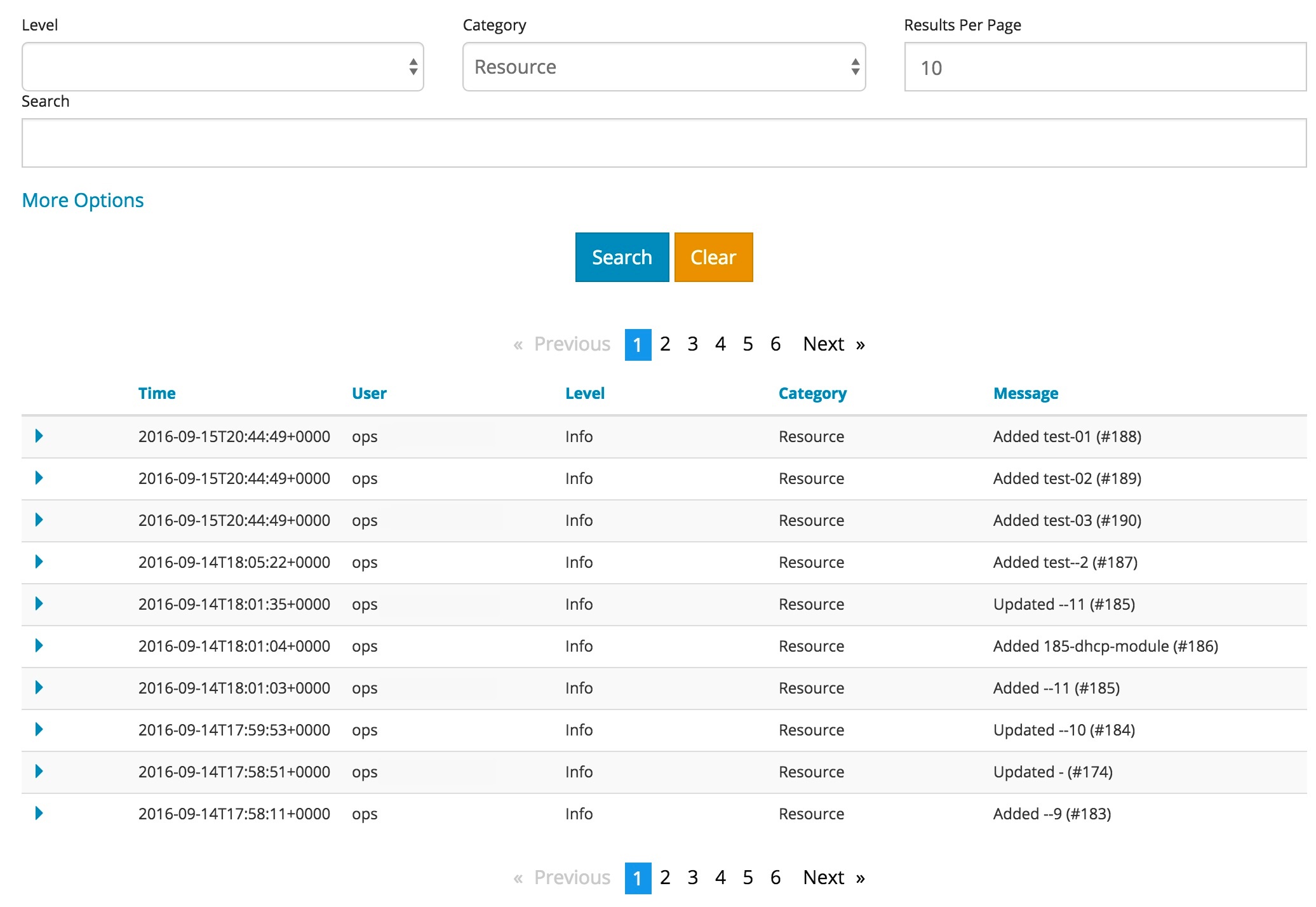
The following filters and options are available:
-
Level: Under the "Level" dropdown box, select "All Levels", "Emergency", "Alert", "Critical", "Error", "Warning", "Notice", "Info", or "Debug".
-
Category: Under the "Category" dropdown box, select "All Categories", "User", "IPAM", "Resource", "Resource Holder", "DNS", "Peering", "Assistant", "API", "NTP", "Device", or "Reporting".
-
Results per page: In the "Results per page" text box, type the desired number of log entries to see per page. By default, this value is set to 100.
-
Search: Type a search string, such as the name of a resource, then click the "Search" button.
More Options:
Additional detailed filter and search options are available under the "More Options" link.
-
Log ID: Retrieve a specific log entry from its log_id parameter.
-
IP: Search by IP of the machine that created the event in the log.
-
Username: Filter logs by ProVision username, or by "Unknown" user.
-
Time: Filter log entries by exact time created. Must be in datetime format (2016-08-14 16:41:18).
-
Time Minimum: The earliest day and time of log entries to show in results. Must be in datetime format (2016-08-14 16:41:18).
-
Time Maximum: The latest day and time of log entries to show in results. Must be in datetime format (2016-08-14 16:41:18).
Additional Information: