
Common Icons
While working in ProVision, you will come across a number of icons regularly used to denote status, or with which you can interact to perform tasks. Here is a brief legend to help orient you to the most common icons you'll encounter.
Interactive Icons:

The Action Menu is used throughout ProVision to perform actions on individual items. Clicking on the wrench will bring up a menu of tasks specific to that item, such as "Edit", "View", "Delete", "Reassign", and so on.

Clicking on the Add button will open a menu to add a new entry to the page, such as adding an aggregate or adding a zone.


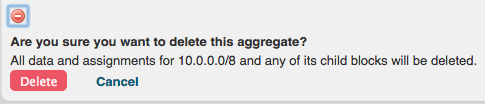
In its interactive state, the red "No Entry" button may be used in ProVision to delete an entry. Clicking on the button will expand a menu with delete confirmation options.
Status Icons:

The green check indicates a successful result or enabled option. In Peering, it indicates that the entry is a current Peer.

Indicates an unsuccessful result followed by a description.

In Peering, the red "No Entry" status indicates a peer that has been marked "Not Qualified".