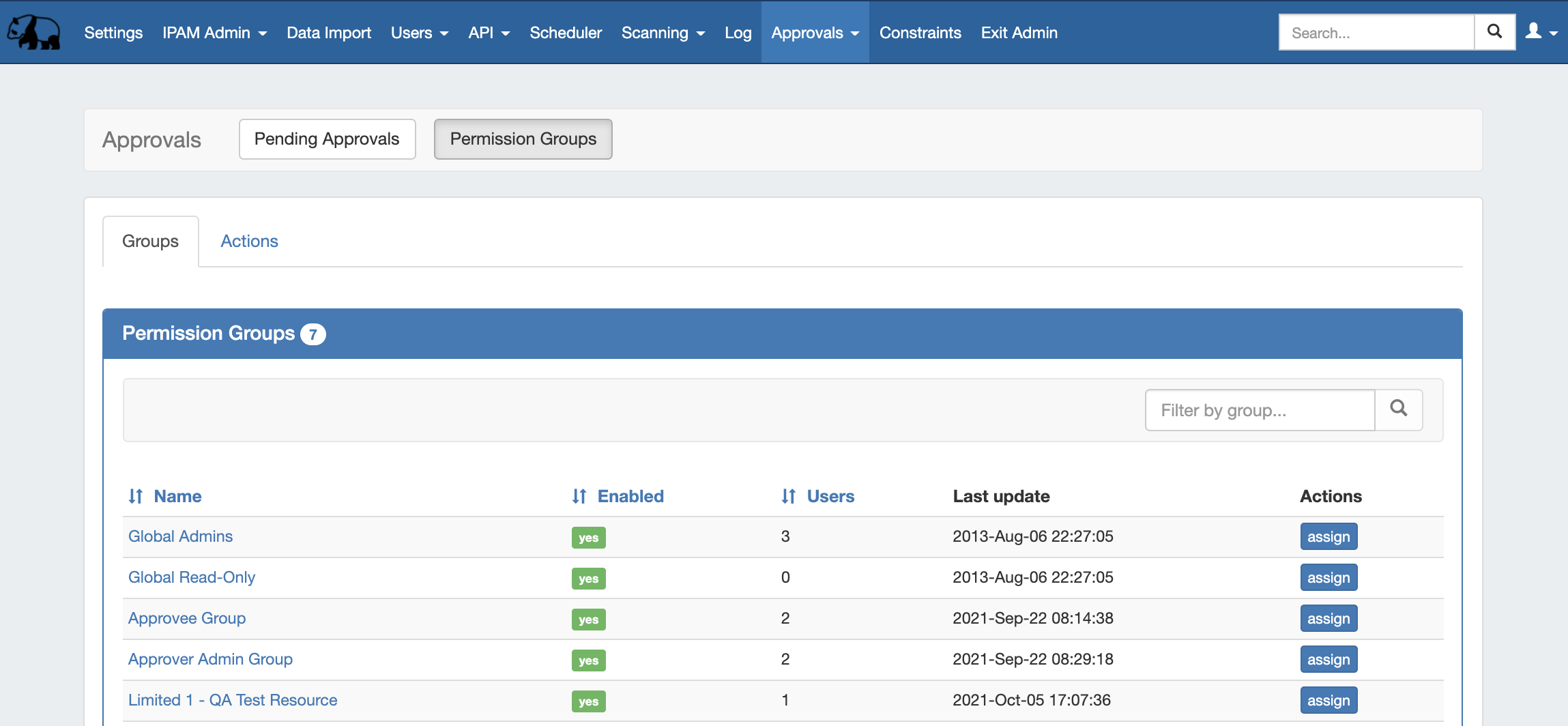
The Approvals Tab Permission Groups subtab is where admins may view and manage assignments, actions, and settings for Approvals permission groups.
Permission Groups Overview
The Permission Groups sub-tab contains areas to manage a User Group's level of approval permissions ("Policy"), and on what actions they apply. By default, all existing User Groups are displayed under Approvals - Permission Groups. However, you may assign Approval policies to few or as many of the groups as you want.
There are two tabs available under Permission Groups - Groups and Actions. Both tabs provide similar levels of functionality to view and assign policies, but they differ in organization.
Use the Groups tab view if you want to:
-
Assign a policy to a specific group that includes multiple action types
-
View, edit, or remove the policies associated with any or all action types for a group
-
Enable/disable a group's Notification setting
Use the Actions tab view if you want to:
-
View how many or what groups are assigned policies for a specific action type
-
Want to confirm that an action type has group assignments covering both the "Submit" and "Approve" policies
-
View, edit, or remove policies associated with a specific action family or action type
-
Assign a single policy to a one or more groups for a specific family-action type
Before using the functions available from the Permission Groups page, you may wish to review the Approvals documentation page for information on best practices for setting up User Groups for use with Approvals, policy definitions, and workflows.
Permission Groups - Groups Tab
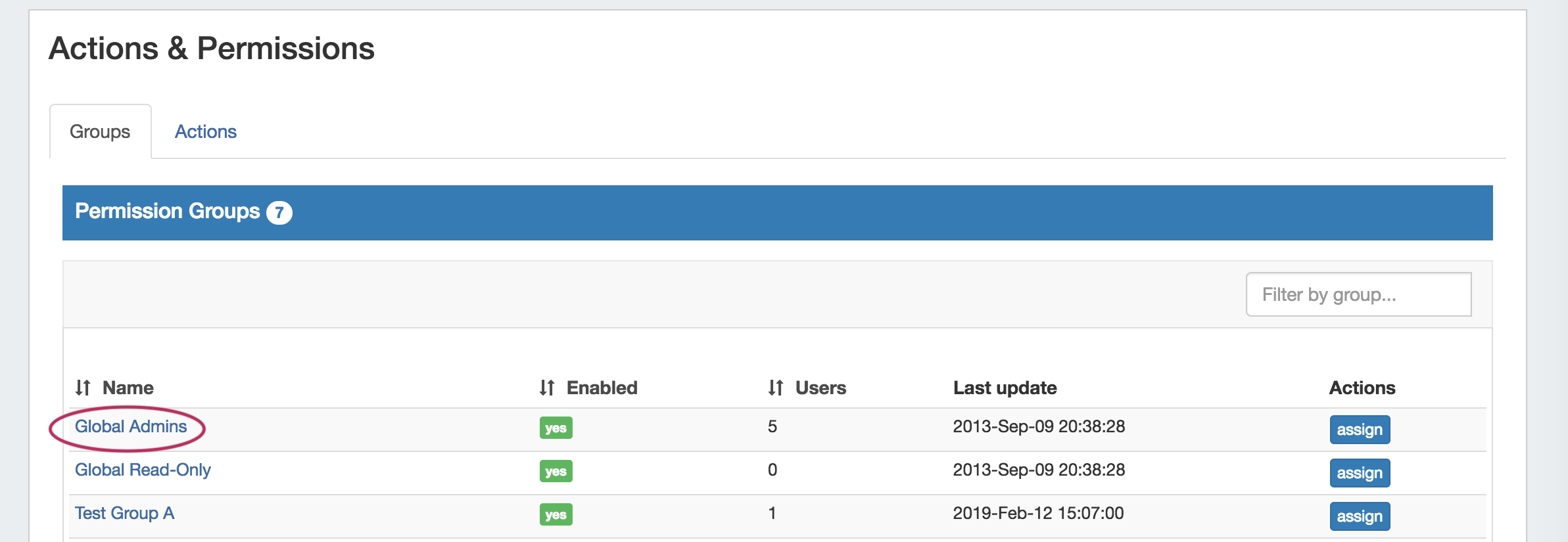
Under Permission Groups, the Groups tab lists each User Group with details on the status, number of users, and last updated time.
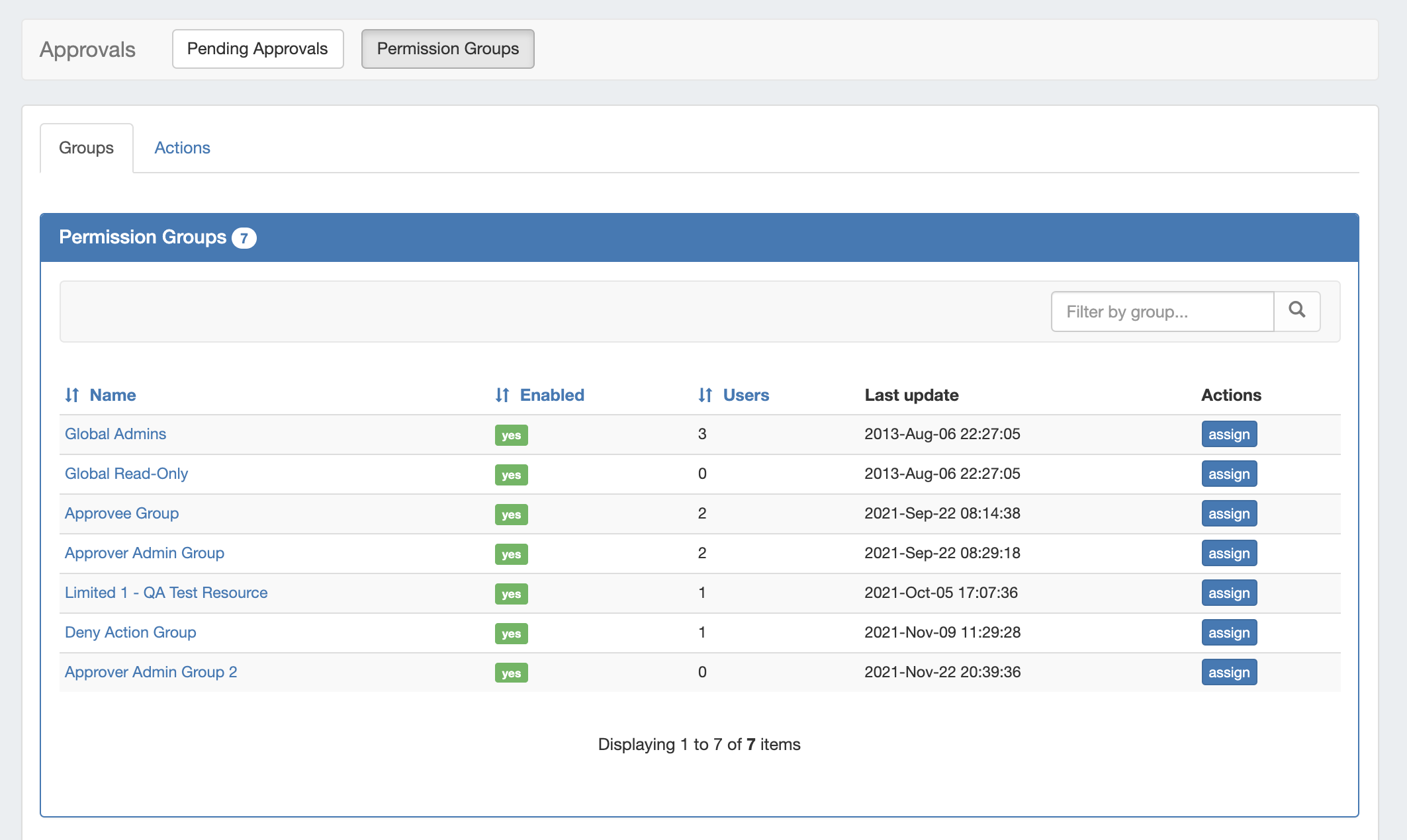
From here, you may Sort or Filter the Group List, assign action policies to the Group, or view/edit existing settings by clicking on the Group Name to open the Group Details page.
Sort or Filter the Group List
Sort or Filter the Group List
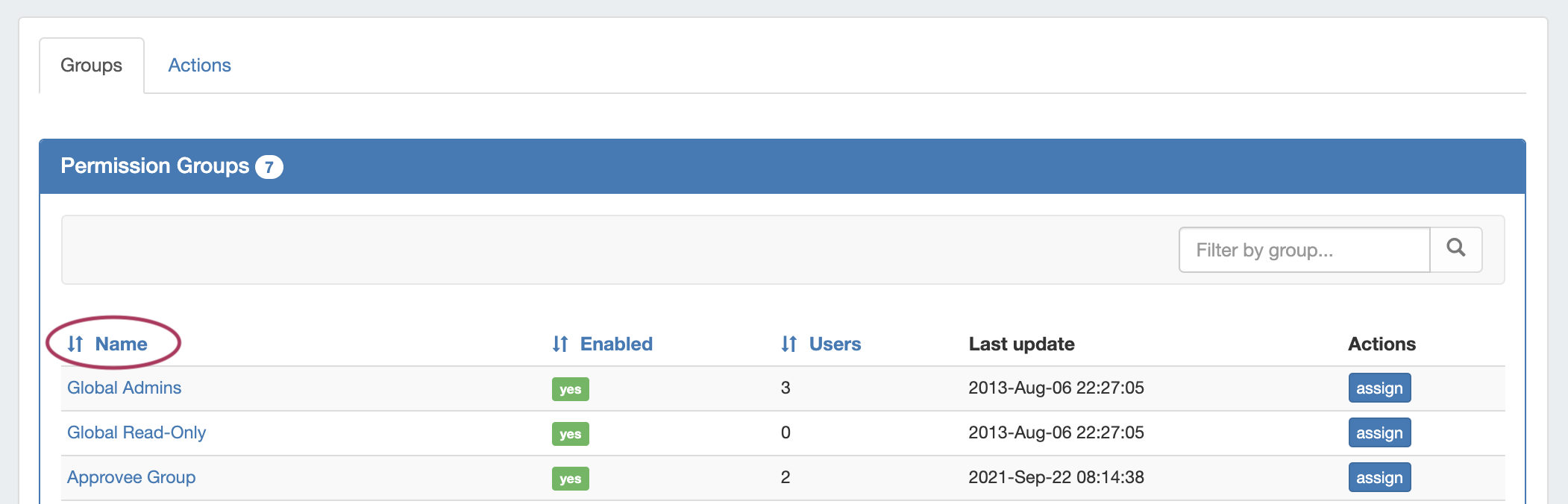
Sort the Permission Groups list by Name, Enabled, or Users by clicking on the column name.
To Filter the list, type all or part of the group name into the "Filter by Group" box, and the list will automatically narrow to show results.
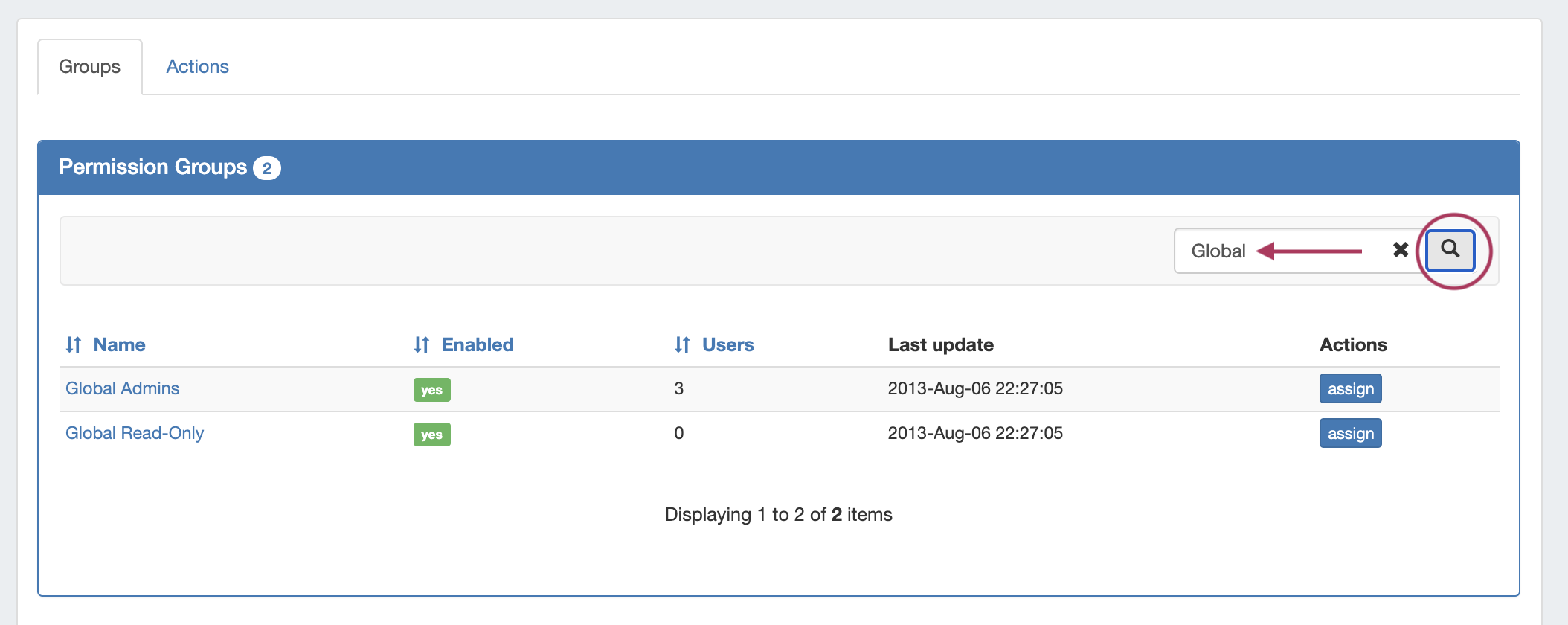
Group Details Page
Group Details Page
From the list of Permission Groups, click on a Group name to bring up the permission details for that Group.
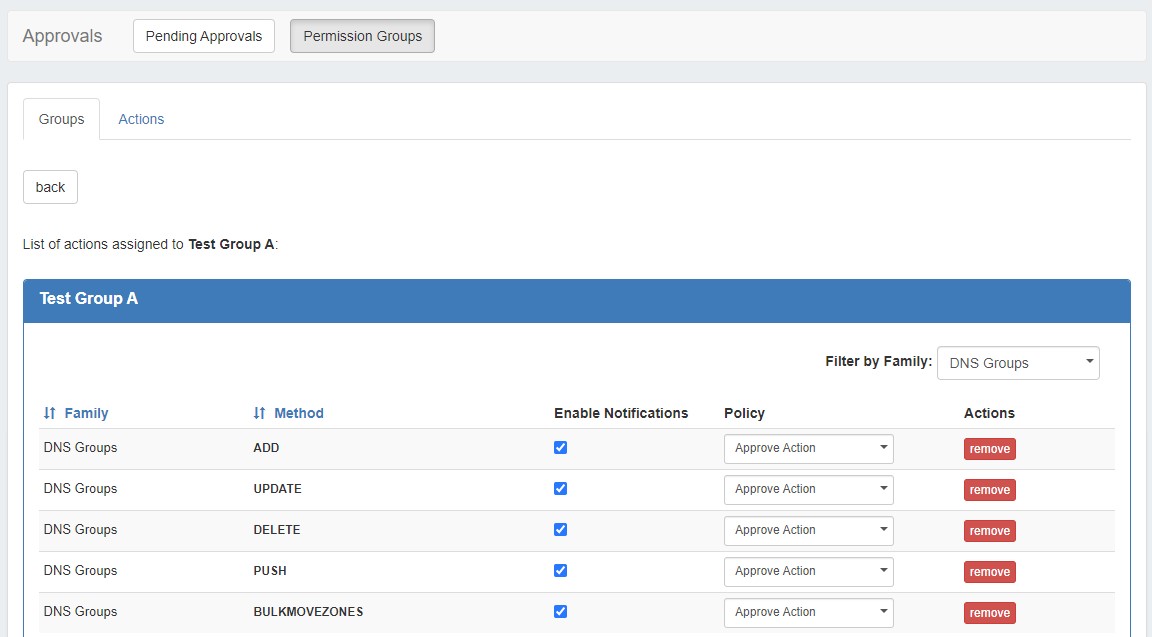
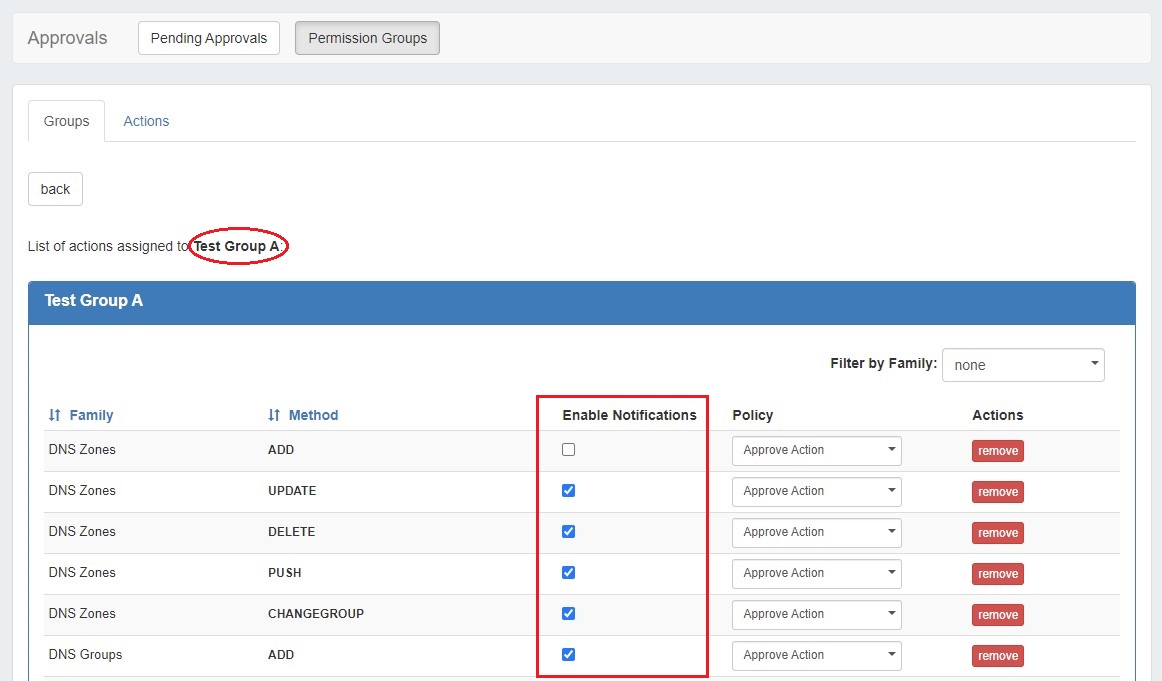
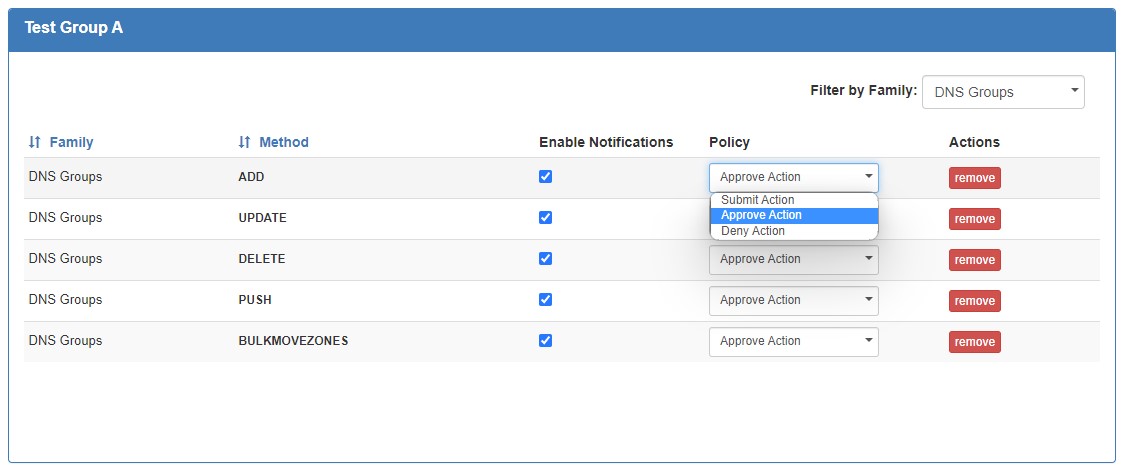
Here, you may view, edit, or remove current policy assignments, and enable/disable notification emails for each action type. The list of assigned actions for the group may be sorted by Family or Method, and filtered by Family (here: "DNS Groups").
Group Assignment (Assign Button)
Group Assignment (Assign Button)
Clicking the "Assign" button for a group brings up a checklist to select one or more actions to apply a policy to for that Group.
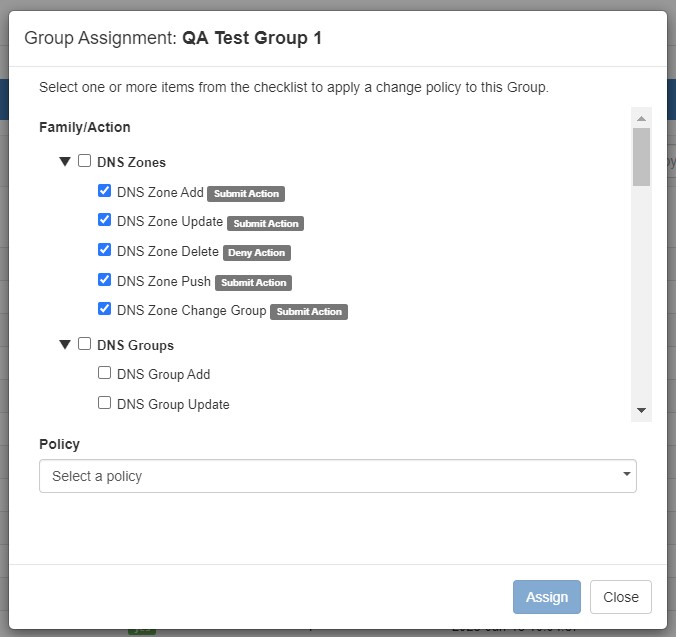
Select a policy, select one or more Family/Actions to apply the policy to, and then click "Assign".
If there are policies already assigned to a group, these checkboxes are preselected and the policy assigned to each is shown next to the action. To change a policy for a specific action, choose a new policy from the dropdown.
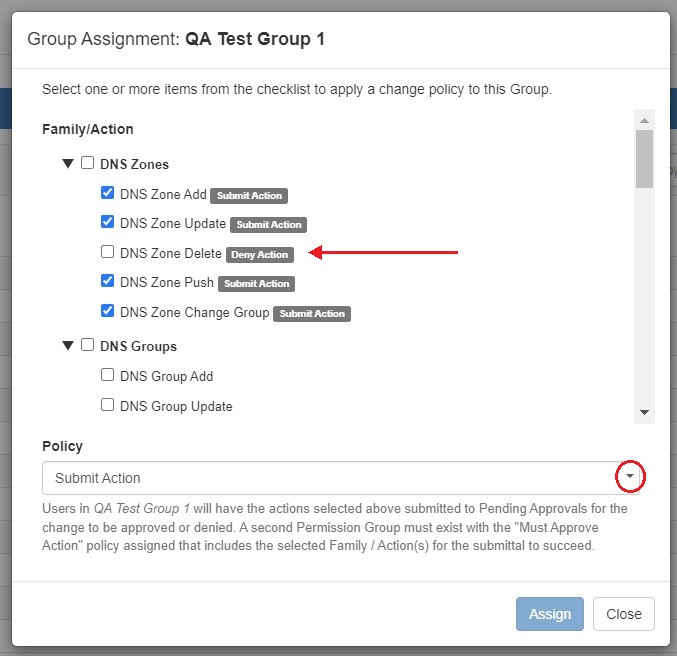
This will deselect the checkbox next to the action, allowing it to be selected again.
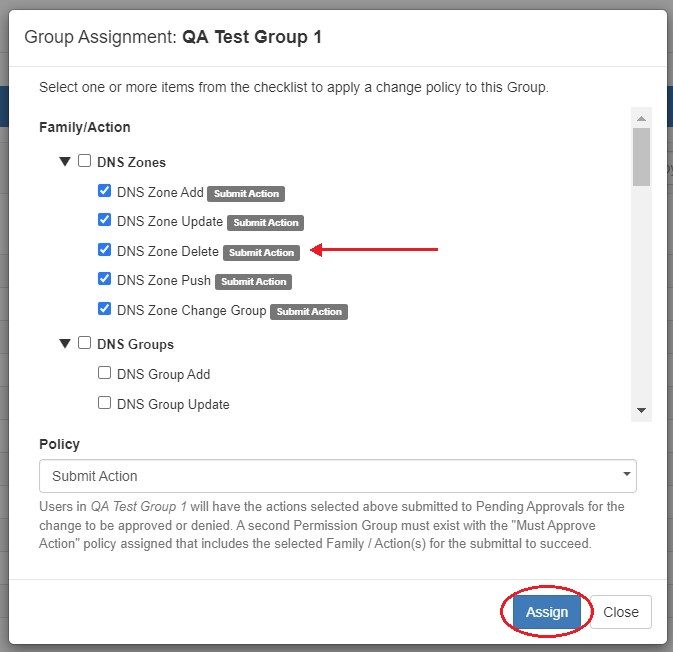
Click "Assign" to save the policy change.
Permission Groups - Actions Tab
The Actions Tab lists the group permissions organized by Family/Action type.
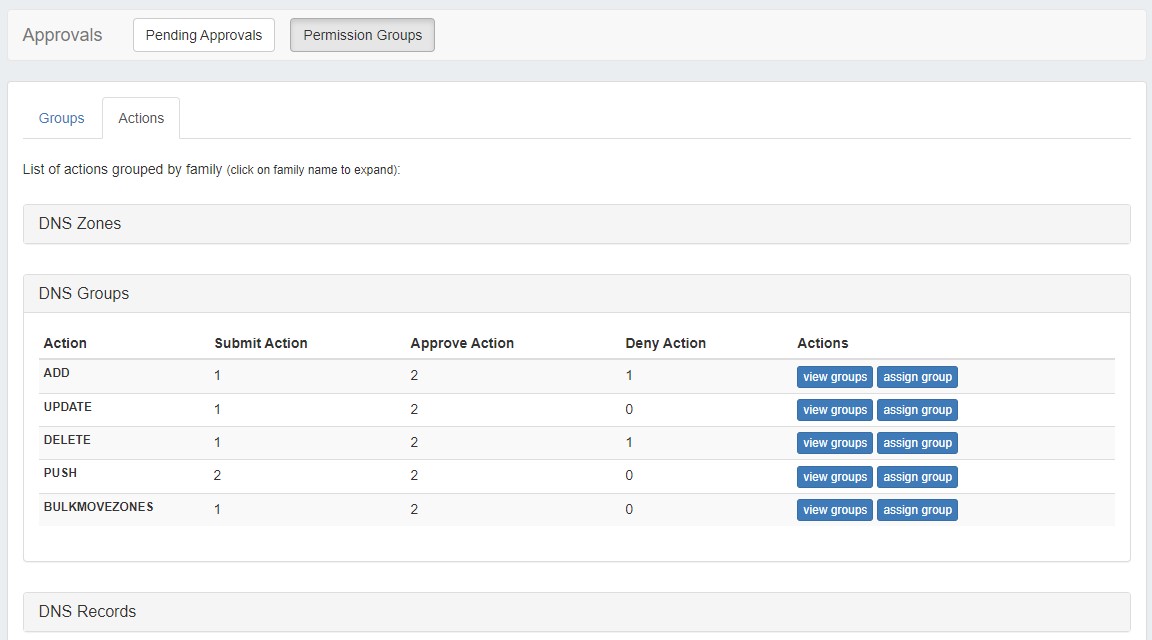
Expanding a Family shows the available actions - to view groups, or assign the group to an approval policy - as well as a matrix of how many groups are assigned under each policy.
Actions - View Groups Page
Actions - View Groups Page
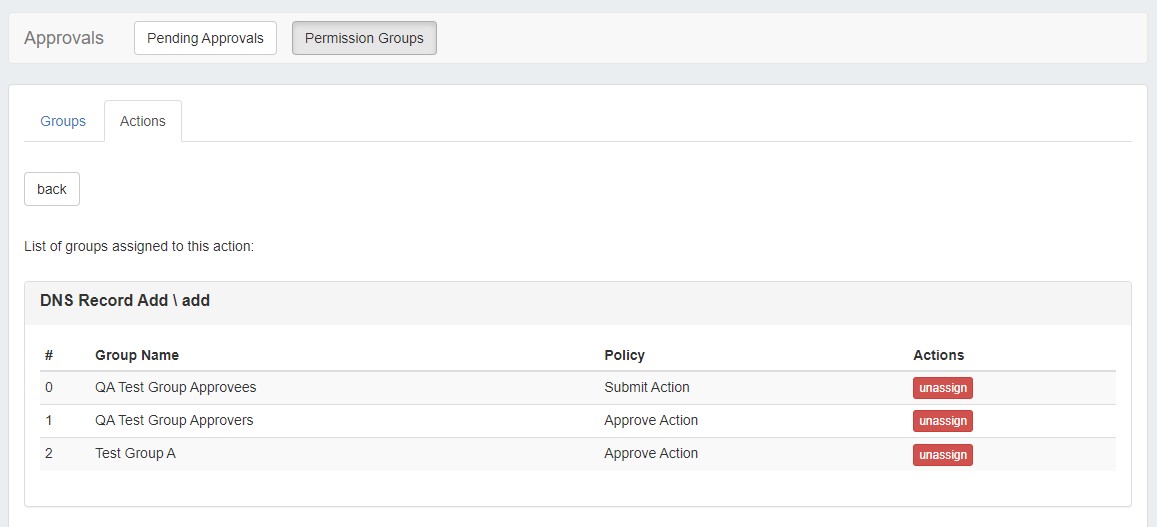
Clicking the "View Groups" button from the Actions tab shows the list of each group assigned to that action, with the option to unassign a group from that action.
Actions - Assign Groups
Actions - Assign Groups
The "Assign Group" button on the Actions tab lets you assign a Group and Policy to that action.
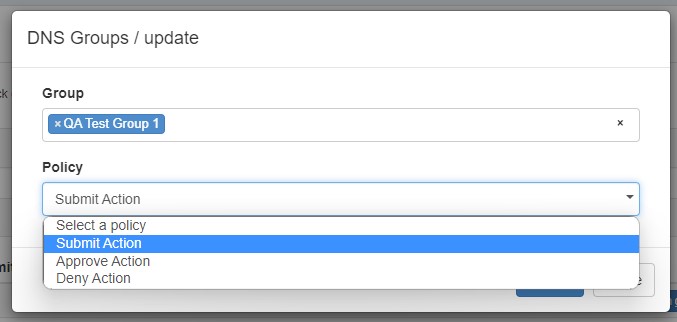
This performs the same function as the earlier assignment window, but is organized to only assign a single group/policy to that action, instead of assigning multiple actions to a group.
Working With Approval Permission Groups
View/Edit Existing Assignments
Viewing and editing existing assignments may be done from either the Groups tab or the Actions tab:
View/Edit from Groups Tab
To view details for a permission group, click on the Group Name from the Permission Groups list.
The Group Details page will open, displaying all Family-Action types currently assigned to the Group
Click on the "Policy" dropdown to select a different policy to apply for the action, or click the "Remove" button to remove the policy assignment completely. Changes will be automatically applied and saved.
View/Edit from Actions Tab
You may also view or edit current assignments as organized by action, from the Actions Tab.
On the Actions page, expand a Family to view the actions under each family, and how many Groups are assigned for each policy.
Click "View Groups" to view the groups assigned for each action. To remove the policy / group assignment for the action, click "Unassign".
Assign a new Permission Group policy
Three policy settings are available to assign to a Group / Action:
-
Submit Action: Users in the group will have the selected actions submitted to Pending Approvals for the change to be approved or denied. A second Permission Group must exist with the "Approve Action" policy assigned to the same action for the submittal to succeed.
-
Approve Action: A User in the group must approve or deny change requests submitted for the selected Family / Action(s), for any Group requiring "Submit Action" for the same action(s) in order for the change to execute. If multiple groups are set as "Approve Action" for the same type of change, then the change will be held as "Pending" or "Pending by Others" until a user from each group approves the change request.
-
Deny Action: All users in the group will have the selected actions automatically denied at an attempted change.
Policies may be applied from either the Approvals Groups tab, or the Action tab, depending on whether you want to assign policies/actions to a specific group, or assign a group and policy to an action, respectively.
Assign a Policy from the Groups Tab
From Approvals → Permission Groups → Groups tab, Click the "Assign" button.
The Group Assignment checklist opens to select one or more actions to apply a policy to for that Group.
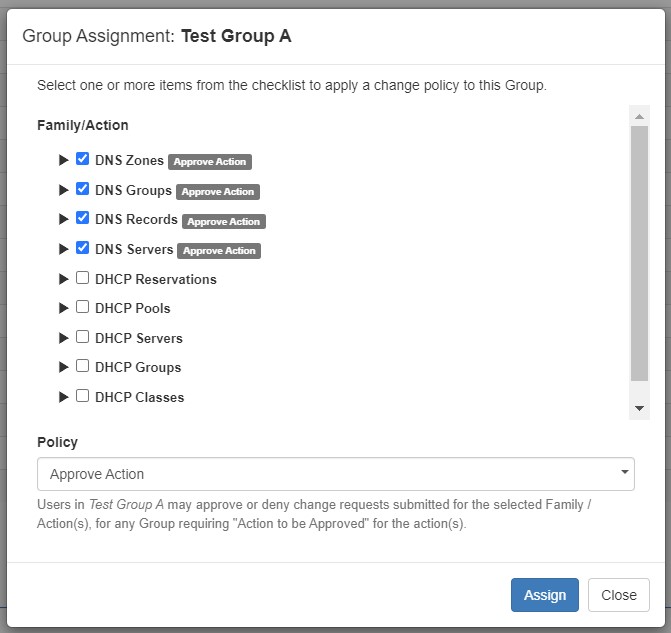
Select the policy to apply, select one or more Family/Actions, and then click "Assign".
Click the checkbox next to the family name (e.g. "DNS Servers")to quickly select all actions under that family!
Assign a Policy from the Actions Tab
Assign a Policy from the Actions Tab
From the Approvals → Permission Groups → Actions tab, click the "Assign Group" button for the Action you want to assign to a Group / Policy.
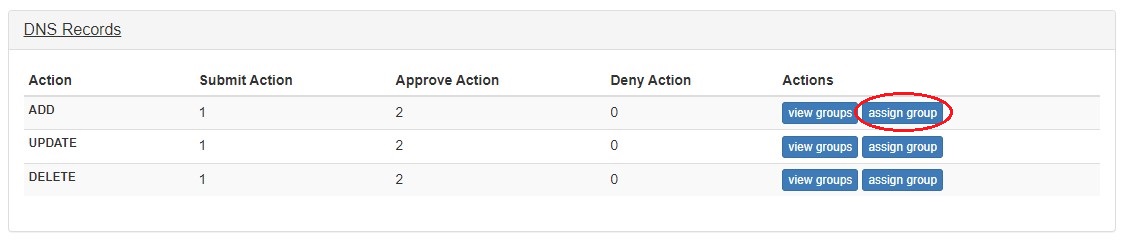
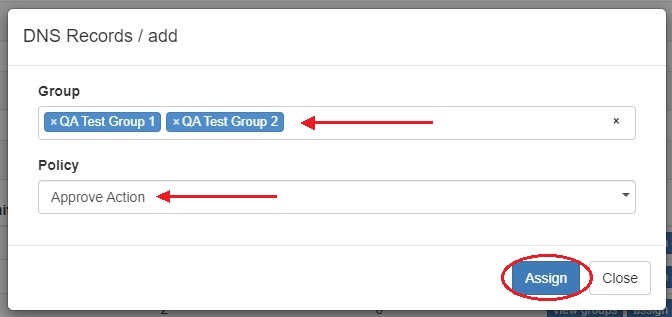
Select the Group(s) that you wish to assign, and select the policy to apply to the action. When done, click the "Assign" button to save.
Permission Groups - Notifications
Manage Approval Notifications for Groups
Email notifications of changes in status are an optional feature that may be enabled for a Permission Group for the desired action types.
The emails provide the current status, approval ID, links to the log event and change request details, and details on the user, time, and date.
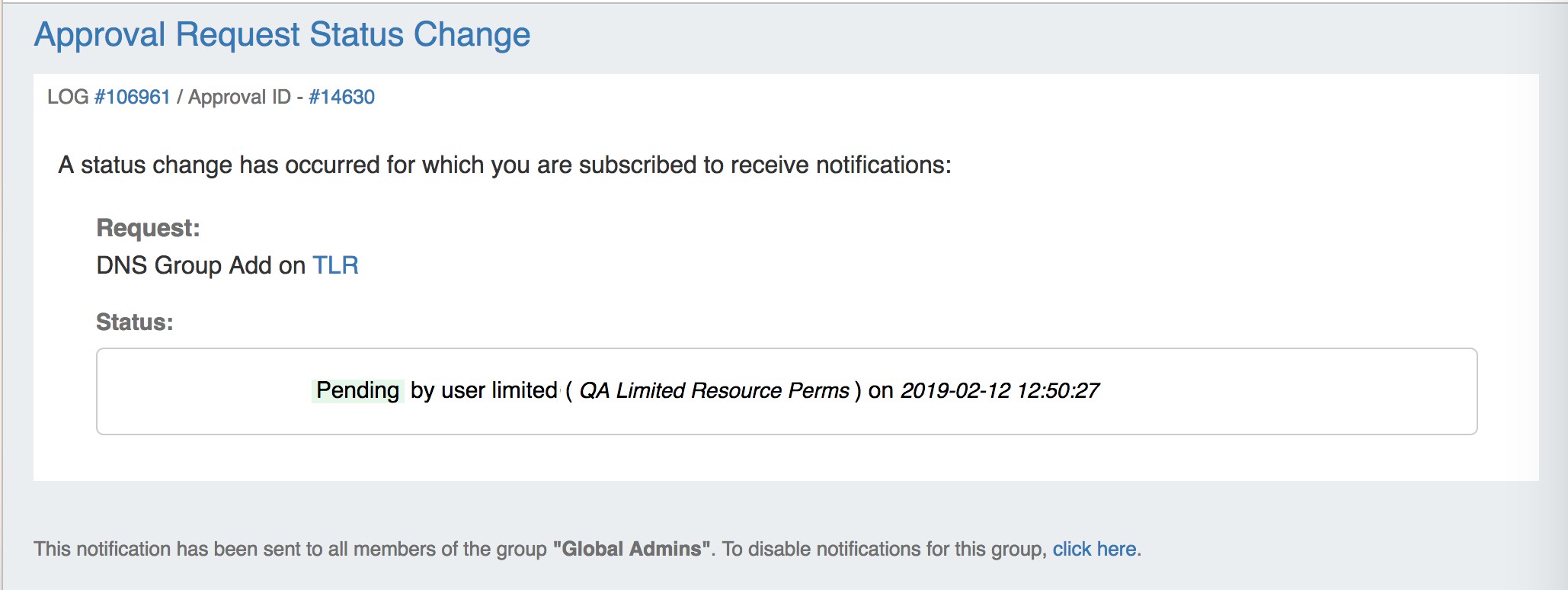
In order to send email status notifications to groups associated with an Approval event:
-
A scheduler task ("Approvals - Process Subscription") must be created and running to process the notification and send the email
-
Notifications must be enabled for the Group, for the family-action type of the requested change
Set up the "Approvals - Process Subscription" Scheduler Task
Set up the "Approvals - Process Subscription" Scheduler Task
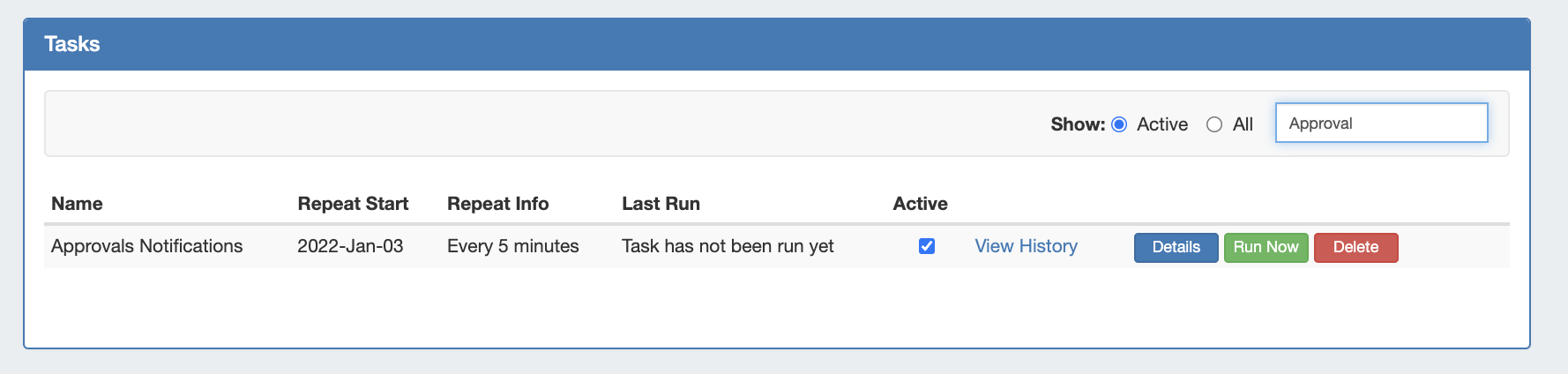
Go to the Scheduler Tab, and verify that the "Approvals - Process Subscription" task has been created, is enabled, and is running at short, regular intervals appropriate to the needs of the users receiving the emails (recommended to run every 5 minutes).
If the task does not yet exist:
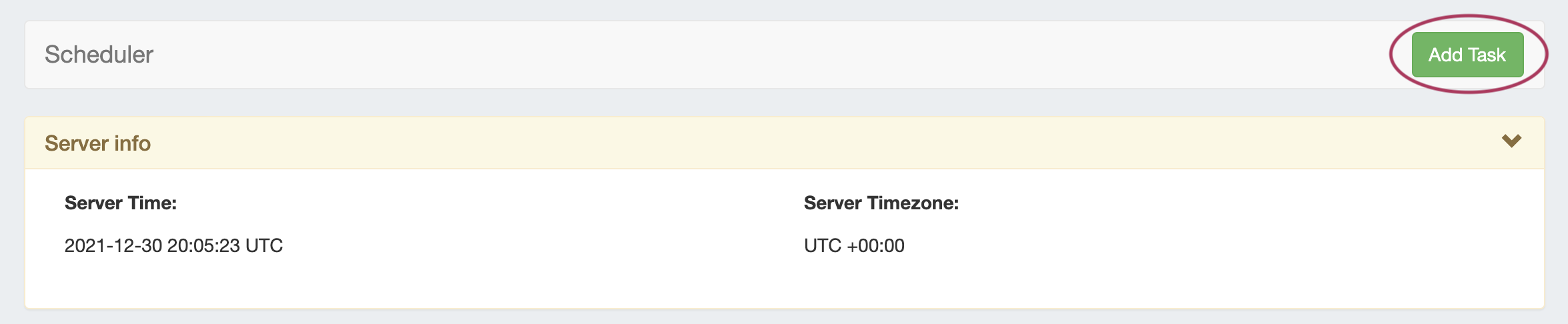
From the Scheduler Tab, click "Add Task"
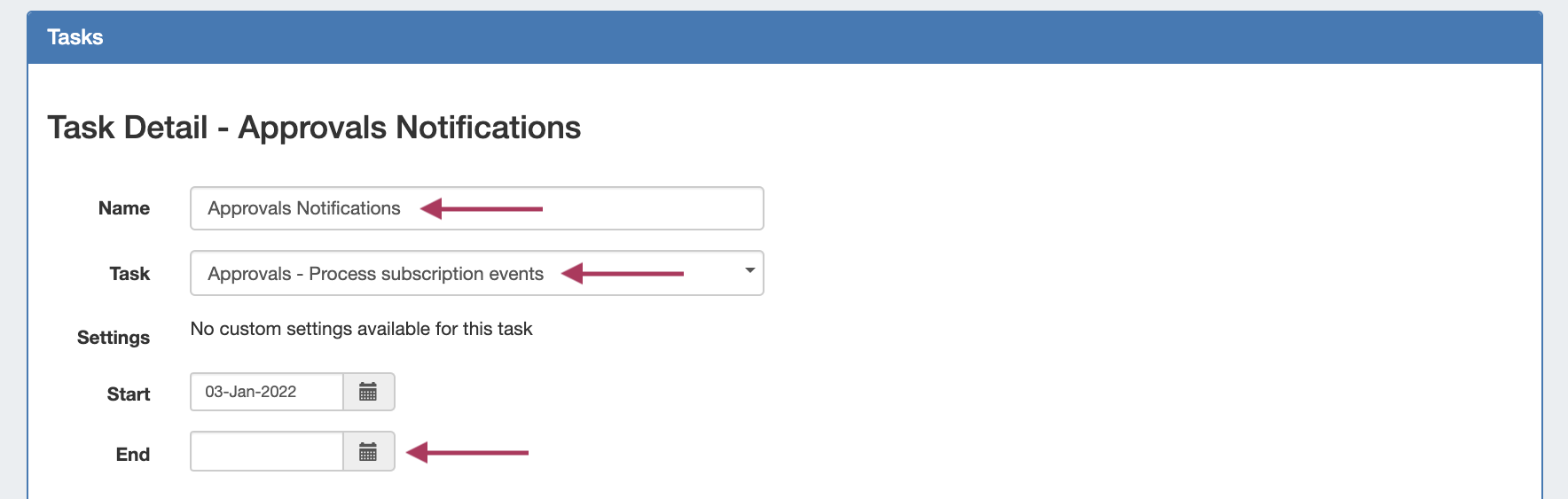
Enter a Name for the task (including a reference to "Approvals Notifications" is recommended for clarity), select the task as "Approvals - Process Subscription", and enter an End date - or leave blank to run as a 'forever' task.
For Repeat Settings, select how often you'd like the scheduler to check for new approvals changes and send the notification emails - every 5 or 10 minutes is recommended.

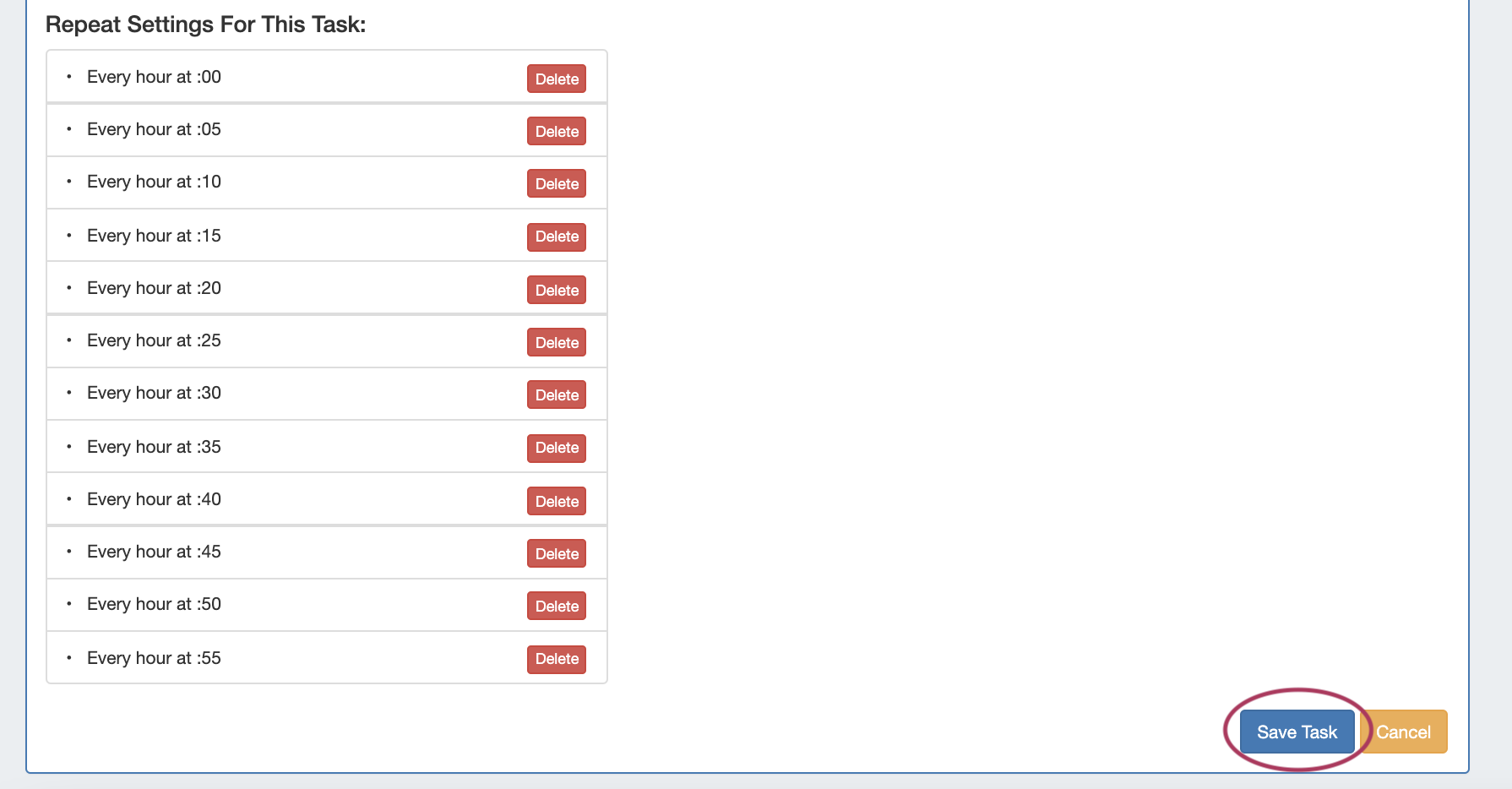
Select your time interval and click "Add". Each instance of the selected time increment will display under "Repeat Settings for this task.
Review the list (deleting individual instances if desired), and click "Save Task" when done.
The Approvals Email Notification task is now set up, active, and ready to process Approvals Event changes.
For additional information on working with the Scheduler, see Scheduler Tab documentation.
Enable Notifications
Enable Notifications
Once the Scheduler task is verified created and active, notifications must be enabled for the desired Groups / Actions for the status changes to be emailed to the appropriate Groups.
From the Approvals → Permission Groups → Groups tab, Click on the Group name that you wish to enable/disable notifications for.
In the Group Details page, click the checkbox under "Enable Notifications" to enable / disable status change notifications for the Group for the selected Family/Action types.