
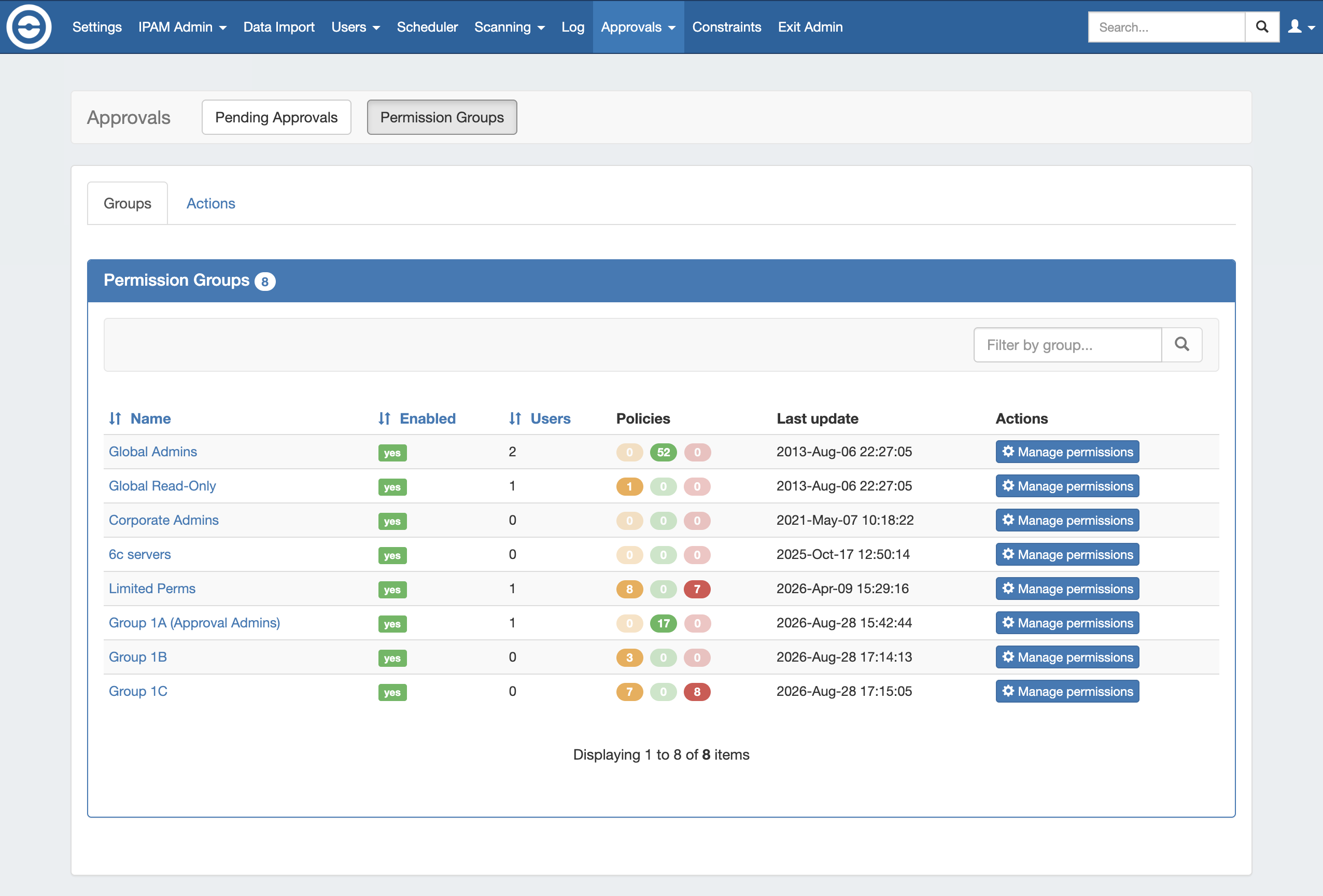
The Approvals Tab Permission Groups subtab is where admins may view and manage assignments, actions, and settings for Approvals permission groups. By default, all existing User Groups are displayed under Approvals - Permission Groups. However, you may assign Approval policies to few or as many of the groups as you want.
Before using the functions available from the Permission Groups page, you may wish to review the Approvals page for information on best practices for setting up User Groups for use with Approvals, policy definitions, and workflows.
Three policy settings are available to assign to a Group / Action under Permission Groups:
-
Submit Action: Users in the group will have the selected actions submitted to Pending Approvals for the change to be approved or denied. A second Permission Group must exist with the "Approve Action" policy assigned to the same action for the submittal to succeed.
-
Approve Action: A User in the group must approve or deny change requests submitted for the selected Family / Action(s), for any Group requiring "Submit Action" for the same action(s) in order for the change to execute. If multiple groups are set as "Approve Action" for the same type of change, then the change will be held as "Pending" or "Pending by Others" until a user from each group approves the change request.
-
Deny Action: All users in the group will have the selected actions automatically denied at an attempted change.
Permission Groups Overview
There are two tabs available under Permission Groups - Groups and Actions. Both tabs provide similar levels of functionality to view and assign policies, but they differ in organization.
Use the Groups tab view if you want to:
-
Assign a policy to a specific group that includes multiple action types
-
View, edit, or remove the policies associated with any or all action types for a group
-
Enable/disable a group's Notification setting
Use the Actions tab view if you want to:
-
View how many or what groups are assigned policies for a specific action type
-
Want to confirm that an action type has group assignments covering both the "Submit" and "Approve" policies
-
View, edit, or remove policies associated with a specific action family or action type
-
Assign a single policy to a one or more groups for a specific family-action type
Groups Tab
Under Permission Groups, the Groups tab lists each User Group with details on the status, number of users, applied policies, and last updated time.
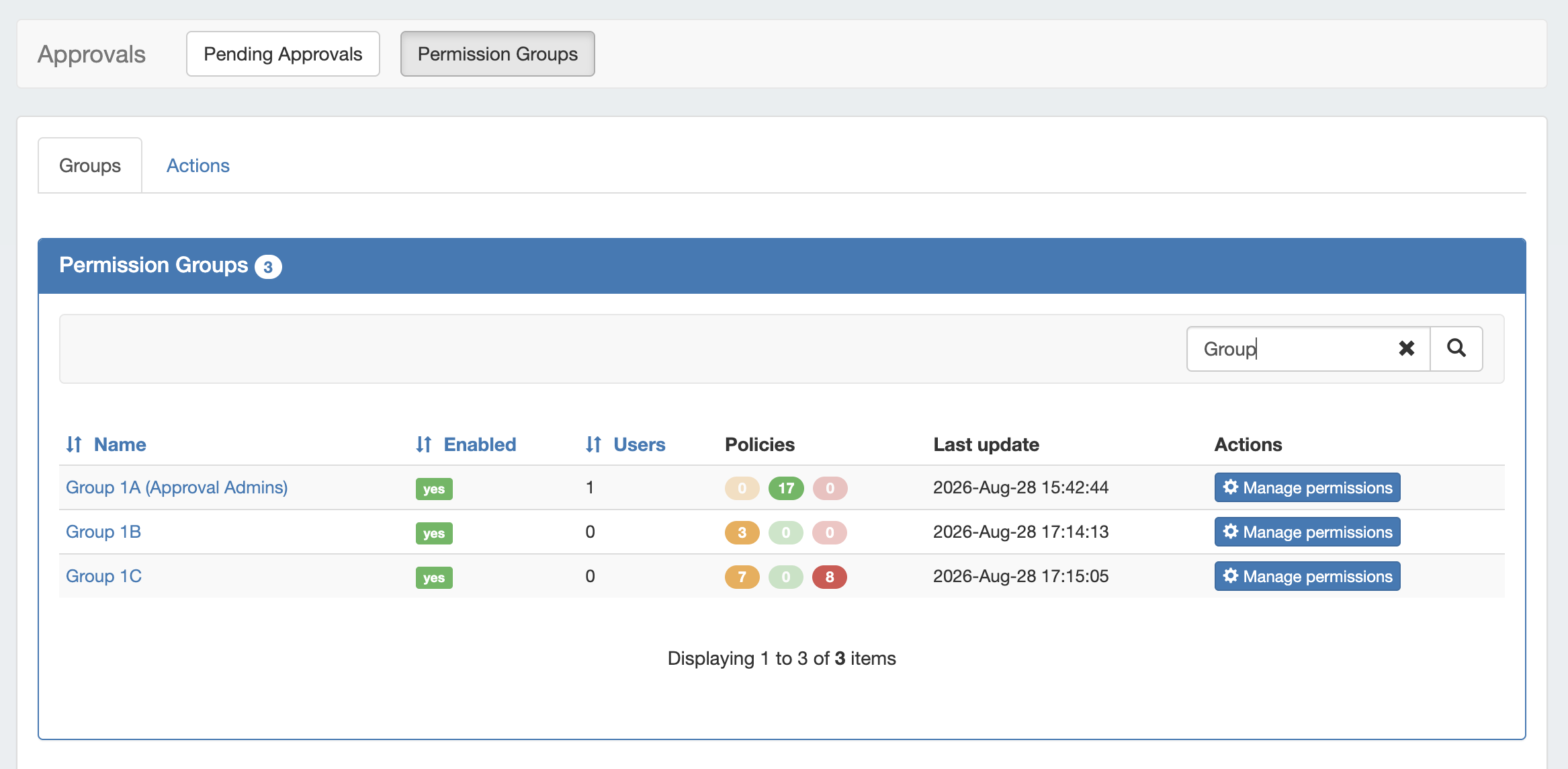
From here, you may sort or filter the group list, manage permissions for approval actions for the Group, or view/edit existing settings by clicking on the Group Name to open the Group Details page.
Expand the areas below for more details on working from the Approvals Groups tab:
Sort or Filter the Group List
Sort or Filter the Groups List
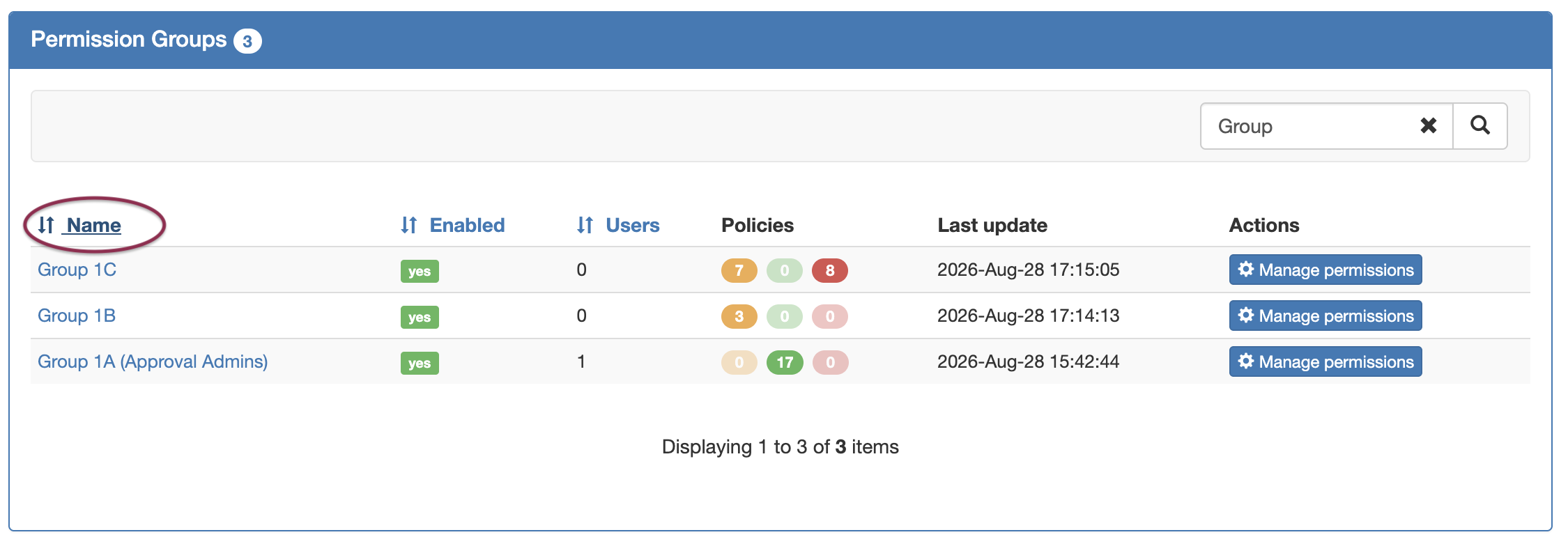
Sort the Permission Groups list by Name, Enabled, or Users by clicking on the column name.
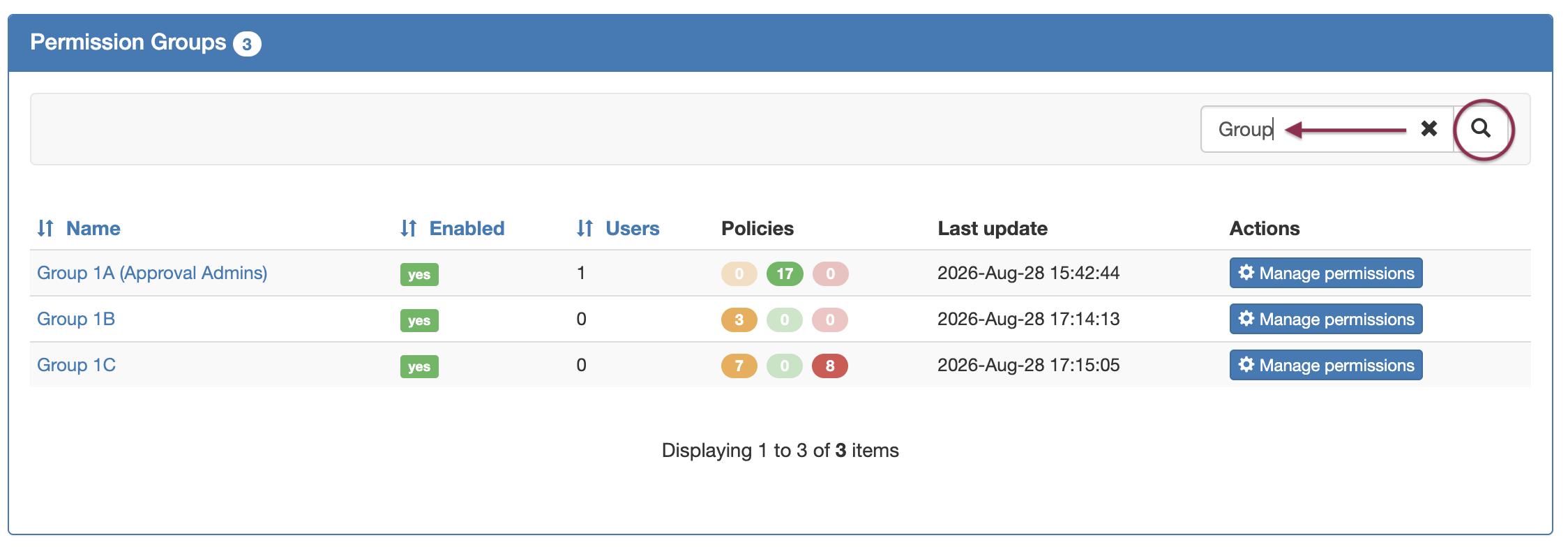
To Filter the list, type all or part of the group name into the "Filter by Group" box, and the list will automatically narrow to show results.
View / Manage Group Details
View / Manage Group Details
To view details for a permission group, click on the Group Name from the Permission Groups list.
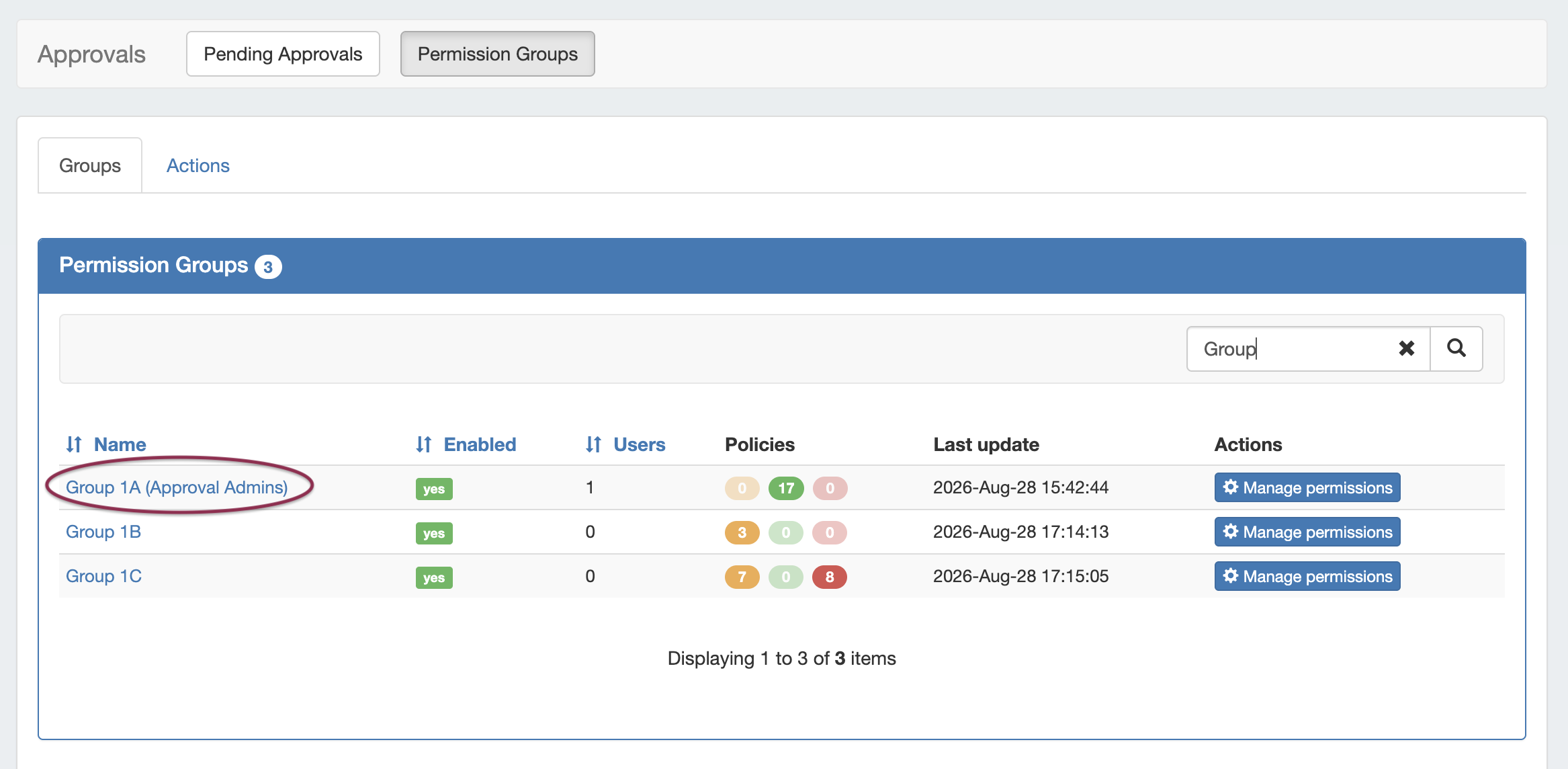
The Group Details page will open, displaying all Family-Action types currently assigned to the Group
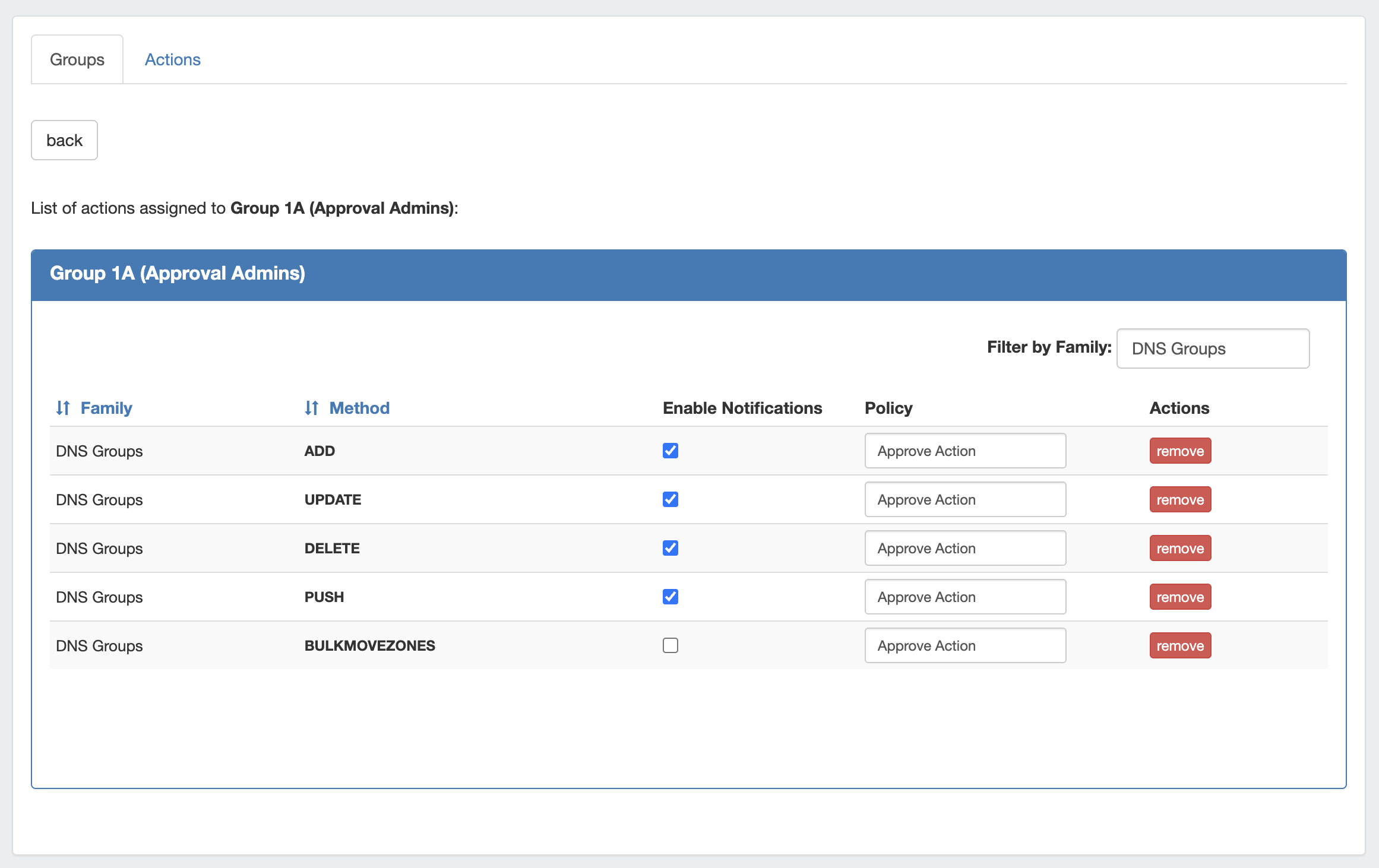
Group management options include:
-
Click on the Policy dropdown to select a different policy to apply for the action
-
Click the Remove to remove the policy assignment completely. A confirmation dialog will appear to confirm the policy unassignment. Changes will be automatically applied and saved.
-
Allow notifications for the action by clicking on the checkbox under Enable Notifications - note that the Process Subscriptions scheduler task must be enabled and running for email notifications to be sent.
Manage Group Permissions (Assign Actions to Groups)
Manage Group Permissions (Assign Actions to Groups)
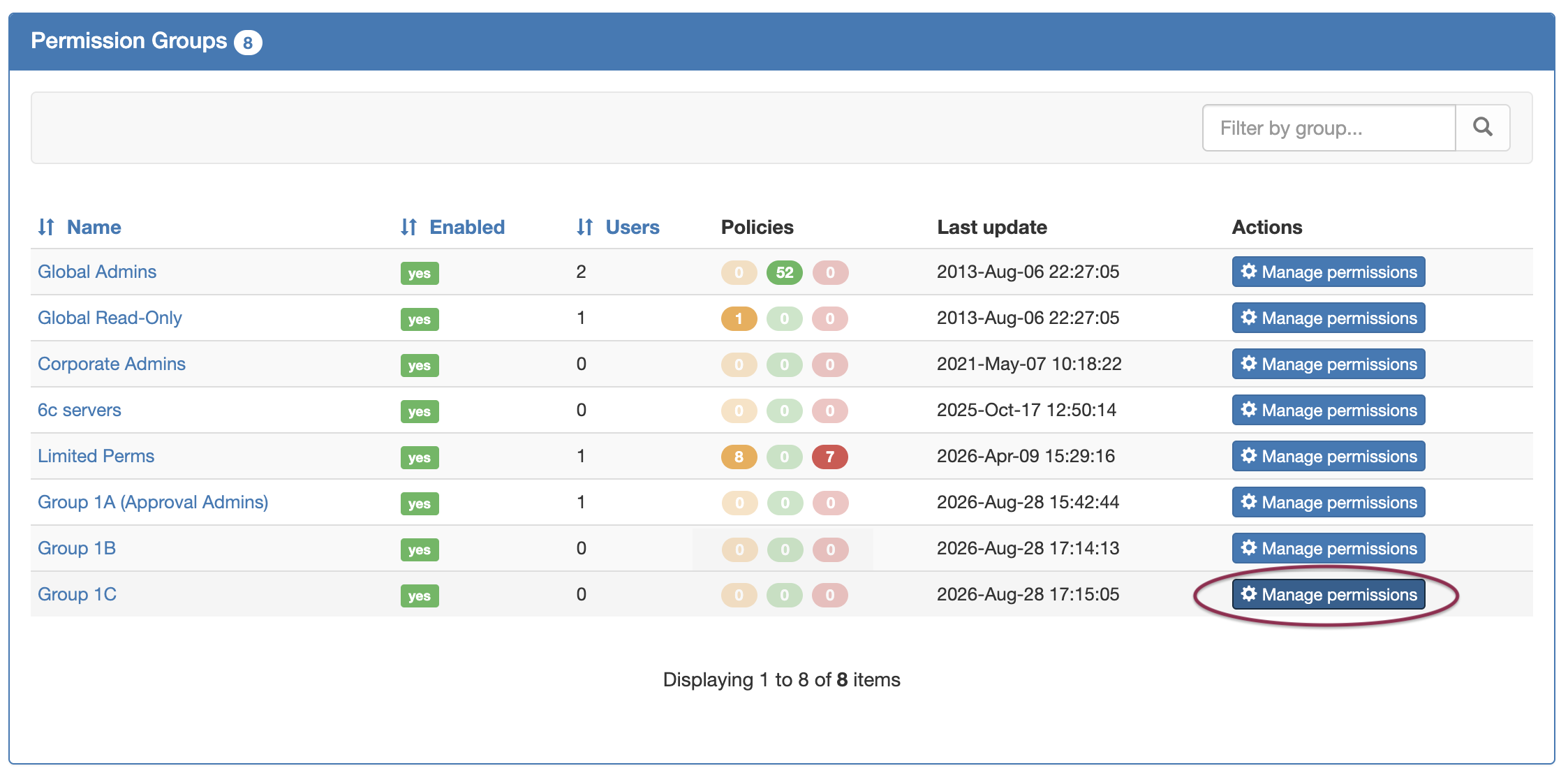
Clicking the Manage Permissions button for a group brings up a checklist to select a policy and one or more actions to apply to the group for that policy.
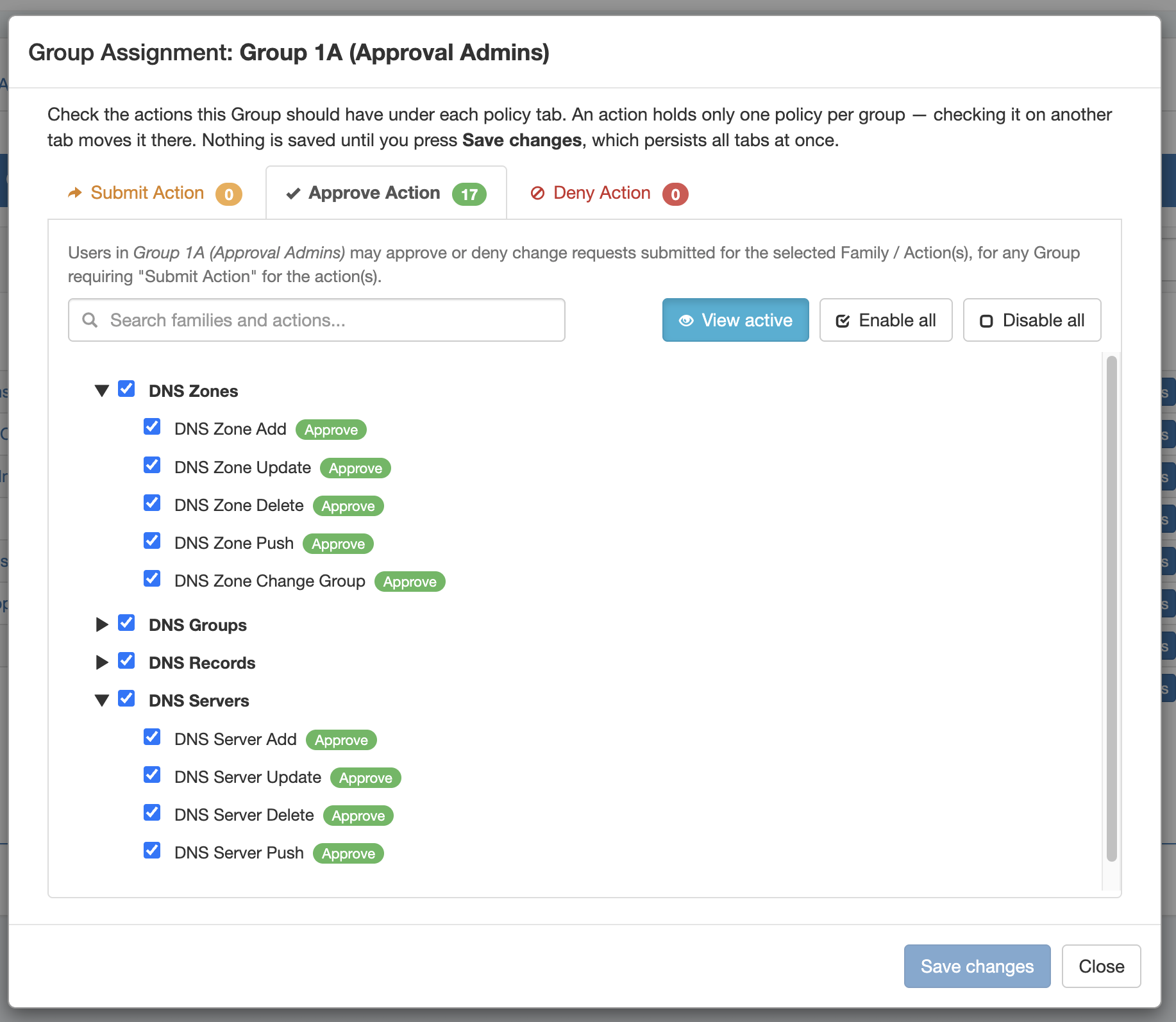
Click on the the applicable policy tab(s) - Submit Action, Approve Action, or Deny Action - and select which actions to apply to that group under that policy.
You may update more than one policy at a time, and the checklist will display an action’s applied policy across all policy tabs.
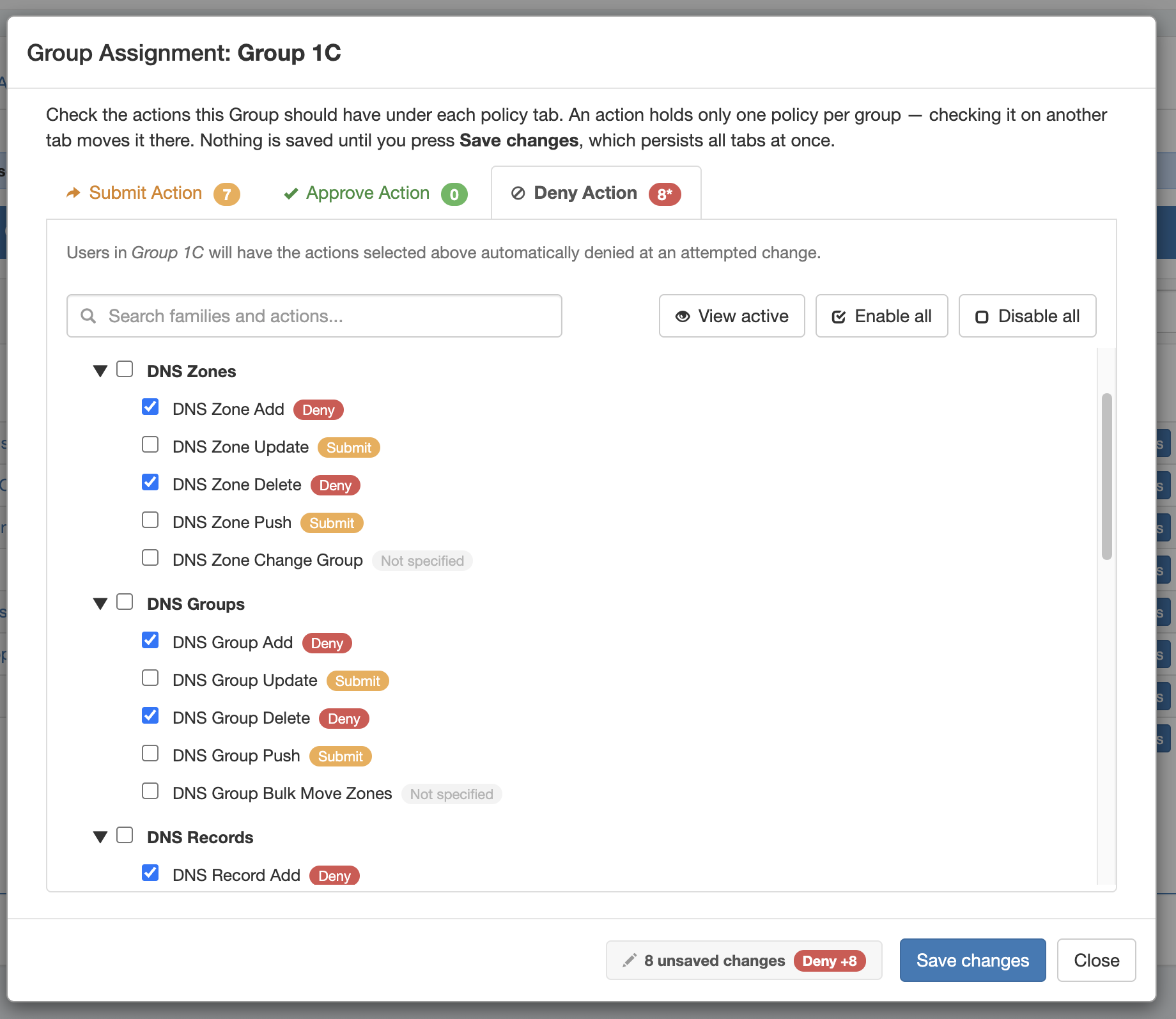
Click Save Changes once you’ve completed selections for that group.
Tip: Use the Search box to filter the Action list by keyword. You may also click the View Active, Enable All, or Disable All buttons as shortcuts.
Actions Tab
The Actions Tab lists the group permissions organized by Family/Action type.
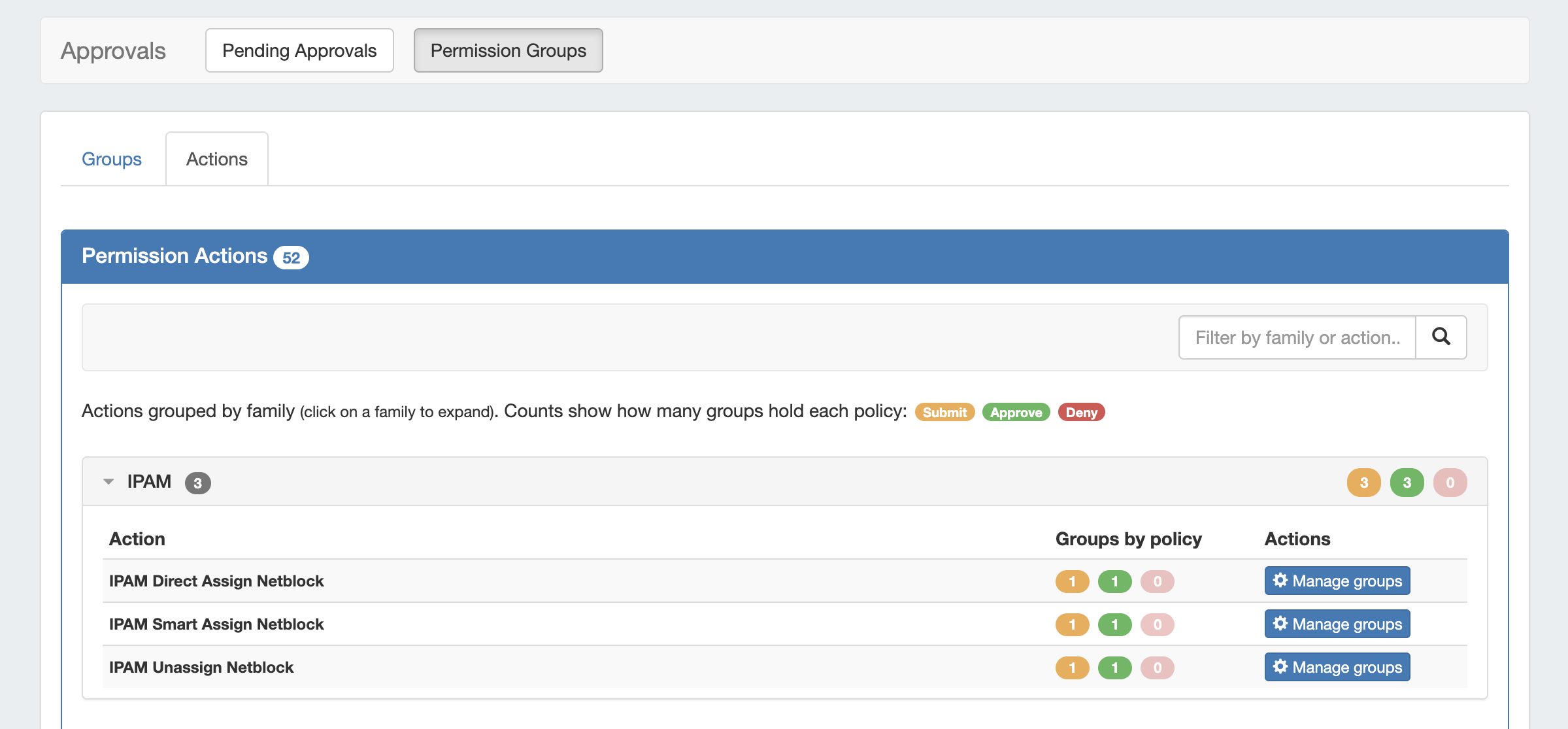
Expanding a Family shows the available actions, the count of enabled policies for that action, and the option to manage groups for that action.
Actions - Manage Groups (Assign Groups to Actions)
Actions - Manage Groups (Assign Groups to Actions)
The Manage Groups button on the Actions tab lets you assign a Group and Policy to that action.
You may filter the list by using the search box, or click View Active to only view the currently assigned groups for that action.
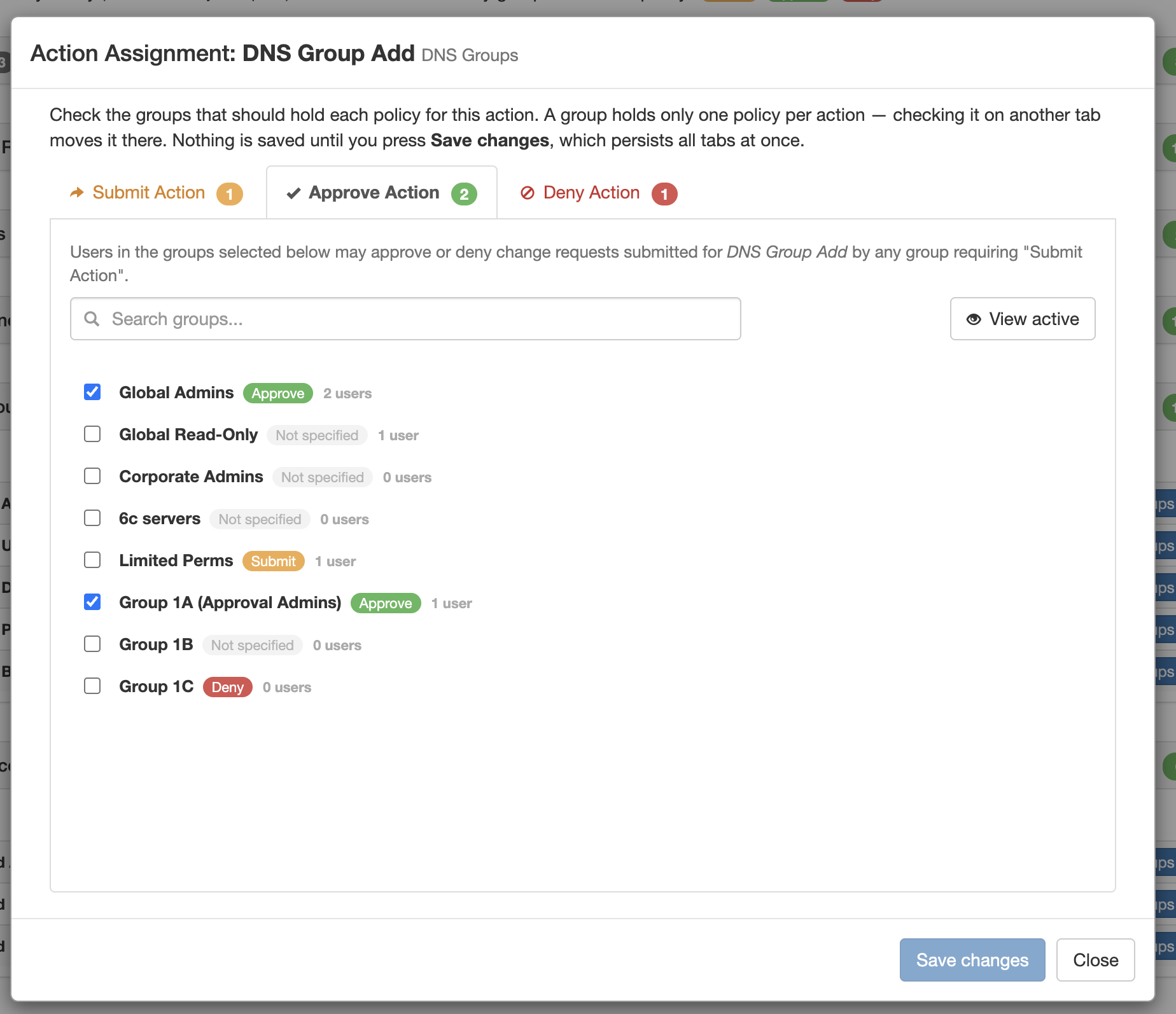
This performs the same function as the Group Assignment window, but is organized to only assign a single group/policy to that action, instead of assigning multiple actions to a group. You may opt to update any policy for that group.
Click Save Changes after completing any edits.
Permission Groups - Notifications
Manage Approval Notifications for Groups
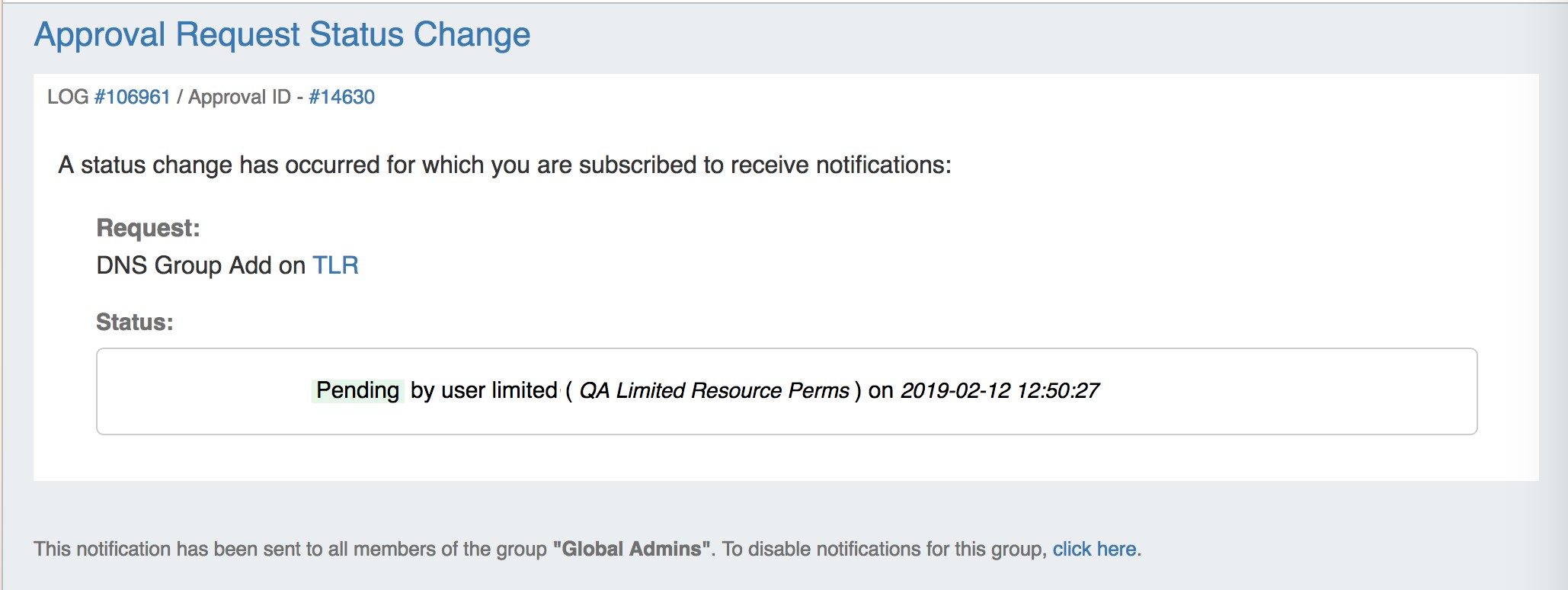
Email notifications of changes in status are an optional feature that may be enabled for a Permission Group for the desired action types.
The emails provide the current status, approval ID, links to the log event and change request details, and details on the user, time, and date.
In order to send email status notifications to groups associated with an Approval event:
-
A scheduler task ("Approvals - Process Subscription") must be created and running to process the notification and send the email. For detailed instructions on setting up Approvals Scheduler tasks, please see Approvals Setup and Workflow - Step 5.
-
Notifications must be enabled for the Group, for the family-action type of the requested change
Enable Notifications for Groups (Optional)
Enable Notifications for Groups (Optional)
If using Approvals notifications, enable notifications for the appropriate Permissions Group(s).
From the Approvals Tab, navigate to the Permission Groups sub-tab Groups page tab.
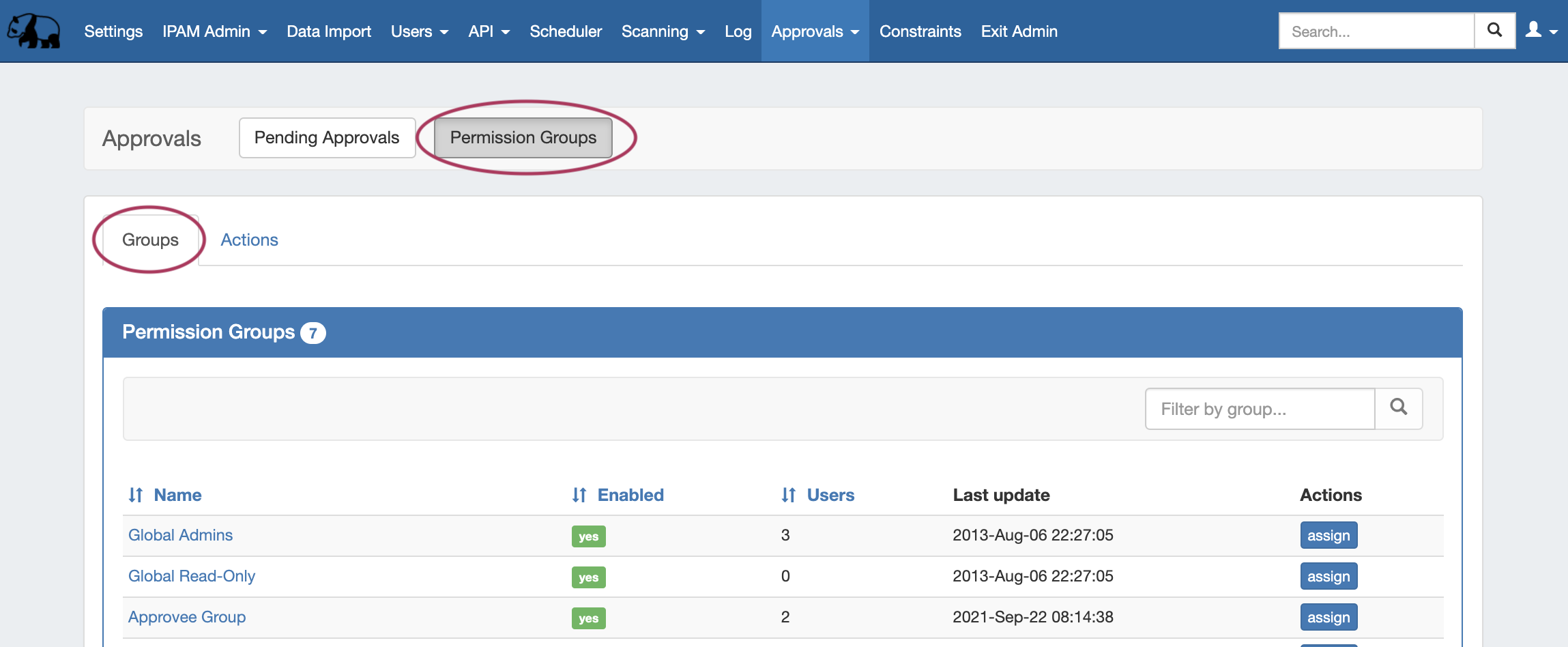
Click on the group name for which you want to set notifications - the Group Permissions Detail page will provide additional information on the group's settings.
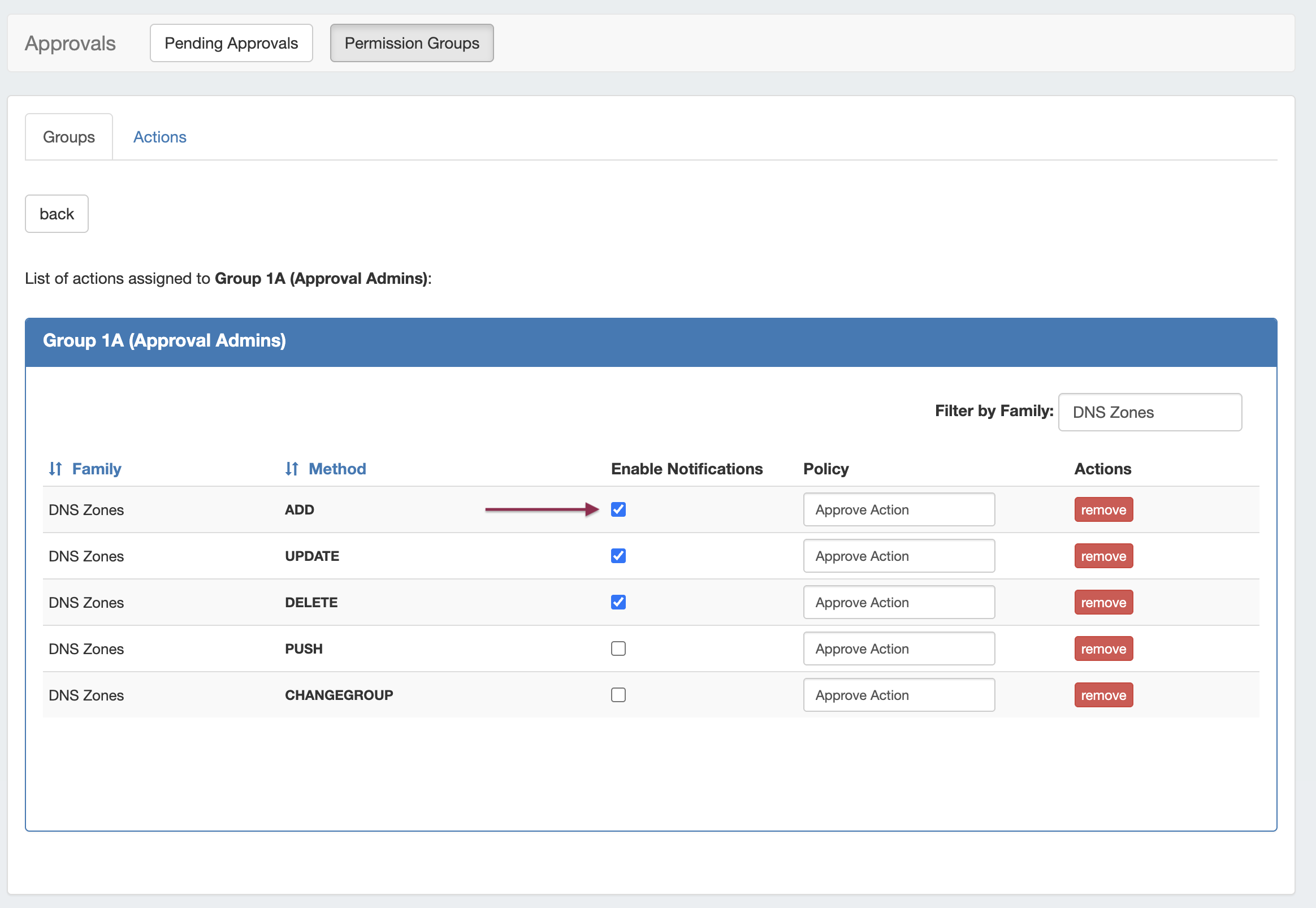
For any Family/Action that you want to enable notifications, click the checkbox under "Enable Notifications". All users of that group will get email notifications when a change of the selected type(s) are made.