9.0.08.3.08.2.0-8.2.18.1.0-8.1.18.0.0-8.0.37.4.0-7.4.67.3.0-7.3.27.2.0-7.2.17.1.0-7.1.27.0.0-7.0.26.1.0-6.1.2View AllPV CloudPV Local Installs
AutoLightDark
Breadcrumbs
Approvals
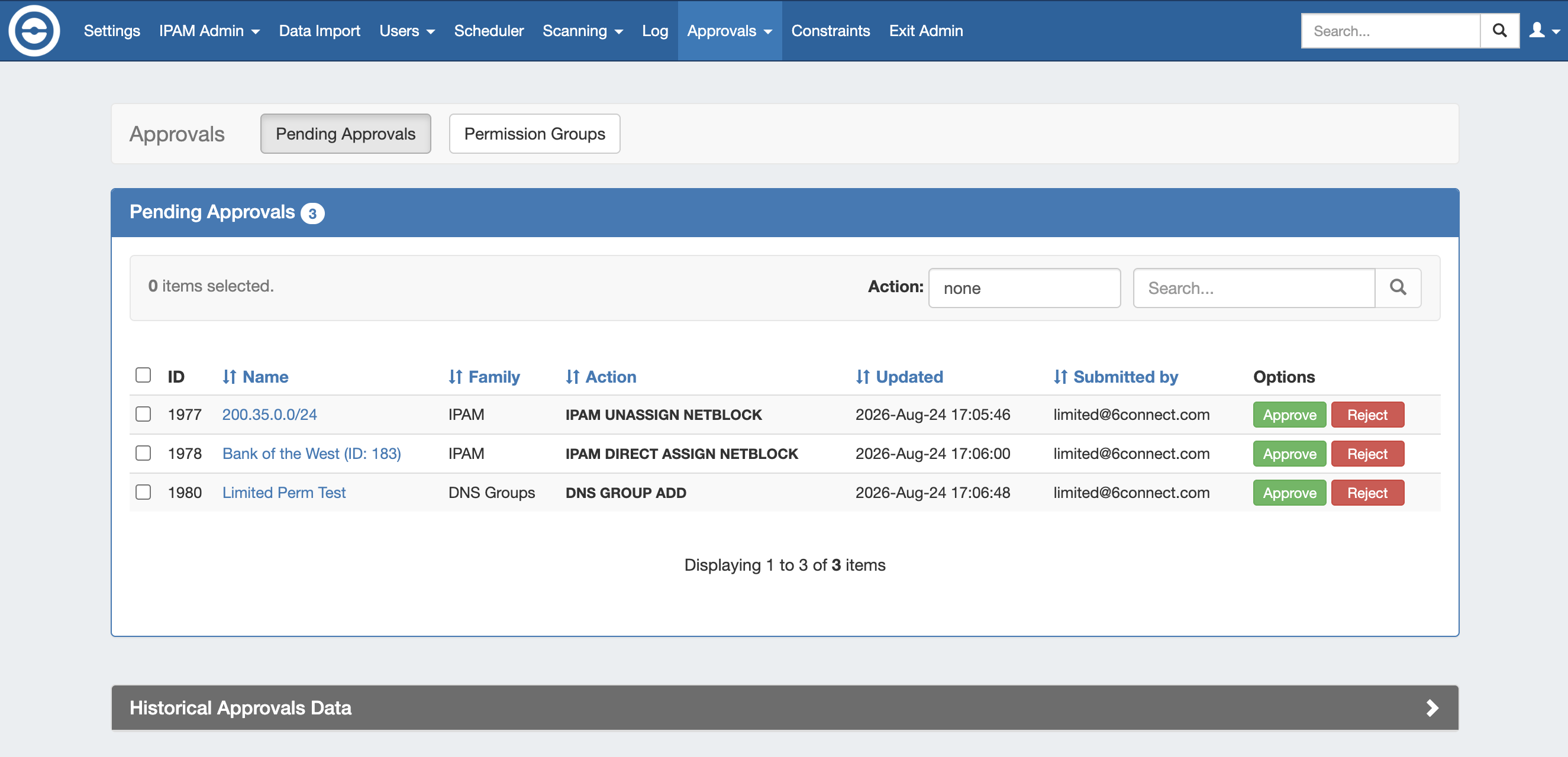
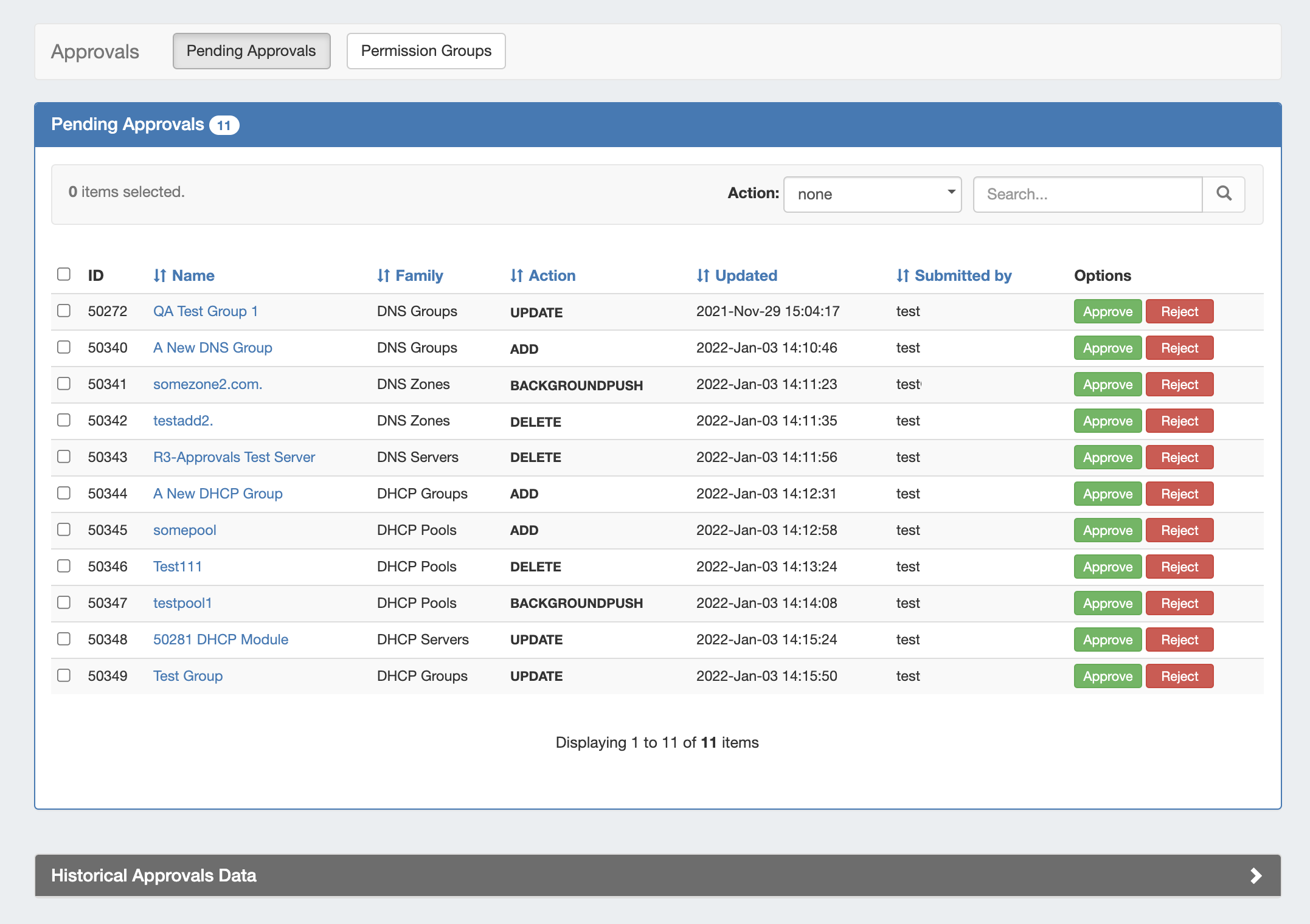
The Approvals module stores and queues DNS and DHCP actions made by selected User Groups, and sends those actions to a Pending Changes list for administrative review. Later, an administrator (or combination of administrators) can approve or reject these stored actions.
The admin Approvals Tab contains two sub-tabs: Pending Approvals and Permission Groups, which are the primary areas to manage Approvals items.
Approvals Tab Overview
The ProVision Approvals system gives administrators an additional layer of flexibility and oversight to manage which changes are allowed to DNS, DHCP, or IPAM items by users.
With Approvals, administrators can set group permission rules requiring that certain types of changes made by a user are either 1) automatically denied or 2) approved by an administrator. In the latter case, one or more admin group(s) must be assigned to approve those action types.
Viewing requested changes and managing the group permission rules are both managed from the admin Approvalstab, under the Pending Approvals and Permission Groups sub tabs.
Approvals Concepts - Before you Begin
The approvals system revolves around three primary concepts: Policies, Family-Actions, and User Groups. An understanding of all three is necessary before setting up Approvals, and additional steps may need to be taken to ensure proper use of Approvals - such as creating additional User Groups.
Policies
Policies
When setting up Approvals Permission Groups, a policy will need to be selected to apply to the User Group / Family-Action Type combination selected. The set policy determines how the Approvals system handles an attempted change by a member of the associated User Group.
There are three available policies:
Submit Action: The change made by any user belonging to the associated User Group will require an administrative user to approve the type of change.
The approver must be included under a "Approve Action" group for the same action.
Approve Action: A user from the group must approve the action for it to be removed from the "Pending" list, and successfully execute.
If more than one group is assigned with the "Approve Action" policy for an action, all groups must have a user from that group approve the action for it to execute.
If the change has only been partially approved, its status will be "Pending, awaiting approval from others" and no action will be executed until all groups have provided a response to the action.
Deny Action: The type of change is immediately denied when a member of the User Group attempts to perform that action.
Ensure that for any group/action set with a "Submit" policy, another group is set with "Approve" for the same family-action type. Failure to provide groups for both submitter and approver may result in changes not being processed, due to not having a user assigned to approve the request.
Family-Action Types
Family-Action Types
In Approvals, the "Action" listed in the Pending Approval information (or when setting Approval Permission Groups) will be a combination of the Family (e.g. DNS module) plus an action method. The available actions differ according to what family module is selected. Example actions include:
Add: Creating a new Group, Zone, Pool, Record, or Server
Delete: Deleting a Group, Zone, Pool, Record, or Server
Update: Anychange to an item that isn't Add, Delete, or Push - such as a settings change, renaming, or entering a value in a field.
Push: DNS or DHCP Server Pushes - manual or scheduled
Change Group: Moving a DNS Zone from one Group to another.
Bulk Move Zones: Moving all DNS Zones in a Group to another.
IPAM Assignments: Direct Assign, Smart Assign, or Unassign IPAM netblocks
When setting up Approval Permission Groups you may choose to set the policy for the entire Family (e.g., "All DNS Group actions"), or limit to specific Actions (e.g. Submit Action only for "DNS Group Delete").
Action Permissions vs. CRUD Group Permissions
It is important to note that Action types in Approvals is related-to-but-different than CRUD permissions as set in User groups. Although the "Add" Action type and "Create" CRUD permission seem the same, the action type "Add" only applies to one specific event occurring, rather than a holistic overarching system-level permission.
In order to perform a certain Approval Action Type, a user must already have the CRUD permissions to both view and attempt the action.
The CRUD permissions determine whether the user can even view an area or attempt an action to begin with, Approvals Policies on Action Types determine what is done with the Action after the attempted change.
User Groups
User Groups
Approvals uses ProVision User Groups to determine which users must have a change approved, denied, or can approve others' actions. Therefore, User Groups must be set up with the appropriate users and basic permissions under each group before using Approvals.
Before using Approvals, a review of your user and User Groups is highly recommended to ensure the following:
Users/Group
Check
Reason
Approval Administrators
Verify admins are included in a Global Admin (TLR level + Admin) User Group
To access the "Approvals" tab and perform Approve/Reject responses
Daily Users / User Groups
Review that users in the same User Group are similar in the types of tasks performed and the level of Approval oversight needed.
If different tasks or oversight requirements exist, users may need to moved under different User Groups to ensure the correct Approvals structure.
Example: If "Group A" consists of seven users - four who need Add and Delete actions approved, two who do not, and their manager (who approves actions), you may need to move those users under three separate User Groups.
Daily Users / User Groups
Ensure correct User Group CRUD permissions for the resources and tasks involved
If a user does not have appropriate Group or Resource level CRUD permissions for an action, that action will fail prior to reaching the Approvals system.
Example: If a user needs zone creations approved, first ensure that they have "Create" and "Read" resource permissions to view DNS information and create a zone.
Structure Approvals-Specific User Groups
Consider limiting groups associated with Approvals to only those users/groups relevant to the Approvals system, especially if using Approval Notifications.
Approval Change Notifications are emailed to all users of the associated User Group - not just the submitter / approver.
Be conscientious of colleagues' email inboxes and consider which users may or may not need notifications.
Sample Group Scenarios
Below are a couple of sample scenarios to illustrate common Approval situations, with example notes on Approval Settings.
Scenario 1: An example where this is one admin approver group, where any admin in that group may approve requests. Two user groups require different levels of Approvals oversight for different actions.
Scenario 2: An example where there is a two-level approval system - any user from an admin approver group must approve change, and one specific user must also sign off on changes made by users in the specified group.
These examples use the Manage Permissions button for the Group under the Approvals Permission Groups → Groups sub-tab. They may also be set from the Permission Actions sub-tab for each group.
Scenario 1 Walkthrough: One Approver Group and Two User Groups
Scenario 1: One Approver Group, with Restricted Actions
One Admin group and two DNS worker groups with different levels (high - low) of oversight needed, with restrictions set for particular Action types.
Group 1A (Admin)
Group 1B (Minimal Oversight)
Group 1C (High Oversight)
Global Admins (Full TLR User Group Perms + Admin)
All Admins in this group can approve any change requests
It doesn't matter which Admin user approves a request
Users with minimal oversight
Can work fully in all DNS family areas
Only needs admin approval for DNS Pushes
Users with high oversight
Not allowed to Add or Delete any DNS item
Needs admin approval for all DNS Push and Updates
Approval Group Settings:
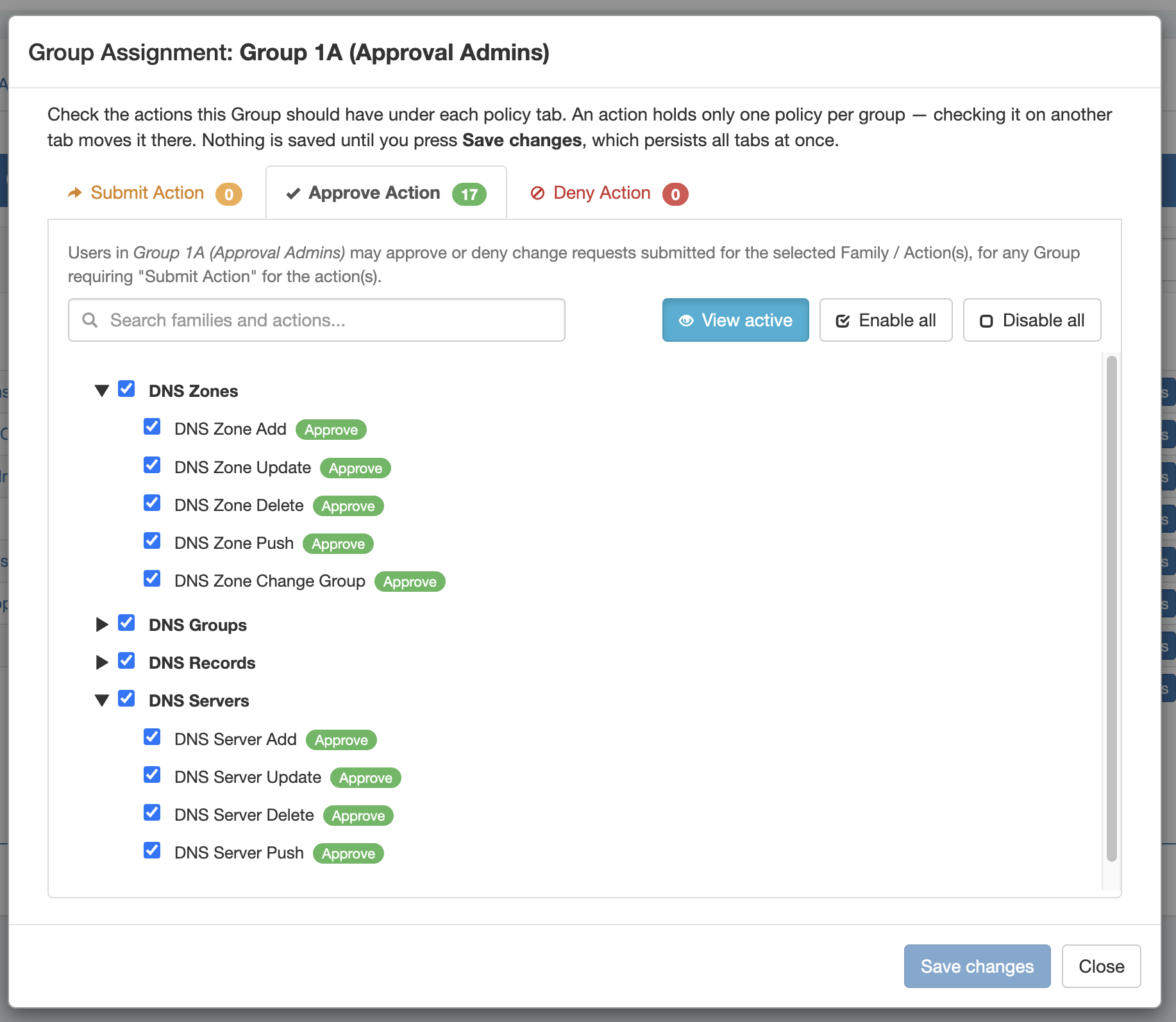
Set to policy "Approve Action" for all DNS Family / Action types
Tip: Click the quick select checkbox next to each DNS Family name to select all actions under that family
Approval Group Settings:
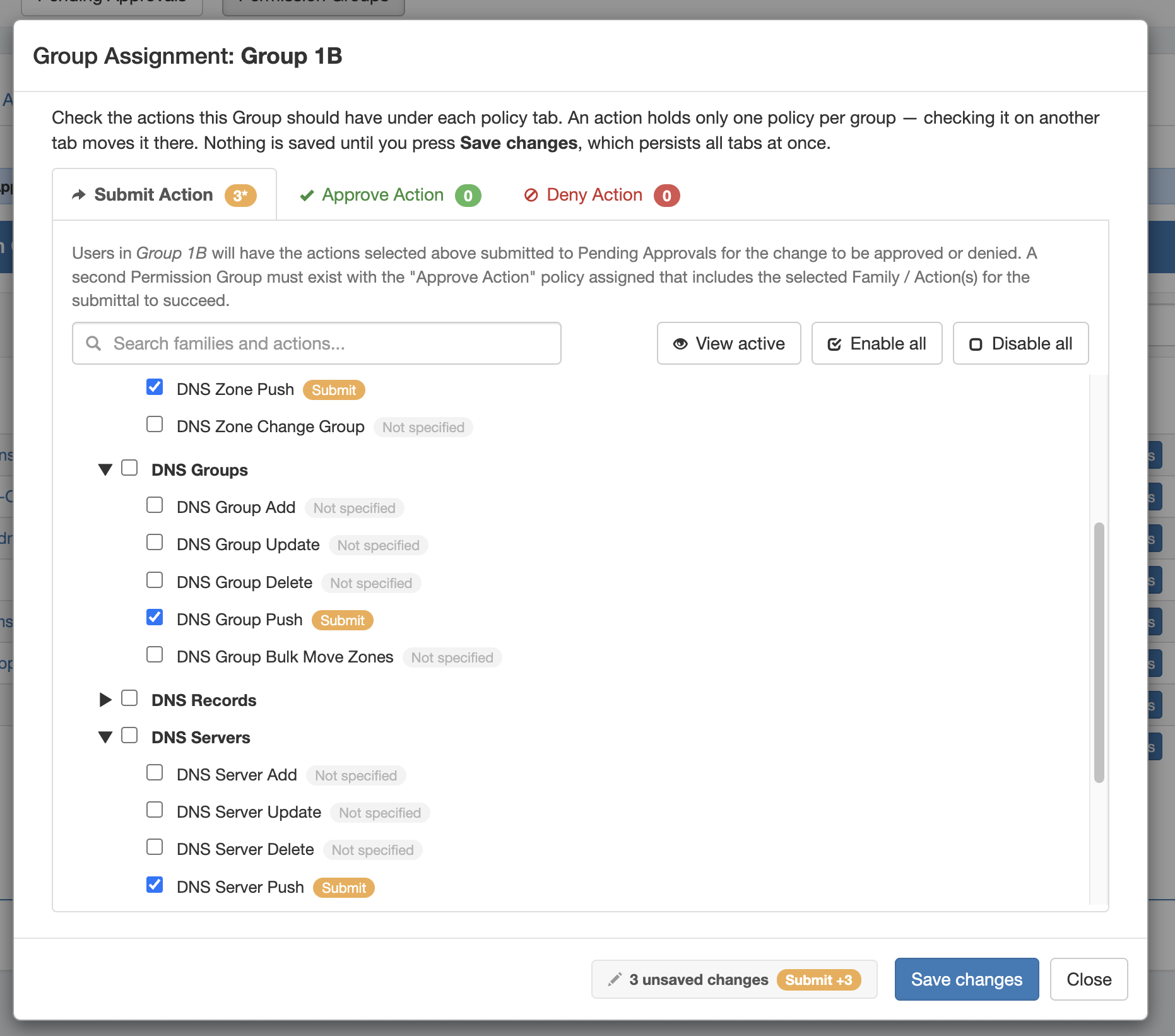
Set to policy "Submit Action" for DNS Zone, Server, and Group "Push" actions only.
Approval Group Settings:
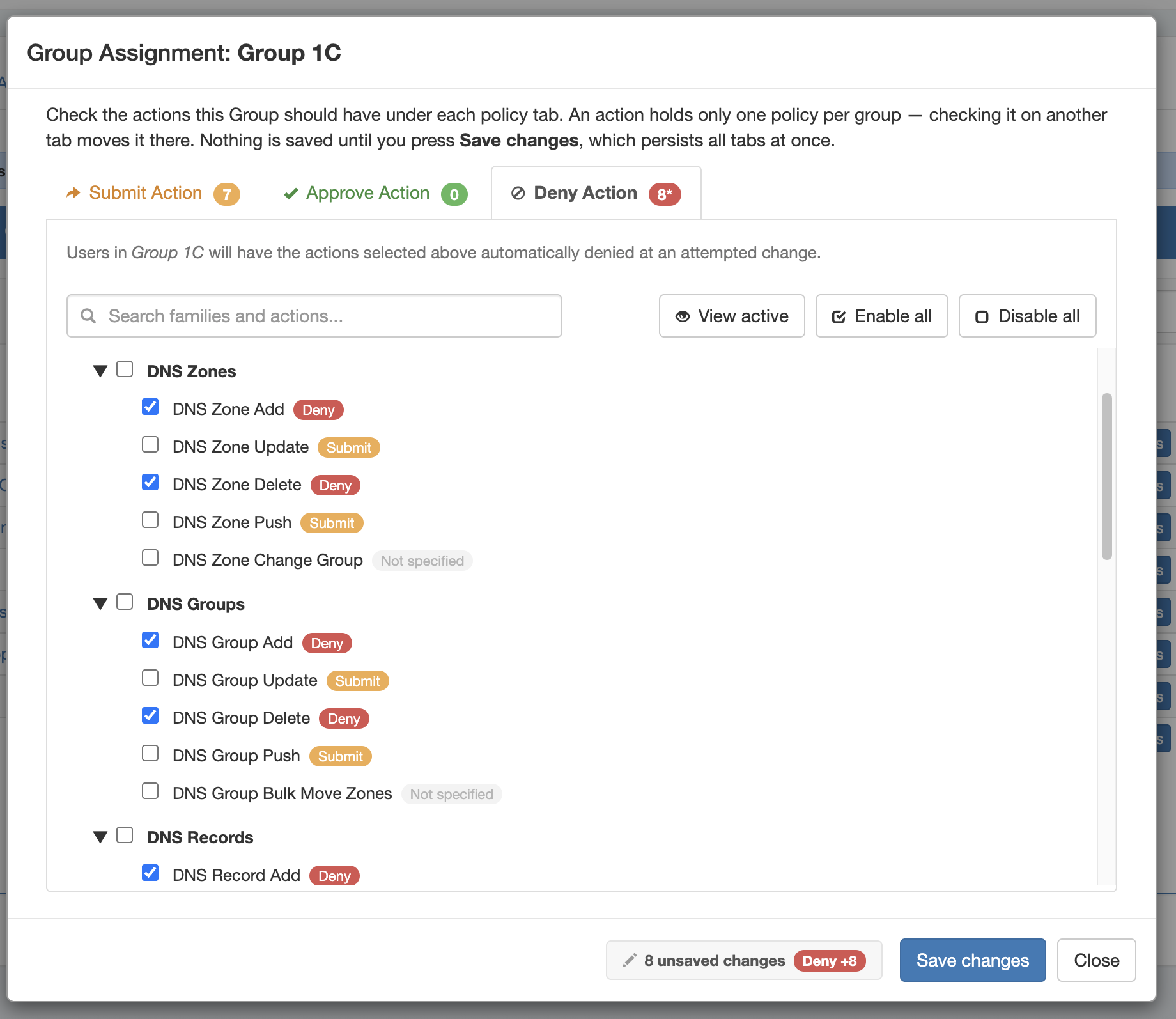
Set to policy "Deny Action" for "Add" and "Delete" actions under each DNS Family; save
Open again, set the policy to "Submit Action", and select "Update" and "Push" actions under each DNS family; save.
Scenario 1Walkthrough
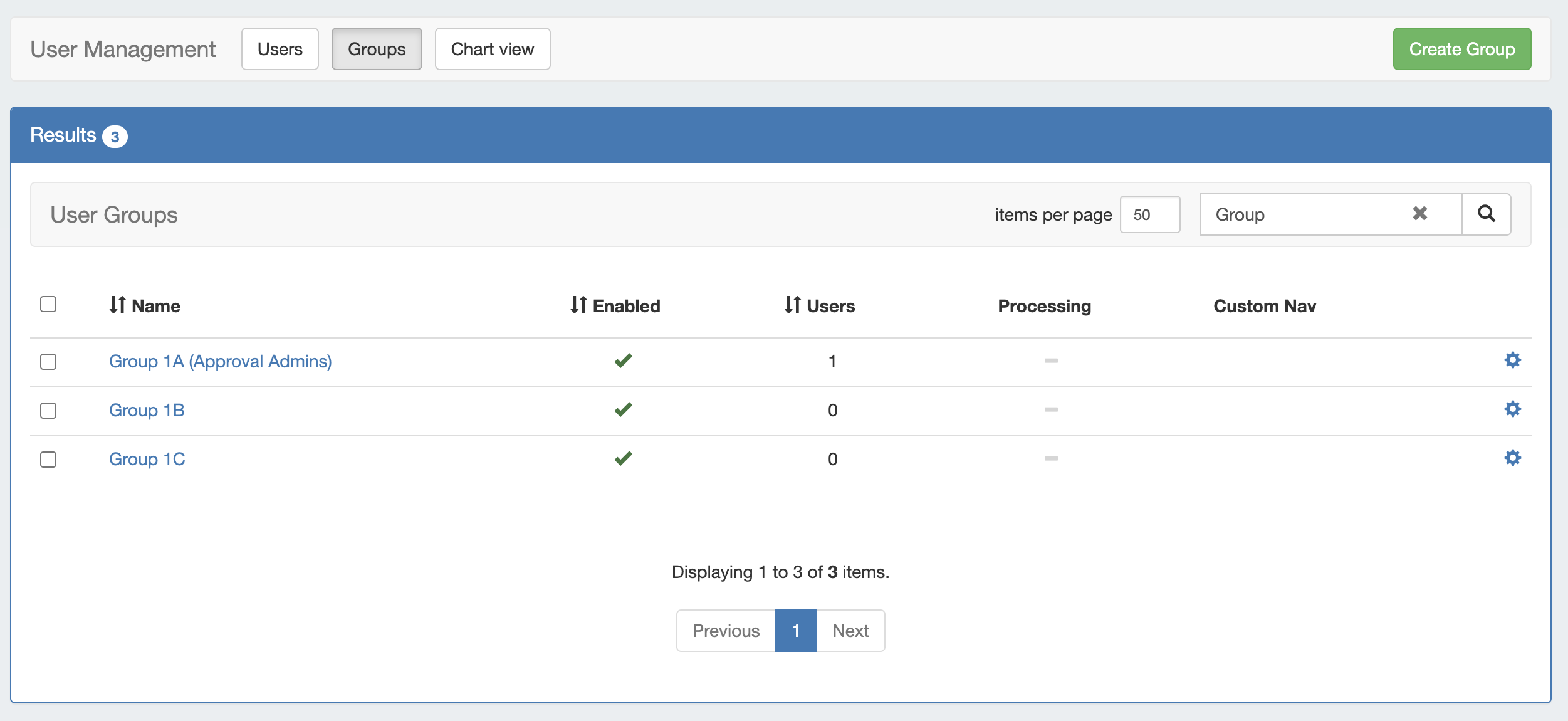
Ensure that each group is created with appropriate permissions from the Users tab.
Group 1A should have full Admin permissions on TLR
Group 1B should have, at minimum, full resource permissions to cover all DNS Actions
Group 1C should have full resource permission to view and access DNS Actions for the Approvals system to require approval on DNS Update/Push actions, and to Deny actions on DNS Add or Delete items.
Note: If Group 1C were not allowed to Add/Delete any resource system item (as opposed to denying only DNS Add/Delete), then the User Group would be set to disable Resource Add/Delete, instead.
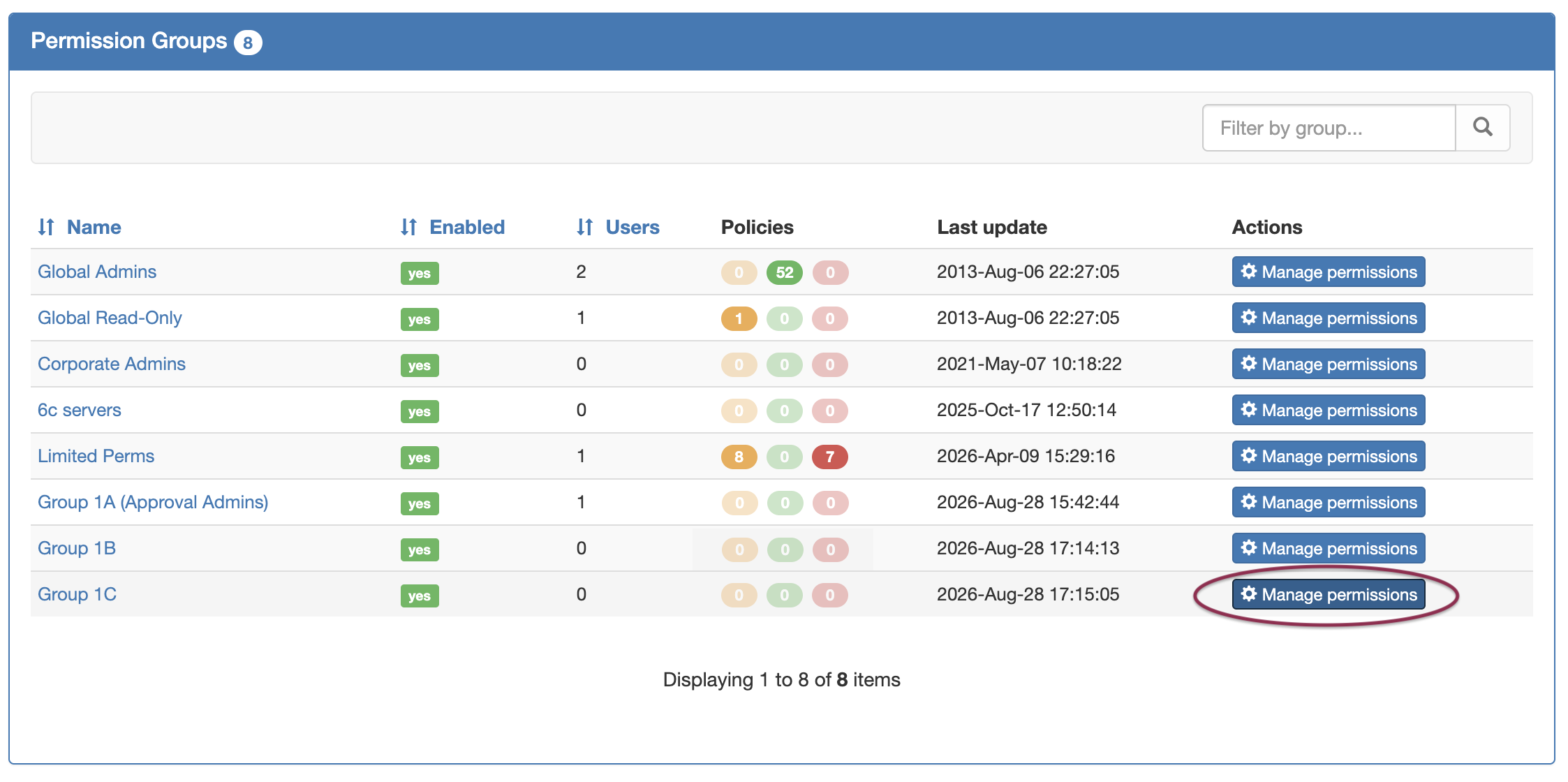
Once User Groups & Permissions are set from the Users tab, navigate to the Admin → Approvals tab. From there, view the Permission Groups → Groups sub-tab. Click the Manage Permissions button for the desired group.
Click on the the applicable policy tab(s) - Submit Action, Approve Action, or Deny Action - and select which actions to apply to that group under that policy. Click Save Changes once you’ve completed selections for that group.
Group 1A: Approve DNS Actions Policy
Repeat Manage Permissions for Group 1B and 1C:
Group 1B: Submit Pushes Policy
Group 1C: Submit & Deny Policy
Tip: Use the Search box to filter the Action list by keyword. You may also click the View Active, Enable All, or Disable All buttons as shortcuts.
Once all policy selections are complete, you can review a color-coded count of the applied submit (orange) / approve (green) / deny (red) policy actions on the Approvals Permission Groups list.
Scenario 2: Multiple Approver Groups and/or Specific Approval User
Scenario 2: Multiple Approver Groups/Specific user
Two Admin approval groups exist: One general Approver group (2A) that can approve any action type, and a second Group (2B) containing one person, Bob, who must sign off on any action taken under DNS Groups. The user group (2C) is to be denied actions on DNS Servers, and any DNS Group/Record actions require approval.
Group 2A (Admin Approvers)
Group 2B (Admin Approver Bob)
Group 2C (Mixed Oversight)
Global Admins (Full TLR User Group Perms + Admin)
All Admins in this group can approve any change requests
It doesn't matter which Admin user approves a request
DNS Group changes require multiple levels of oversight- from both this group and Bob
Global Admins (Full TLR User Group Perms + Admin)
Only contains one user - Bob, who specifically must approve of any change to DNS Groups
Full Access throughout DNS
Not allowed to work with DNS Servers, even if they might have admin level access otherwise
Changes to DNS Groups and DNS Records require approval
Approval Group Settings:
Set to policy "Approve Action" for all DNS Family / Action types
Tip: Click the quick select checkbox next to each DNS Family name to select all actions under that family
Approval Group Settings:
Set to policy "Submit Action" for "Push" and actions only, under each DNS Family in Group Assignment
Approval Group Settings:
Set to policy "Deny Action" before quick-selecting the DNS Servers Family; save
Open again, set the policy to "Submit Action", then quick-select the "DNS Groups" and "DNS Records" families; save.
Under this scenario, you would set up the User Groups similar to scenario 1, except that group 2B would be a full permission admin group containing only the user Bob.
If a user in group 2C attempted a DNS Group update, their change would be sent to both admin groups, and both a Group 2A admin and Bob would have to approve the change for it to complete.