
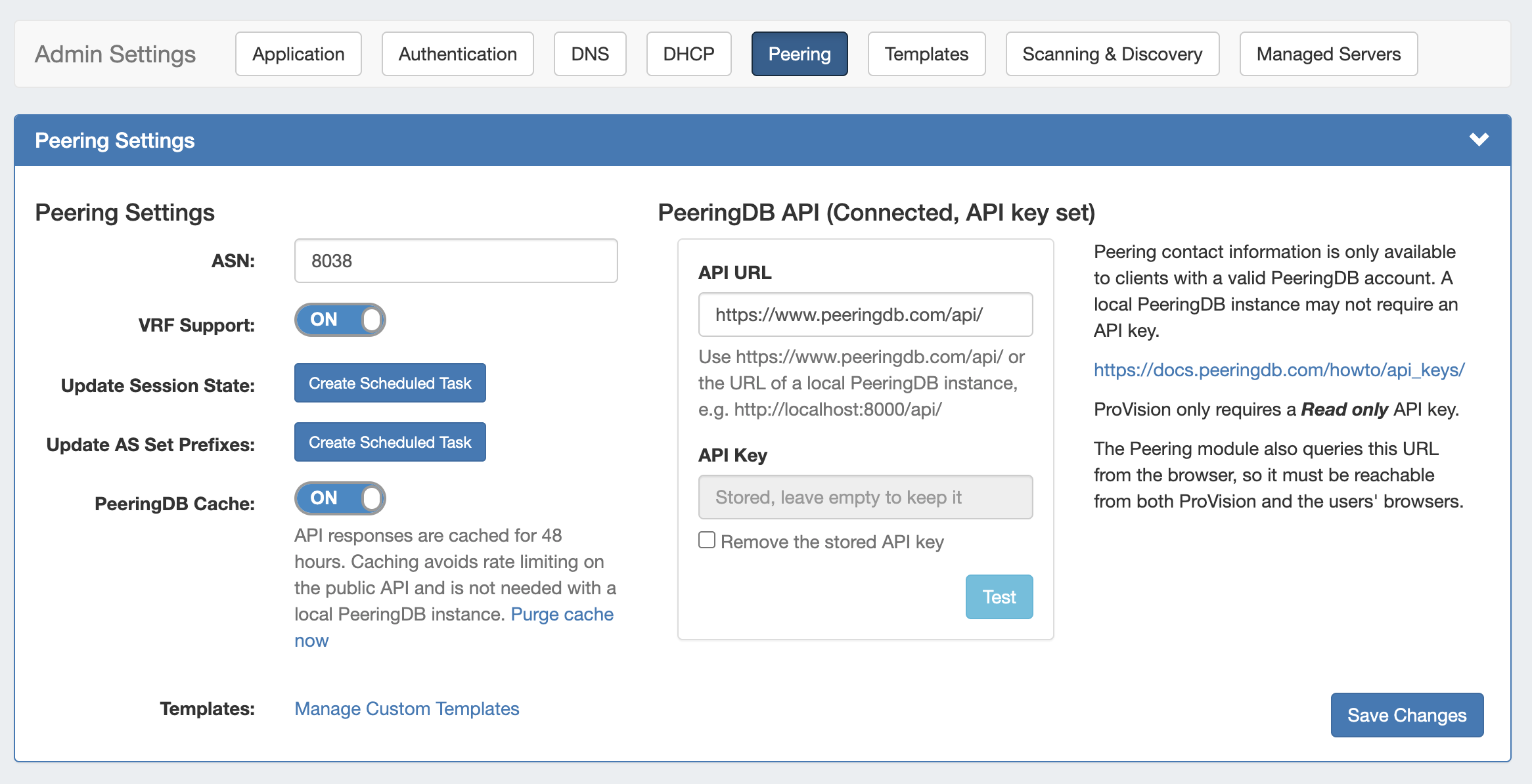
Peering Settings are accessed by clicking the Peering sub-tab at the top of the Admin Settings page.
Peering Settings
The available Peering settings are as follows:
-
ASN : Enter the ASN(s) that will be used for Peering, or may leave blank. Separate multiple ASNs with a comma.
-
VRF Support: Check to enable adding the VRF gadget to the router Section. Currently only supports Cisco routers.
-
Update Session State (Optional): Automatically creates a scheduled task that connects to each router, once per day, to update the session state in Provision.
-
Update AS Set Prefixes (Optional): Automatically creates a scheduled task that executes bgpq4, once per day, to update the AS prefix list in Provision.
-
PeeringDB Cache: PeeringDB API responses are cached for 48 hours, avoiding rate limiting on the public API - this is not needed on a local Peering DB instance. Option: Click Purge cache now to empty the cache.
-
Templates: Create or manage custom Peering Templates.
PeeringDB API
-
PeeringDB API URL and Key: Enter the PeeringDB database url, required to retrieve and update ProVision's peering information. Local installations need to enter and save a valid PeeringDB API Key. For cloud instances, the PeeringDB database is automatically managed and synced.
When you are done making edits to Peering Settings, click Save Changes in the lower right corner of the settings module.
Local Installations of ProVision only requires a Read Only API Key. For information on PeeringDB API keys, please refer to: https://docs.peeringdb.com/howto/api_keys/
Additional Information
For additional information on working in Peering, see the following pages: