
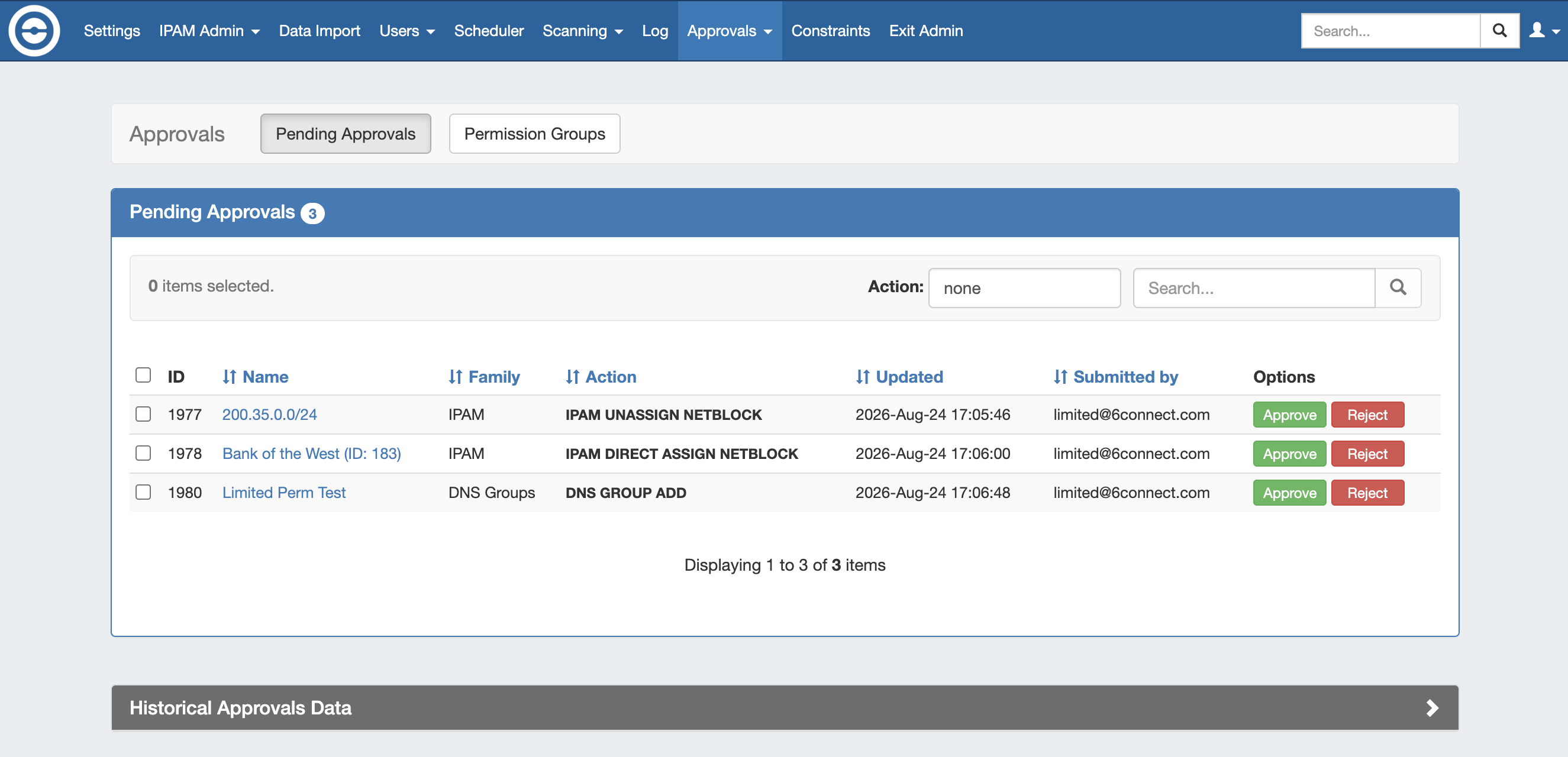
The admin Approvals Tab contains two sub-tabs: Pending Approvals and Permission Groups, which are the primary areas to manage Approvals items.
Pending Approvals Overview
The Approvals module stores and queues DNS , DHCP, or IPAM actions made by selected User Groups, and sends those actions to a Pending Changes list for administrative review. Later, an administrator (or combination of administrators) can approve or reject these stored actions.
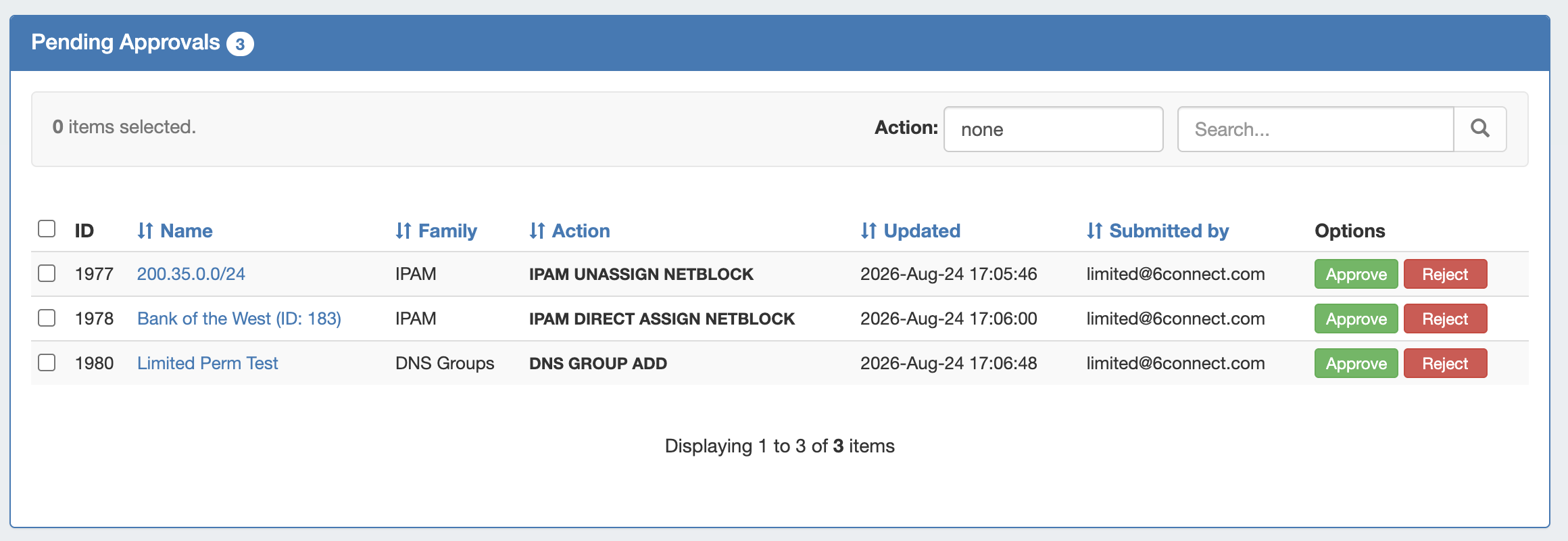
The Pending Approvals sub-tab lists these pending approval requests (also referred to as change requests, approval events, or approval items) for which the current admin user has permission to "Approve" or "Reject".
At the bottom of the page, historical approval items for the user are shown. The user may filter their previous approval items by Executed, Approved, Rejected, or Pending by Others (for items requiring multiple Groups to approve).
Working with the Pending Approvals List
The Pending Approvals list may be sorted by Name, Family, Action Type, Updated time, or by submitted user and searched by resource name.
Expand the areas below for details on working with Pending Approvals.
View / Sort Pending Approvals
View / Sort Pending Approvals
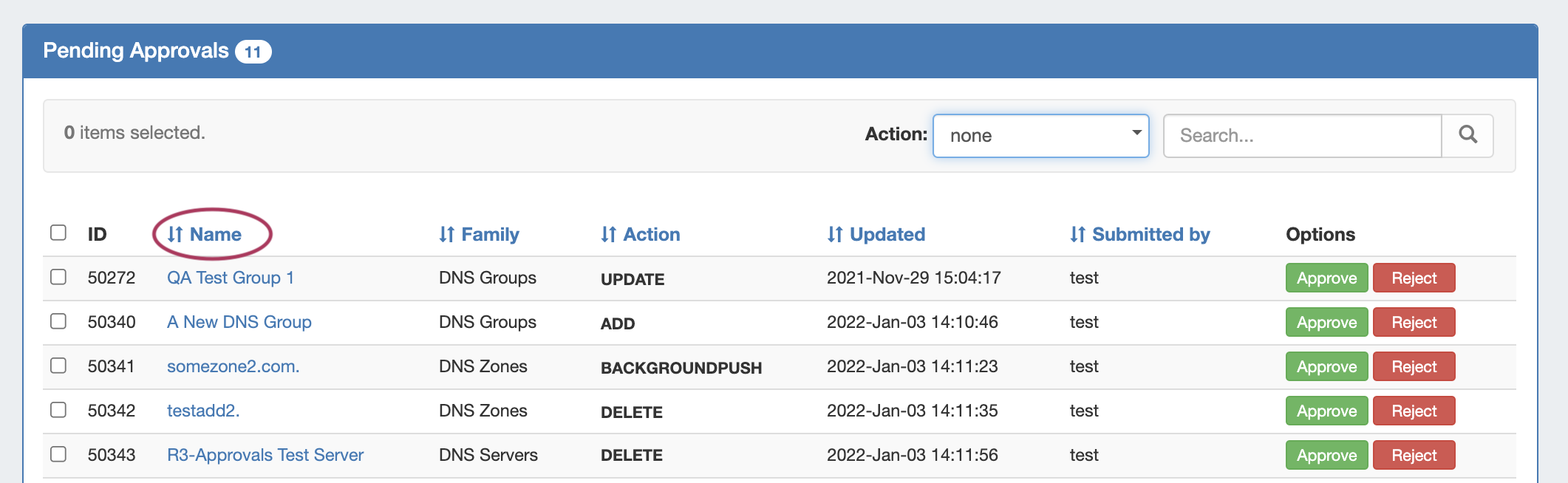
The Pending Approvals list may be sorted for any column with the sort arrow icon (↓↑ ).
Click on the column name to toggle between ascending / descending order for that field.
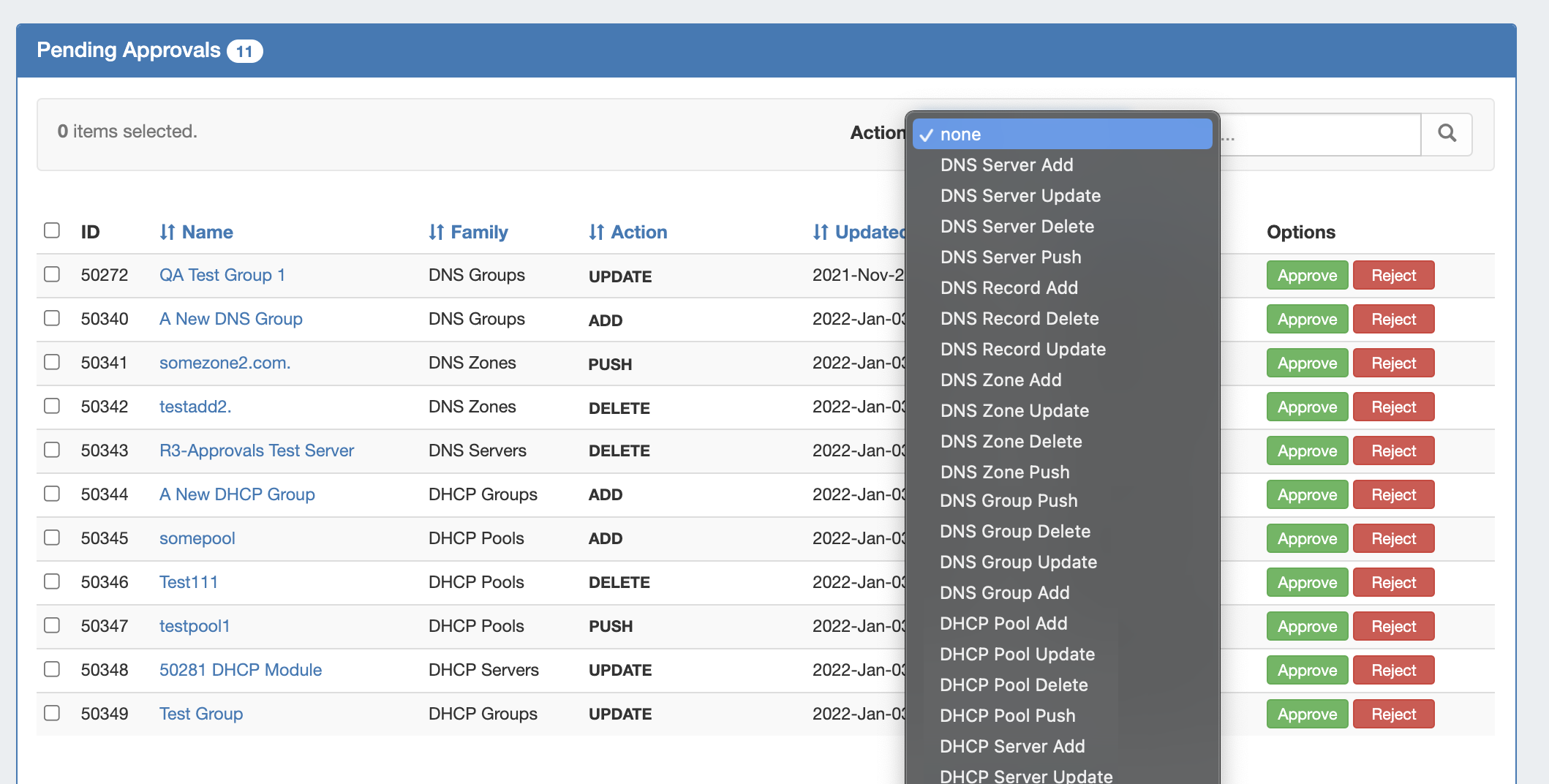
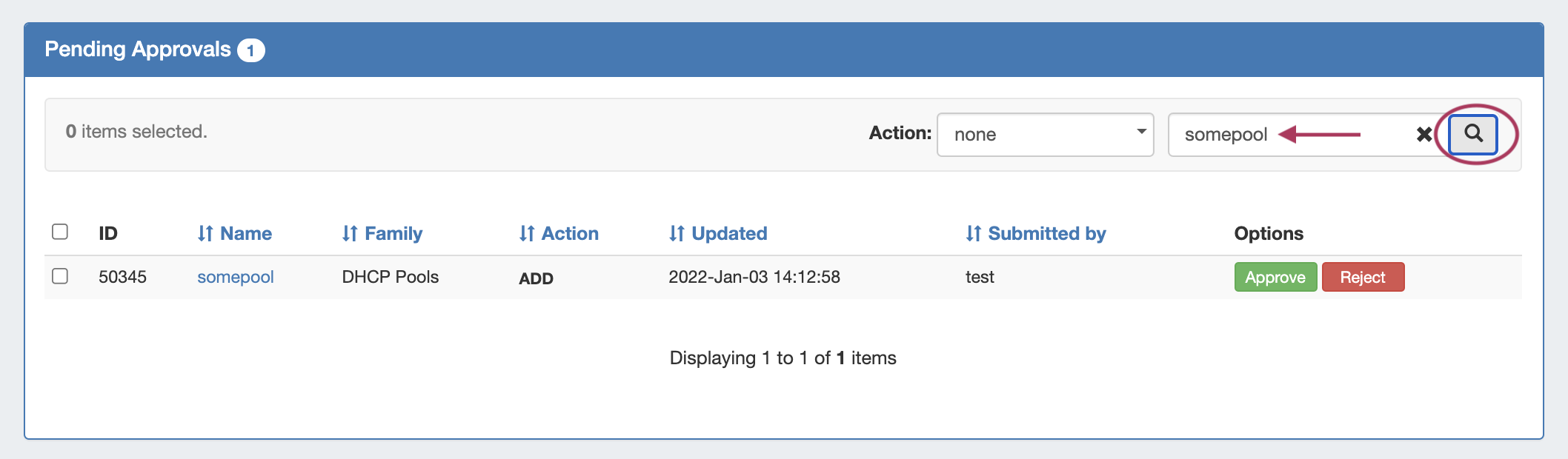
Filter the Pending Approvals list to only view a certain Family/Action type by selecting an option from the "Action" dropdown.
Search the list for a specific item name by typing all or part of the name in the search box, then clicking the search icon.
View Details for a Change Request
View Details for a Change Request
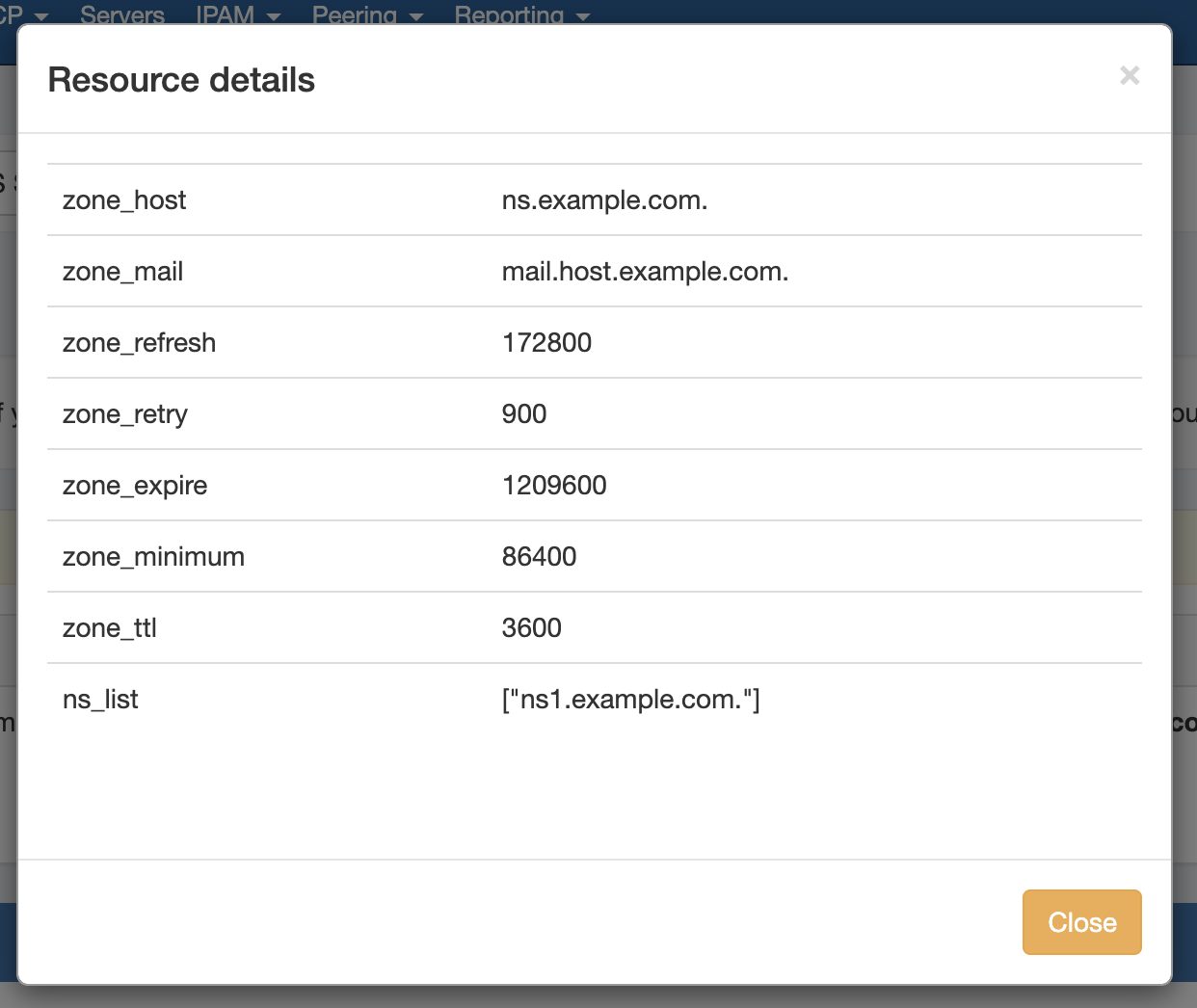
To view details on any Approvals change request, click the name for the desired item. An information box will appear with details on the change, including status, id, creation date, family, field values, and the API Call in JSON format.
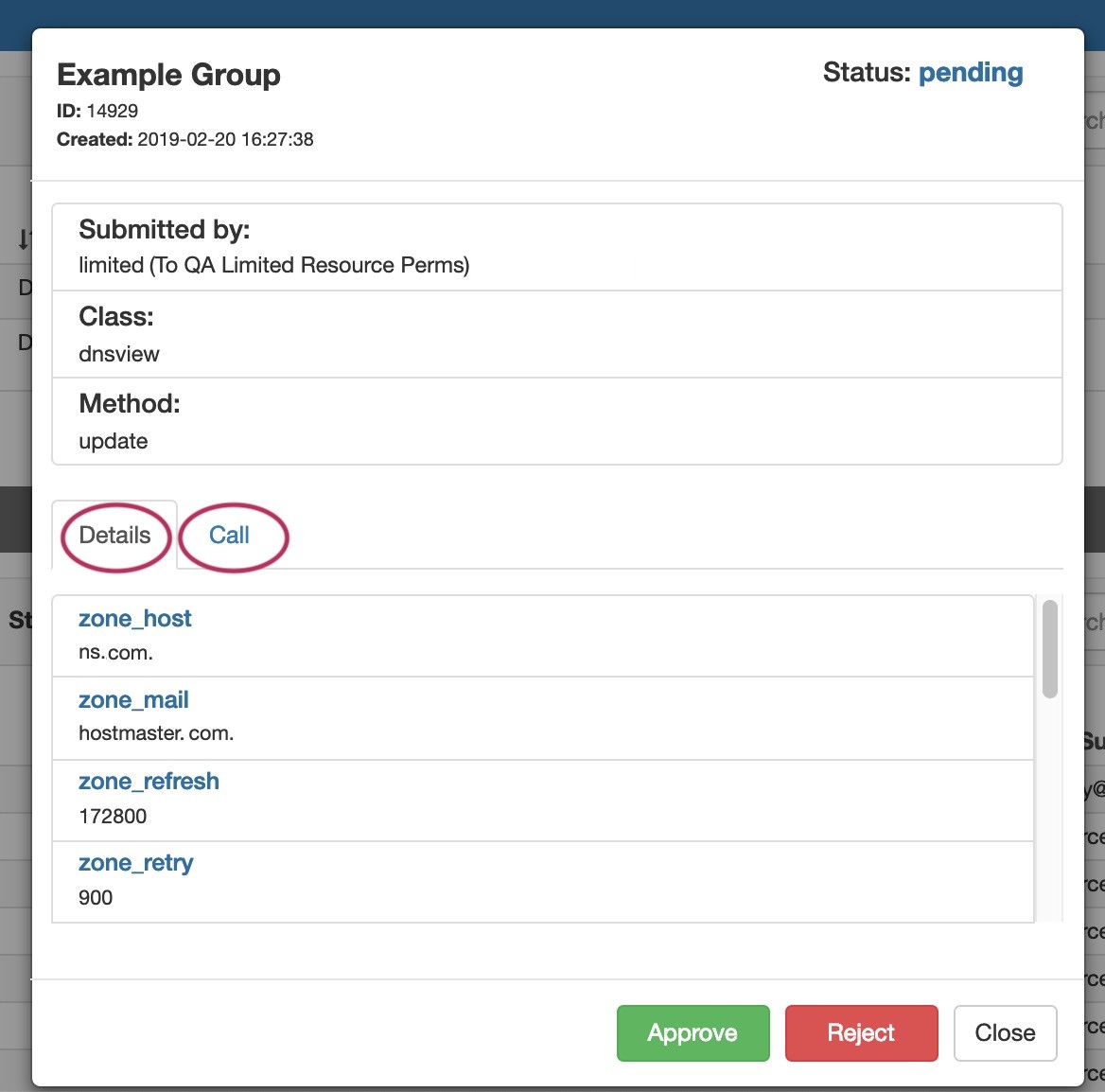
The change may be approved or rejected directly from the detail information box, or you may click "Close" to exit.
View Approval History
Previous Approval events applicable to the current admin user are displayed under the Approvals Historical Data section, until they are deleted or removed by an archive process, such as the "Approvals - Delete events older than 1 month" scheduler task process.
View / Sort Approval History
View / Sort Approval History
Similar to the Pending Approvals list, it may be sorted ascending / descending by field, filtered by status, filtered by action, or searched by name.
Click on the column name to toggle between ascending / descending order for that field.
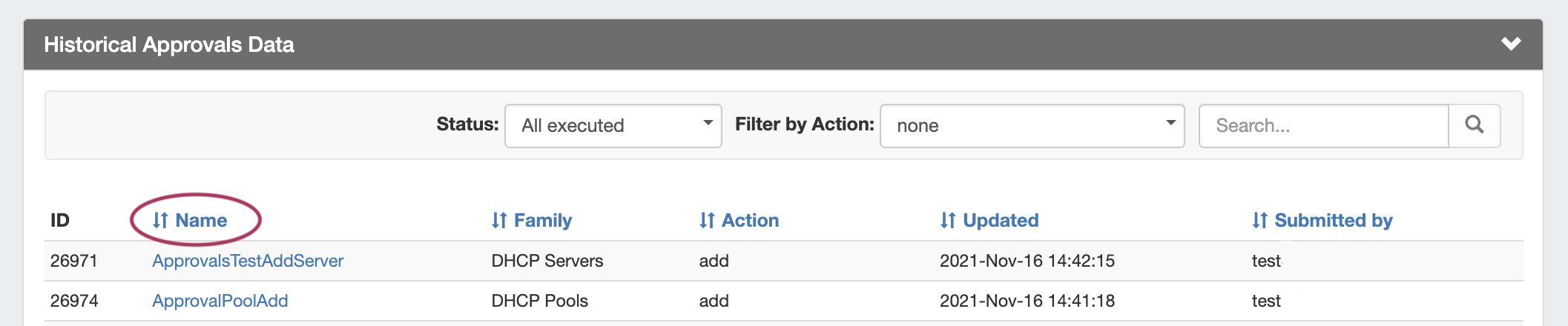
Filter the History to only view a certain status by selecting an option from the "Status" dropdown. The available options include:
-
All Executed - Shows historical approval events that were approved and executed.
-
Approved - Approval change requests approved by you, the currently logged in user.
-
Rejected - Approval change requests rejected by you, the currently logged in user.
-
Pending by others - Approval change requests that you have already responded to with an approval or rejection, but that are awaiting responses from one or more other groups.
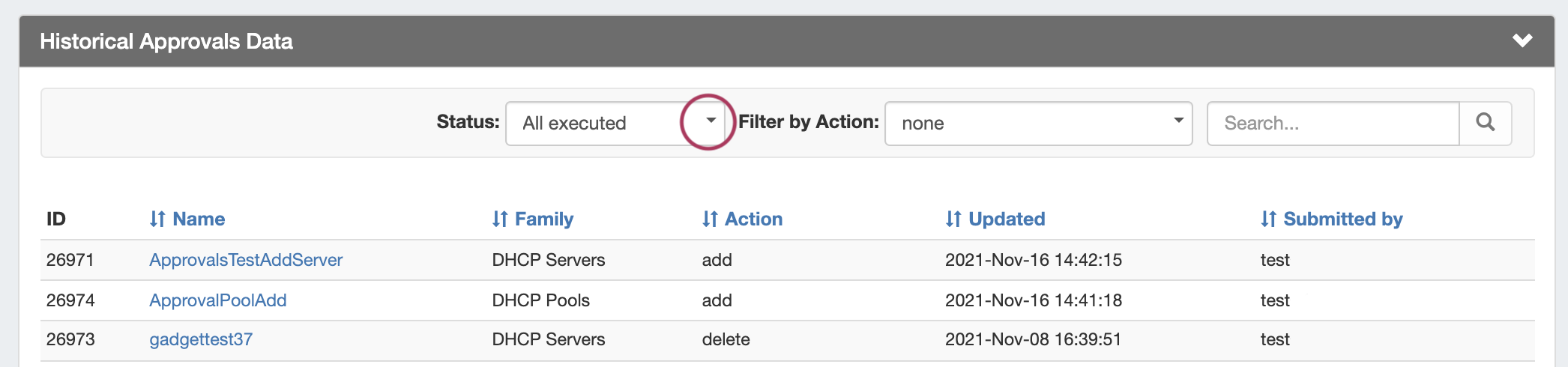
Filter the History to only view a certain Family/Action type by selecting an option from the "Filter by Action" dropdown.
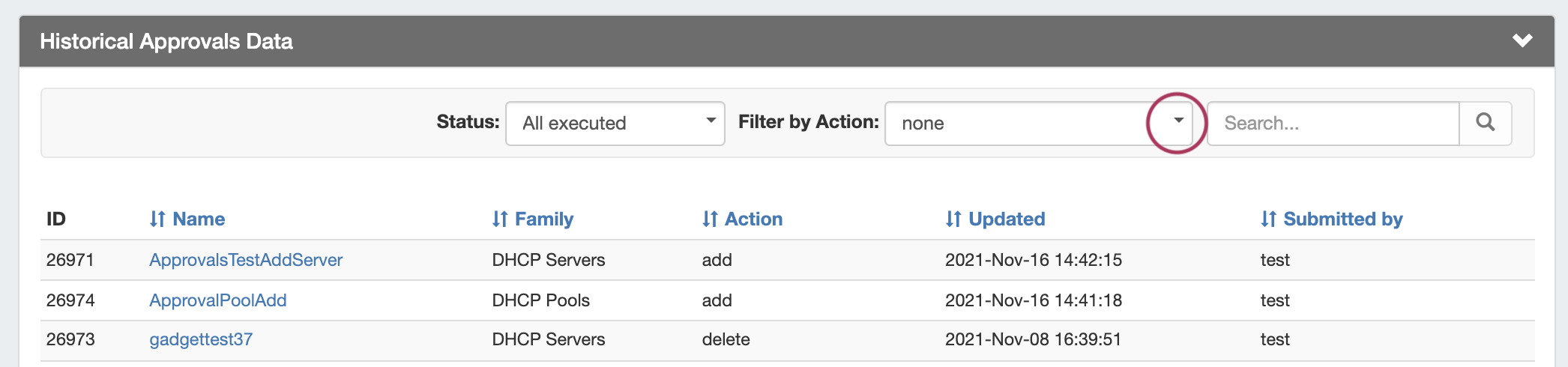
Search the list for a specific item name by typing all or part of the name in the search box, then clicking the search icon.

Viewing Requests Pending by Others
Viewing Requests Pending by Others
Approval requests that you have approved/rejected, but which are still awaiting a response from another group, may be viewed under Historical Approvals Data by setting the "status" filter to view "Pending by Others".

Managing Pending Approval Requests
Approving and Rejecting change requests may be done individually, or in bulk by selecting multiple item checkboxes, expanding the "Actions" menu at the top of the list, and then selecting to Approve or Reject all selected items. If notifications are enabled for the Group or Action, an email will be sent notifying the request submitter of the status change.
Approve / Reject a single change request
Approve / Reject a single change request
To Approve or Reject any single change request, click either the "Approve" or "Reject" button for the pending item.
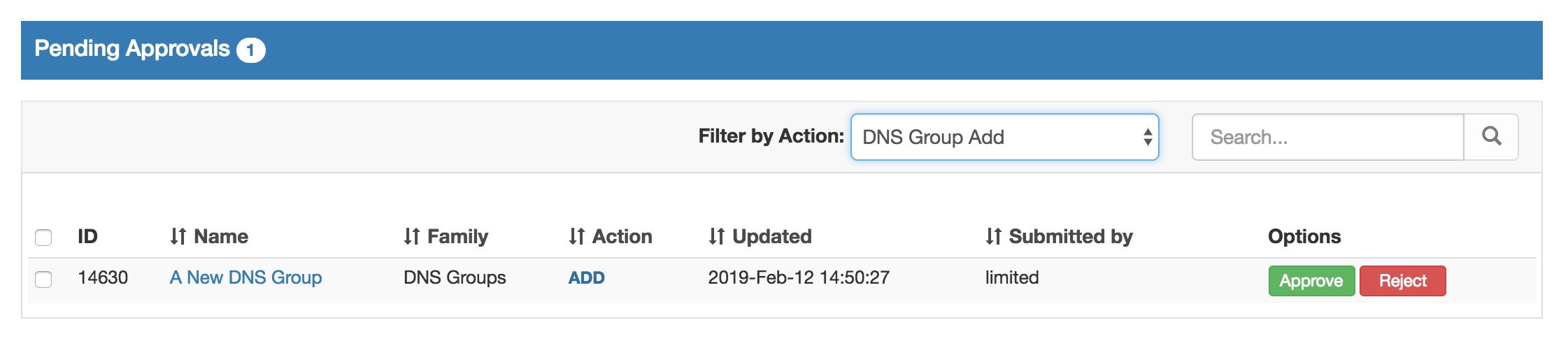
Approving or Rejecting a request may be done from the Pending Approvals list, the detail view for the item, or from the "Resources awaiting approval" module for the relevant area.
Bulk Approve / Reject
Bulk Approve / Reject
Bulk Approve or Reject actions may only be done from the Approvals tab Pending Approvals list.
Select the checkboxes for the items that you want to bulk approve or deny, then click the "Actions" menu at the top of the list. From there, select either "Approve All" or "Reject All" to apply the response to the selected approval requests.
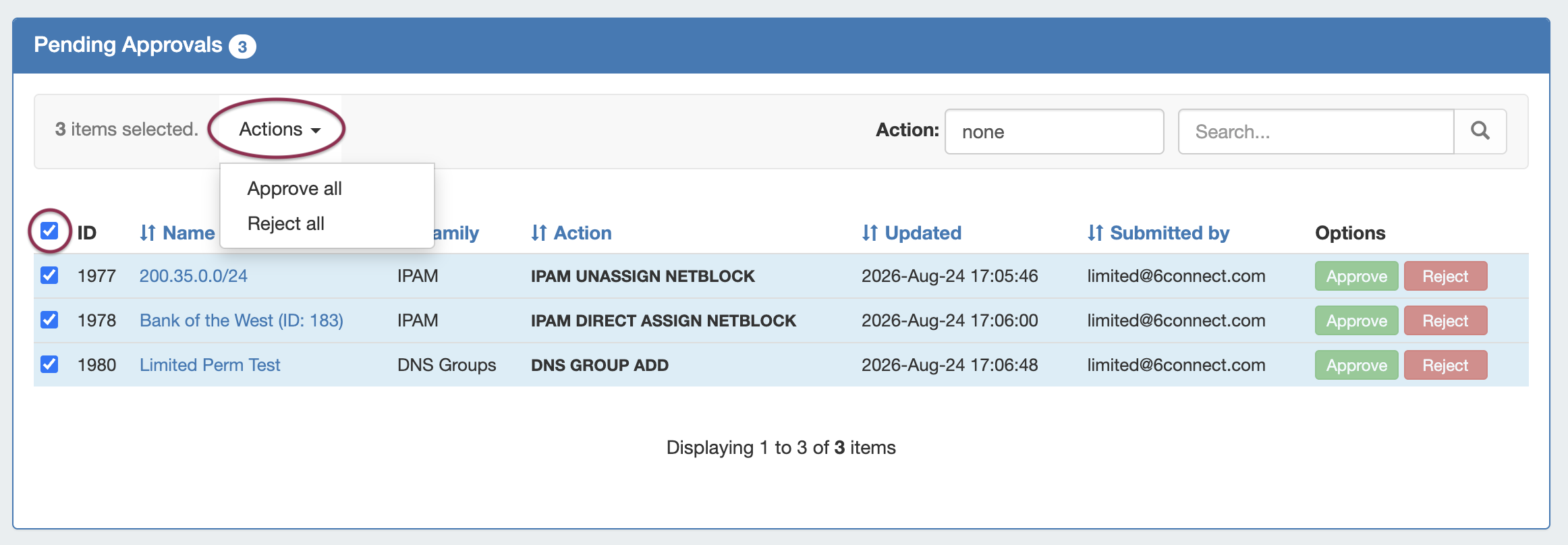
If you wish to select all items in the Pending Approvals list for the same response type, click the "select all" checkbox to the left of the "ID" column name. All of your pending items will be selected, and you may choose to "Approve All" or "Reject All" from the top of the page.
Resources Awaiting Approval Module
Resources Awaiting Approval Module
A Resources Awaiting Approval module displays in the relevant DNS / DHCP areas, visible by either the submitter or an approver for that change.
Users who submitted the request will be able to view the request details, but will be unable to take any actions on the request.
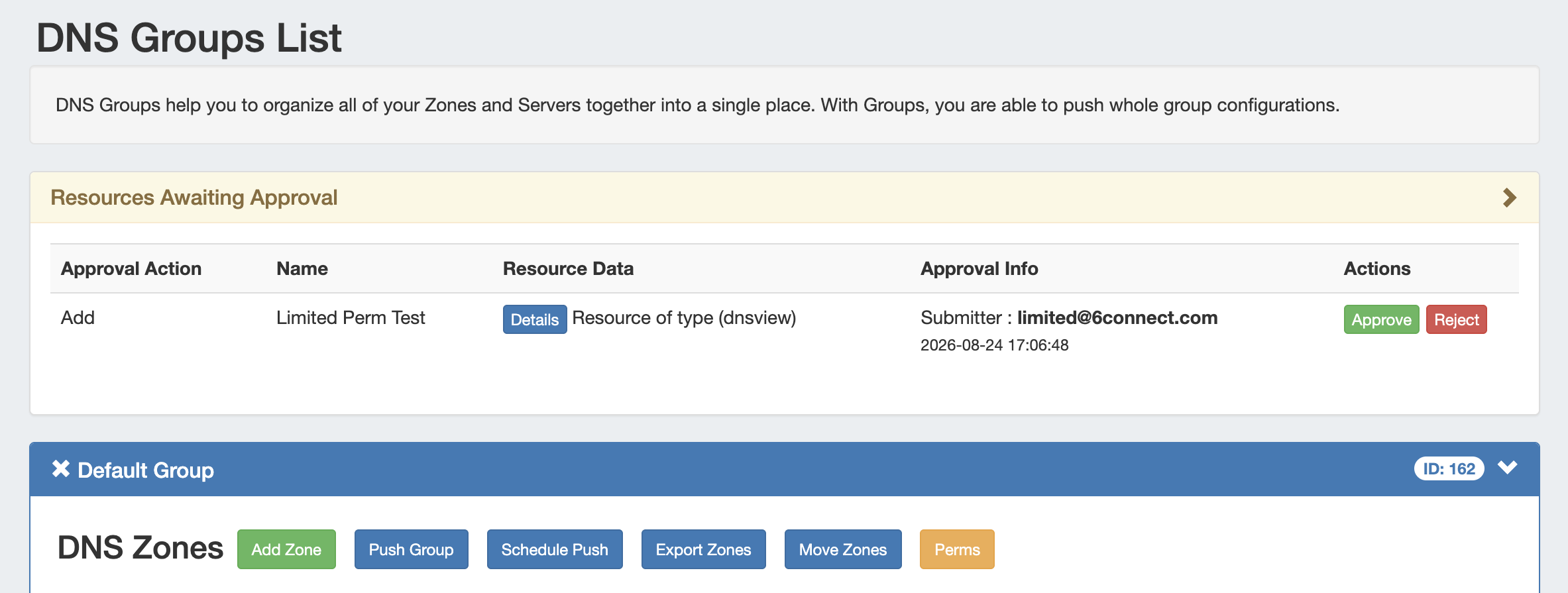
Admin users with Approve/Reject Ability will see Approve/Reject buttons available to immediately respond to the request.
Details for the change may be viewed by clicking the "Details" button in the module.
View / Send Request Status Change Notifications
View / Send Request Status Change Notifications
Email notifications of changes in status are an optional feature that may be set up by Approval Permission Group for the desired action types.
The emails provide the current status, approval ID, links to the log event and change request details, and details on the user, time, and date.
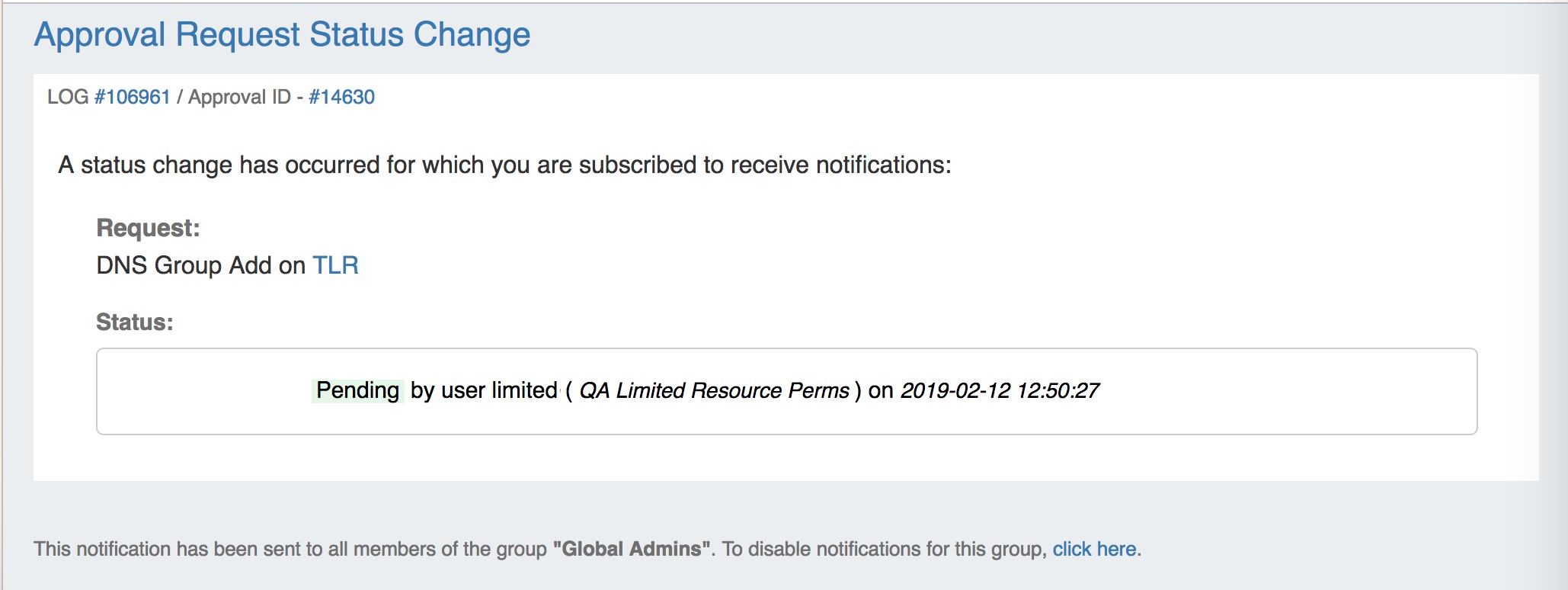
In order to send email notifications to affected groups of a change in the status of an Approval event:
-
Notifications must be enabled for the Group, for the family-action type of the requested change
-
A scheduler task ("Approvals - Process Subscription") must be created and running to process the notification and send the email
Enabling notifications for approval events is done in the Permission Groups subtab of Approvals, see the Working with Permission Groups page for additional information on setting up notifications.
The "Approvals - Process Subscription" task processes approval request events and handles the sending of notification emails to subscribed Approvals Groups.
If Approvals are in use with notifications, it is recommended to create this to run at short, regular intervals appropriate to the needs of the users receiving the emails (every 5-10 minutes), and no end date. For details on setting up this task, see documentation for the Scheduler Tab.
Go to the Scheduler Tab, and verify that the "Approvals - Process Subscription" task has been created, is enabled, and is running at short, regular intervals appropriate to the needs of the users receiving the emails (recommended to run every 5 minutes).
Set up Approval Scheduler Tasks
There are two Approvals-related Scheduler tasks available:
-
Approvals - Process Subscription: The "Approvals - Process Subscription" task processes approval request events and handles the sending of notification emails to subscribed Approvals Groups.
-
This task must be created, enabled, and running on a regular interval in order for Approval Notification emails to be sent.
-
it is recommended to create this to run at short, regular intervals appropriate to the needs of the users receiving the emails (every 5-10 minutes), and with no end date.
-
-
Approvals - Delete events older than 1 month: Set up this task to occasionally clear out old and obsolete Approval request events. This task deletes any Approvals history events older than 30 days.
-
It is recommended to set this task to run monthly with no end date, to clear out obsolete approvals items, reduce data storage space needs, and reduce approvals page load time.
-
Expand the area below for details on creating scheduler tasks for the Approvals system:
Set up Approval Scheduler Tasks (Process Subscription Notifications / Delete Old Events)
To set up either of these events:
-
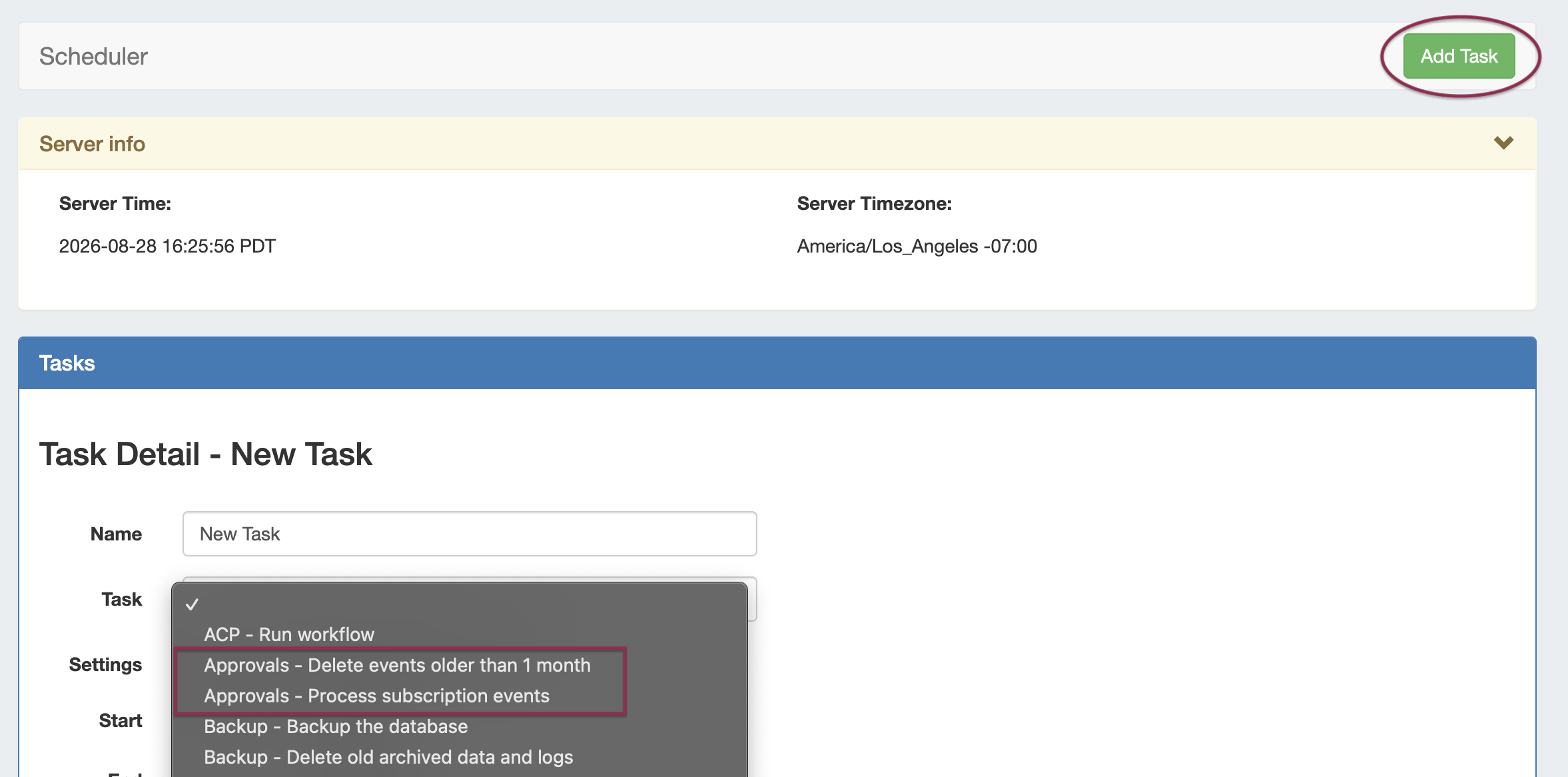
Go to the Admin → Scheduler tab and click Add Task to set up the Scheduler tasks for Approvals.
-
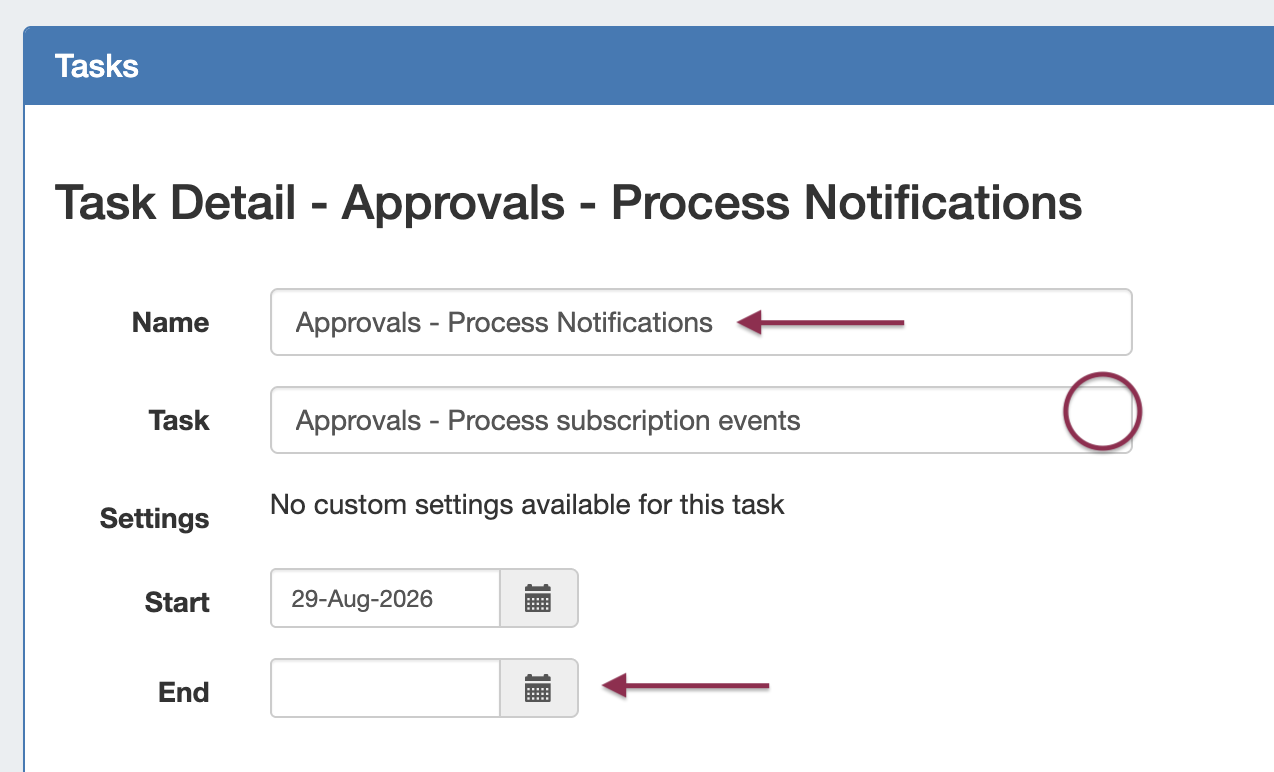
Enter a display name for the task
-
Click in the Task field to select the appropriate task (Approvals - Delete events older than 1 month or Approvals - Process Subscription Events)
-
Enter a Start/End Date - We recommend leaving the end date blank in order to create as a “forever” task.
-
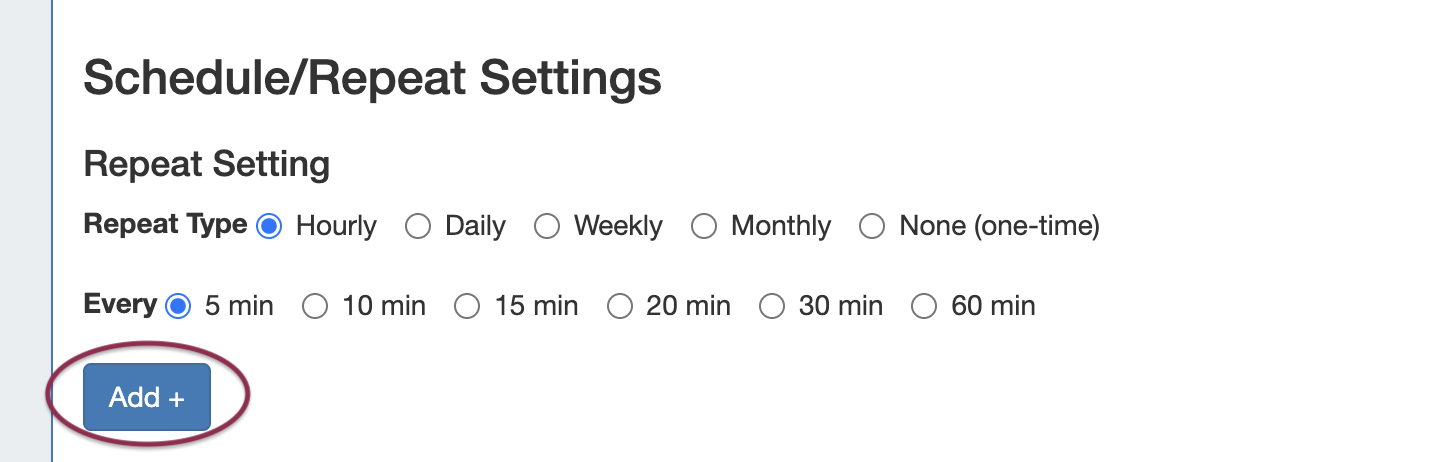
Select repeat settings for the task and click Add
-
Approvals - Delete events older than 1 month: Recommended to repeat once a month
-
Approvals - Process subscription events: Recommended to run every 5-10 minutes
-
-
Click Save Task to save your task settings.
-

Once the task is created, it will display in the Scheduler Task List. From here, you may view task history, view details, manually run the task now, or delete the task.
