
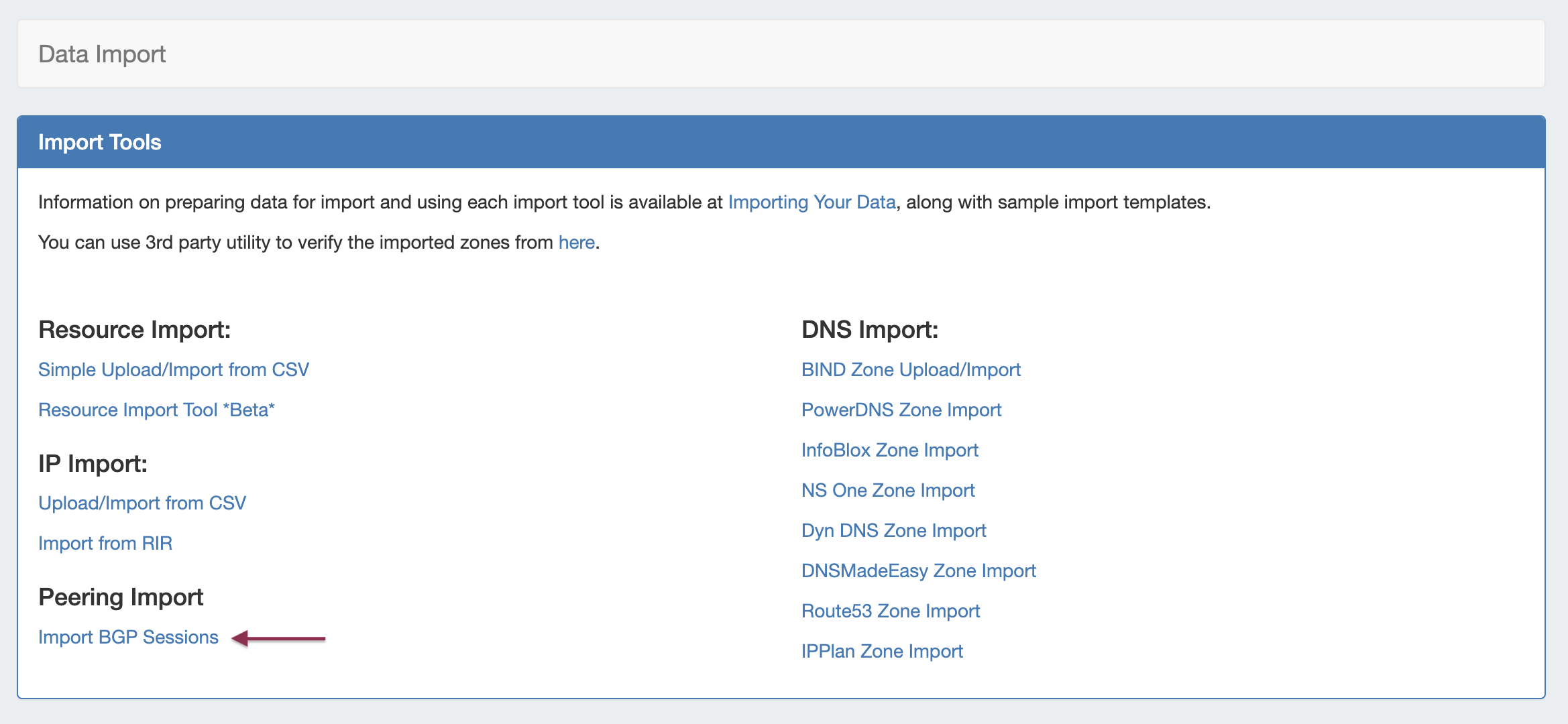
Importing peering sessions requires Admin-level permissions, and is accessible only from the Admin section of ProVision.
From the Admin section of ProVision, navigate to the Data Import Tab. Under Peering Import, select Import BGP Sessions. This will take you to the Peering Import section of ProVision.
Standard BGP Session Import
Before You Begin
Before attempting a session import, ensure that the applicable exchange and router have been added into ProVision. See Peering Exchanges and Peering Routers for details.
Load Router Sessions
First, select the desired exchange and router. Routers with Logical Systems information will show up as the router name with the Logical System info in parenthesis (e.g. "Juniper (test)"). Then click "Load Sessions".
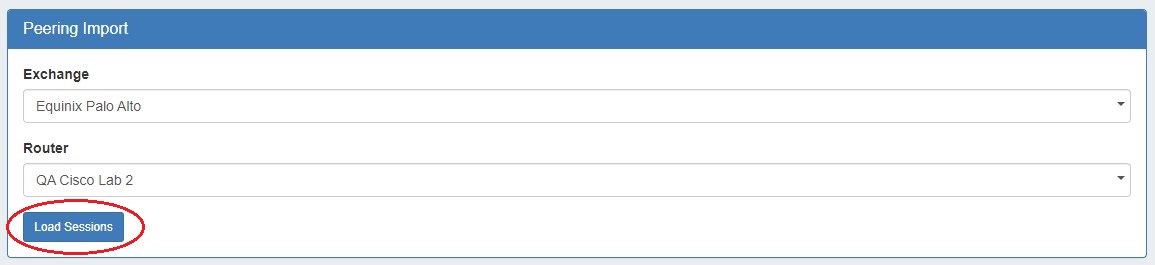
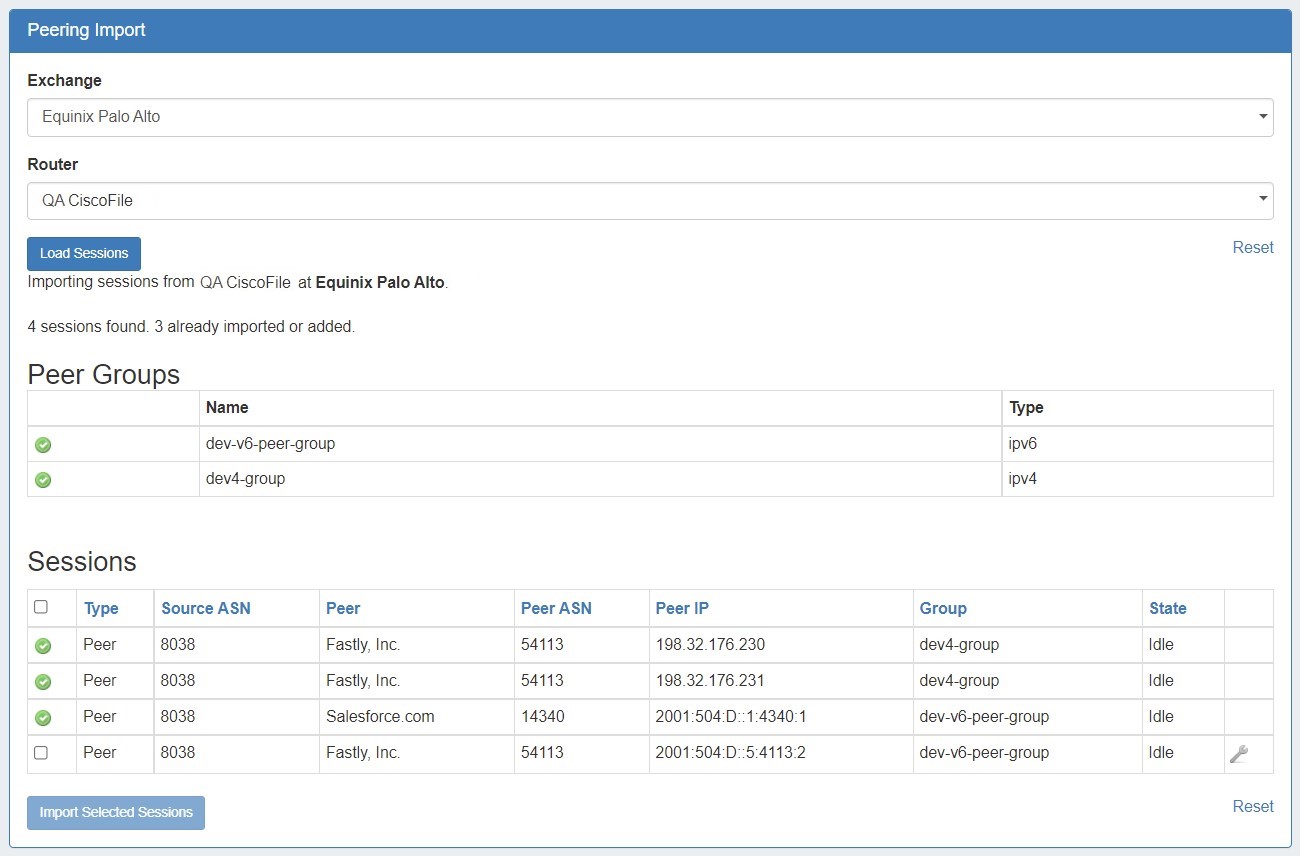
Peer Group and Sessions will then display below your selections.
Edit Sessions (Optional)
The available peer Groups and Sessions will display below your selected exchange and router.
If edits need to be made to the session prior to import, click on the wrench icon to open field edits.

Make the changes to desired field(s), then click "Done" to save your changes and proceed to importing.

Select Groups and Sessions
Lastly, select the check box next to each Session to import (or the check box at the top to select all sessions) and click "Import Selected Sessions".
Successful imports will then display with a green check mark at the beginning of the row.
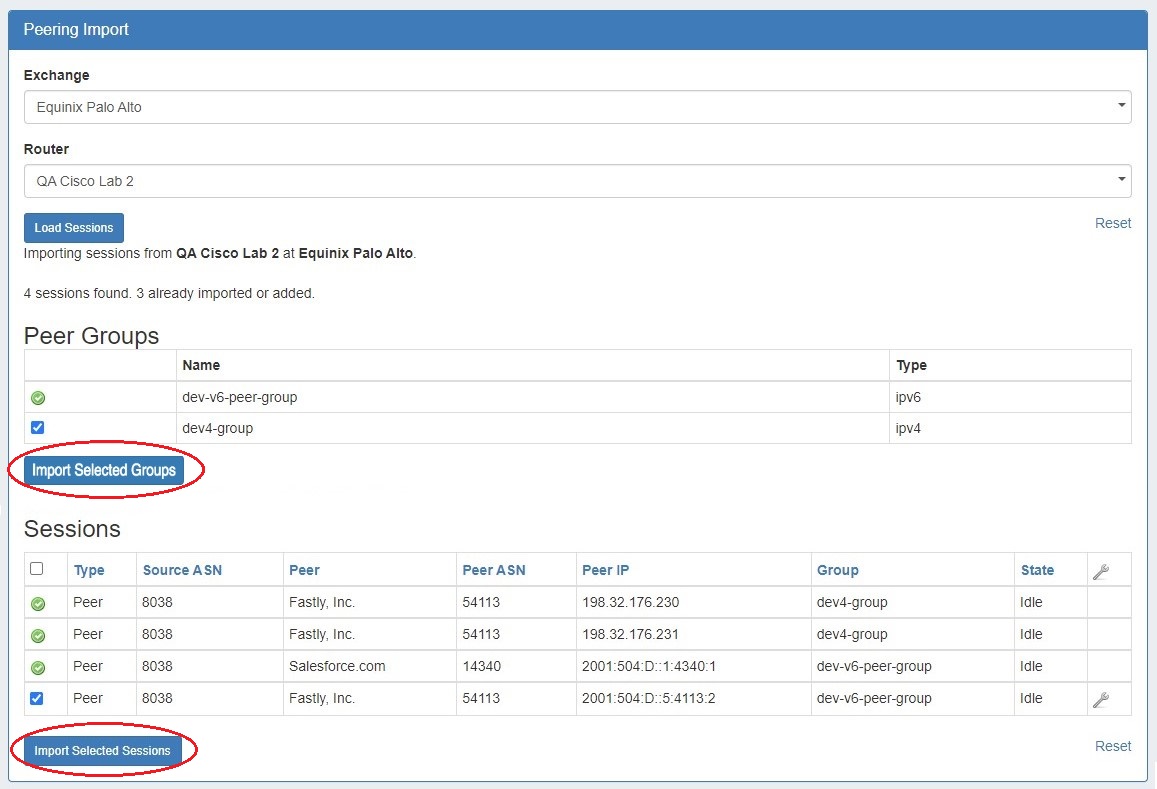
Once imported, you can manage and configure your sessions from the Peering Tab.
Importing with Router File Connectors
Note: These connector types are only used for this direct data import process - do not select these for standard ProVision router/session creation, as peering management functions (config pushes, session states, etc) do not obtain a router connection while using File Connectors.
File Connectors should only be used in rare circumstances where direct router access is unavailable.
Step 1: Generate Router Data File
Generate a router response data text file (it should be named “cisco_router_data.txt”, “juniper_router_data.txt” or “arista_router_data.txt”) and place it in ProVision's /data directory.
To generate the router response, run the following commands:
|
Cisco |
Juniper |
Arista |
|---|---|---|
|
terminal length 0
|
show bgp neighbor | display xml | no-more
|
terminal length 0
|
Step 2: Create New Router
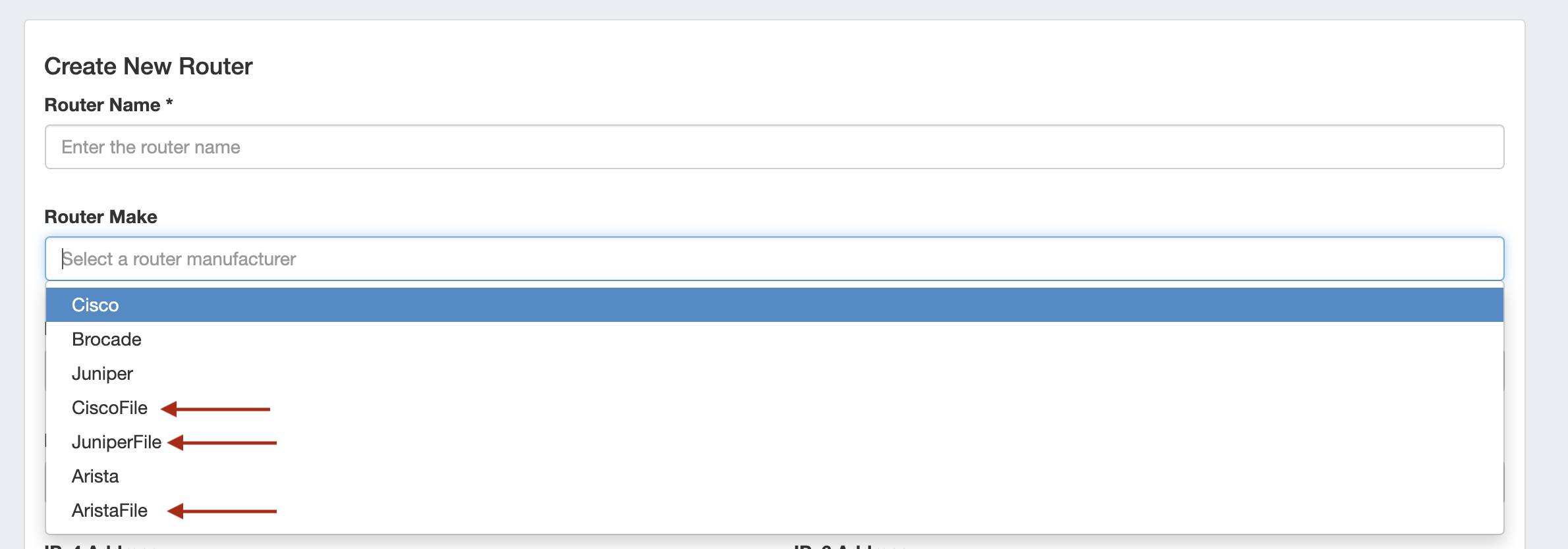
Create a new 'Router' in ProVision, selecting the appropriate file connector as the Router Make type - CiscoFile, JuniperFile, or AristaFile.
Step 3: Load Router Sessions
Navigate to Admin → Data Import → Peering BGP Import.
Select the appropriate exchange, then the File Connector Router that you created.
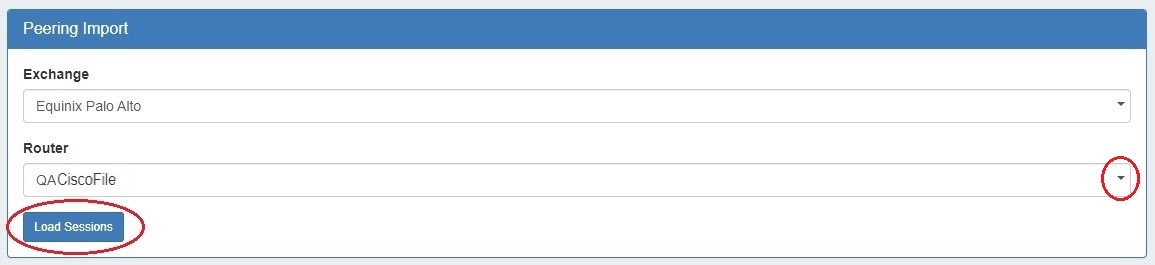
Click "Load Sessions", and the sessions contained within the router data file will be available to review, select, and/or import into ProVision.
Import via APIv2
The same import process may also be performed via APIv2, using the following information:
1) "router id" contained within the URL for an already-created File Connector Router
2) "ix_id" (the ID of the exchange) in the body
3) "router_response" (the output from the router) in the body
The APIv2 details can be view from ProVision swagger documentation at ['instance']/dev/swagger/spec.php?family=peering#/default/single_parse_bgp_info