
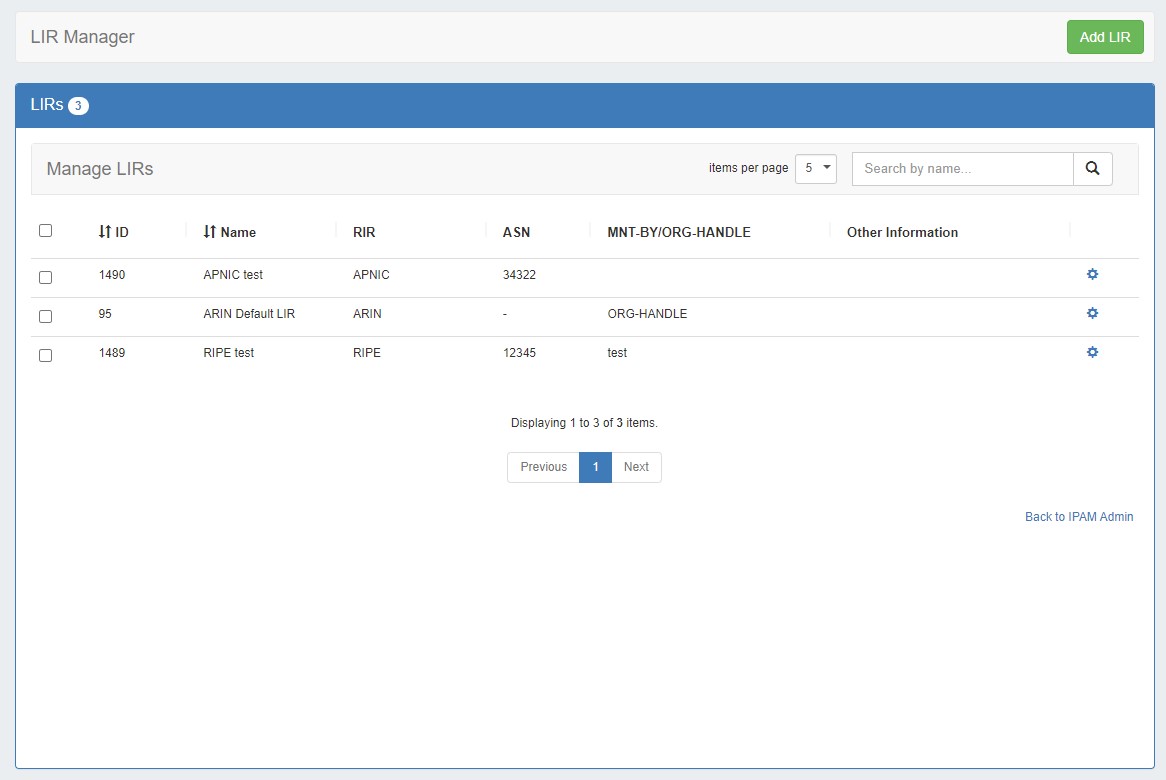
ProVision supports multiple LIRs (Local Internet Registries) in a single instance. This means that you have the ability to update SWIP/RPSL functions for a given allocation with the LIR information that you wish.
LIR Setup and Use
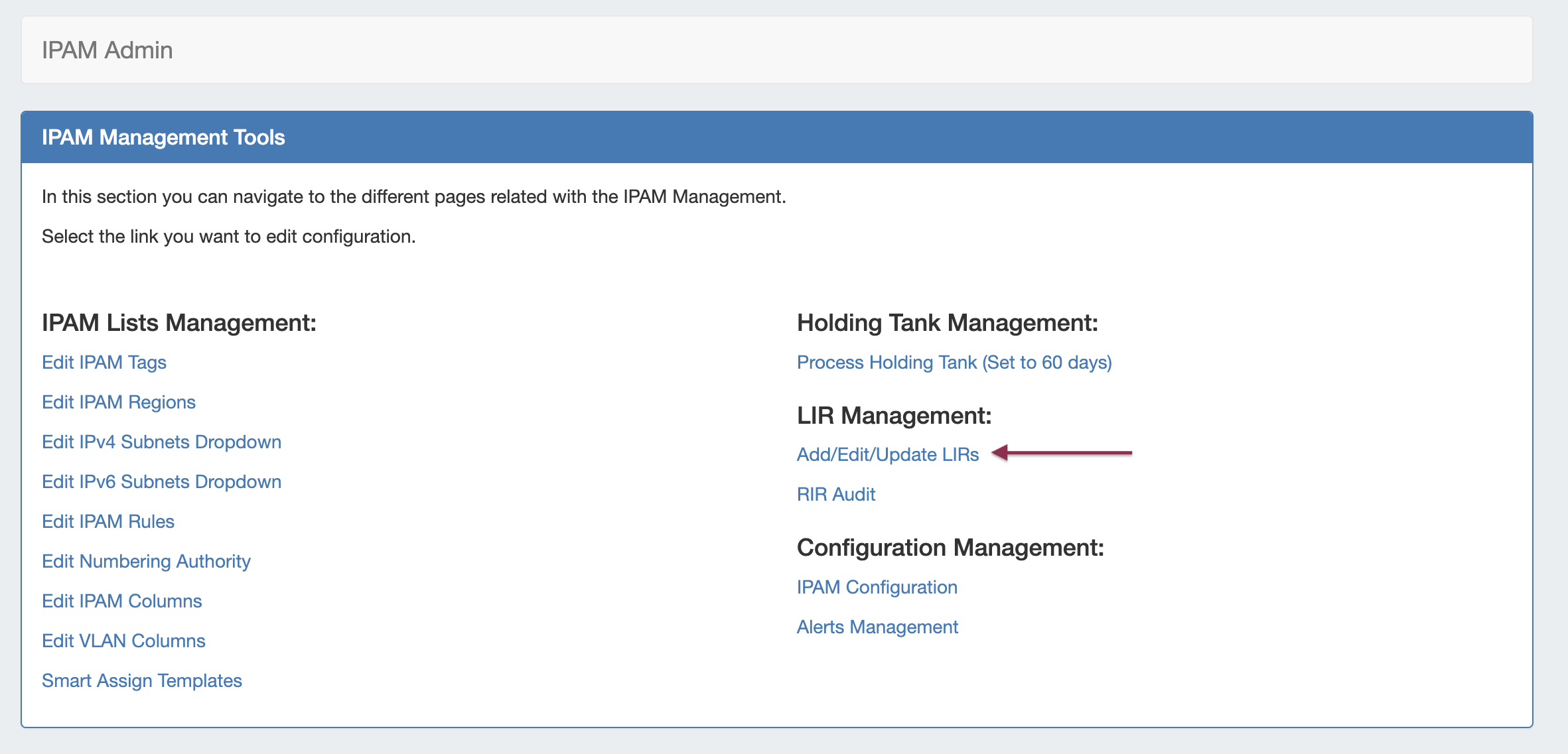
The LIR Manager is available from the IPAM Admin page.
In the Admin area of ProVision, select the IPAM Admin tab, then LIR Management: Add / Edit / Update LIRs.
You will be taken to the LIR Manager page, showing your current LIRs.
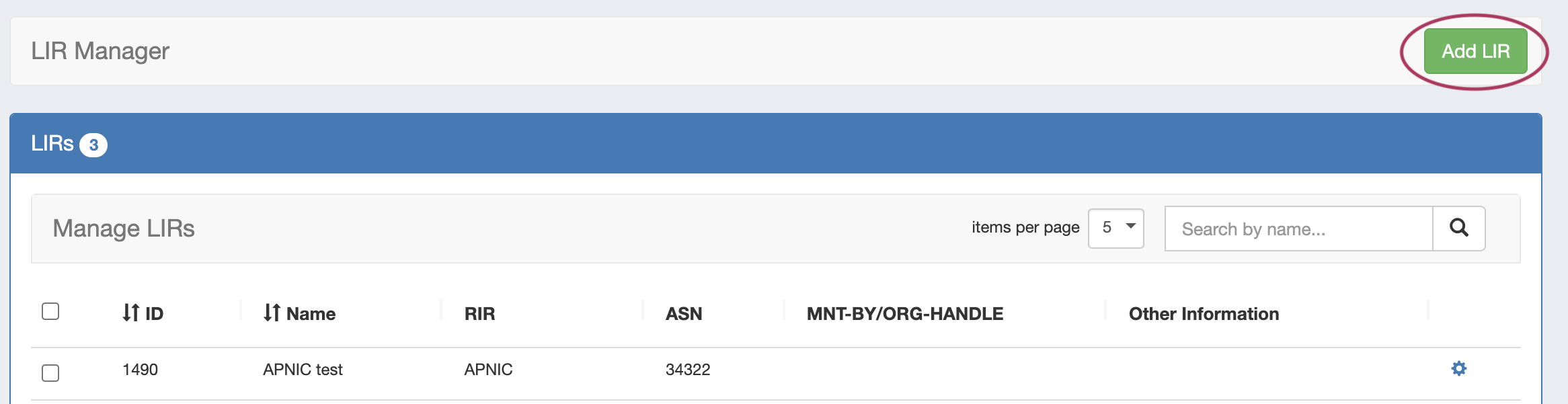
You may Add LIRs from the top of the page, and edit or delete the individual LIRS by hitting the Action Menu (gear icon).
Add a LIR
After clicking on the Add LIR button, you can setup the required data for the specific RIR/LIR combination.
ARIN
ARIN
Adding a new LIR with ARIN selected for RIR will bring up the following fields:
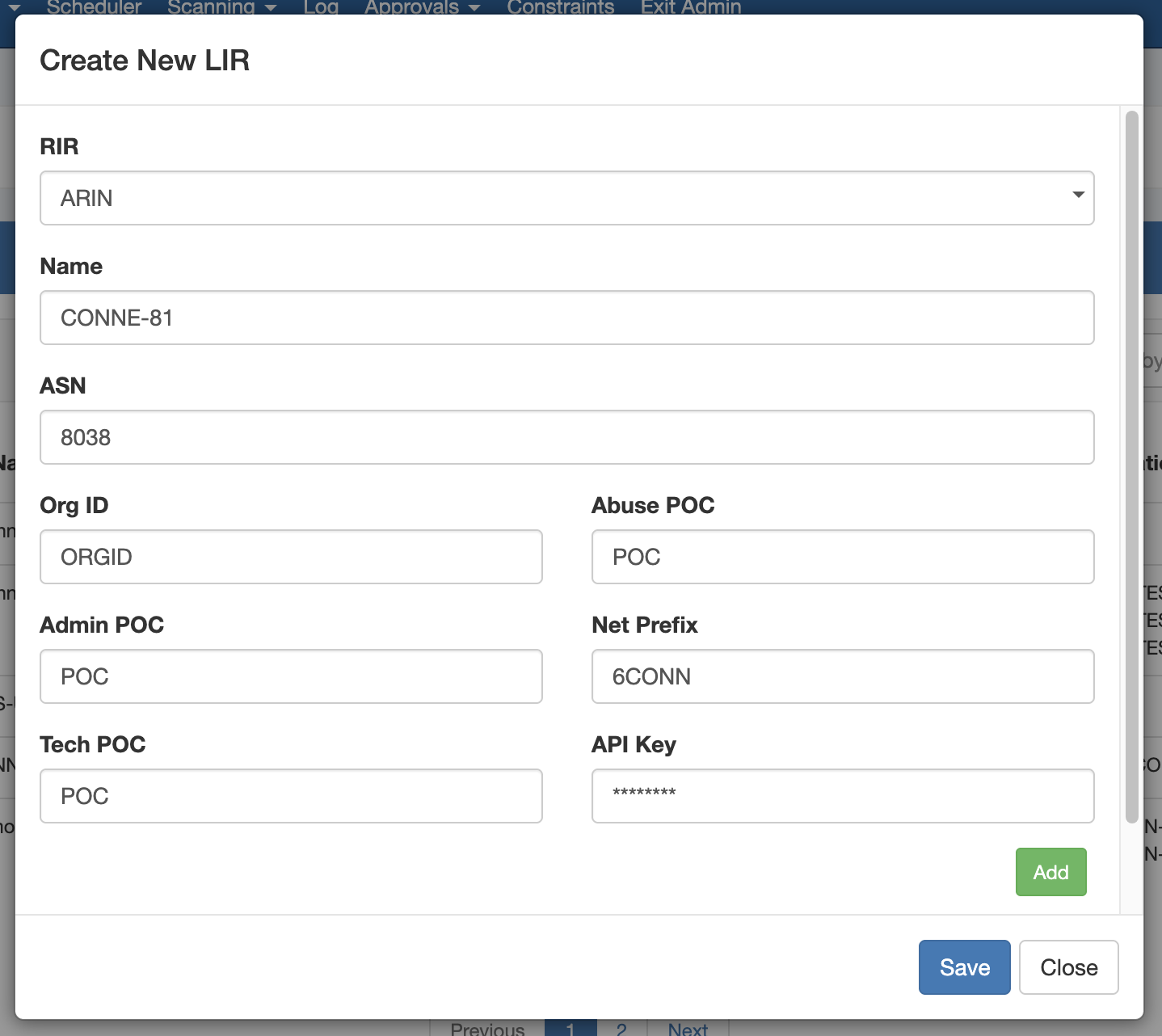
Enter the ARIN LIR information:
-
LIR Name
-
ASN
-
ORG ID
-
POC information (Admin POC / Tech POC / Abuse POC)
-
NET Name Prefix
-
ARIN API Key
Additional Orgs may be added by selecting the Add button.
Be sure to click Save when done to save your changes.
For a detailed walkthrough, please see: ARIN LIR Setup and Use.
RIPE
RIPE
Warning: Deprecation of RIPE MD5 Hashed Passwords
All ProVision RIPE LIR connectors must be created (or recreated) using RIPE API key credentials.
RIPE MD5 hashed passwords (used in ProVision v8.3.0 and earlier) are deprecated and have been removed as of January 2026, and replaced with API Key based authentication.
Users must generate a RIPE API key associated with their NCC account as described at Using the Authorisation Methods - API Keys:
To create an API key, login to Webupdates using RIPE NCC Access and choose API keys from the left-hand menu. Then click Create an API Key. When the key is created you will see a popup. You must copy the API key details as they will only be shown once. Store the copied credential securely. Before using an API key, you must add your RIPE NCC Access account to a maintainer using an auth: SSO attribute.
Adding a new LIR with ARIN selected for RIR will bring up the following fields:
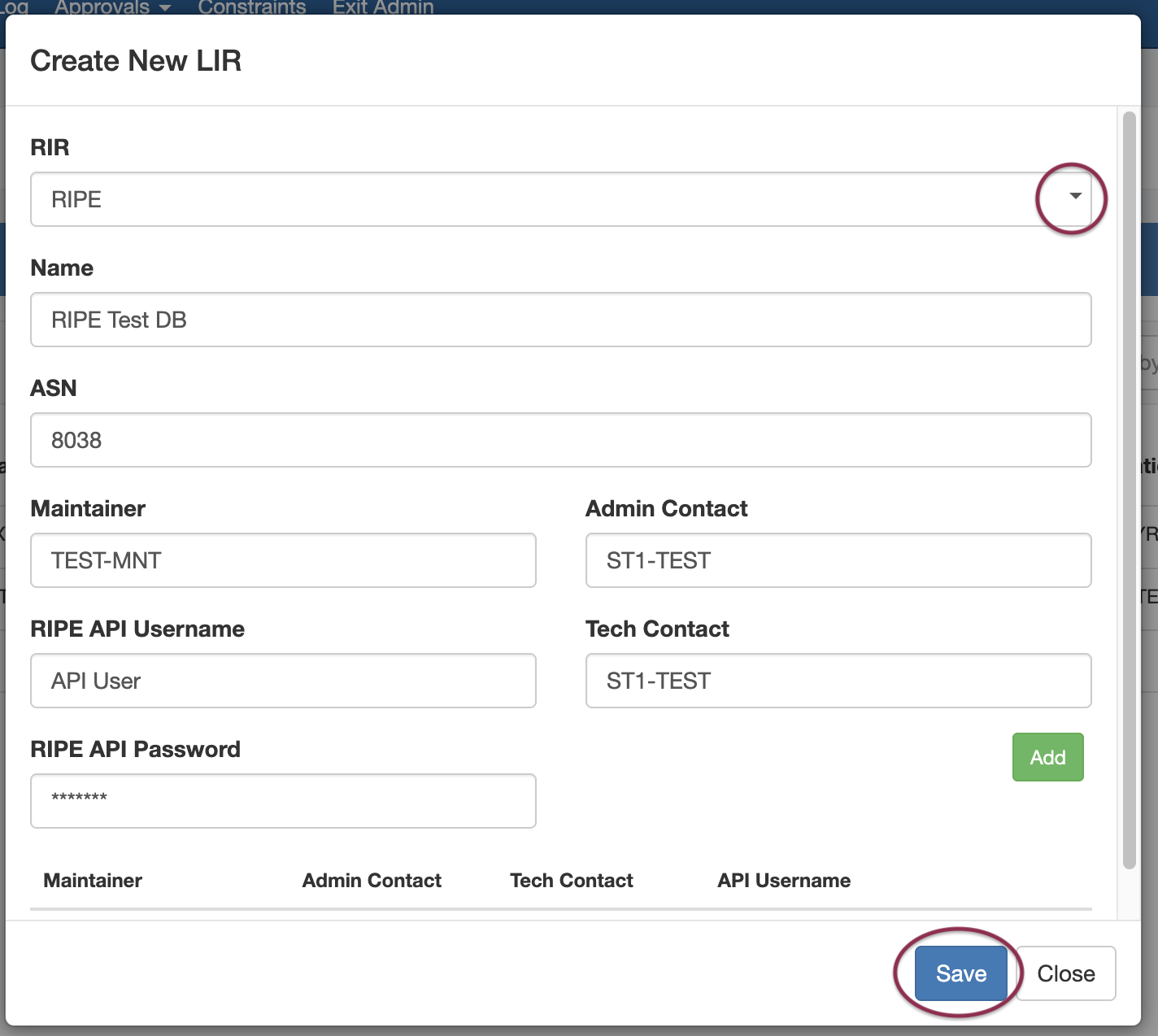
Enter the RIPE Maintainer Object information:
-
LIR Name
-
ASN
-
Maintainer
-
Contact information (Admin / Tech)
-
RIPE API Username
-
RIPE API Password
If you need to create a RIPE API Key, please see Create a RIPE Key on the RIPE LIR Setup and Use page.
Additional Maintainer objects may be added by selecting the Add button.
Be sure to click Save when done to save your changes.
Remember to SAVE!
Make sure to click the Save button or else the LIR data will not save.
Edit a LIR
Edit a LIR by clicking on the Action Menu (gear icon) next to the entry in the LIR Manager.
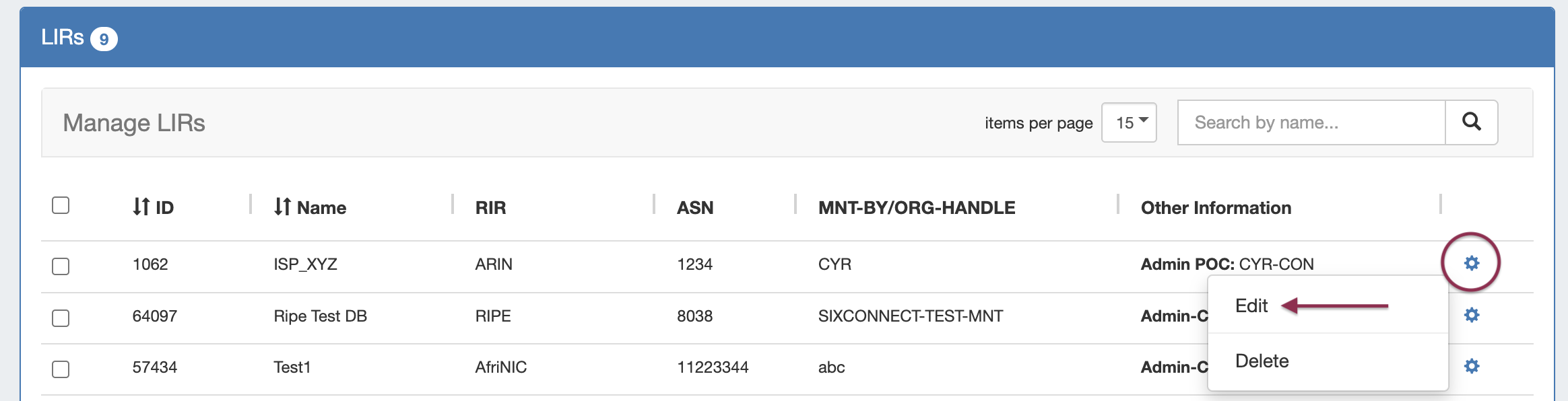
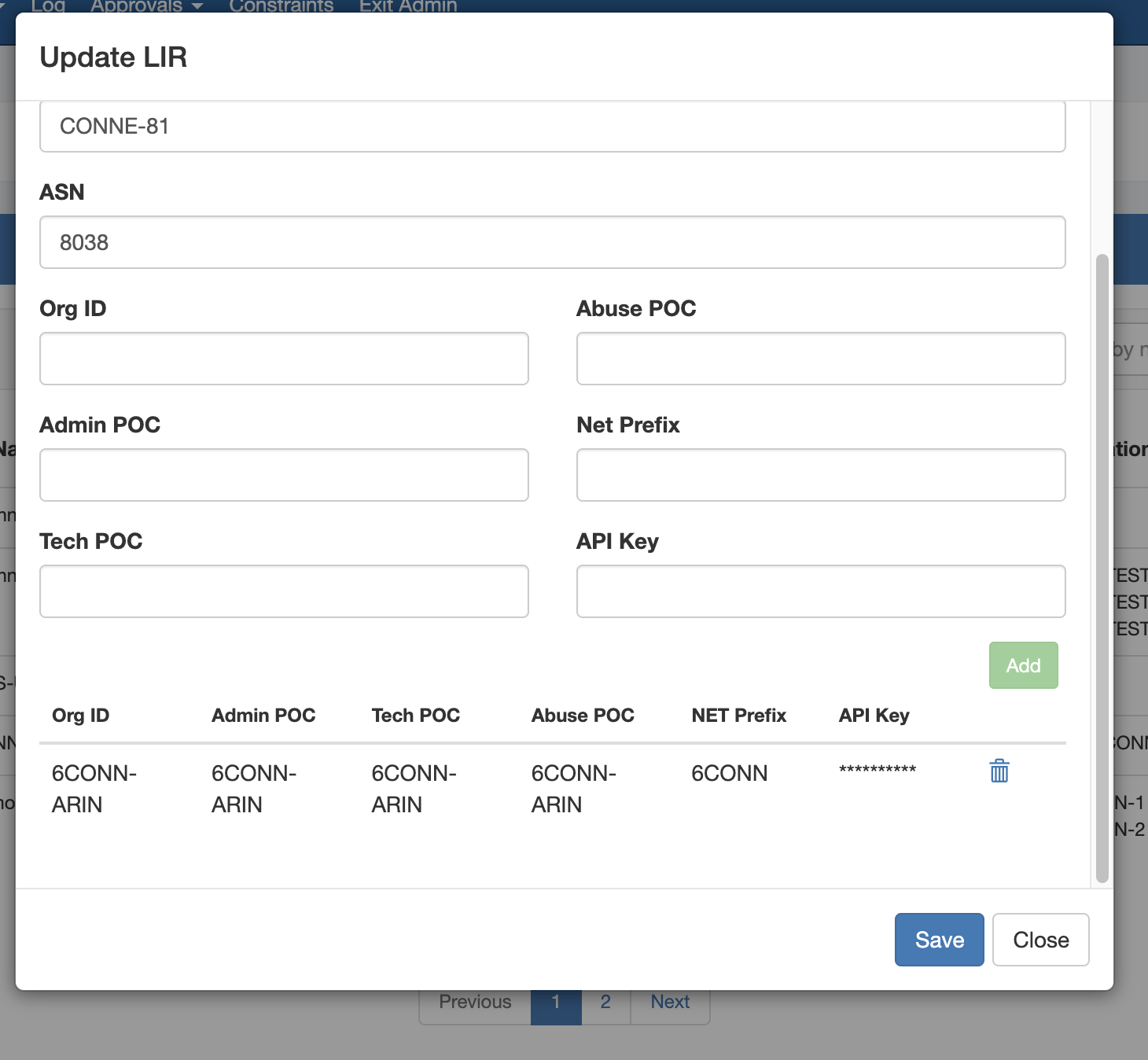
The Update LIR dialog will open. From here, you can edit RIR, Name, ASN, and Org information, as well as add / delete Orgs or Maintainer Objects.
Delete LIR(s)
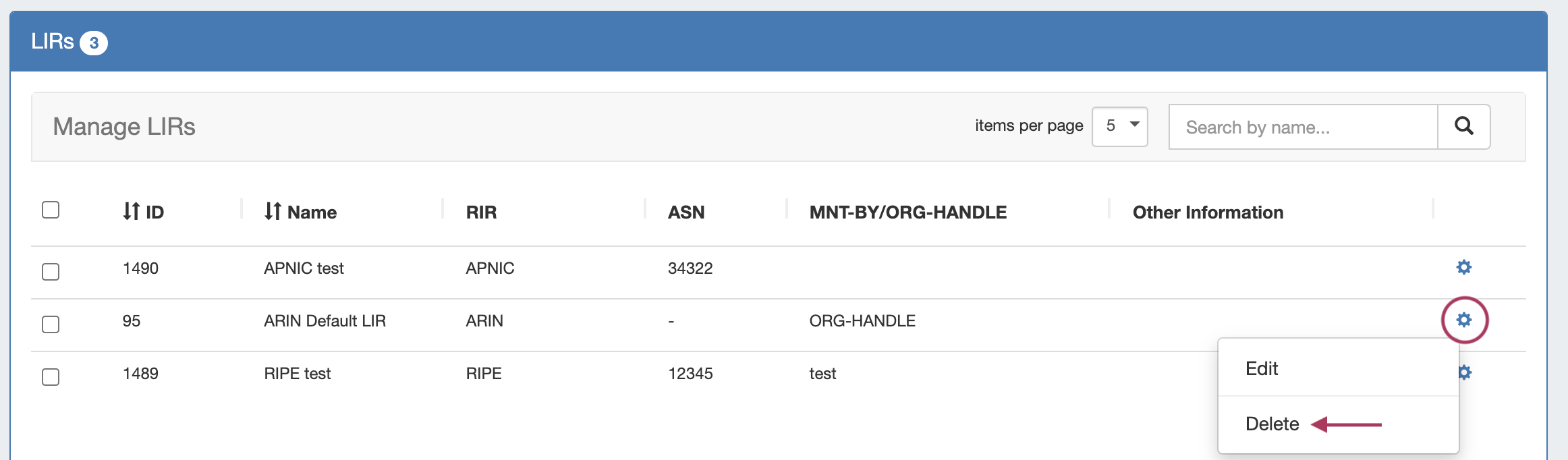
Delete a single LIR by clicking on the Action Menu (gear icon) next to the entry in the LIR Manager, and select "Delete".
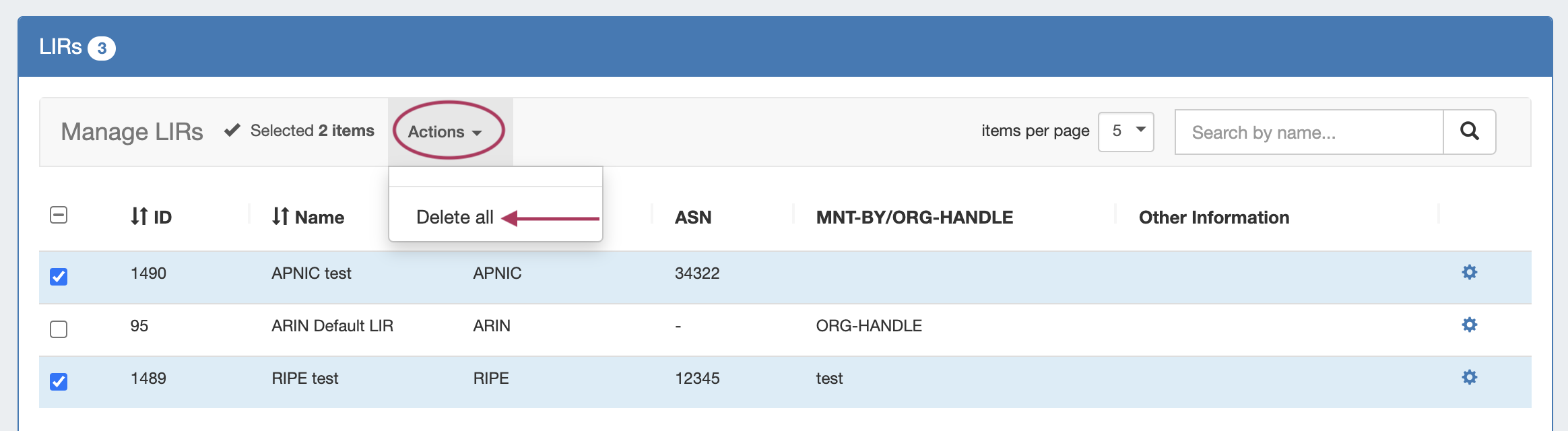
Delete multiple LIRs by clicking the checkboxes next to the desired LIRs to delete. Then, under "Actions" at the top of the page, select "Delete All".
You may also right click anywhere on the selected rows to open the multi-select context menu, where you may choose "Unselect All" or "Delete All". 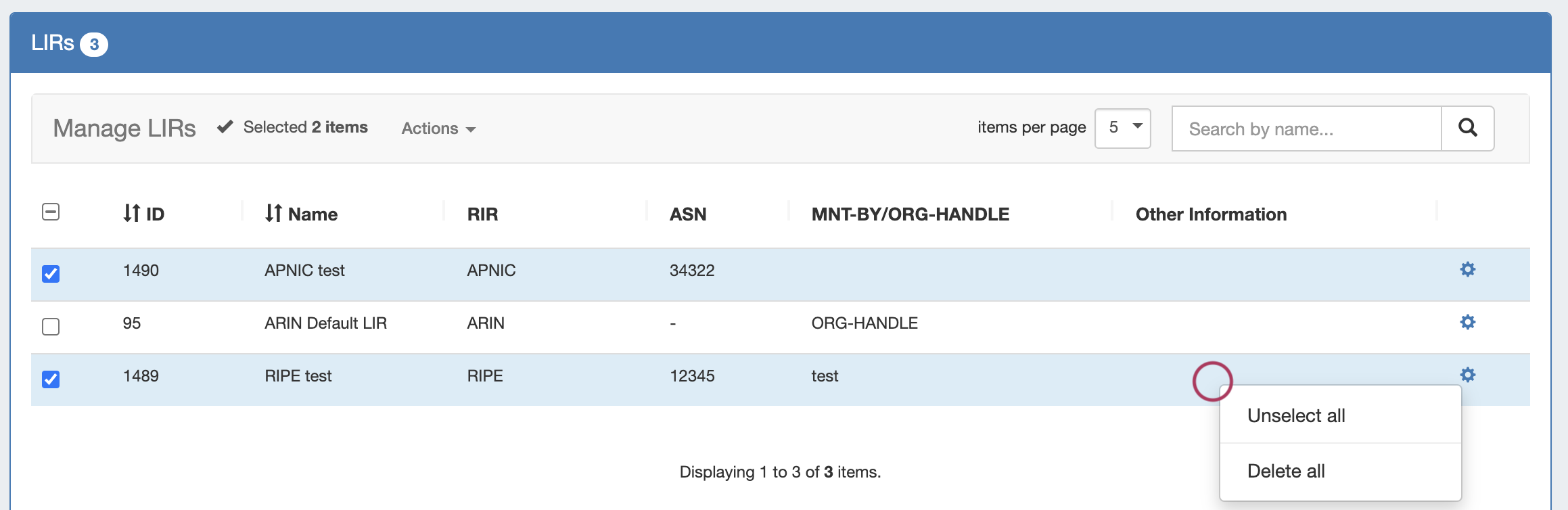
RIR Integration
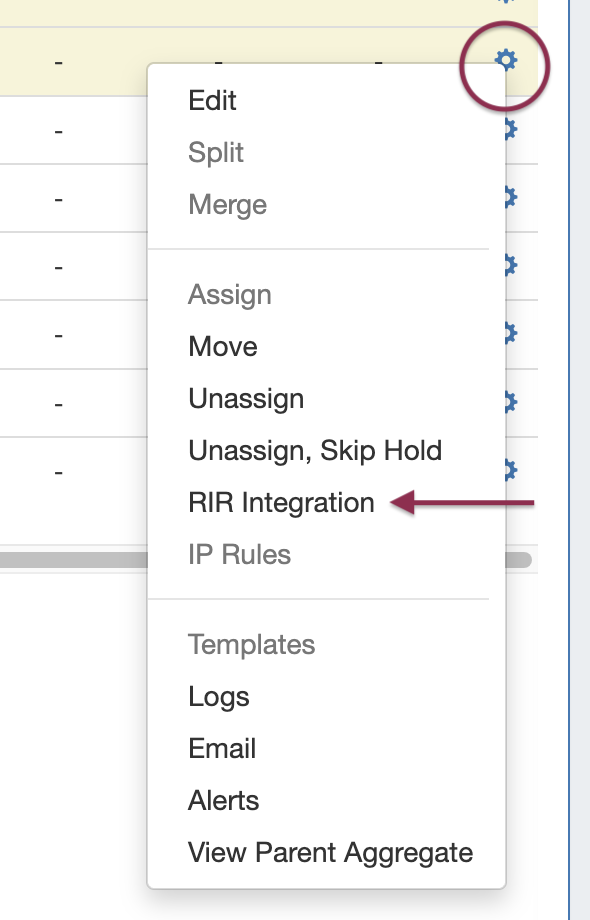
Once these have been configured, you will be able to use the RIR integration feature from the Action Menu on the IPAM Manage screen or IPAM Gadget:
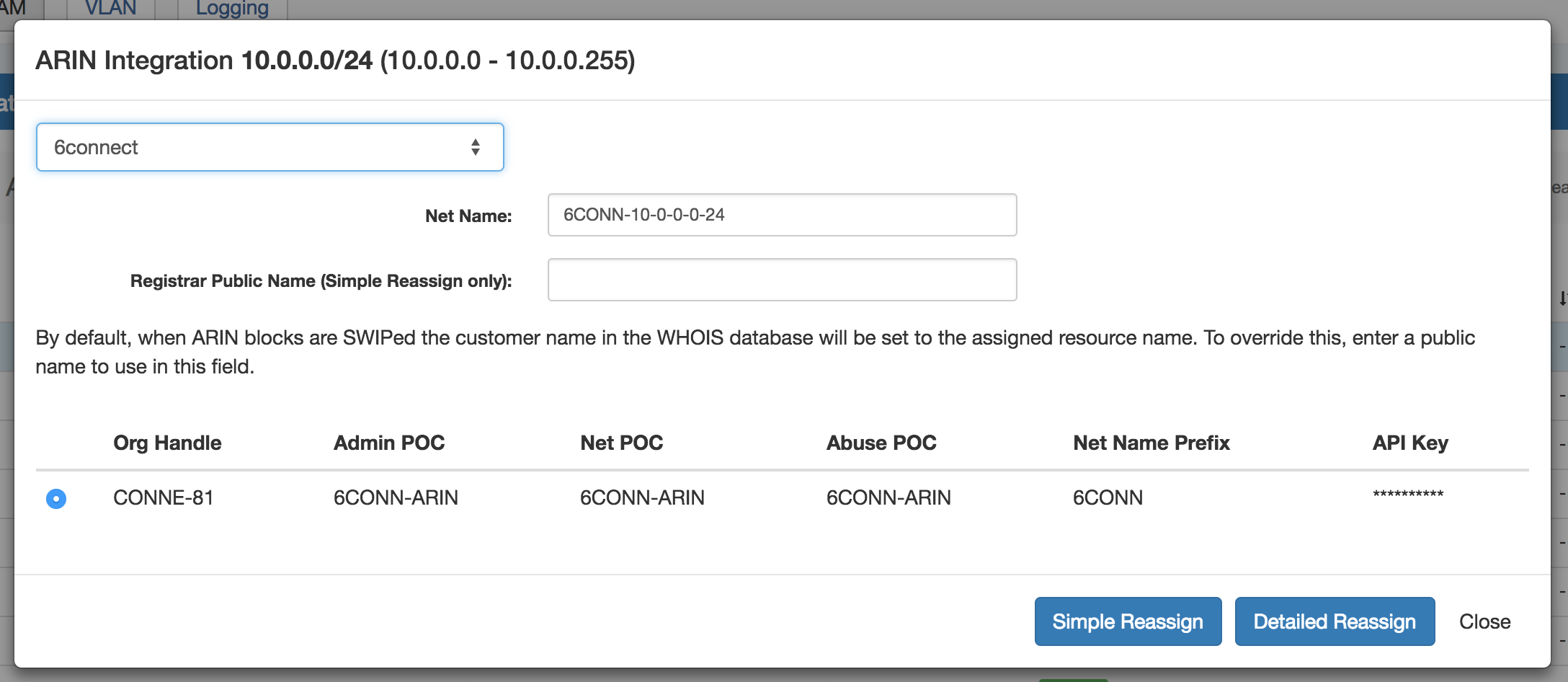
RIR specific options will pop up (see ARIN example below) and give the options for "Simple Reassign", "Detailed Reassign", or "Close" to exit.
Additional Information
For additional detail, continue on to: