
Before You Begin
Before you begin, determine who in your organization has access to the RIR API Keys related to the ASNs used by your organization. Gather the following data for each ASN:
For ARIN: For each ASN, you will need to gather data for:
-
LIR Name
-
ASN
-
ORG ID
-
POC information (Admin POC / Tech POC / Abuse POC)
-
NET Name Prefix
-
ARIN API Key
For all other RIRs: For each ASN, you will need information for:
-
LIR Name
-
ASN
-
Maintainer
-
Contact information (Admin / Tech)
-
API Username
-
API Password
Create LIRs
The LIR Manager is available from the IPAM Admin page. Click Add / Edit / Update LIRs to add LIRs to ProVision.
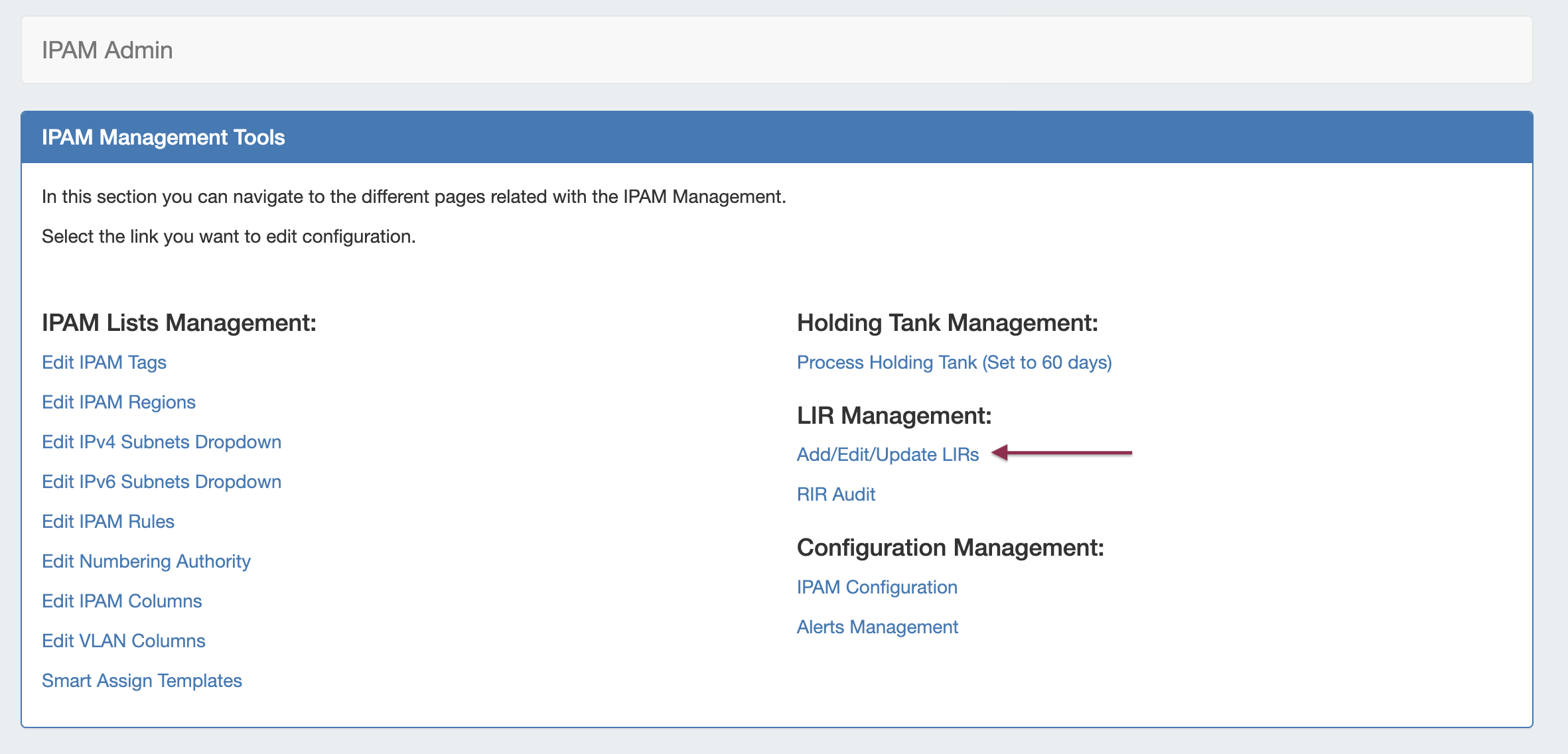
Complicated or large organizations will likely need many LIRs.
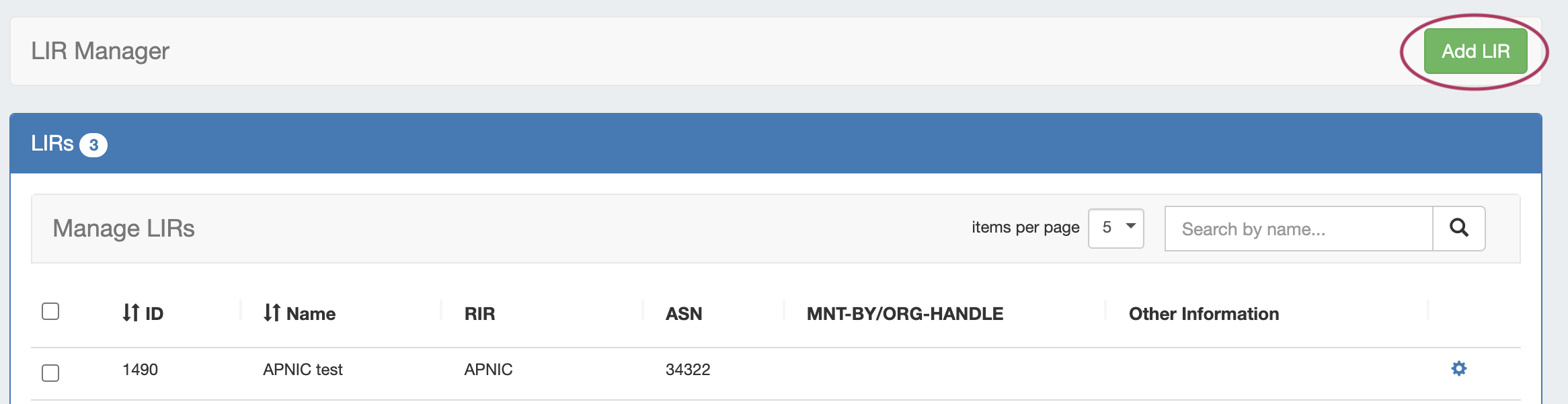
Start by adding a new LIR by clicking the Add LIR at the top of the page:
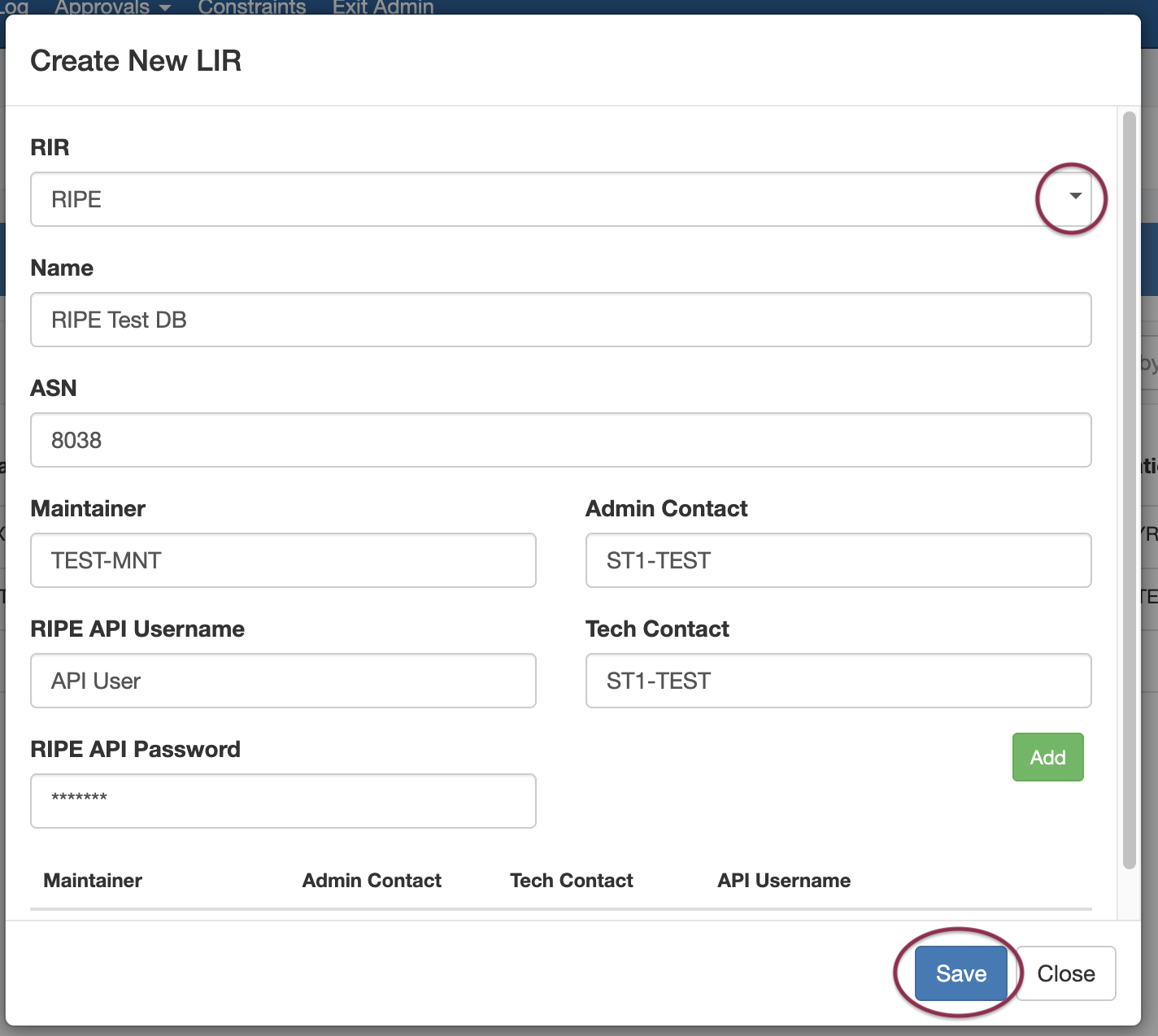
At this point, you should have data collected for each RIR/ASN combination used in your organization. Fill out the Create New LIR form for each ASN/Maintainer object needed, for example:
-
Select the RIR
-
Enter the Name and ASN, and then
-
Enter the relevant Org ID, POCs/Maintainers, and API Key/Username/Password for the LIR.
-
Entering the ARIN API Keys for ARIN LIRs is critical for every SWIP action. The API Key contained within an LIR object will be used to authenticate against ARIN's systems when you want to update them.
-
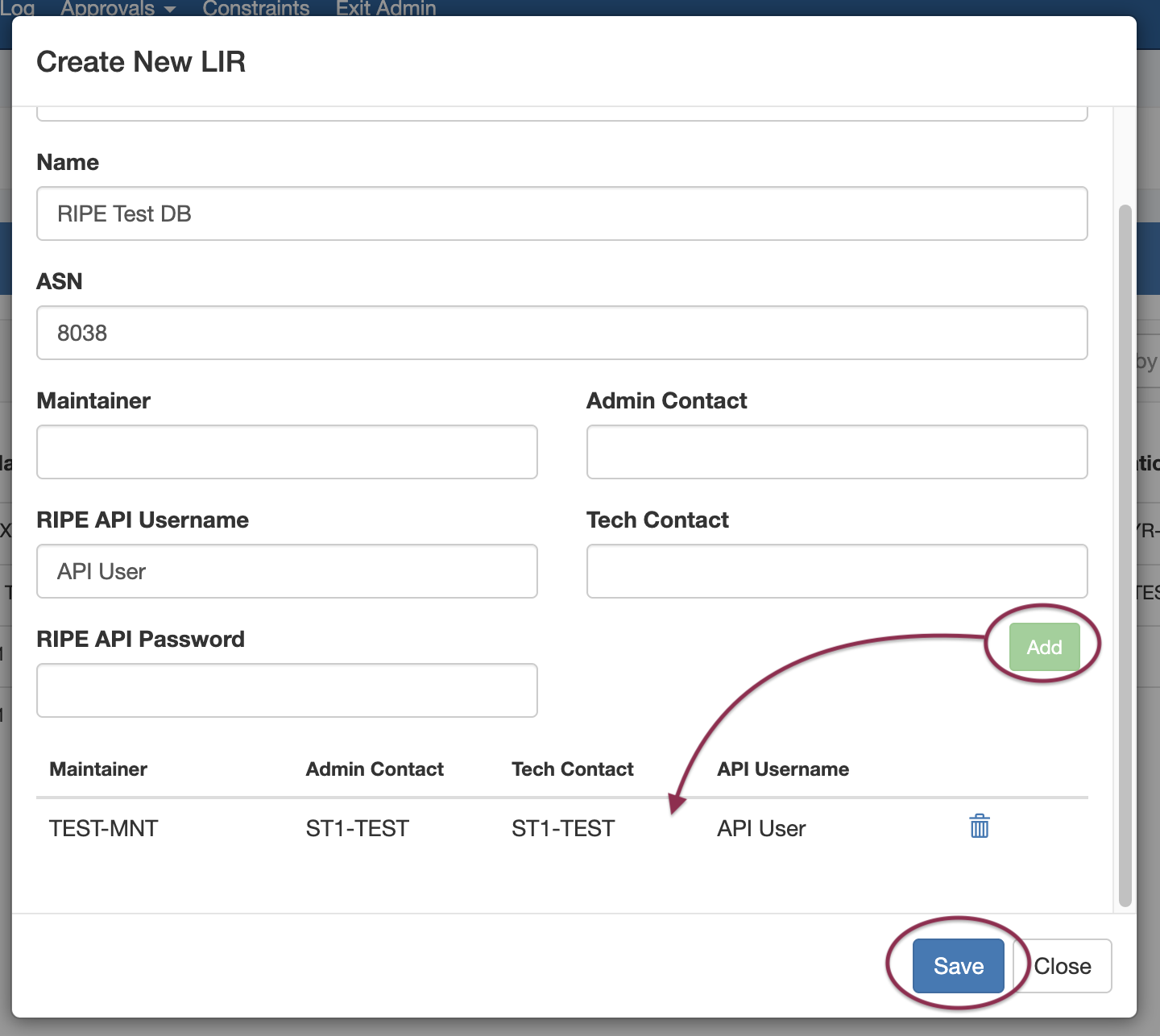
When you are done, click Save to save the LIR. You may also click Add to create multiple orgs or maintainer objects from the same form - be sure to still click Save when done adding multiple items:
An example of how this should look:
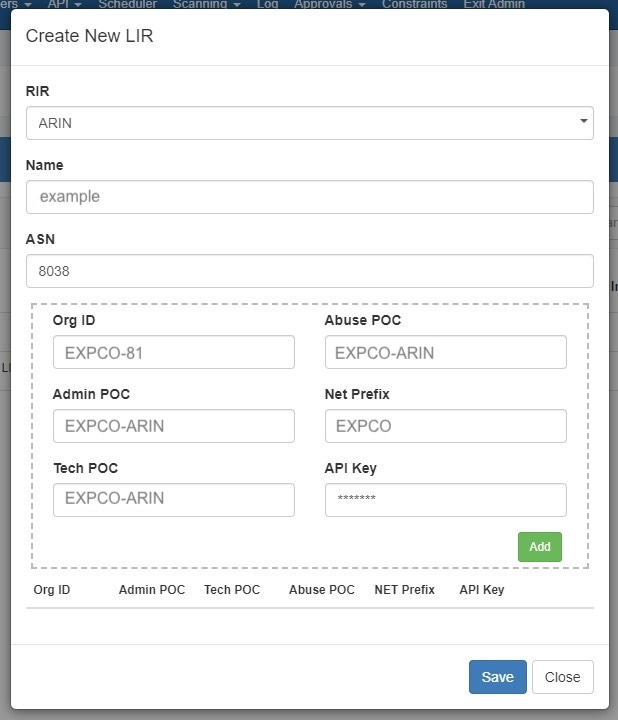
We can verify this information by querying the ARIN database, like so:
https://whois.arin.net/rest/org/EXPCO-81/pft?s=expco-81
https://whois.arin.net/rest/poc/EXPCO-ARIN?s=expco-arin
Once you have an LIR in ProVision, it is trivial to query the API of its resource from the ProVision database using the resource Id number.
Set up IP Associations
From here, ensure that IP space has been entered into ProVision, along with necessary Contacts and Resources.
Associate Contacts with the Resources, and assign IP space to the necessary Resources. See: (8.3.0) Resources, (8.3.0) Working with Entries, (8.3.0) Contact Manager, and (8.3.0) Working with IP Blocks.
Make sure that you have followed the following guidelines:
Danger #1: Make sure you own the IP space in question. ARIN knows who is supposed to be administering every bit of IP space under its domain, and you will run into issues if you do not actually own the IP space according to the RIR.
Danger #2: Make sure the IP space is actually assignable with ARIN.
An example of why SWIPs might fail
Lets imagine that 10 years ago some network administrator did a simple assignment with ARIN which noted that a certain /26 was under management by Company A. Since then, that administrator has been fired, the company he worked for has been acquired, that company was then itself acquired, and Company A has gone bankrupt and dissolved.
Today, nobody knows about all this. But ARIN remembers that a certain /26 has been delegated to Company A, and nobody has informed them otherwise. This is a not-uncommon issue.
So today, you come along and you are doing your tests with a /28 which happens to be a sub-block of the /26. You can configure everything correctly and despite that, ARIN will completely refuse to SWIP the /28, because ARIN thinks that the /28 is part of a /26 which is already SWIP'd.
To make matters worse, ARIN won't tell you why it is refusing to SWIP the /28 -- it will just tell you its invalid. The only way to debug this situation is manually probe the ARIN database until you find the already-SWIP'd block, construct this block in ProVision, try to SWIP it (and fail, because it is already SWIP'd), then de-SWIP it, clearing the erroneous state both from ProVision and from ARIN. Due to a lack of access to the ARIN database, ProVision is limited in its methods of handling situations such as these.
SWIP Example - ARIN/Whois
We've got everything together so let's do some SWIP'ing.
Our example domain is 67.221.244.160/27. Here is what it looks like in ARIN Online:
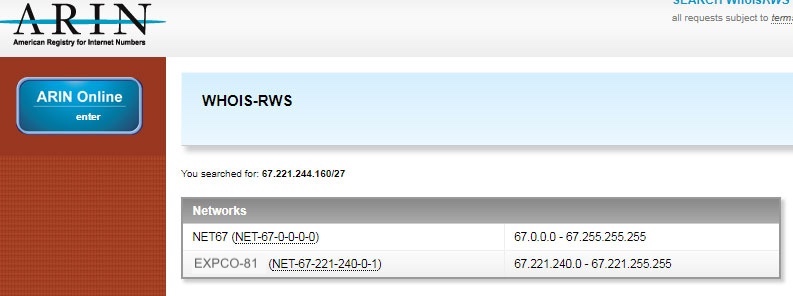
From here we can see that the /27 is currently undivided as far as ARIN is concerned.
ARIN's database is arranged in a hierarchy, so it first looks to see if that /27 exists in its database (nope), then it looks for blocks it does know about it which contains it. Here we see the /20 as its immediate owner:
https://whois.arin.net/rest/net/NET-67-221-240-0-1
And ARIN's own base allocation as the next-highest owner:
https://whois.arin.net/rest/net/NET-67-0-0-0-0
The story of this block is therefore: "ARIN was given this IP Block by ICANN, then ARIN did a Direct Allocation of a /20 to EXPCO." And shortly, ProVision will do a detailed re-assign to MedaTeckle - a made-up company whose headquarters is the birthplace of Genghis Khan.
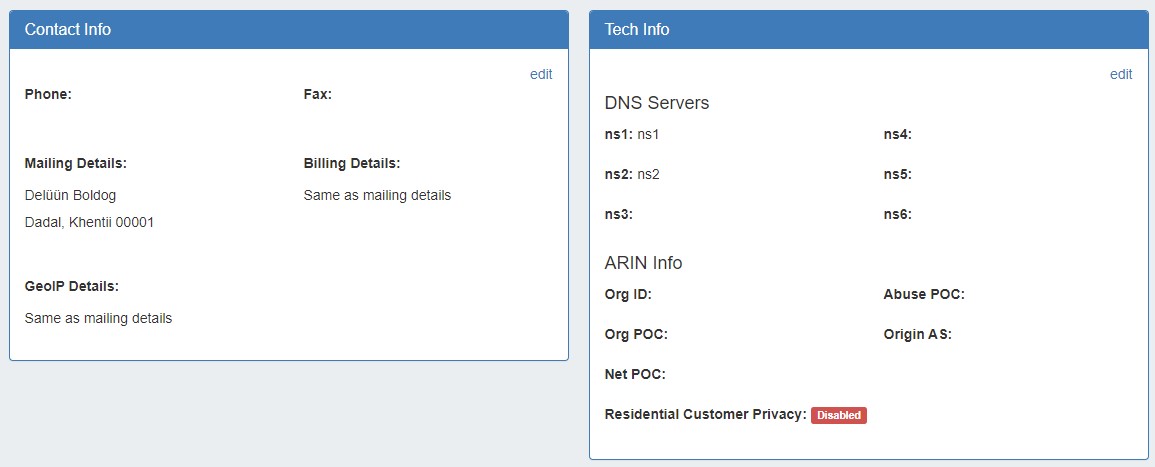
Here is the resource in ProVision:
And here are the resource contacts:
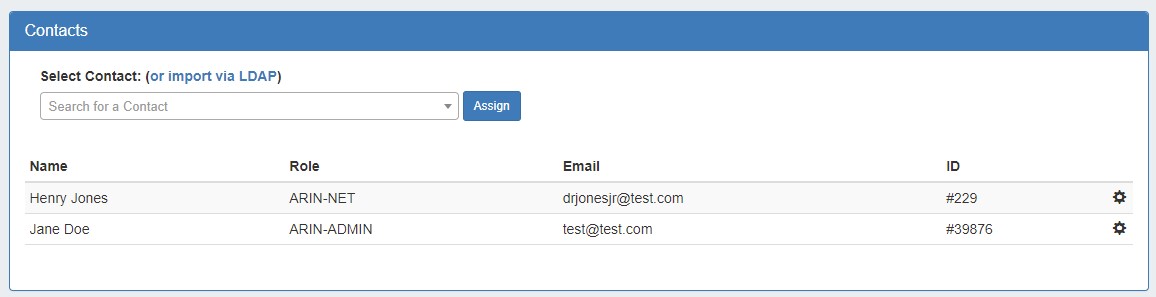
Having a person in the 'ARIN-NET' and the 'ARIN-ADMIN' roles is required for a Detailed Reassign. It is currently not possible to have a single Contact with both roles, so you'll need two contacts listed.
Here is the last piece, our IP block, listed in the IPAM Gadget under the resource entry:
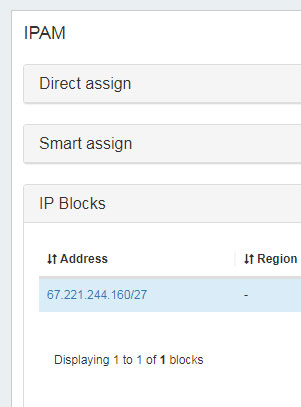
Option the Action Menu (gear icon) for the IP block and select RIR Integration - the ARIN integration page opens.
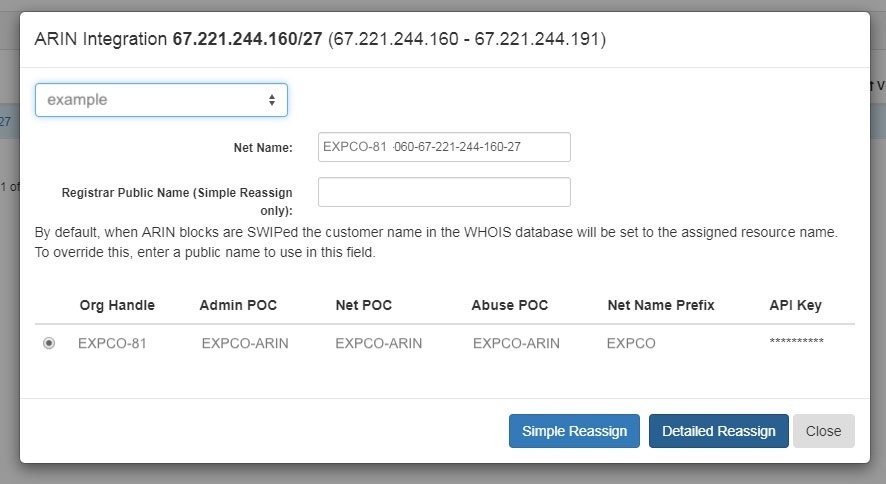
Select the LIR in the upper-left corner (currently selected: example). The Net Name is automatically generated from the LIR + netblock, and we are using the "EXPCO-81" organization within the example LIR. This will supply the ARIN API Key to make the SWIP happen.
Click Detailed Reassign, and (after a few minutes of waiting for ARIN to catch up) here are the results in ARIN Online:
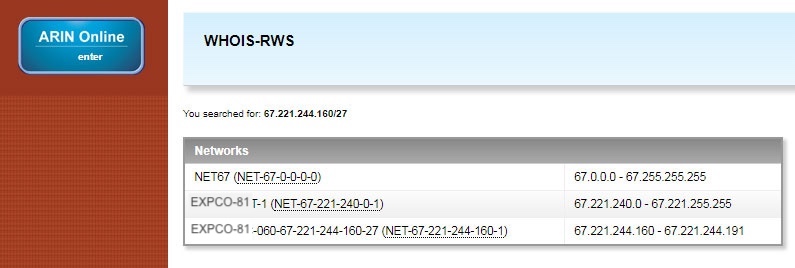
The /27 has been delegated to our new fake company, here:
https://whois.arin.net/rest/net/NET-67-221-244-160-1
A new ARIN entry for the fake company has been automatically made:
https://whois.arin.net/rest/org/MEDAT-1.html
https://whois.arin.net/rest/org/MEDAT-1.html
And the relevant Points of Contact have been generated:
https://whois.arin.net/rest/org/MEDAT-1/pocs
This lets everyone know that if issues arise with that / 27, they know who to contact to resolve the issue.