
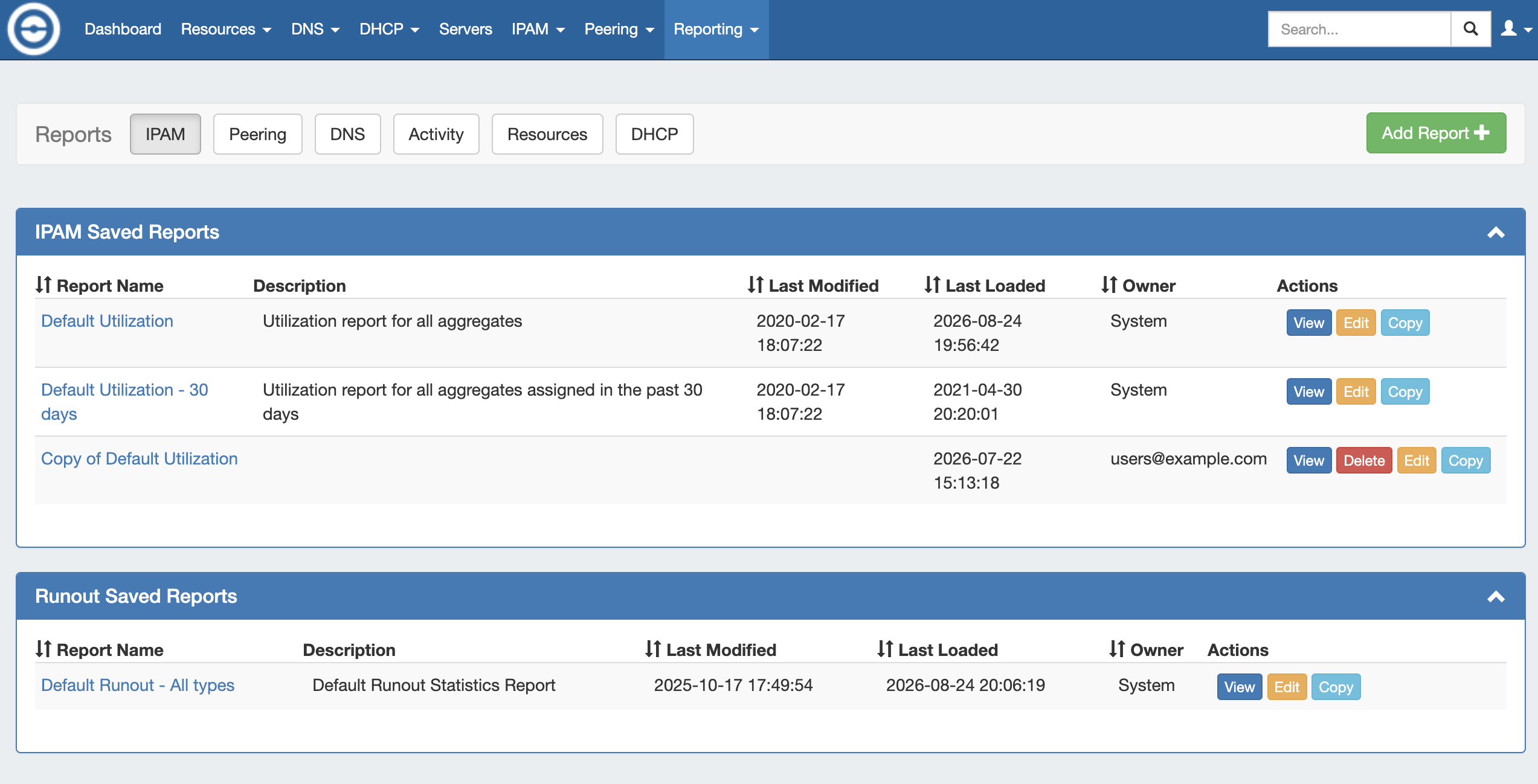
The Reporting tab provides reports for IPAM, Peering, DNS, Activity, Resources, and DHCP.
To view reports for a module (IPAM, Peering, DNS, Activity, and Resources), click on the applicable sub-tab button at the top of the page, or select it from the Reporting Tab dropdown menu.
Reporting Overview
The Reporting tab contains reports for five modules - IPAM, Peering, DNS, Activity (Logs), Resources, and DHCP.
Default reports are available for each module sub-tab, and users may create their own customized report from the existing templates. Once created, reports may be exported on-demand, or have exports scheduled to be sent to a user at regular intervals.
Reporting Features
-
Fifteen default system reports for IPAM, Peering, DNS, Activity, Resources, and DHCP
-
Customizable user-created reports
-
IPAM Utilization, Runout, and Peering Status charts
-
Export reports to .csv and/or pdf
-
Schedule reports to be emailed at selected intervals
-
Safely view existing reports and apply filters without overwriting saved report settings, or chose to permanently save changes.
-
Copy existing reports to use as editable templates
-
IPAM reports include integration with IPAM metacolumn data and IPAM Column settings
Report Ownership, Permissions, and Coordination
Reports and User Permissions
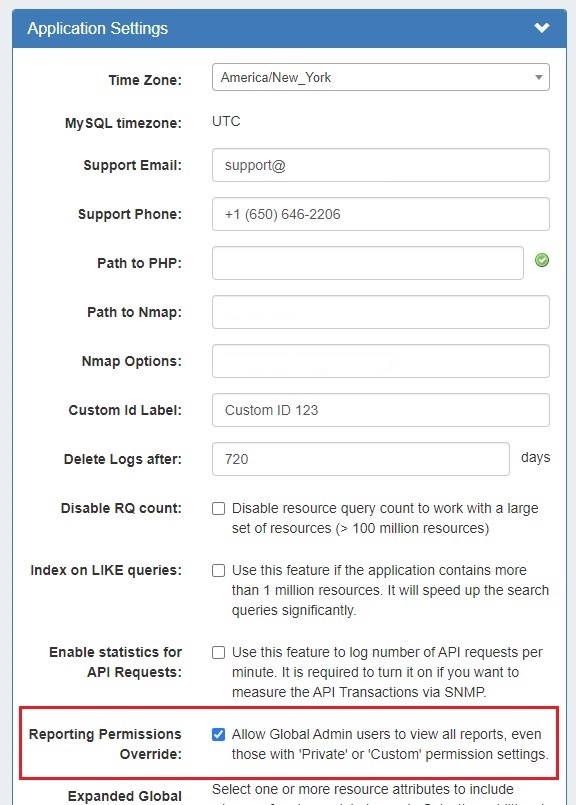
Admin level users ("Admin" permissions on TLR) may view all data in all reports, as well as perform report actions such as creating, editing, copying, and deleting reports if the "Reporting Permissions Override" setting is selected in Admin Preferences.
Non-admin / Limited permission users may view reports, but will only be shown the reports and data/modules for which they have permissions to view.
Non-Admin users may not create new reports, or edit, copy, or delete system reports or reports created by other users.
Report Ownership
Default reports will display with "System" as the owner, and may be viewed and copied by all users with access to the report, but are not deletable. Admin level users may edit default reports.
User-created reports will display with the creator's username in the owner field, and are able viewed and copied by anyone who has view permissions for that report, but only the report owner (and global admins) may edit / delete user created reports.
Reports may be hidden to other users by setting the report permissions to "private" or "custom", with the caveat that global admin users may override set permissions on reports.
Report Permissions
A Report Permissions module is available under report actions, allowing the user to set view permissions to one of the following:
-
Public: Any user may view the report
-
Private: Only the report owner can view the report
-
Custom:
-
Share with Users: Only the specified users may view the report.
-
Share with Groups (Admin only): Only the users in the selected group(s) may view the report.
-
To set custom permissions, select the radio button for "Custom" and select either user(s) or group(s) to share with via the dropdowns. Be sure to click "Save" before exiting.
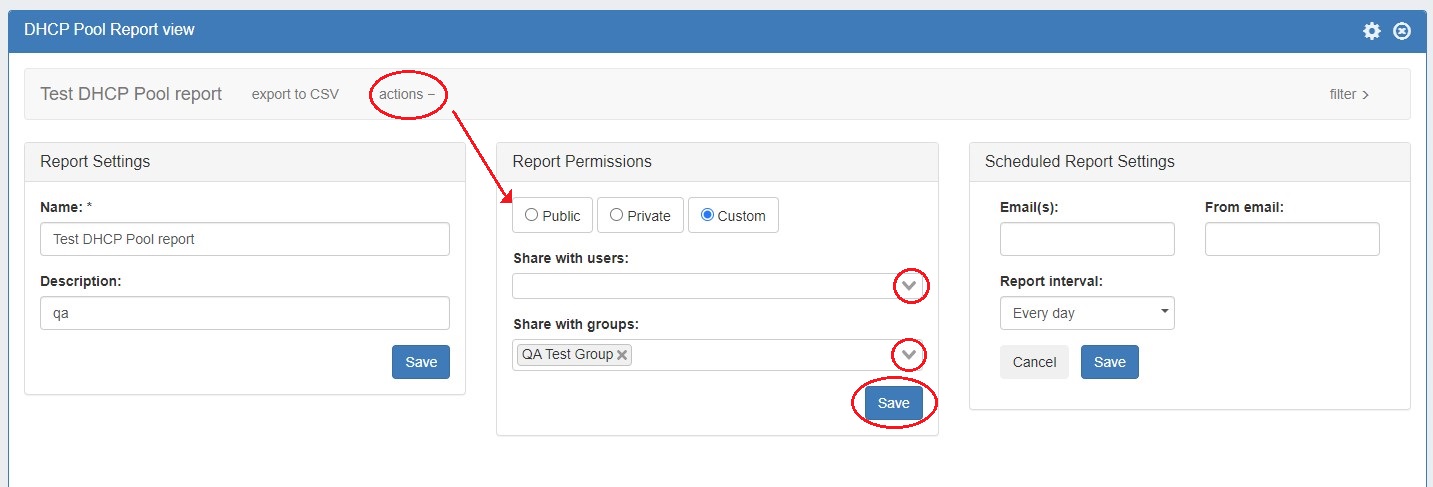
The Report Permissions module only affects report view permissions. It does not give access to edit / delete actions beyond what the user's permissions typically allow (non-admin level users will not gain "Edit" access, for example).
In addition to the selected Report Permissions settings, viewable report data is also subject to the permissions level of the User Group of the current user, and any admin-level viewing restrictions for specific data (such as log-based reports).
Global Admin Permissions Override
Global Admins may view all reports, even those with Private or Custom settings, by enabling the "Reporting Permissions Override" in the Admin section Application Settings module.
Coordination & Best Practices
Although it is possible for global admin users to edit and save default reports as well as those created by other users, it is recommended to either coordinate the changes with the report's owner, or to create a new copy of the existing report to use for modifications.
Report Editing Etiquette
You may view existing reports at any time, including freely adjusting and applying filters on a temporary basis (by selecting filters → clicking Apply) as well as immediately export those results, without overwriting the existing report filter settings.
However, saving new filter settings to an existing report (by applying the new filters -> Gear Icon → Save) permanently overwrites the report's default filter settings.
Before saving changes to an existing report, it is recommended to perform some basic due diligence:
-
If you are not the report's owner, confirm the report edit with the report owner prior to saving
-
If there is a user listed as receiving scheduled exports of that report under Schedule Report Settings, verify that the report change will not negatively impact the planned use of the scheduled report(s).
Best Practices:
-
Use the report Copy function whenever you are unsure of ownership or scheduled report repercussions
-
If you only need a one-time export, temporarily adjust the filters on a default or existing report, and use the "Export to .csv/pdf" button
-
Use the report's description field to communicate details, status, and restrictions to other users (such as "Do not edit - Report used for monthly status comparisons by Bob")
Available Reports
IPAM Utilization Reports
IPAM Utilization Reports
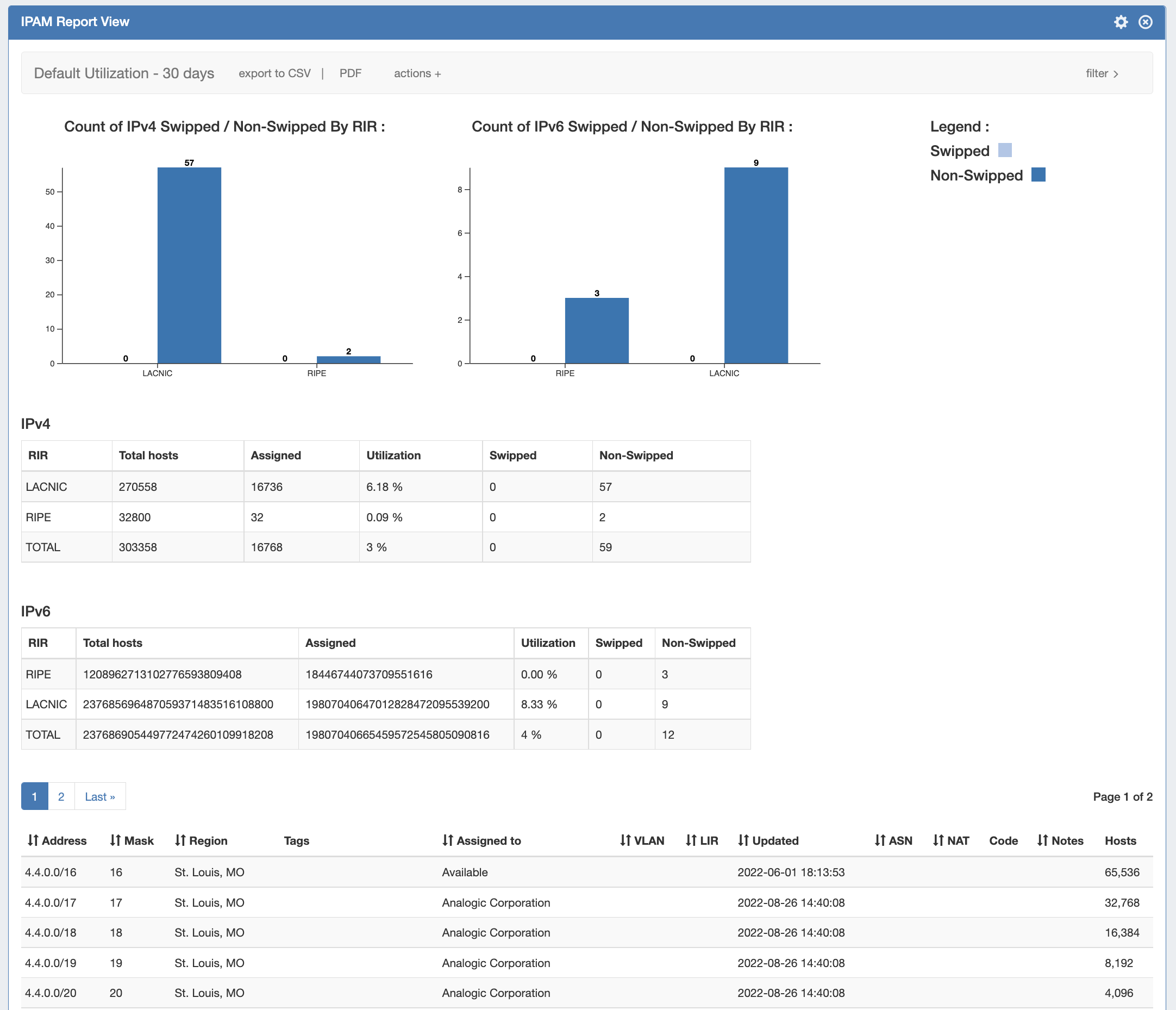
IPAM Utilization reports display IPv4/IPv4 utilization charts organized by RIR and SWIP status, and provide a listing of blocks meeting the applied filter criteria. The report view includes the block data for all applied IPAM Columns, in the order set under IPAM Admin → IPAM Columns. IPAM Reports may be exported to .csv (limit: 100,000 records; no chart provided) or PDF (limit: 1000 records; chart included). Default reports include:
-
Default Utilization: IPAM utilization report for all aggregates
-
Default Utilization - 30 days: IPAM utilization report for all aggregates assigned in the past 30 days
IPAM Runout Report
IPAM Runout Report
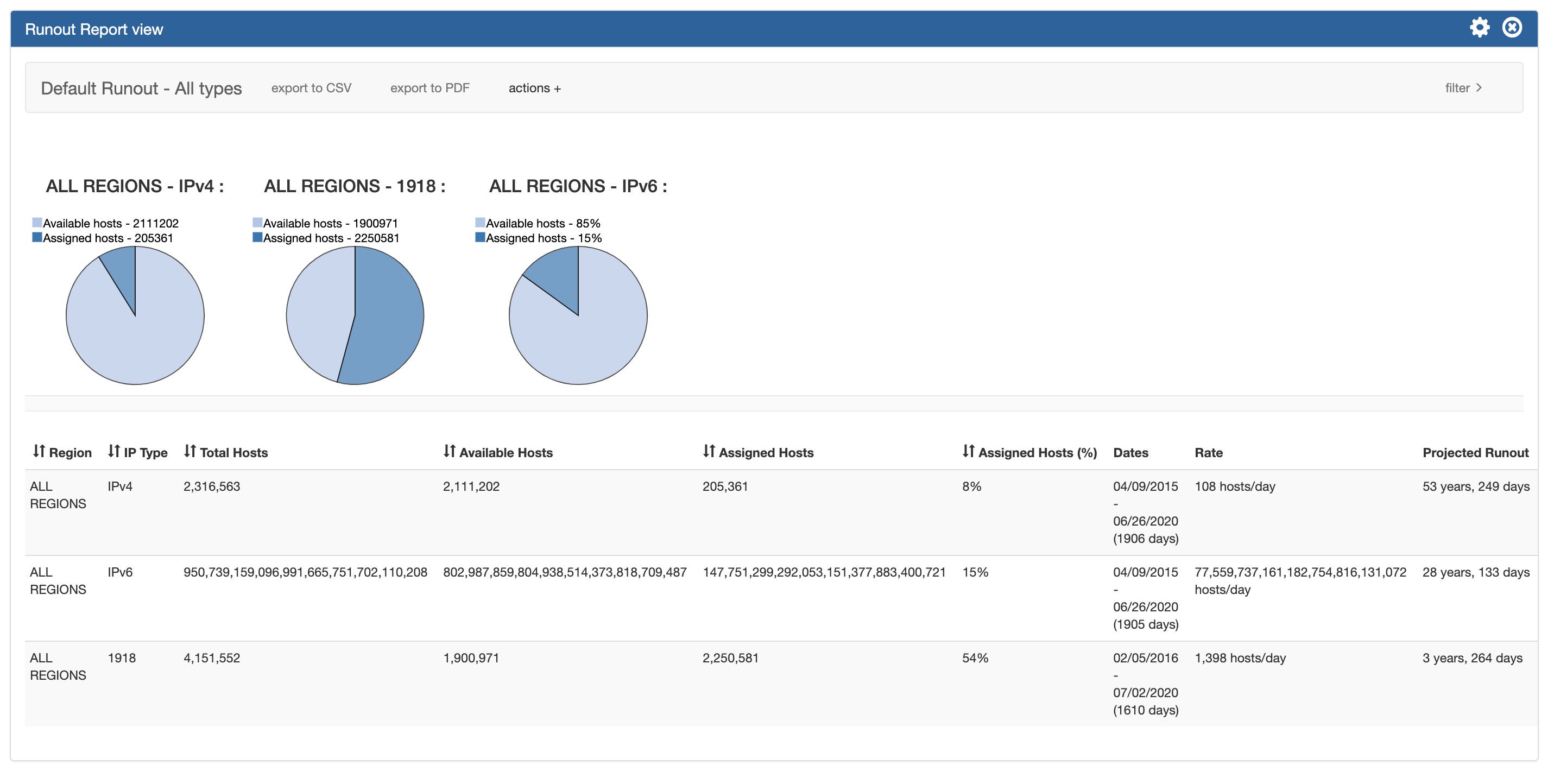
The IPAM Runout Report displays IPv4/IPv6/1918 assigned/allocation pie charts, and lists available/assigned host statistics and projected runout for the selected block type(s) and region(s).
The Default report include:
-
Default Runout - All Types: IPAM Runout report for all block types and regions.
Peering Reports
Peering Reports
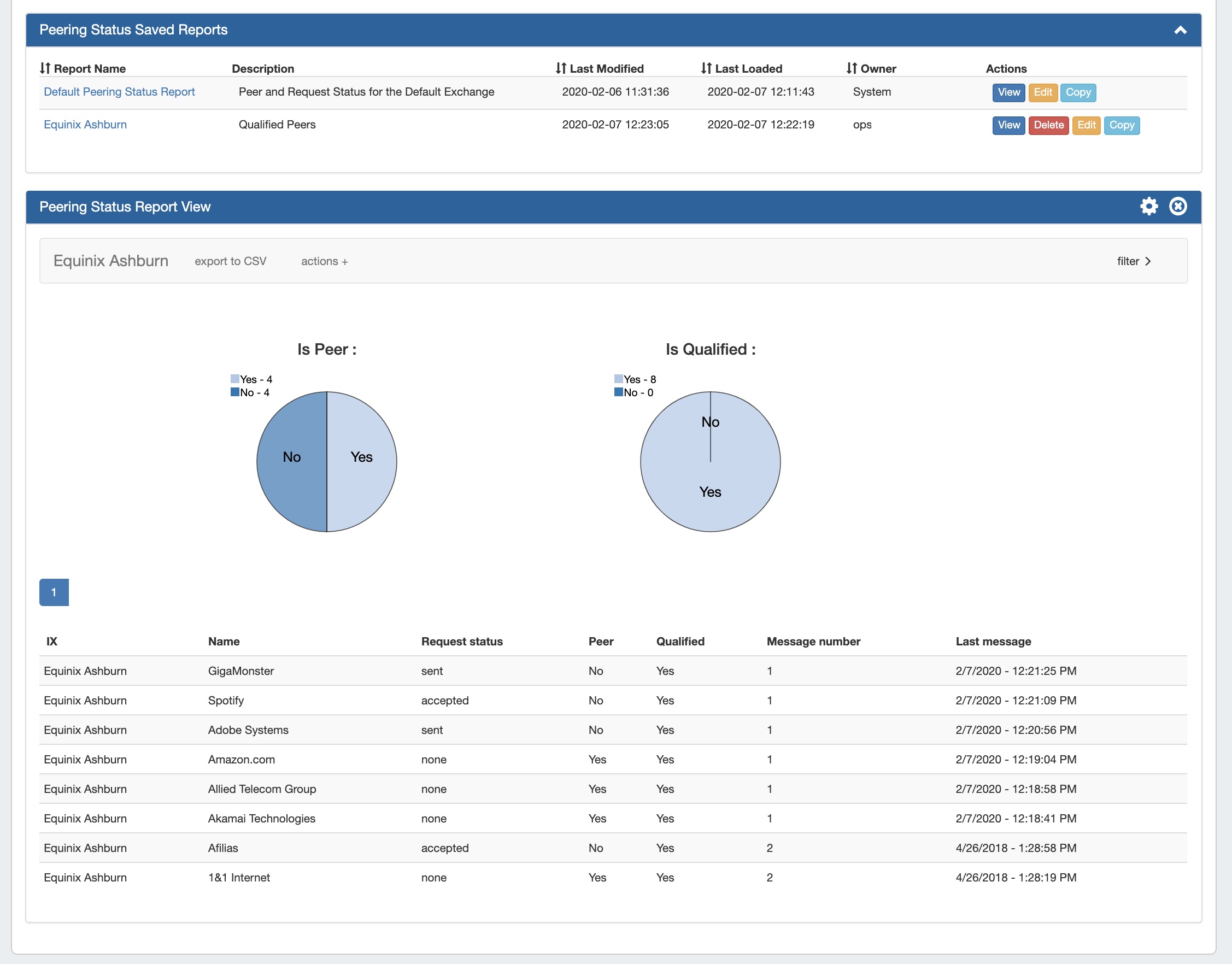
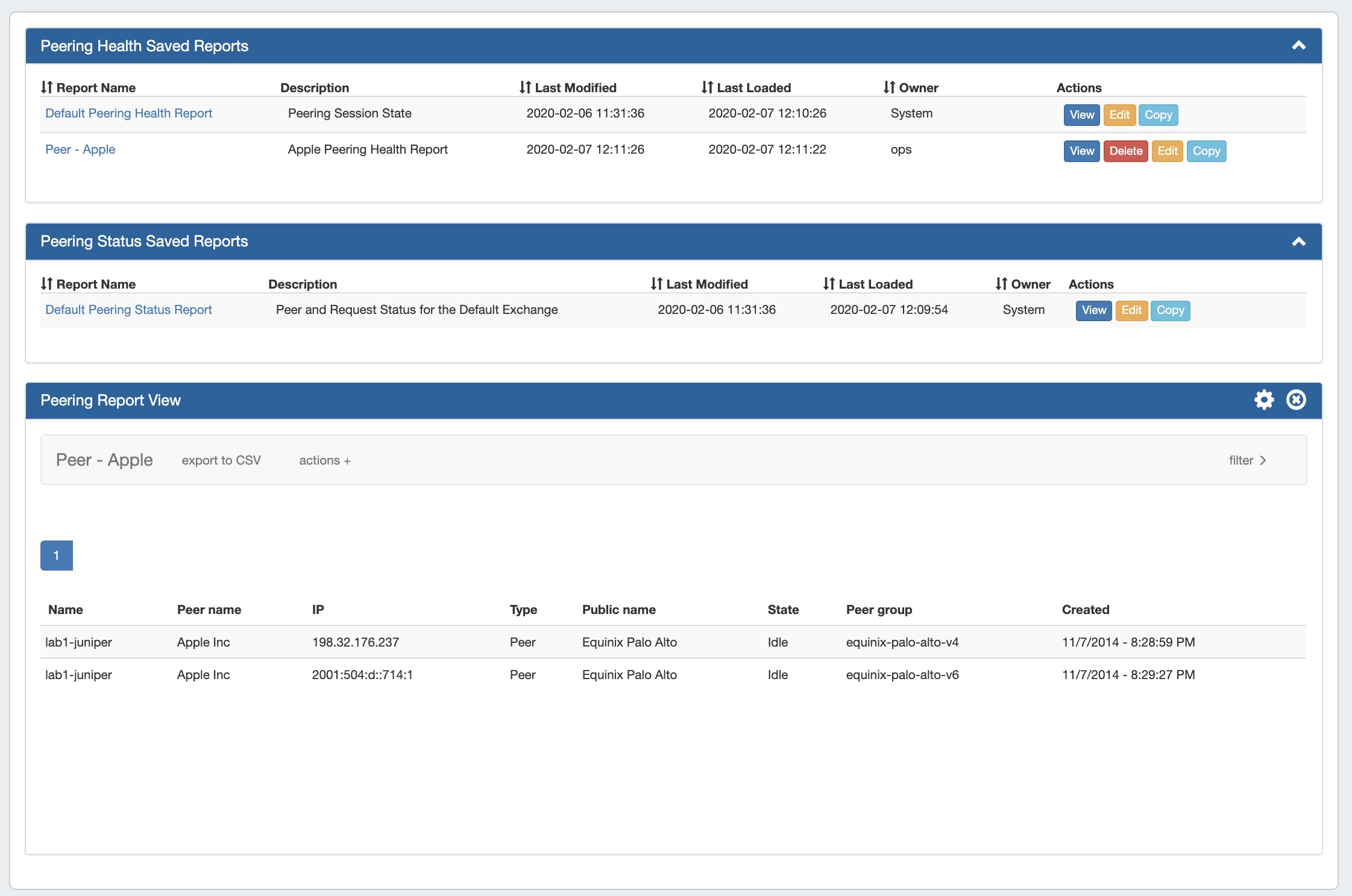
Two peering report types are available - Peering Health and Peering Status.
Peering Health reports display the sessions existing in ProVision, with the associated fields of Router Name, Peer Name, IP, Session Type, Session State, Peer Group, ASN, and session Created Date.
Peering Status reports are set per-exchange, and display pie charts for Peer Status/Qualification Status, as well as a data table of the Peer Name, Request Status, Peer Status, Qualification Status, Message Count, and Last Message Time.
All Peering Reports may be exported to .csv (limit: 100,000 records; no chart provided). Default reports include:
-
Default Peering Health Report: Displays the peering session state for all currently existing sessions in ProVision
-
Default Peering Status: Displays Peer, Request, and Qualified status for the default (first available) exchange in ProVision
DNS Reports
DNS Reports
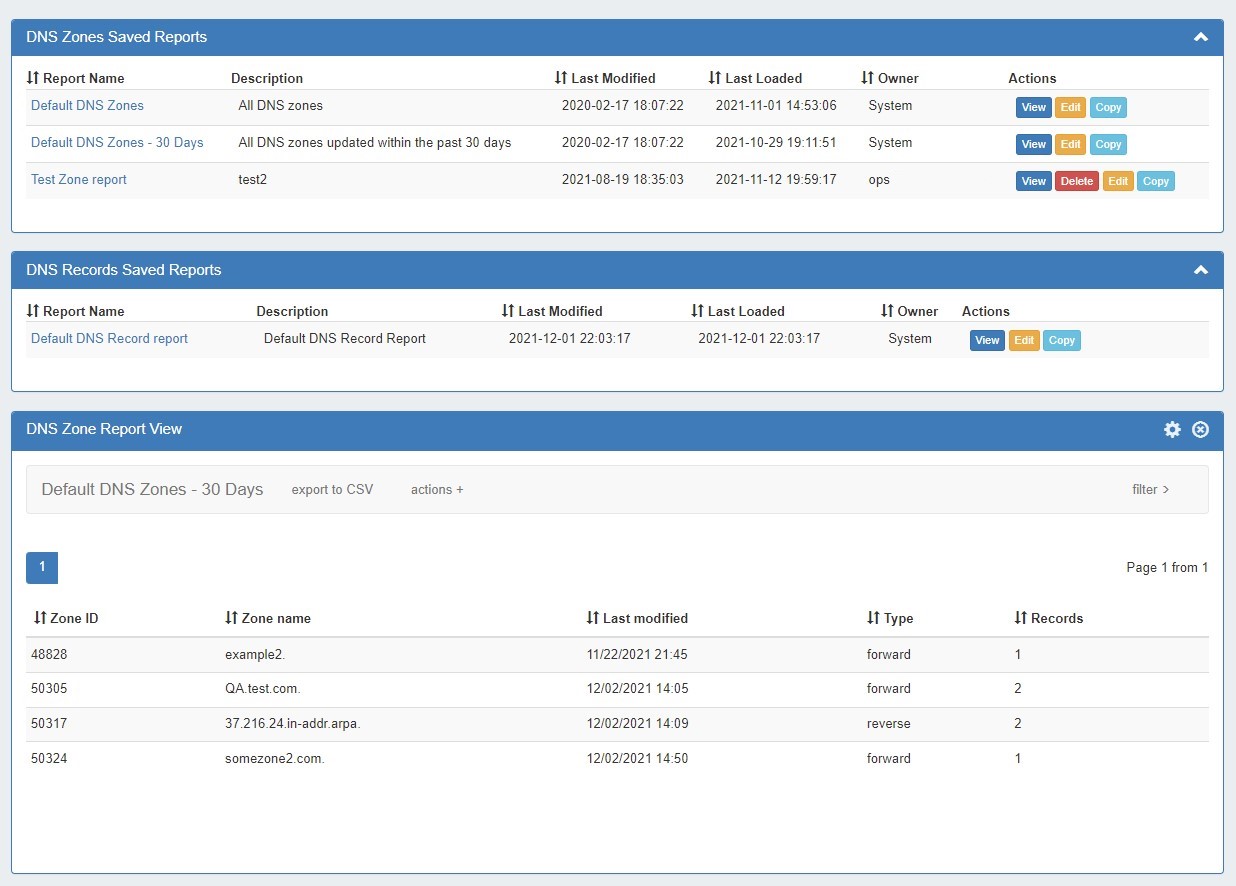
DNS Zone reports provide a list of zones, along with the fields of Zone ID, Name, Last Modified Date, Forward/Reverse Type, and Record Count information. DNS Zone Reports may be exported to .csv (limit: 100,000 records). Default reports include:
-
Default DNS Zones: All DNS zones in ProVision
-
Default DNS Zones - 30 days: All DNS zones modified within the past 30 days
-
Default DNS Records: All DNS records in ProVision
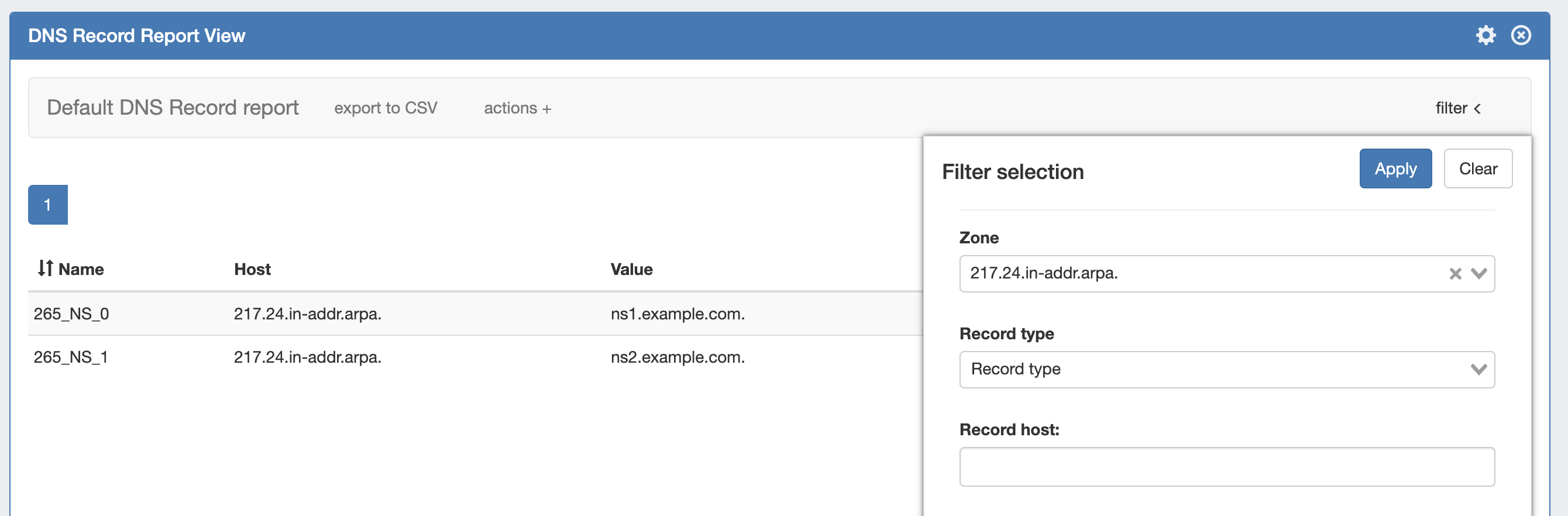
DNS Record reports provide a list of records which exist under the selected zone, including Name, Host, Value, Type, TTL, and Last Modified.
Activity Reports
Activity Reports
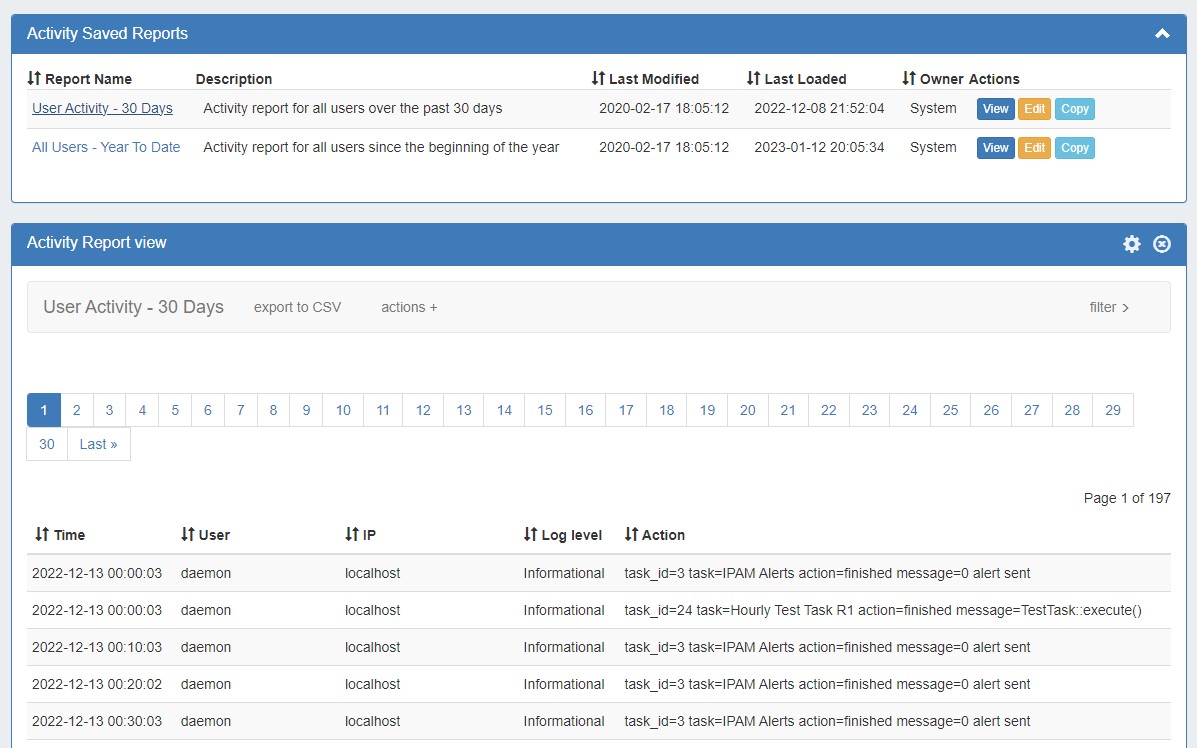
Activity reports provide a listing of ProVision log events. Provided fields include the Timestamp, User, IP, Log Level, and the Action, and the report may be filtered to include one or more users / user groups, as well as basic data filters. Activity Reports may be exported to .csv (limit: 100,000 records). Default reports include:
-
Default User Activity - 30 days: All user activity within the past 30 days
-
Default User Activity - Year to date: All user activity for the current calendar year ( ISO Standard/Gregorian calendar)
Resource Reports
Resource Reports
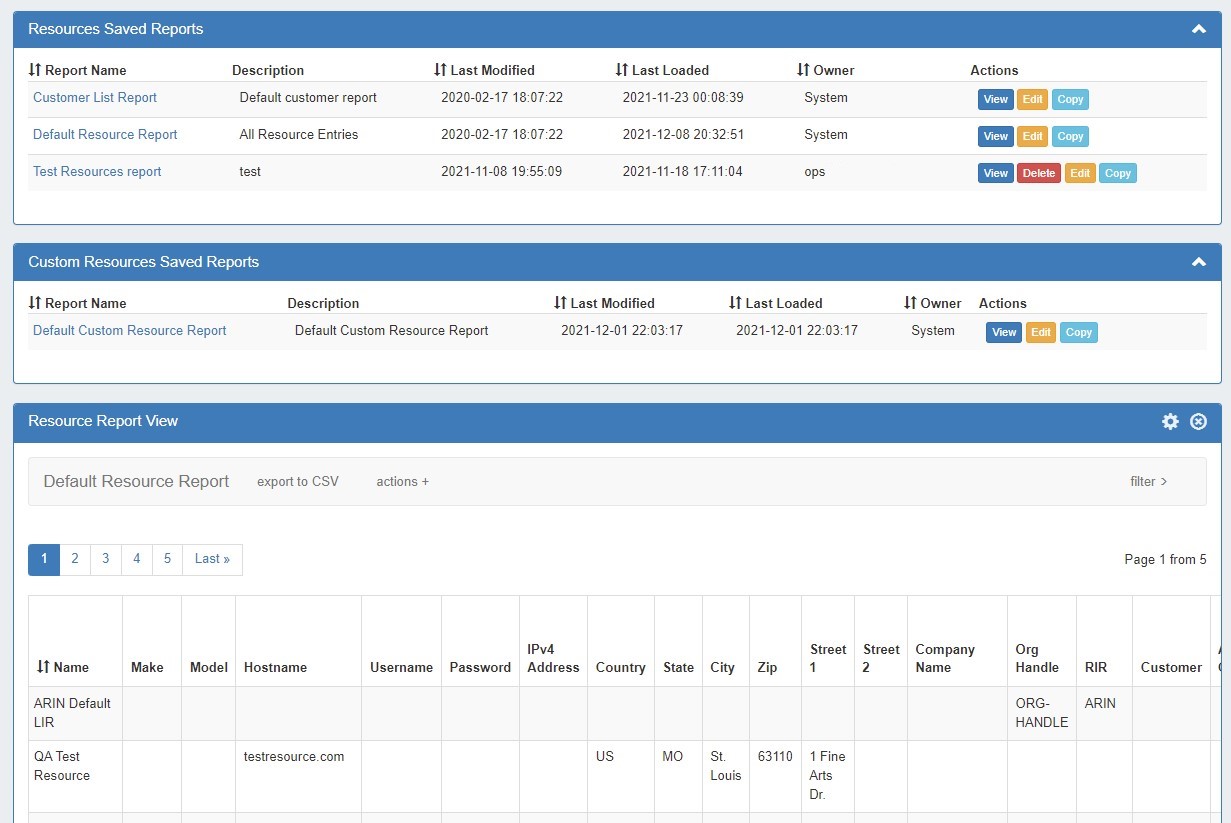
Resource reports provide a list of all (non-DNS) ProVision resources, and field data from the Contact, Billing, Tech Info, and Resource Field Gadget(s) associated with the resource. The report may be filtered to include one or more Sections or Categories, as well filtered by resource name. Additional attributes may be selected to display from the filter options, as well as whether or not to include resource children.
Custom Resource Reports allow for custom-filtered list of resources by Section or Category. Additional report columns may be displayed by selecting the desired attributes from the "attributes" selector from the report filter.
Resource Reports may be exported to .csv (limit: 100,000 records). Default reports include:
-
Customer List Report: ProVision resources which are of the "Resource Holder" Section and "Customer" Category.=
-
Default Resource Report: All ProVision resource entries - matching resources listed in the Resource Tab -> Entries page list, and all applicable resource fields
-
TIP: Due to the large scope of the ProVision resource system and its fields, we strongly recommend using the Default Resource Report as starting template from which to further define more specific resource reports. Simply "Copy" the Default Resource Report, apply your desired Section/Category filter combination(s), and click the Gear Icon → Save to create a more manageable data set.
-
-
Default Custom Resource Report: ProVision resources which are of the "Resource Holder" Section, with no attributes selected.
Note: The number of entries able to be exported limited to 100,000 rows for .csvs, and 1000 rows for IPAM pdfs. If more rows are needed, the ProVision API may be used to retrieve larger datasets.
DHCP Server Report
DHCP Server Report
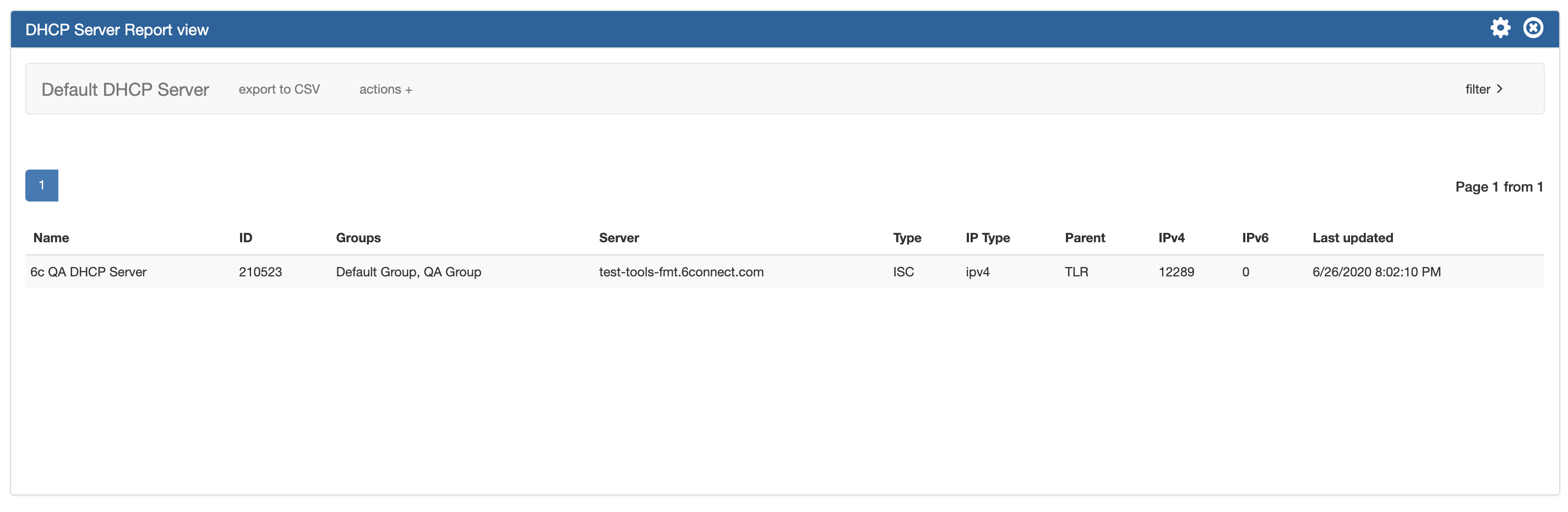
The DHCP Servers Report displays existing DHCP servers in ProVision, associated statistics, and last updated time. The DHCP Servers report can be filtered by Name, Server/Hostname, or by last modified date.
Default reports include:
-
Default DHCP Server Report: All ProVision DHCP Servers, with no additional filters applied.
DHCP Pools Report
DHCP Pools Report

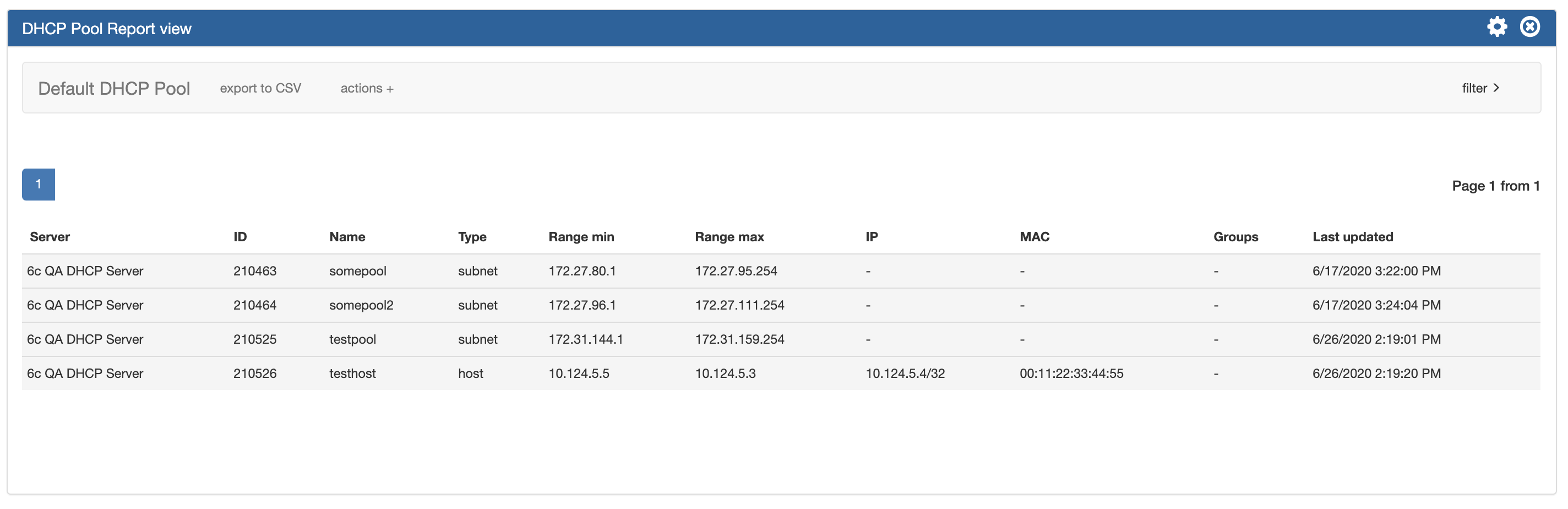
The DHCP Pools Report displays existing DHCP Pools in ProVision, type, ranges, IP/MAC, associated groups, and last updated time.
The DHCP Pools Report can be filtered by DHCP Server(s), name, type, or by last modified date.
Default reports include:
-
Default DHCP Pool Report: ProVision DHCP Pools for the default server(s), both subnet and hosts, with no additional filters applied.
Additional Information
For more information on performing specific tasks in reporting, see: