
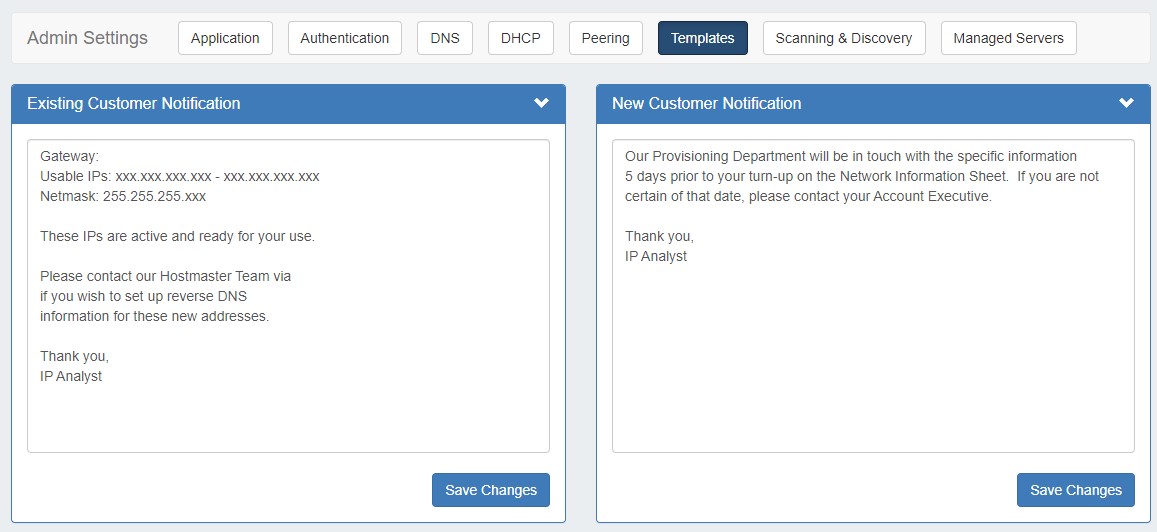
Email Templates are accessed by clicking the "Templates" sub-tab at the top of the Admin Settings page, and is where you can edit outgoing email templates for IP block assignments.
Two templates are available: An "Existing Customer Notification", and a "New Customer Notification".
Edit an Email Template
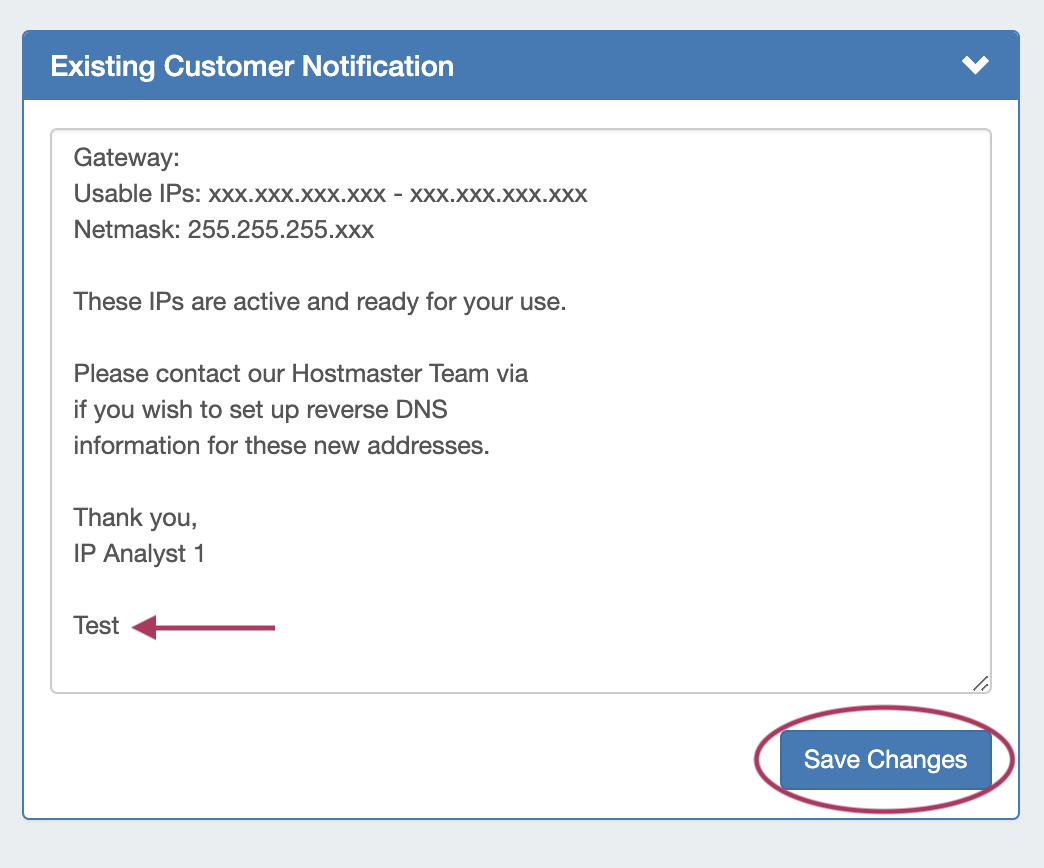
To edit a template, click inside the text area box, make the desired changes, then click Save Changes.
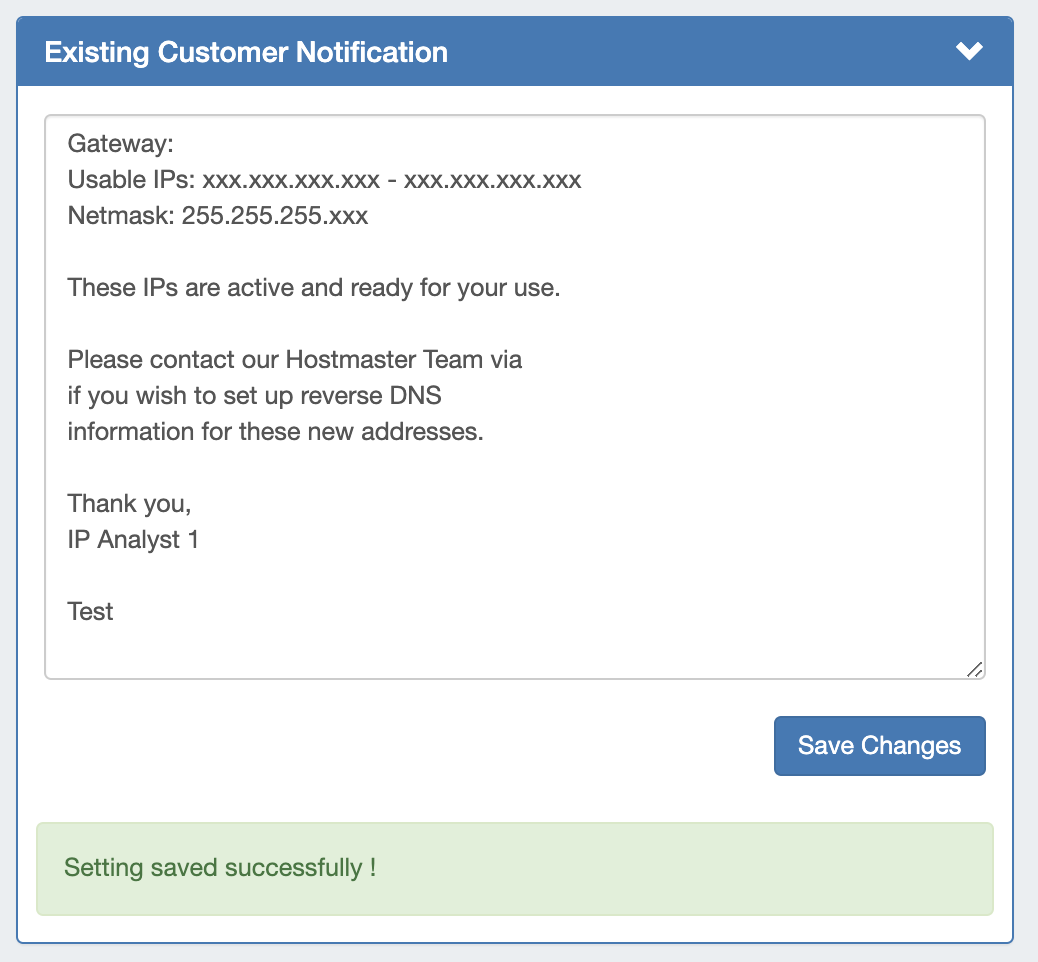
A success message will appear to confirm that your changes have saved.
Use an Email Template
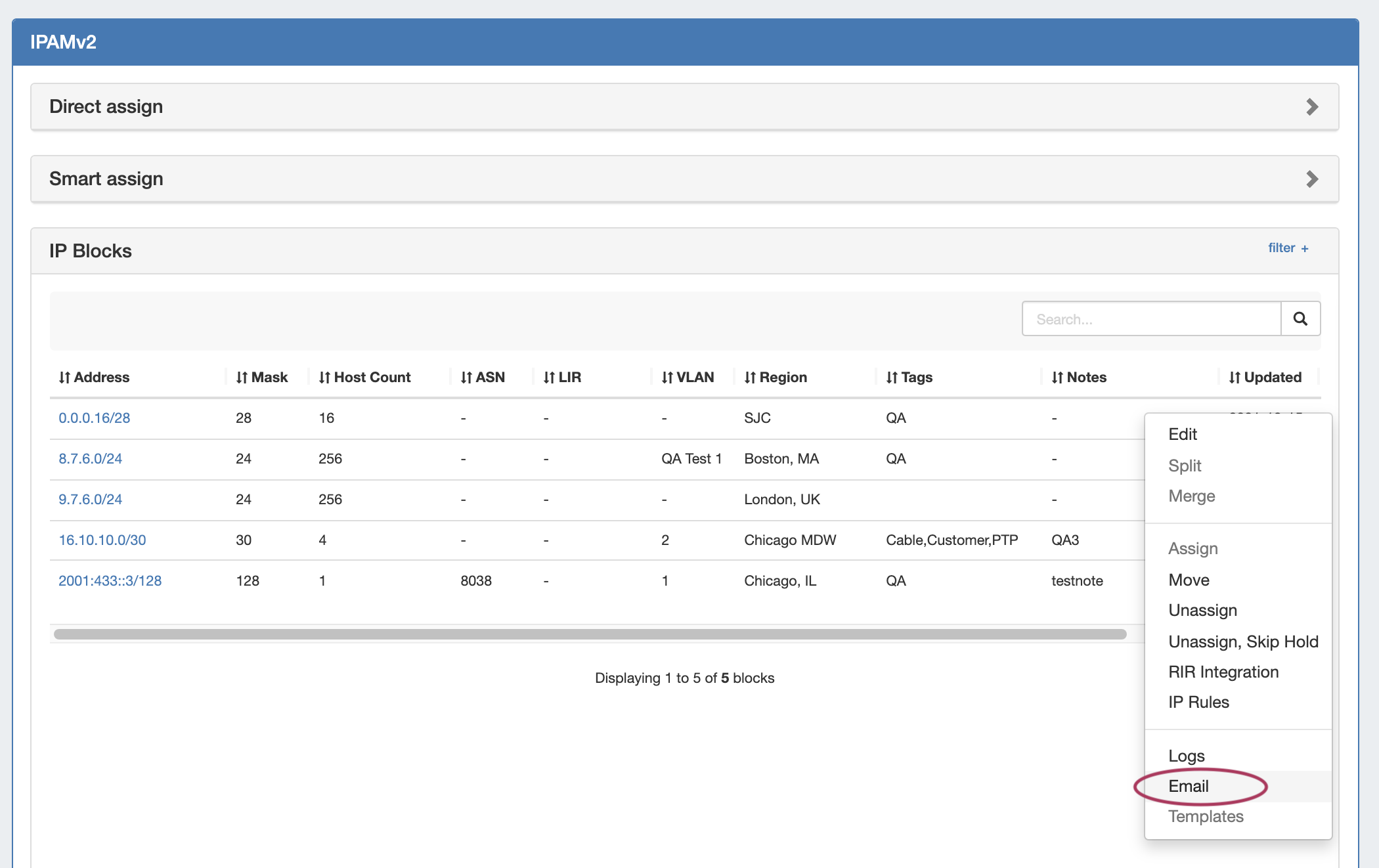
Templates are accessible when selecting the "Email" option from the action menu in either IPAM Manage or the IPAM Gadget, when a contact is associated with the resource.
Select "Email" from the action menu for an assigned block.
The Email page will open. It will automatically be addressed to the resource's associated contact. Next to "Template", select which template to use, and the email will populate with the selected template text.
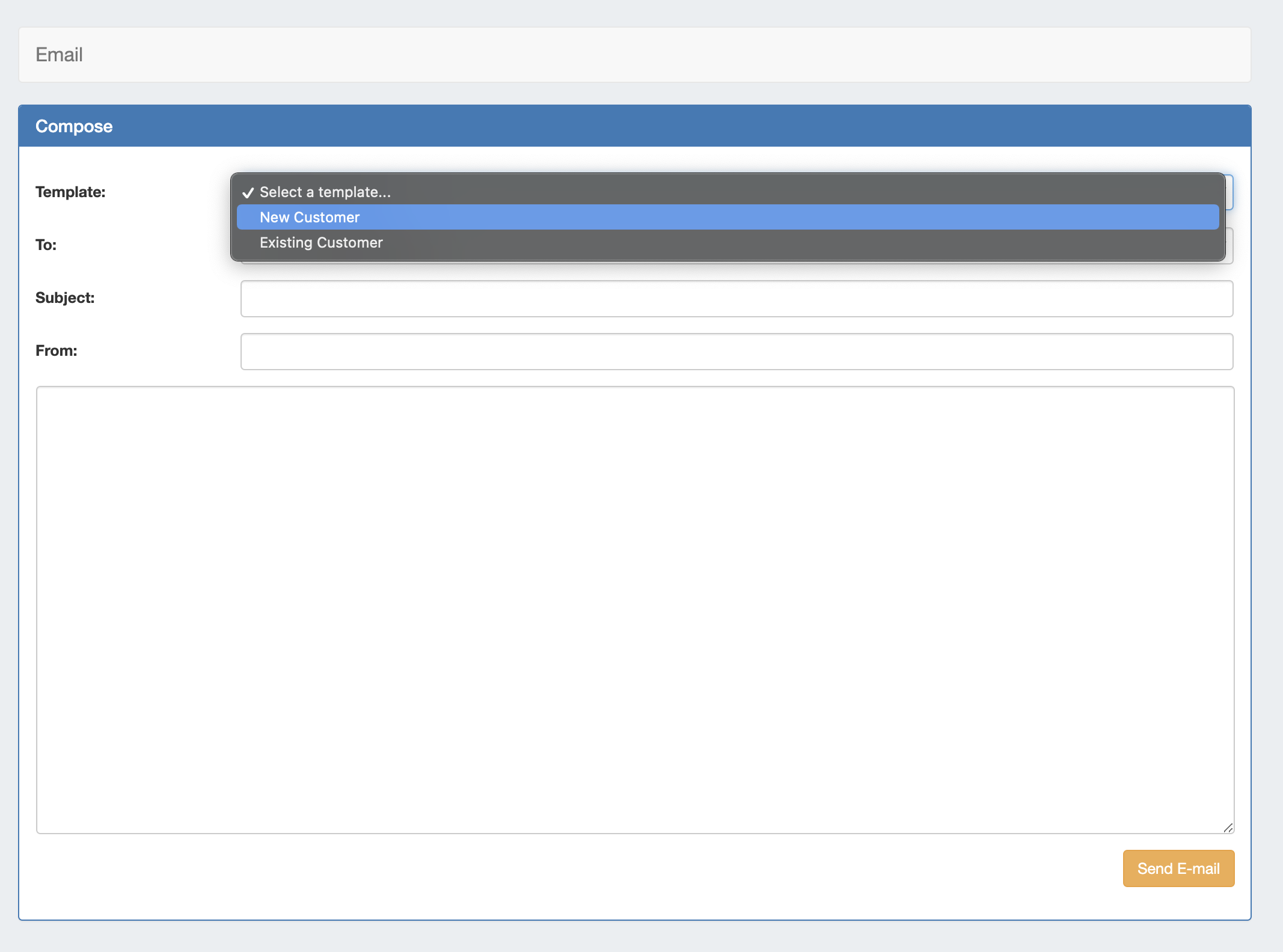
Edit the template text as desired for the specific email, and when done, click Send E-mail.