
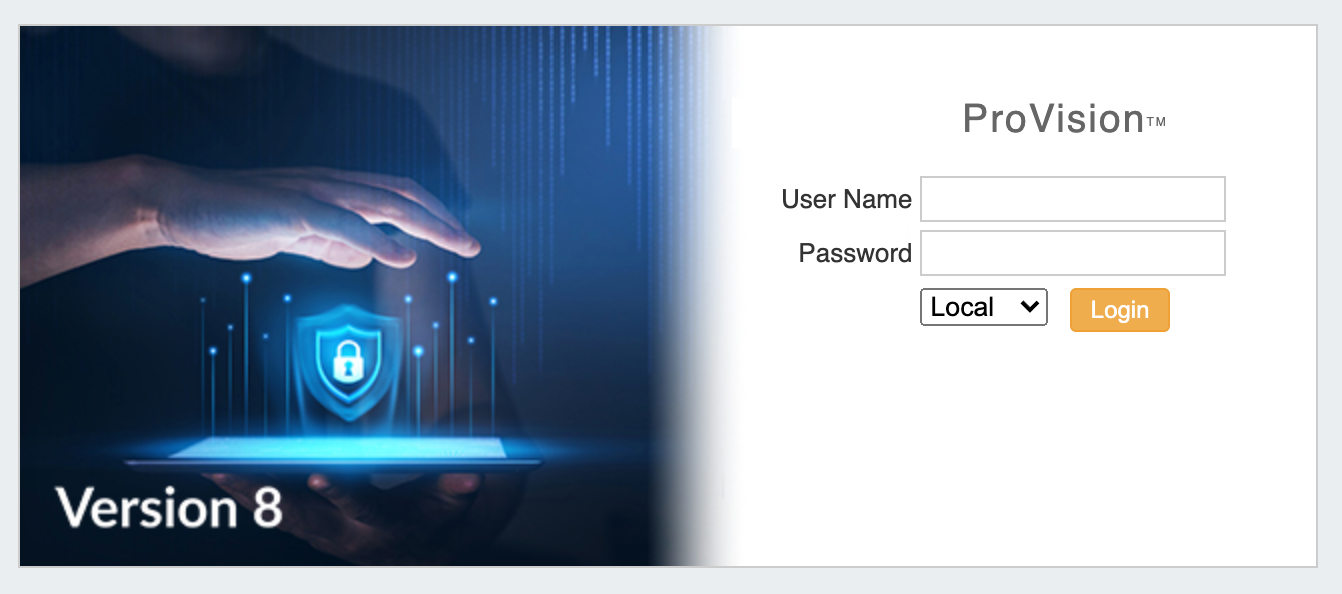
By default, ProVision credentials are managed via local authentication. Depending on the authentication method chosen by your organization, there may be a separate authentication mechanism to login or logout of the application via the drop down menu.
Four non-local authentication types are available:
-
Radius
-
LDAP
-
SAML
-
DUO Mobile
Settings for these authentication types may be entered from the "Authentication" sub-tab at the top of the Admin Settings page.
Authentication Settings
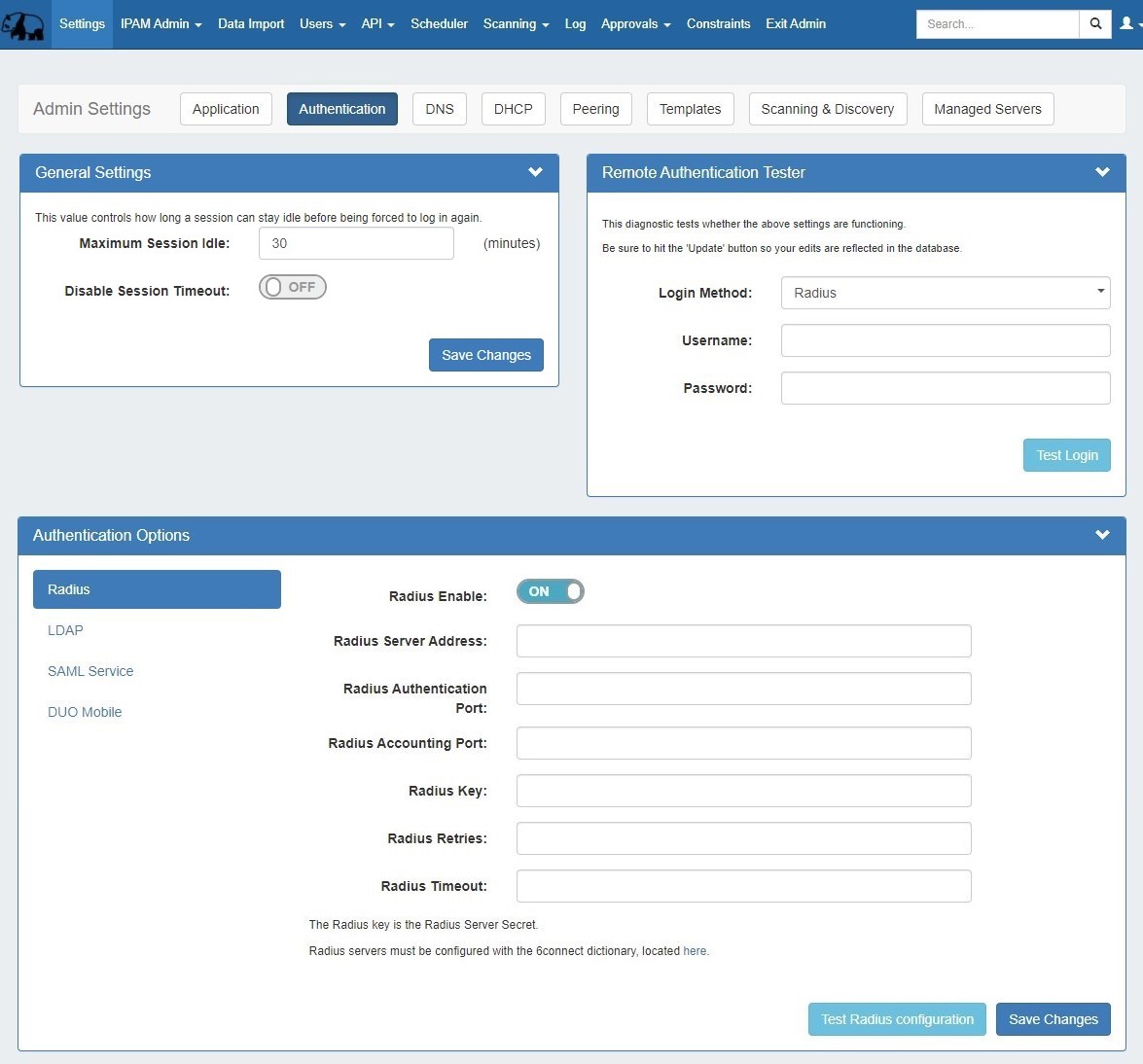
Authentication settings are accessed by clicking the "Authentication" sub-tab at the top of the Admin Settings page.
In this area, you may set the max session idle time, as well as setup additional authentication options. Four non-local authentication types are available: Radius, LDAP, SAML, and DUO Mobile.
For general authentication settings and options, see the settings below.
General Settings
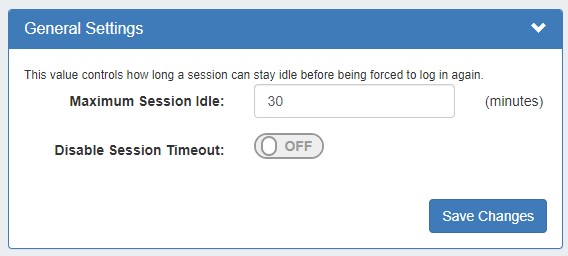
General settings contains options for user sessions:
-
Maximum Session Idle: This setting (minutes) controls how long a session can stay idle before being forced to log in again.
-
Disable Session Timeout: This setting disables the session timeout so that a user will not be logged out no matter how long the session is idle.
Remote Authentication Tester
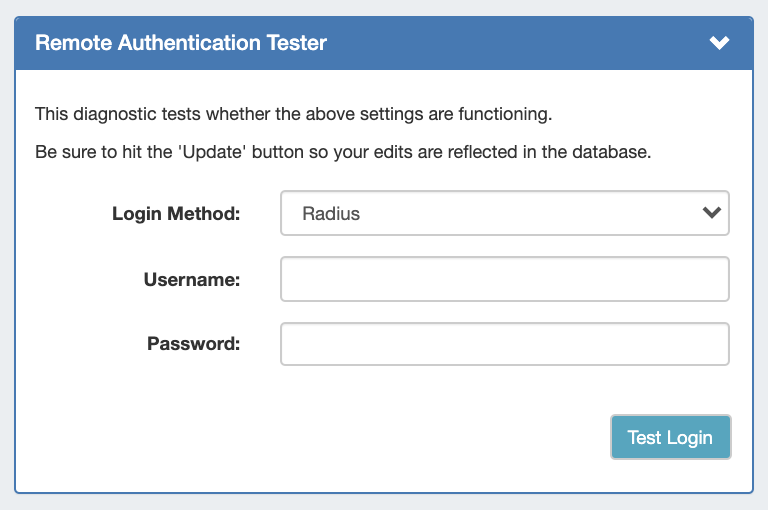
The Remote Authentication Tester checks Radius / LDAP settings for a user.
Select the Login Method (Radius or LDAP), enter the Username and Password for the user, and then click "Test Login".
-
Login Method: Select Radius or LDAP, according to your authentication settings.
-
Username: The username for the user you are testing.
-
Password: Password for the user you are testing.
Authentication Options
Four authentication types are available: Radius, LDAP, SAML, and DUO Mobile. To view settings for each, select the authentication type from the list at the left of the module.
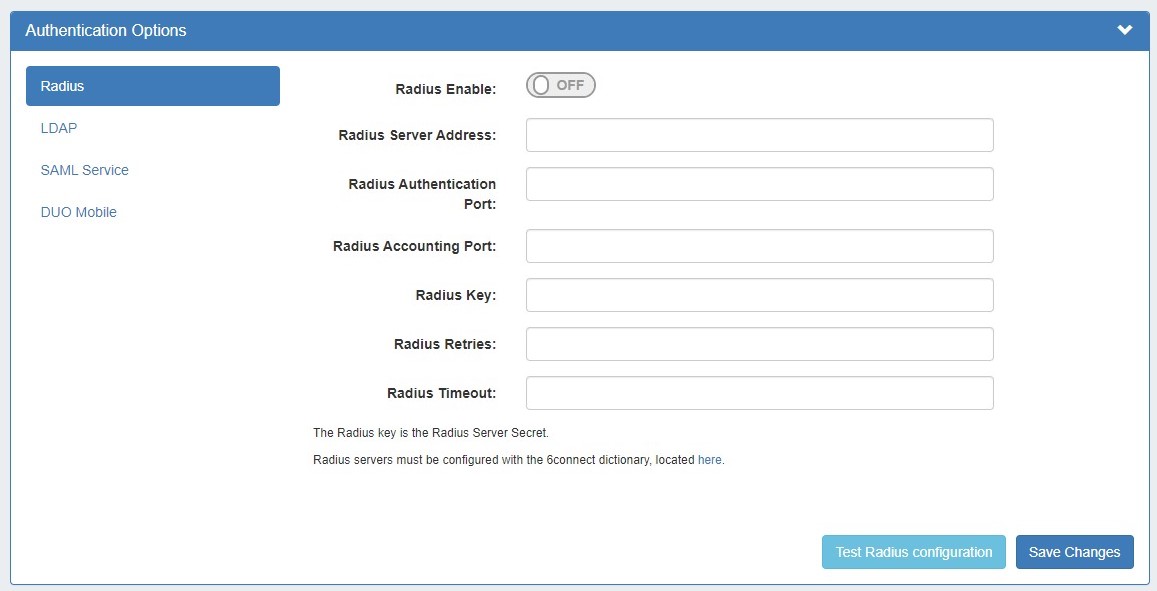
For details on each authentication type, see the option-specific pages under this section.
Login
To log in to ProVision:
-
Go to your instance's url
-
Select the authentication type from the dropdown under credentials - the default option is 'Local'
-
Enter the User Name and Password
-
Click 'Login'
Depending on the authentication method chosen by your organization, there may be a separate authentication to login or logout of the application via the drop down menu.
Change Order of Login Menu Dropdown
The drop down menu defaults to "local" - if you are using another authentication method, you can use the following to change the default ordering and improve usability.
In the file data/globals.php, add a line:
define('DEFAULT_LOGIN_TYPE', 'ldap');
Acceptable values instead of 'ldap' are 'local', 'radius' and 'saml'.
Additional Information
Detailed information on specific authentication types is available on the following pages: