
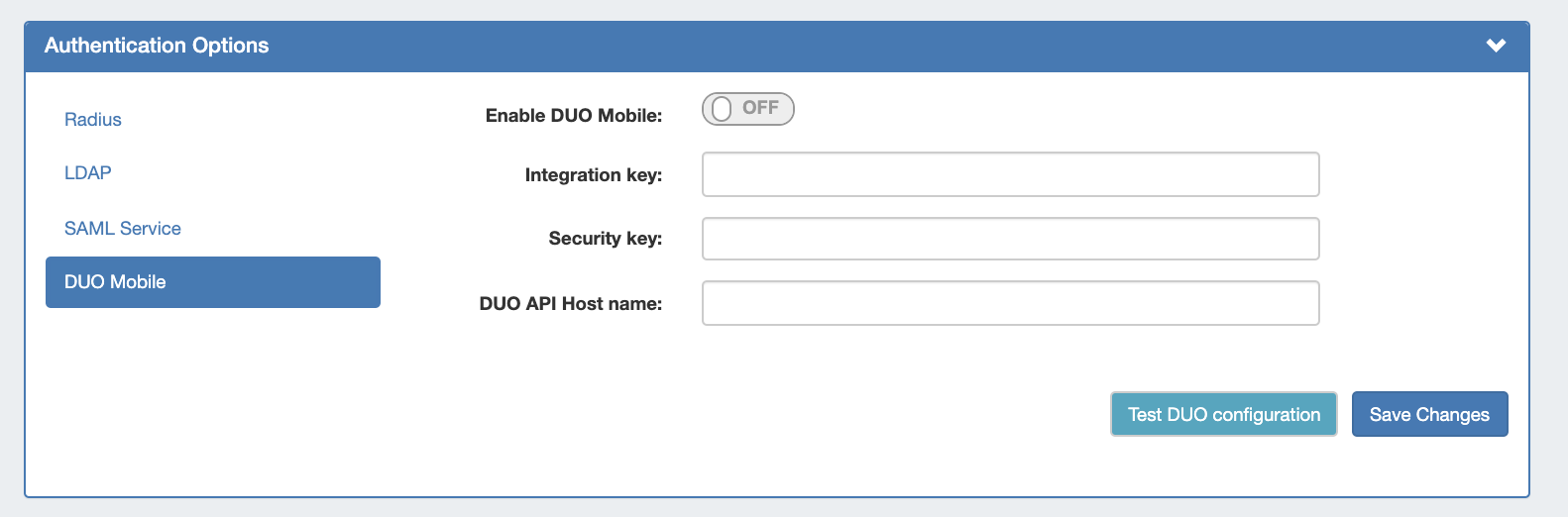
DUO Mobile may be used with ProVision to use two factor authentication with mobile devices. To use DUO Mobile in ProVision, you must first have a DUO account - available at https://duo.com/.
Once you have a DUO account set up, ProVision settings may be accessed from the "Authentication" sub-tab at the top of the Admin Settings page. Then, select "DUO Mobile" from the left sidebar under "Authentication Options".
DUO Mobile Settings
To use DUO Authentication, an account must first be set up with DUO.
Once DUO account information is available, obtain the following:
-
Integration Key
-
Security Key
-
DUO API Host name
Enter those items into Admin→ Authentication Options → DUO Mobile Configuration.
Then, click Save Changes to save your updates.
You may test the current configuration by clicking Test DUO Configuration.
Disable DUO Mobile
DUO Mobile may be disabled from the GUI by turning the "Enable Duo Mobile" toggle to "OFF".
If you need to disable DUO Mobile authentication from ProVision from outside of the GUI (such as in case of an accidental enable), a command-line disable tool is available.
Run the following in your ProVision directory:
php tools/disable_duo.php