
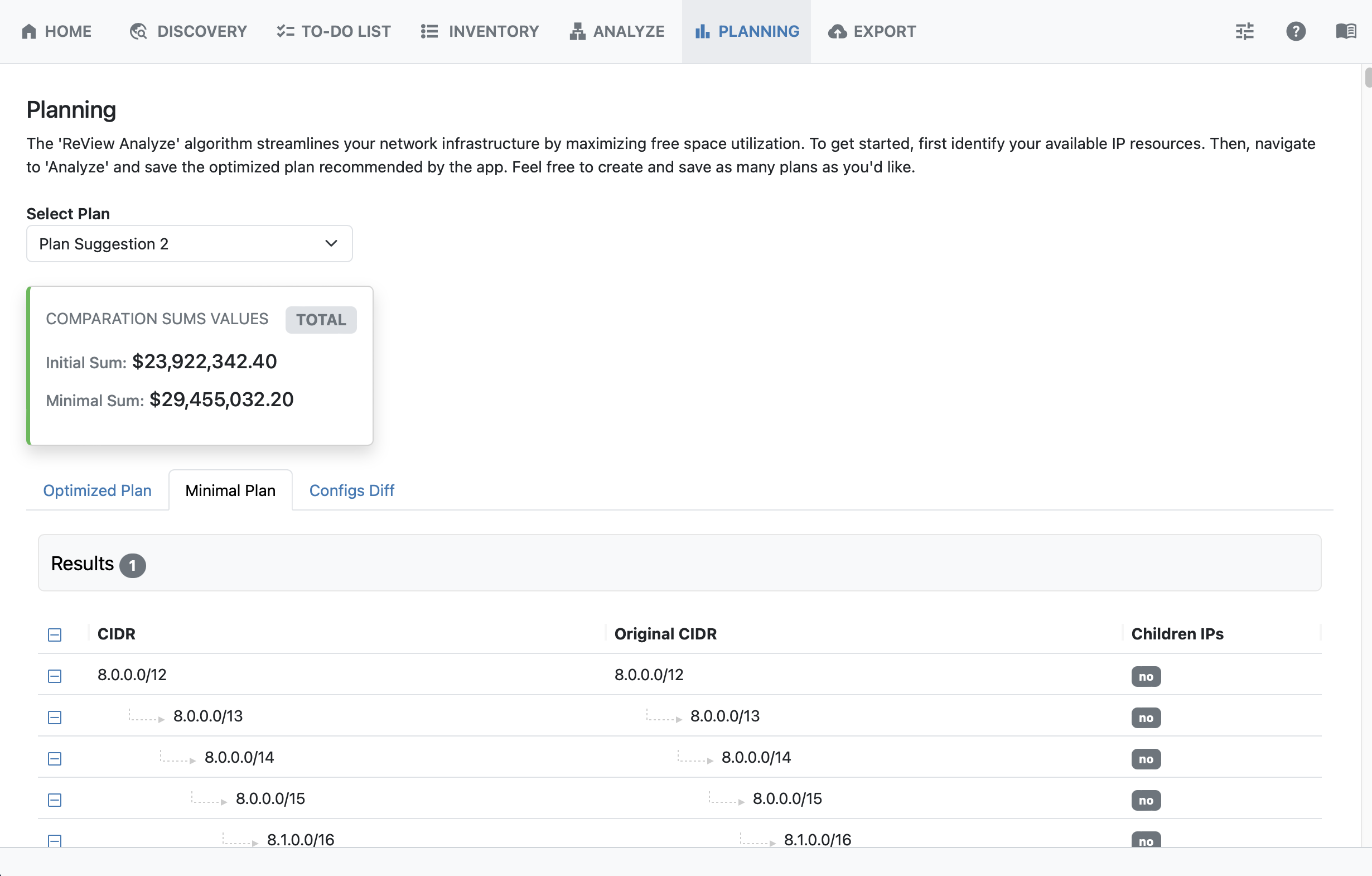
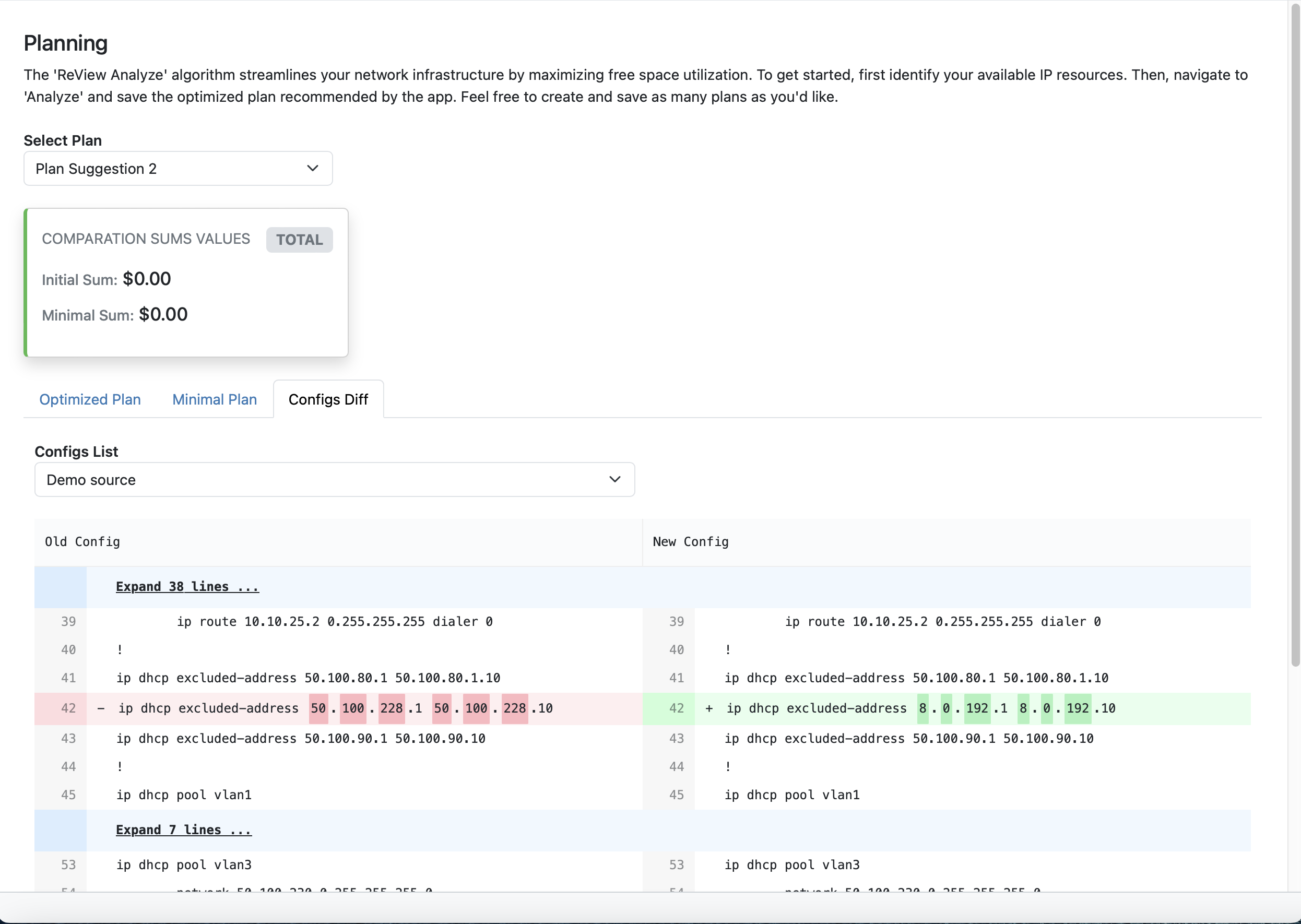
The Planning tab shows the potential value for plans saved under the Analyze tab. Here, you may view the Optimized Plan, Minimal Plan, and Configs Diff for each plan saved from the Analyze Tab - Get Suggestions step.
Select Plan
At the top of the page, click on “Select plan” to open the list of saved plans.
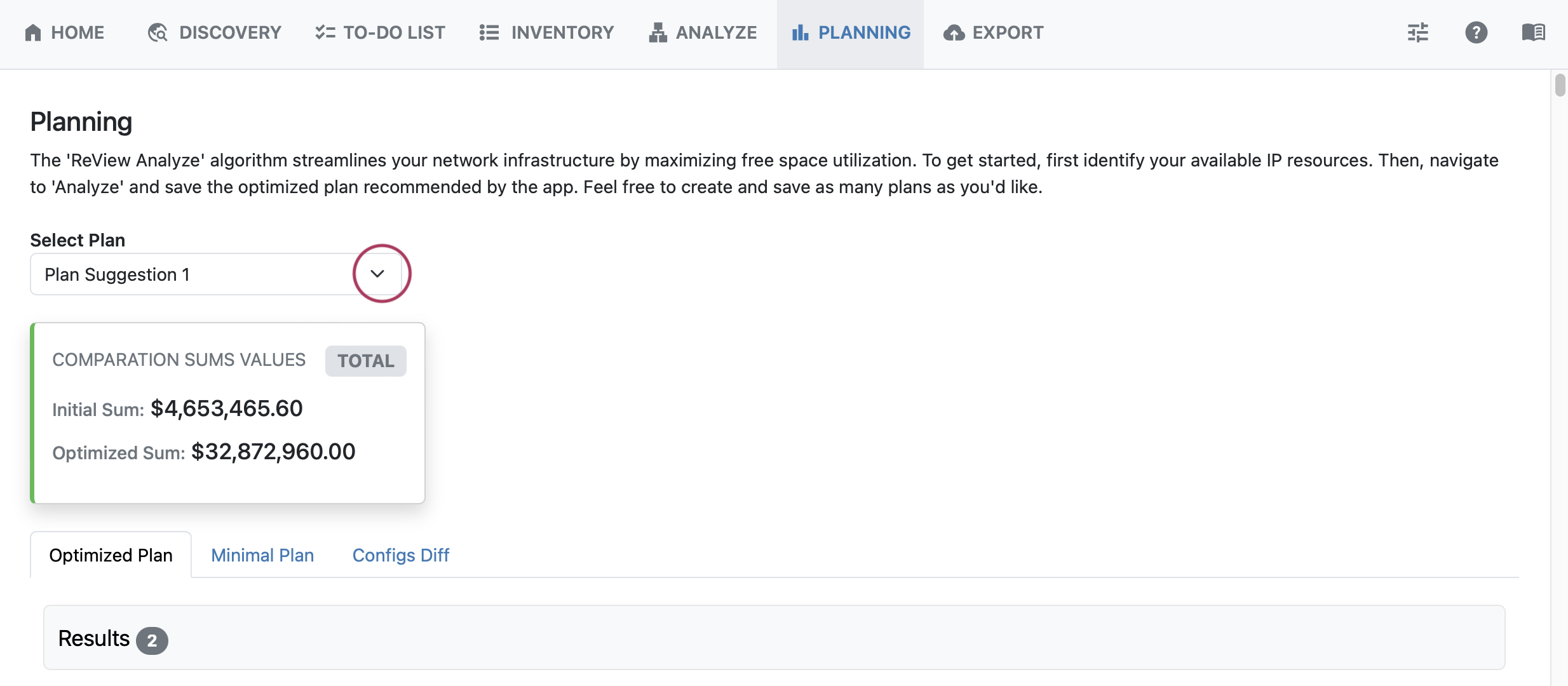
Then, select which saved plan to view.
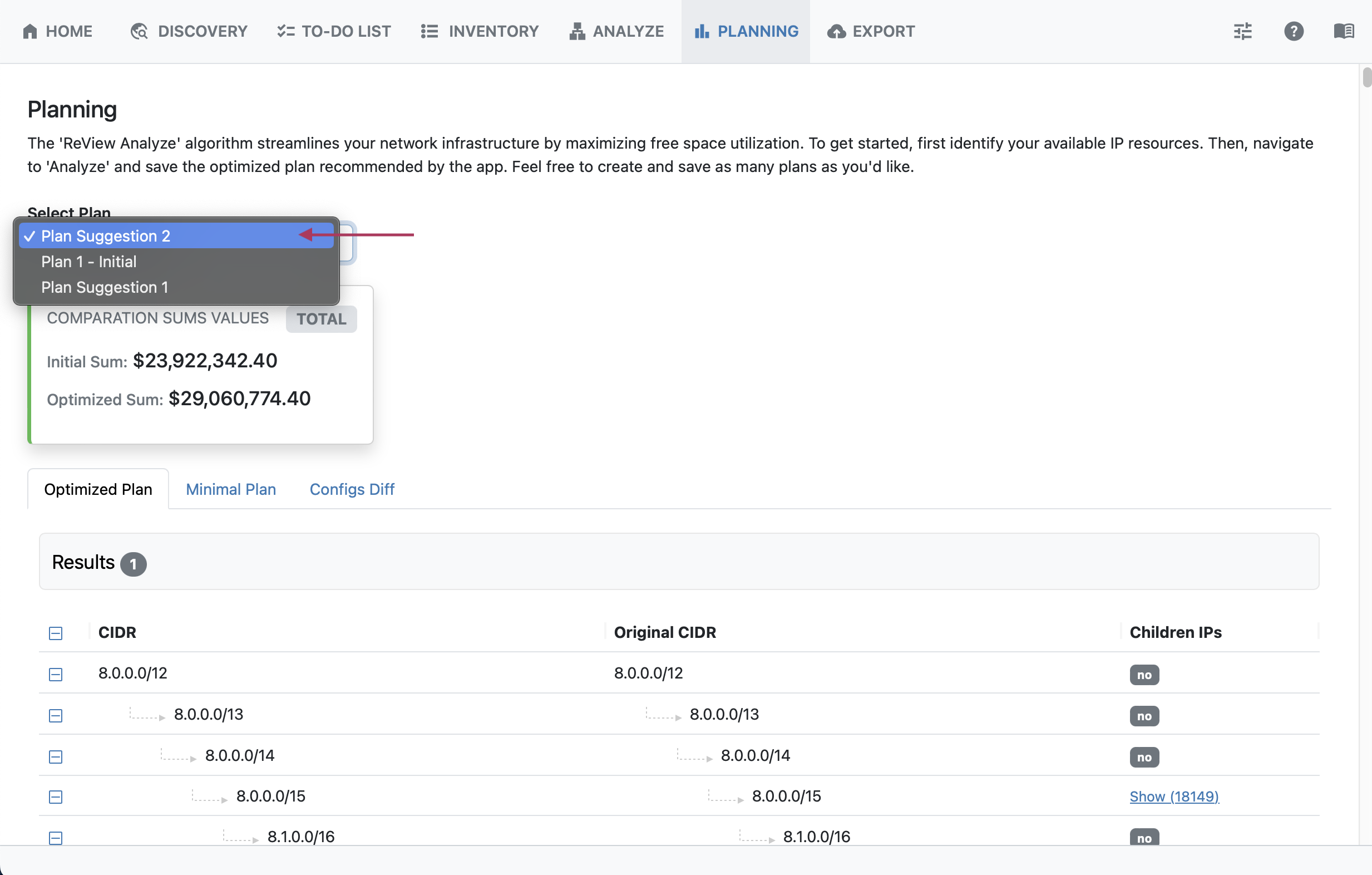
The plan will load organized into three subtabs: Optimized Plan, Minimal Plan, and Config Diff.
For each plan, the plan CIDR, original CIDR, and child IP status is displayed.
The Optimized Plan shows the optimal consolidation plan, keeping the current network structure and number of levels intact:
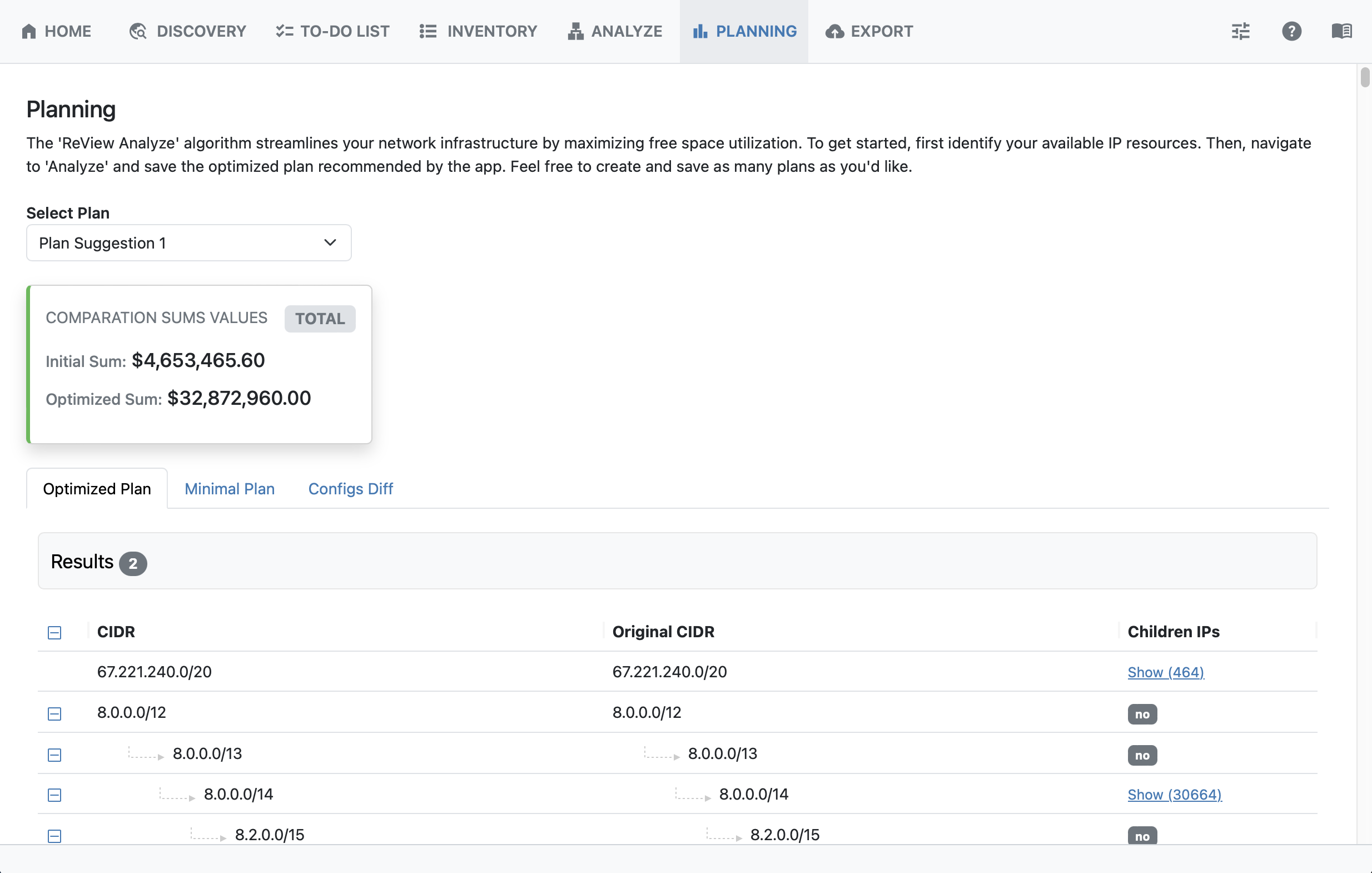
The Minimal Plan displays the highest value strategy to give the most free space, consolidating the structure into the fewest possible netblocks:
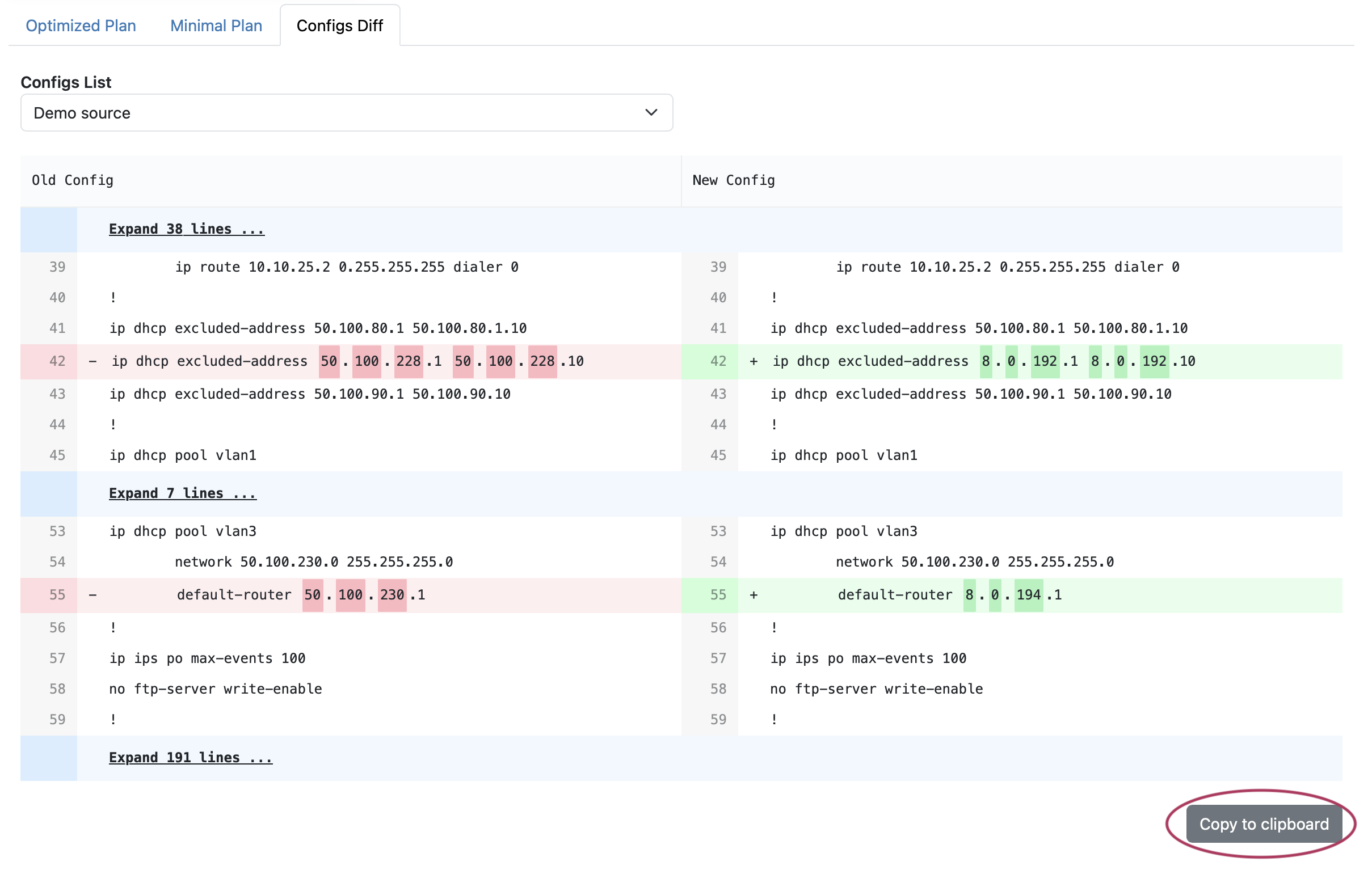
Configs Diff shows the side-by-side differences in the configuration for the plan implementation:
The Configs Diff files may be copied to clipboard to save to paste into a local file for later implementation.
At this point, you may wish to review and compare multiple strategies for different plans, and decide on which version you may wish to implement.
Next Steps
After reviewing plans from the Planning tab, you may optionally select to proceed to the Export tab to generate a network status report.