
In order to use an API service in an ACP Workflow, you must first define a connector to its service. Connectors are saved on a per-Workflow basis.
ACP currently supports the following connector types:
-
ProVision
-
ACP
-
Google Compute
-
Microsoft Azure
-
Amazon AWS
-
Kubernetes
You can define your own connectors to services not natively supported by ProVision by using the ‘Generic Connectors’ functionality.
Managing Workflow Connectors
The ‘connectors’ link in the upper-right of the Workflow page opens a window which can be used to define, edit, and import connectors to external API providers.
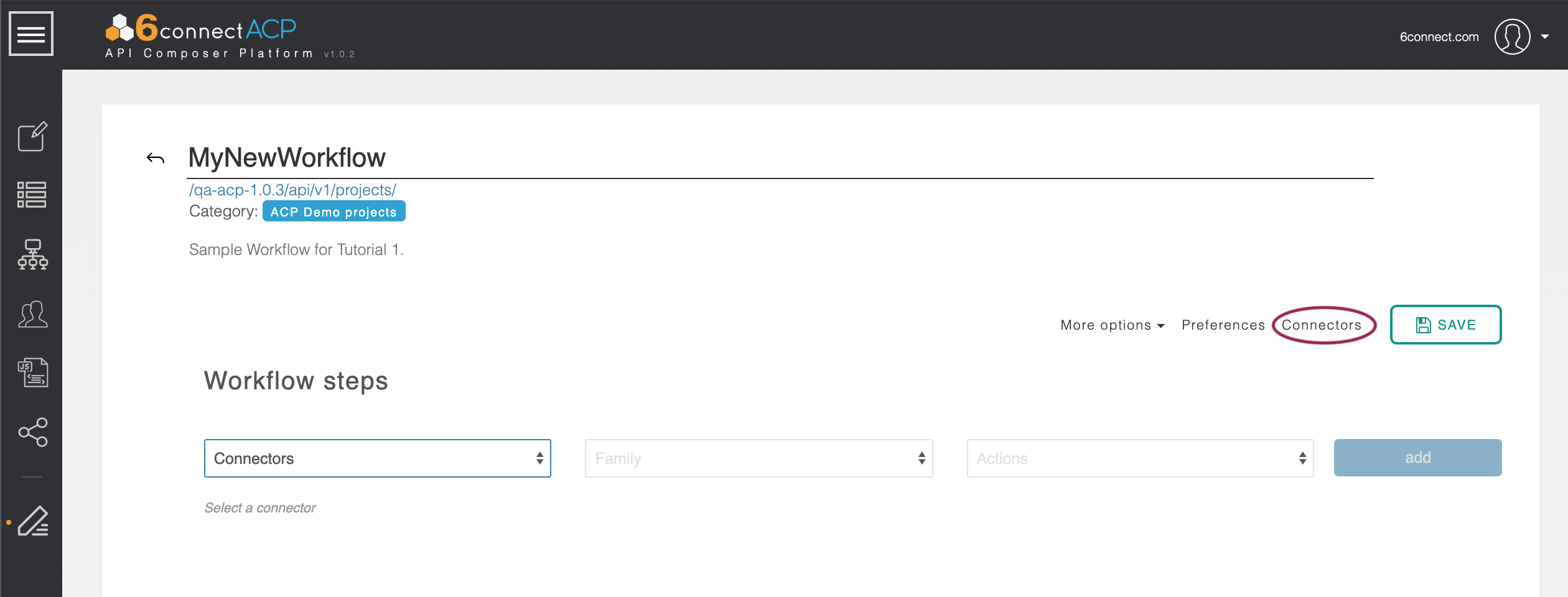
If there is already a connector existing for that workflow, you can review and edit that connector. Otherwise, a new Connector can be created for that Workflow, or one may be imported from an existing workflow.
Edit an Existing Connector
Edit an Existing Connector
To edit an existing connector for the Workflow, click the ‘select’ drop-down and pick it from the "Current Instances" menu.
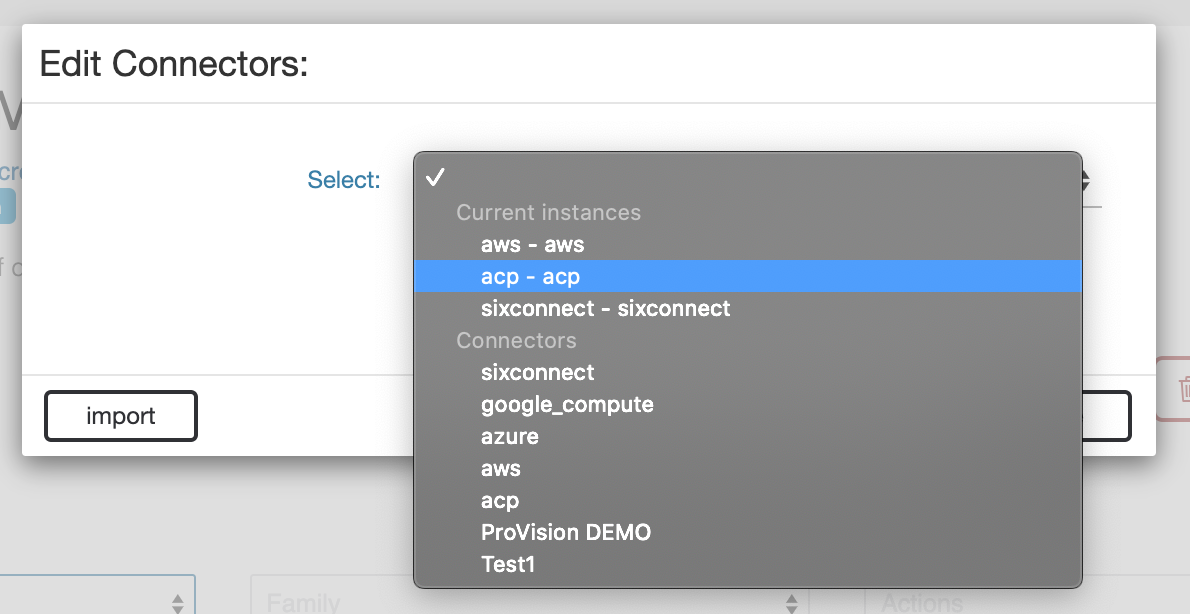
Edit the fields that appear in the Edit Connector form as needed, and click "apply" to save.
Create a New Connector
Create a New Connector
To create a new connector, click the ‘select’ drop-down and pick the service type you would like for the connector.
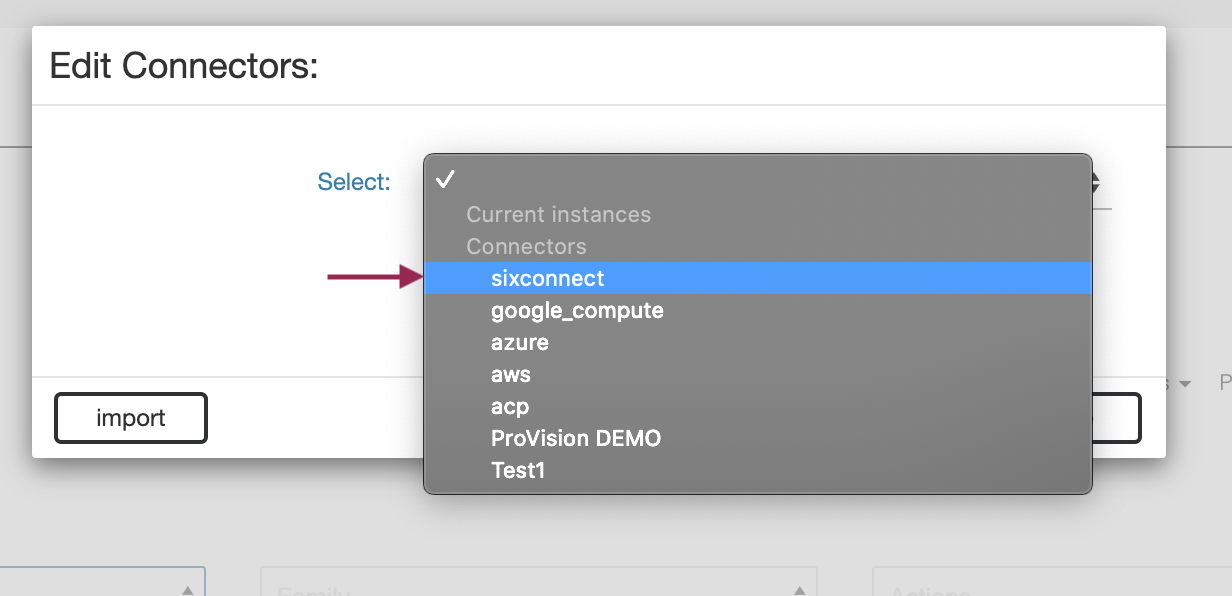
Once you have picked a connector type, the form updates itself with the locations and credentials required to make calls against this service.
Enter the location, url, and credentials listed for the selected connector. Afterwards, click "test" at the bottom of the window.
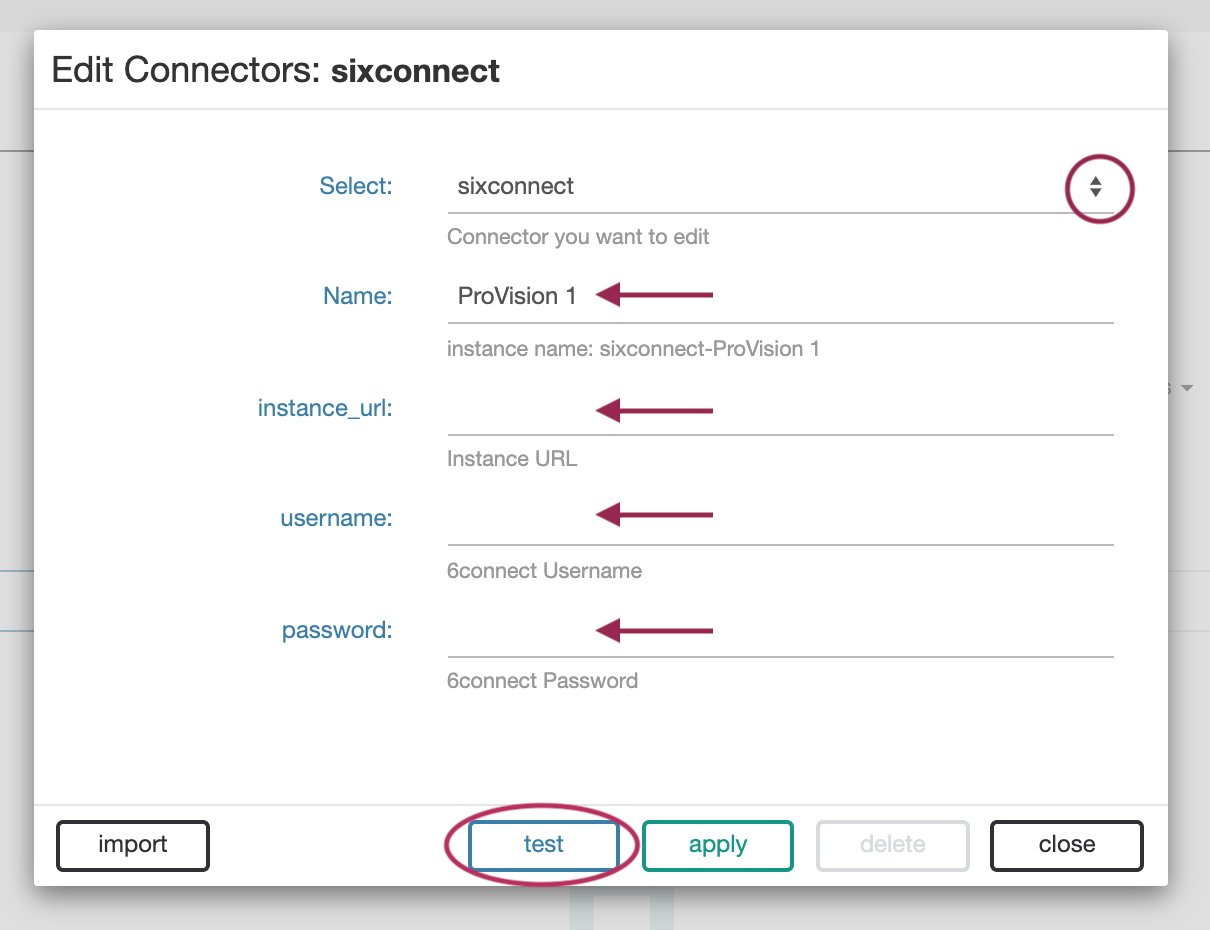
The ‘test’ button verifies whether or not the supplied information validates against the API service. If you have received a successful test response, click ‘apply’ to save the new connector.
New connectors are automatically added to the current workflow.
Import Connector
Import Connector
To expedite re-use of connectors between workflows, you may also import connectors from existing workflows.
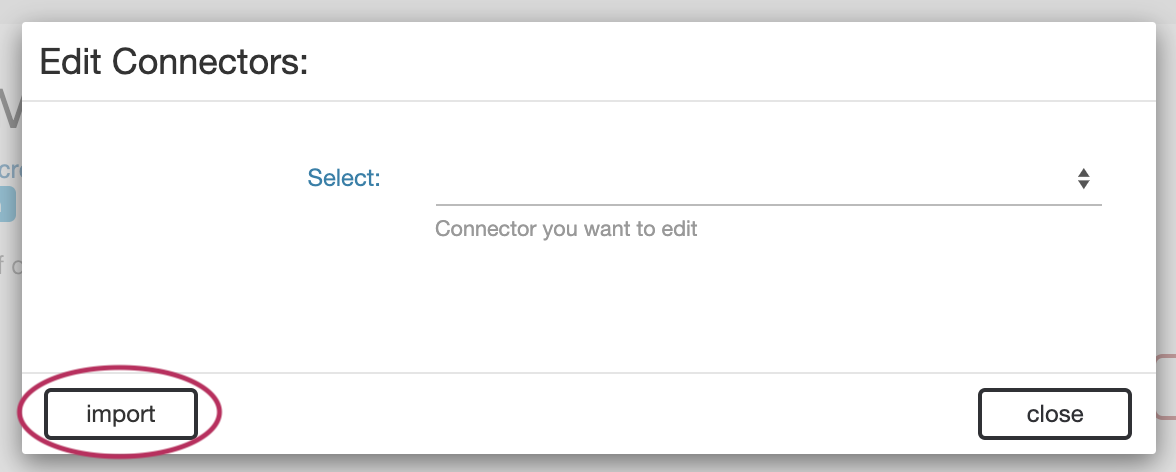
To import a workflow, click the "import" button on the lower left side of the Edit Connectors form.
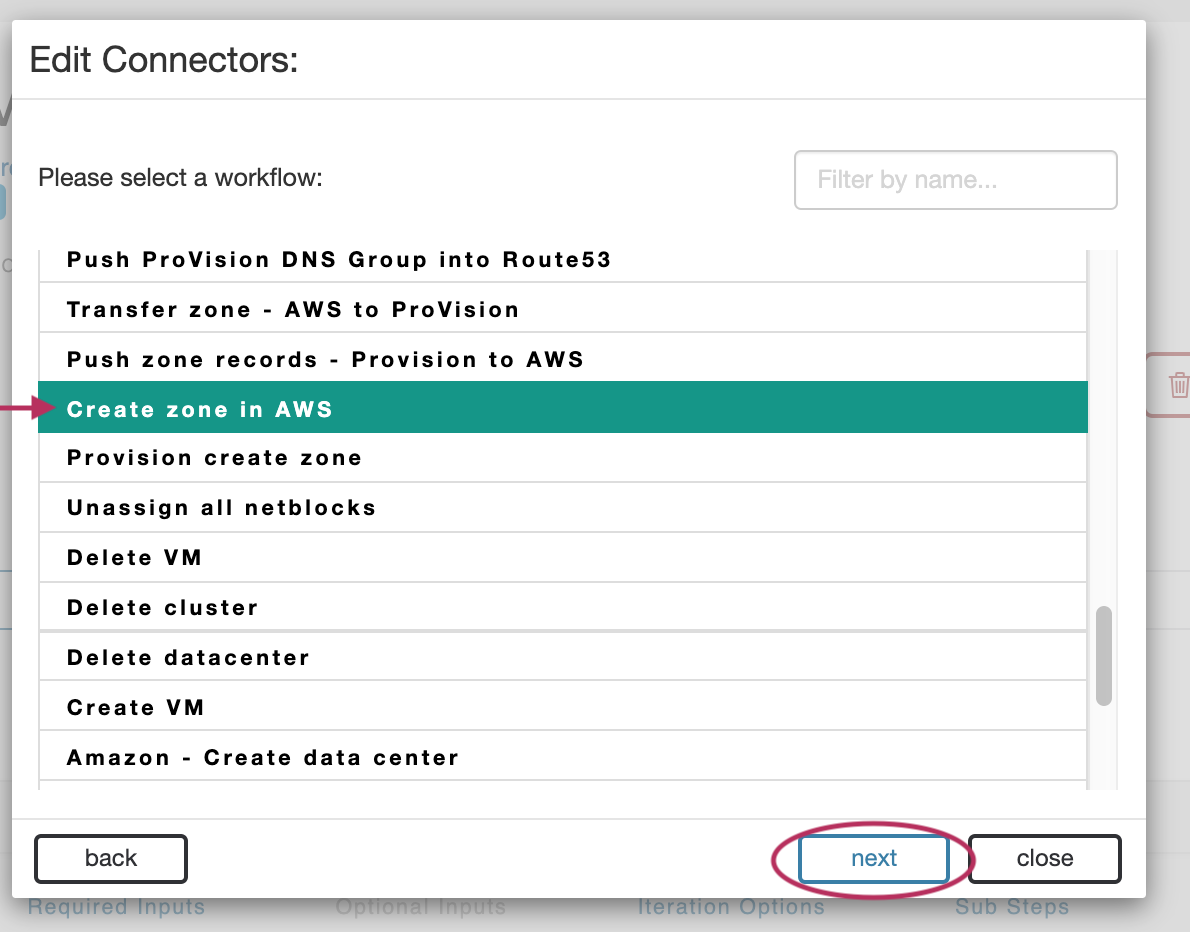
Select the Workflow containing the desired connector. To filter the list, type all or part of the workflow name in the filter box at top right. After selecting the workflow, click "next".
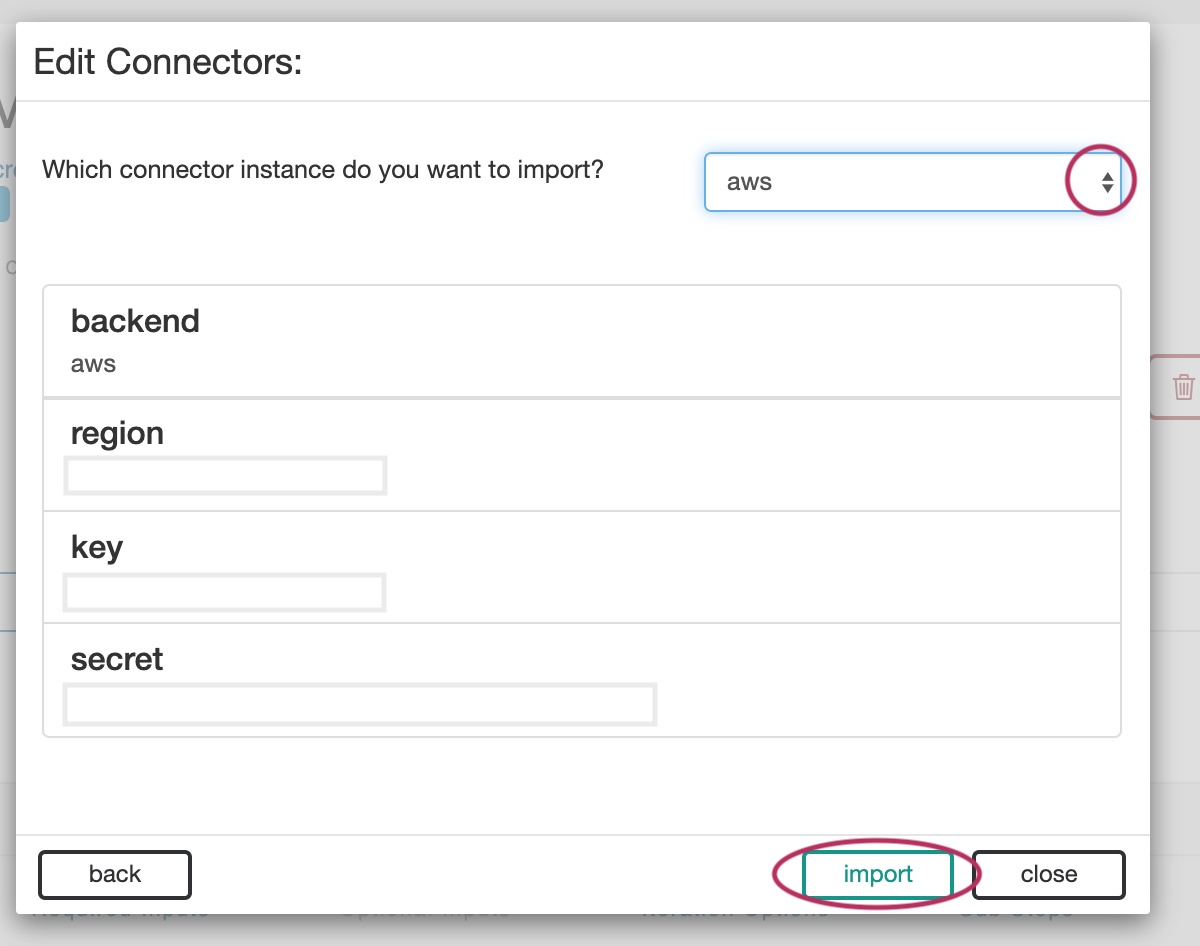
A selection box will load available connectors from that workflow - select the desired connector, review the data to ensure it is the correct connector, and then click "import".
The connector will be added to the current workflow.
Generic Connectors
The Generic Connector system is designed to allow ACP to support API-providing systems that do not have a predefined built-in connector.
For example, there may be a network appliance which offers an API that ACP does not natively support. In this case, the user can employ a Generic Connector to manually define the API endpoints offered by this appliance and then integrate its functions with an ACP workflow as normal.
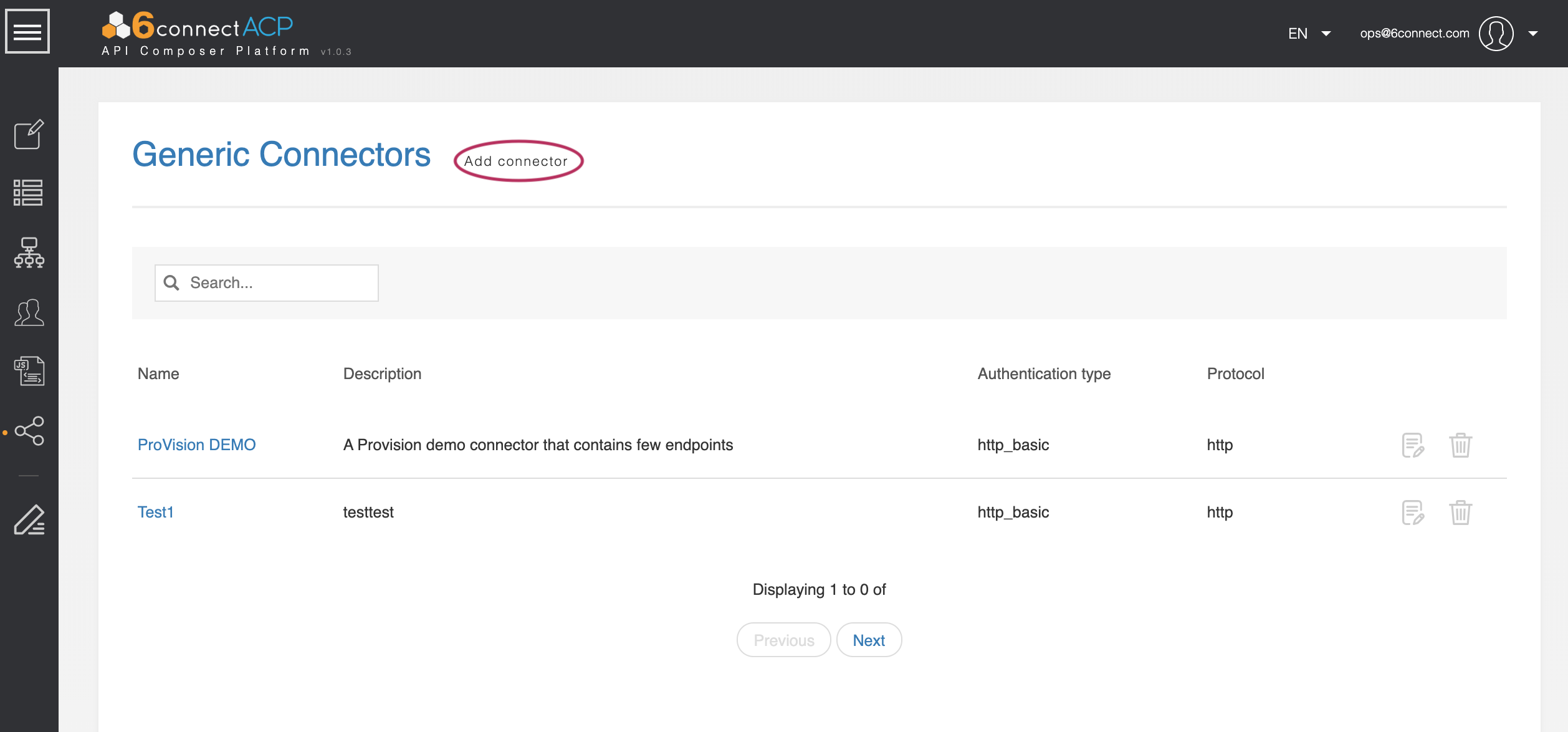
The Generic Connector section can be found by clicking on the graph icon on the left-hand navigation bar.
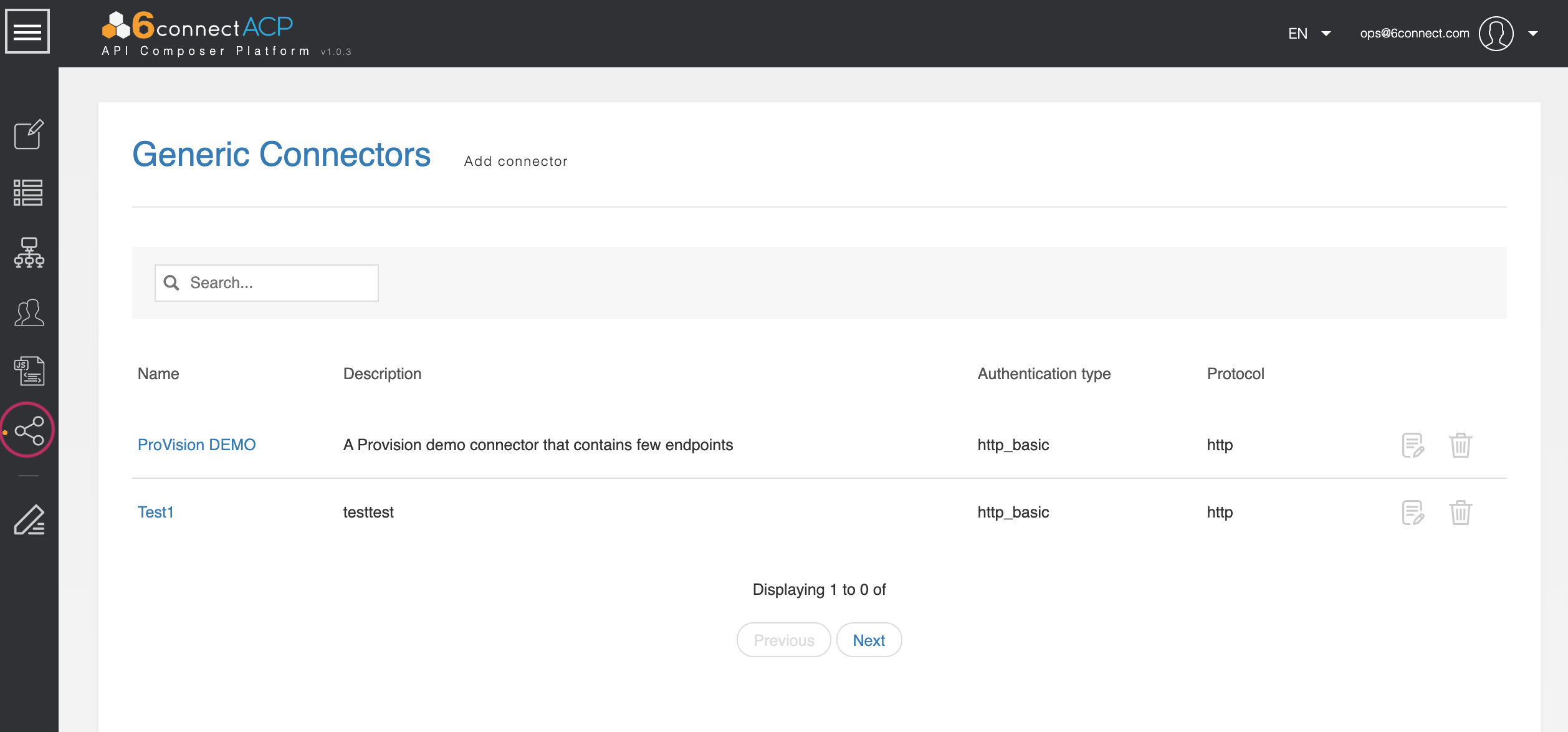
This brings up the main Generic Connectors List screen. From this screen, you can edit or delete existing Generic Connectors.
Add New Generic Connector
Add New Generic Connector
To add a new Generic Connector, click "Add Connector" at the top of the page.
Clicking on ‘Add Connector’ brings up a form that allows the user to name the new connector, add a short description, and pick the authentication type and communications protocol this connector will employ.
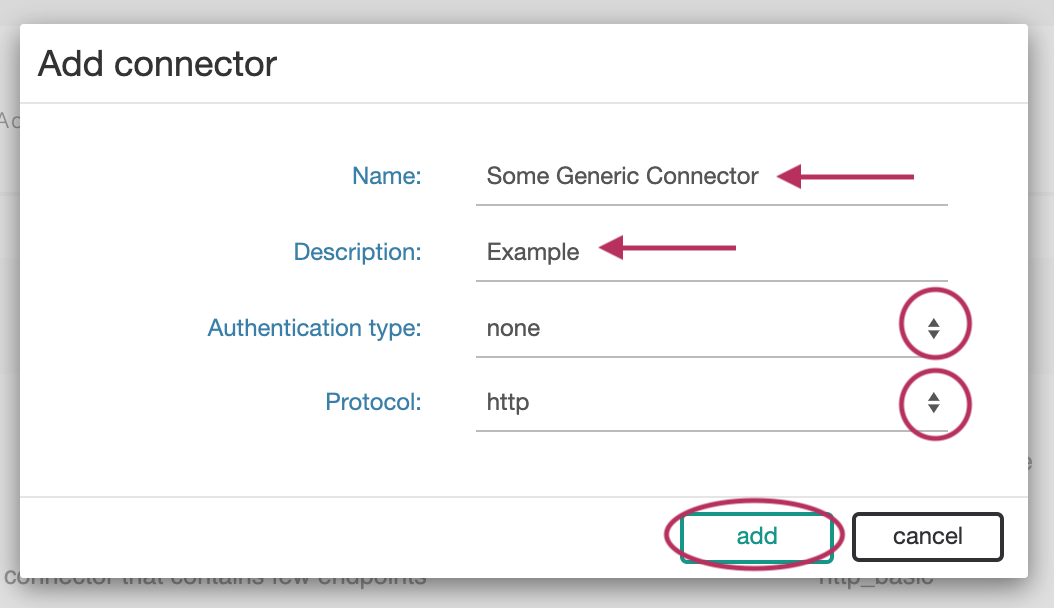
Authentication methods currently supported are “HTTP Basic”, “vCenter”, and “None.”
The only communications protocol currently supported is “HTTP.”
Completing the form and clicking the ‘add’ button will add the Generic Connector to the connectors list.
Edit Generic Connector Endpoints
Endpoints can be added to a Generic Connector by clicking on the ‘edit’ icon to the right of each Connector’s name.

This brings up a screen that displays a form for adding new Endpoints above the list for managing existing Endpoints.
Edit Generic Connector General Options
The General Options area is where the information necessary to properly execute the API action is defined.
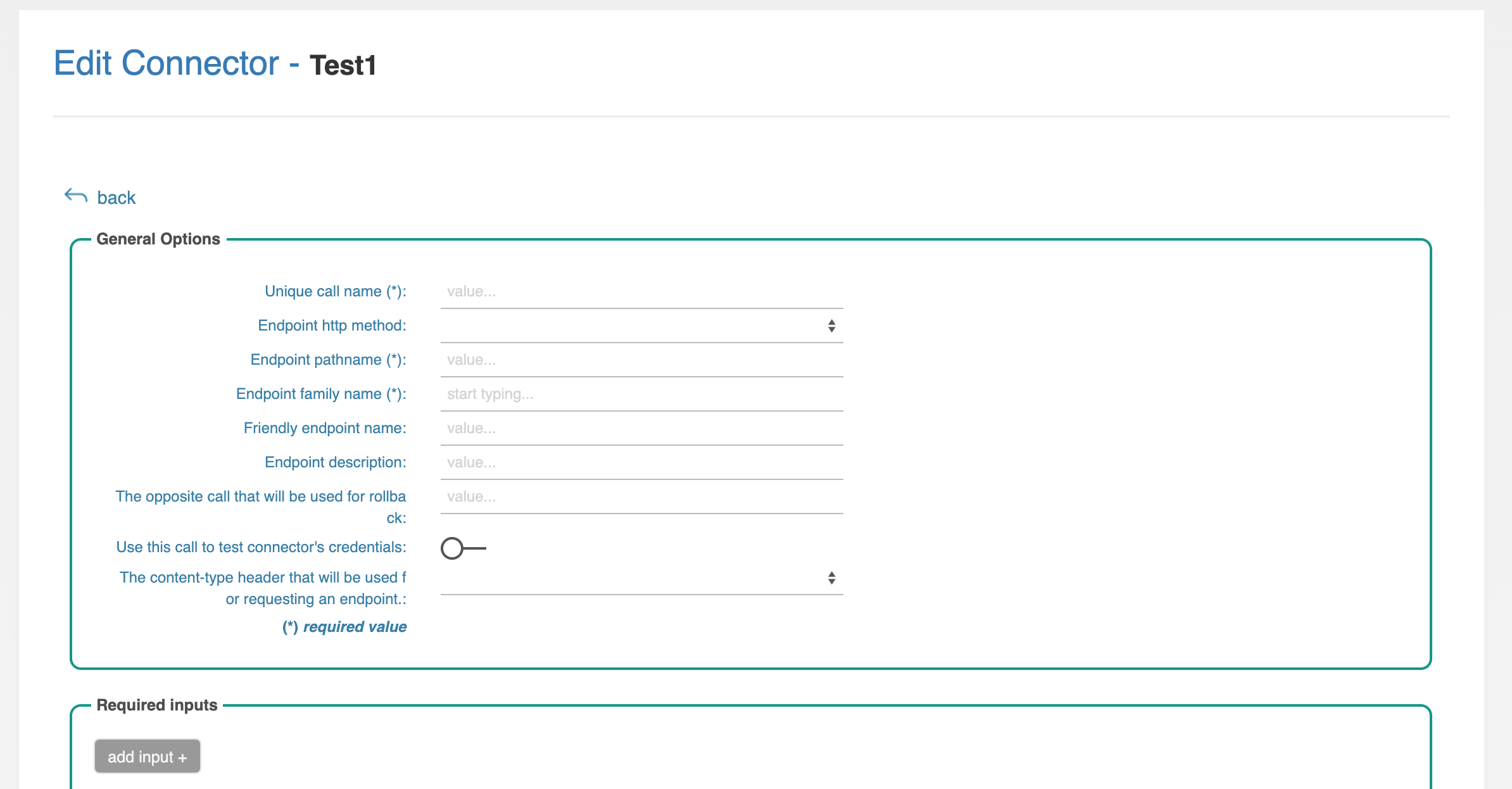
There are several fields:
-
Unique call name: the name for this endpoint within ACP.
-
Endpoint http method: the HTTP header for accessing this endpoint (GET, POST, etc).
-
Endpoint pathname: the path of this API action. Note: the connector configuration modal on each ACP Workflow will ask you for the location of the API service. This pathname is the path to be used *after* the location of the service is defined. For example, if an API endpoint is “https://127.0.0.1/services/action1/”, the connector location will be defined as “https://127.0.0.1/services” and the endpoint pathname will be “/action1/”.
-
Endpoint family name: ACP organizes API endpoints into families for easier lookups. This field allows you to define what family this endpoint falls into. Families are automatically created from the contents of this field.
-
Friendly endpoint name: a more user-friendly name for this endpoint.
-
Endpoint description: a short description of what this endpoint does.
-
Rollback call: the unique call name which will be invoked if this call fails and rollbacks are enabled. Optional.
-
Use this call to test credentials: When the user is filling out the connector’s location and authentication details in a Workflow the ‘test’ button does a quick call to a specified endpoint to verify the credentials are working. This toggle defines whether or not this endpoint is appropriate for this test.
-
Content-type header: The content-type header sent to the API service by the HTTP protocol.
Once a Generic Connector has been defined it can be selected from the Connectors section of any Workflow.