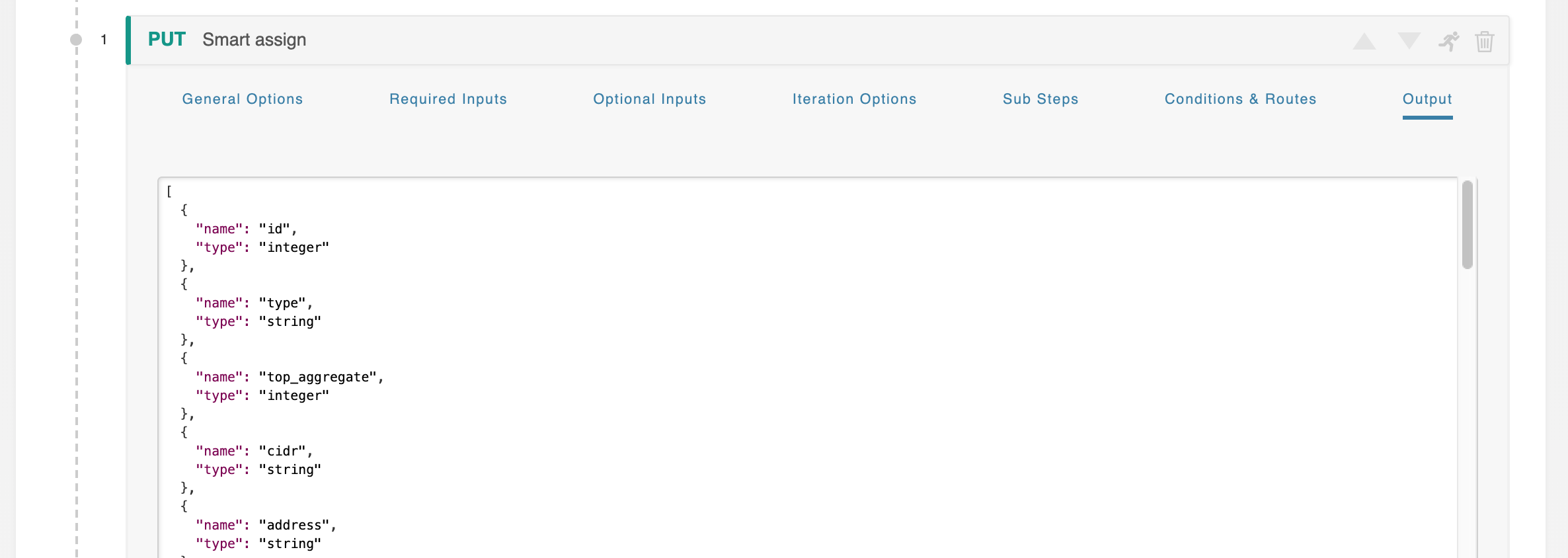
This section details out the tabs available under a Workflow step, accessed by clicking on the header bar for any workflow step:
User Inputs
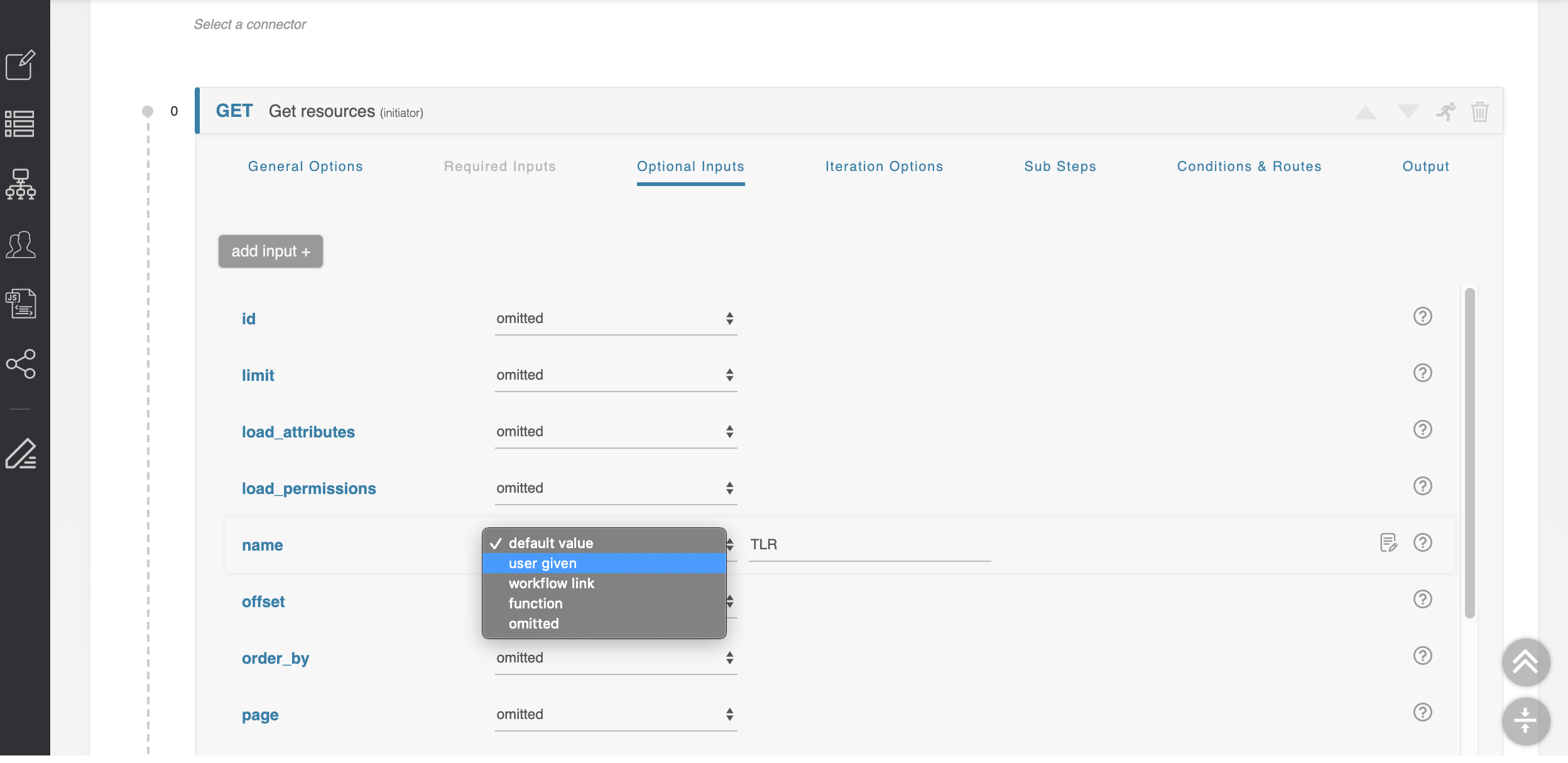
User Inputs are configured for a step under the "Required Inputs" and/or "Optional Inputs" tabs under a workflow:
-
Required Inputs: The ‘Required Inputs’ section contains variables that must be set for the API call to proceed. This section is not always present, as not all API calls have required parameters.
-
Optional Inputs: The ‘Optional Inputs’ section contains those parameters that the API call might make use of which are not explicitly required. Some APIs are flexible and allow you to add additional optional parameters not explicitly defined in the API specification. To allow for this, the ‘add input’ button lets you define an arbitrary optional inputs to complete the API call.
Working with Inputs
All types of inputs have a small ‘?’ to the right of their input area which will supply help text as to what that parameter does. For more details, see the official API documentation for the API service you are using.
All types of inputs can be customized with the following states:
-
Omitted: The default state. This parameter will not be sent with the API call. This option is not available for 'required' parameters.
-
Default value: This parameter will be set to some constant, defined here.
-
User given: This parameter will be supplied by the user executing the ACP Workflow.
-
Workflow link: The input for this parameter is the output of another step. For details, see Workflow Steps → Links Between Steps (Workflow Links).
-
Iteration: This parameter becomes available when the Iteration Options section is configured. Inputs set to ‘iteration’ are populated with the iterated run number, starting from zero. For detail, see Initiator Conditions and Iteration.
-
Function: The input of this parameter will be supplied by the output of a javascript function. For detail, see Javascript Functions.
Iteration Options
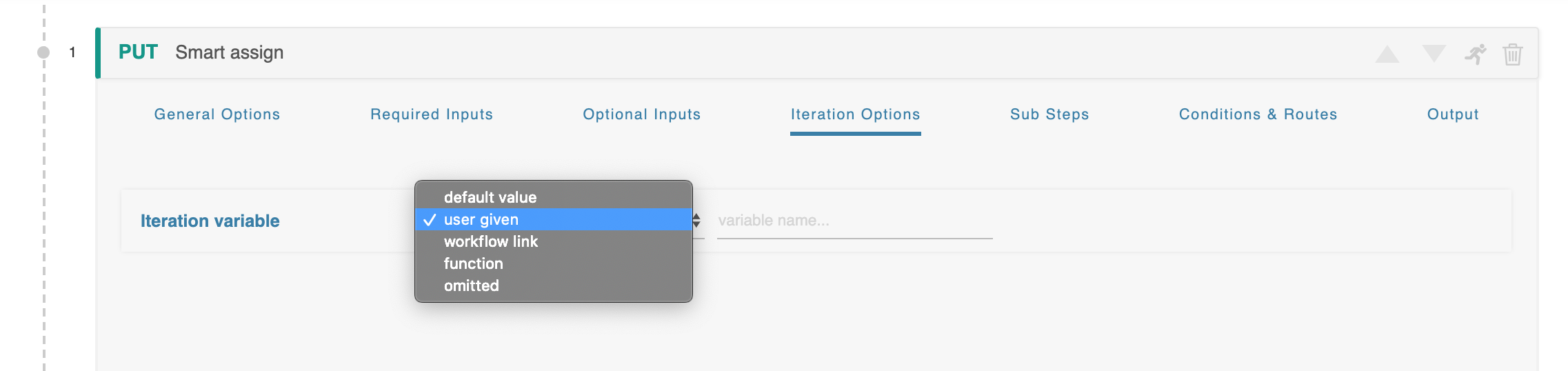
When using an iteration variable, it can be customized with the same options as any other input.
Setting the Input to ‘user given’ indicates that this parameter must be supplied by the user who executes this workflow, regardless of whether the step where it is introduced is ever executed.
When the ‘user given’ option is selected the form changes to show an additional field where this variable can be named. These variable names are global in scope, and the same name used multiple times will refer to the same variable. For example if your variable is ‘customer_name’ and it is used in three separate steps, the workflow will only request ‘customer_name’ once and use it in all three instances.
Sub-Steps
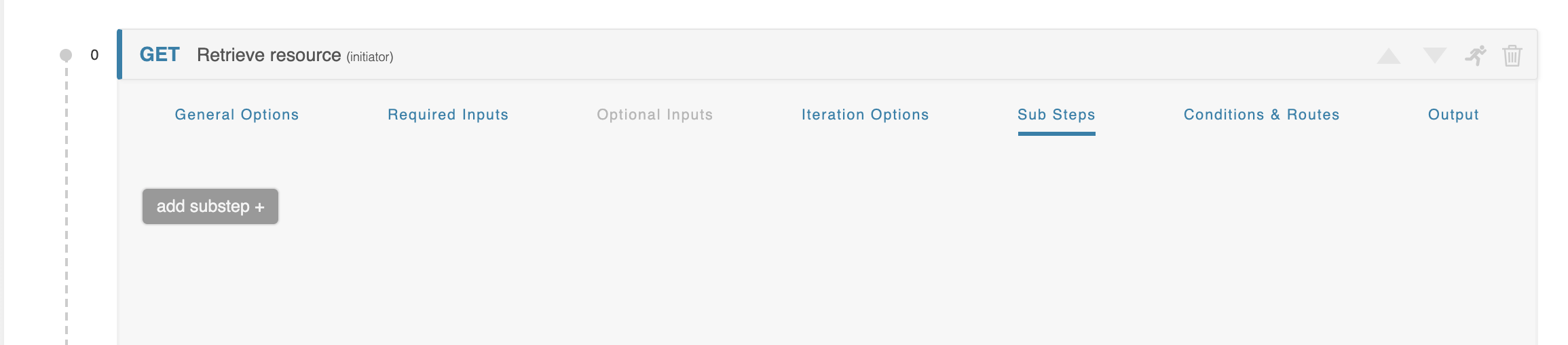
Each Workflow Step has an optional Sub-steps section. This area is initially empty, but can be populated with sub-steps to create a Workflow within a Workflow.
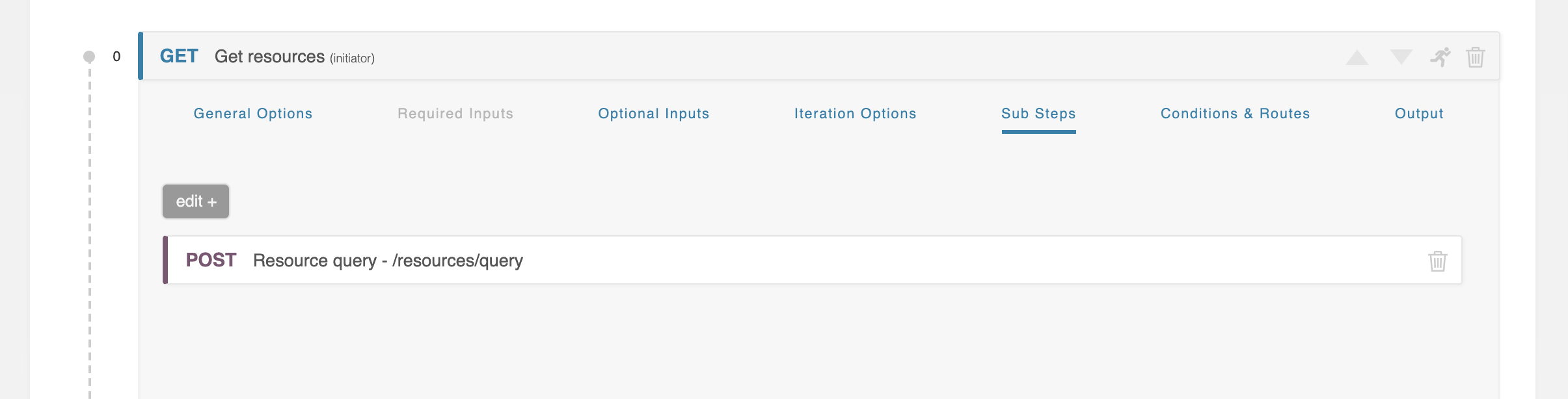
This Inner Workflow will be executed once for each item produced by the parent Step. For example, if the parent Step produces an array of five objects, then the Inner Workflow in the Sub-steps section will be executed five times, once for each object.
The Sub-steps section is executed after the parent call, but before the data is passed to the Conditions & Routes section.
Sub-Steps Details
The Sub-steps section is initially empty. The “add substep” button enables this area and navigates to a new screen which focuses exclusively on this inner Workflow. The “back to parent” button returns to the parent Step.
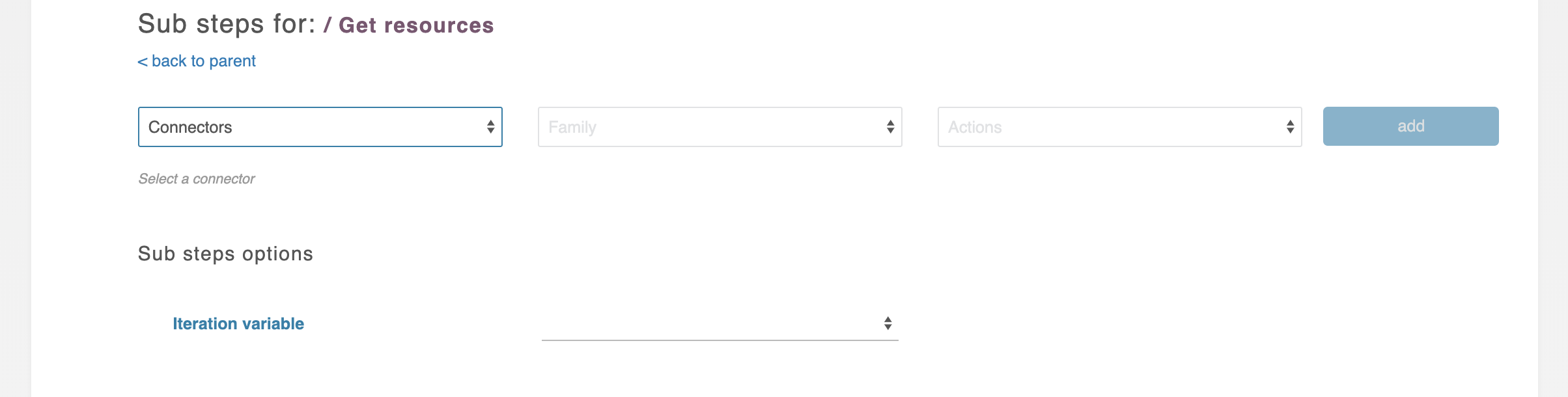
The Sub-step edit screen is very similar to the normal Workflow Step editing area. You can add individual Sub-steps, each invoking an endpoint of a configured API service, connected by Conditions & Routes sections and utilizing data provided by previous Steps from both inside and outside the Sub-step area. It works exactly like a complete Workflow, only self-contained and dedicated to manipulating the data result of a parent Step.
In general, all the rules which apply to the normal Steps of a Workflow apply to Sub-steps.
One major difference is that a series of Sub-steps does not have an “Output,” but instead has a new field in its General Options field titled “Write output in parent scope.” This field substitutes for an Output area and allows the user to specify where to deposit the results in the parent's data object. These results will then be available to all subsequent steps as the Outer Workflow proceeds.
Each Inner Workflow can have, if needed, Sub-steps of is own, creating an Inner-Inner Workflow. There is no limit to how many Workflows deep this can go.
Conditions and Routing
The ‘Conditions & Routes’ section examines the data returned as the result of a workflow step and decides which step is next. The workflow creator can define an unlimited number of separate conditions leading to different next steps, and each condition can consist of an unlimited number of individual comparisons. The system evaluates each condition in order, from top to bottom, and immediately proceeds when it finds a match.
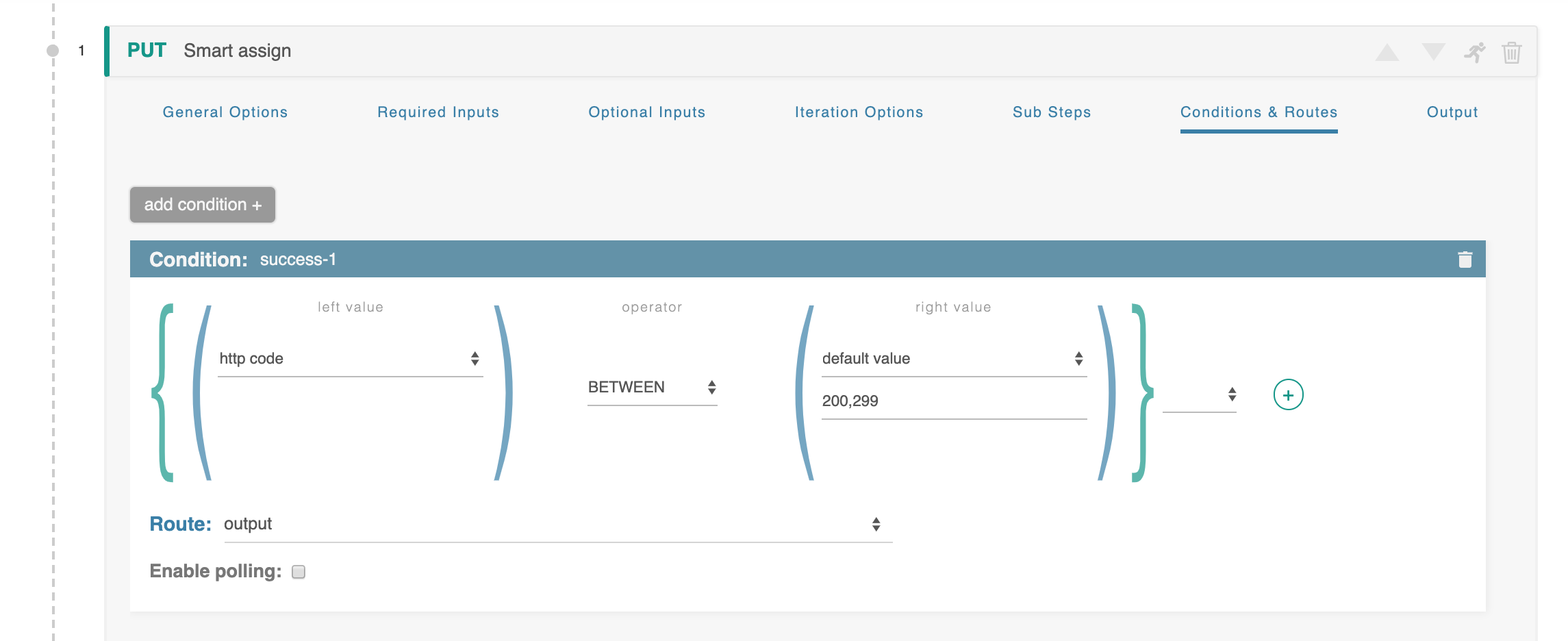
The “add condition” button in the upper-left is used to create a new condition. Each Conditions & Routes section can have an unlimited number of routes defined. Individual routes can be removed by clicking the trashcan icon at the right, and the route can be renamed by clicking on the existing name in the header.
At the bottom of every Conditions & Routes section is a “Route” section which dictates which step the workflow will be directed to if these conditions are met.
Step Output
Step Output displays an example of the output that will be generated when executing the step.