
Workflow Execution
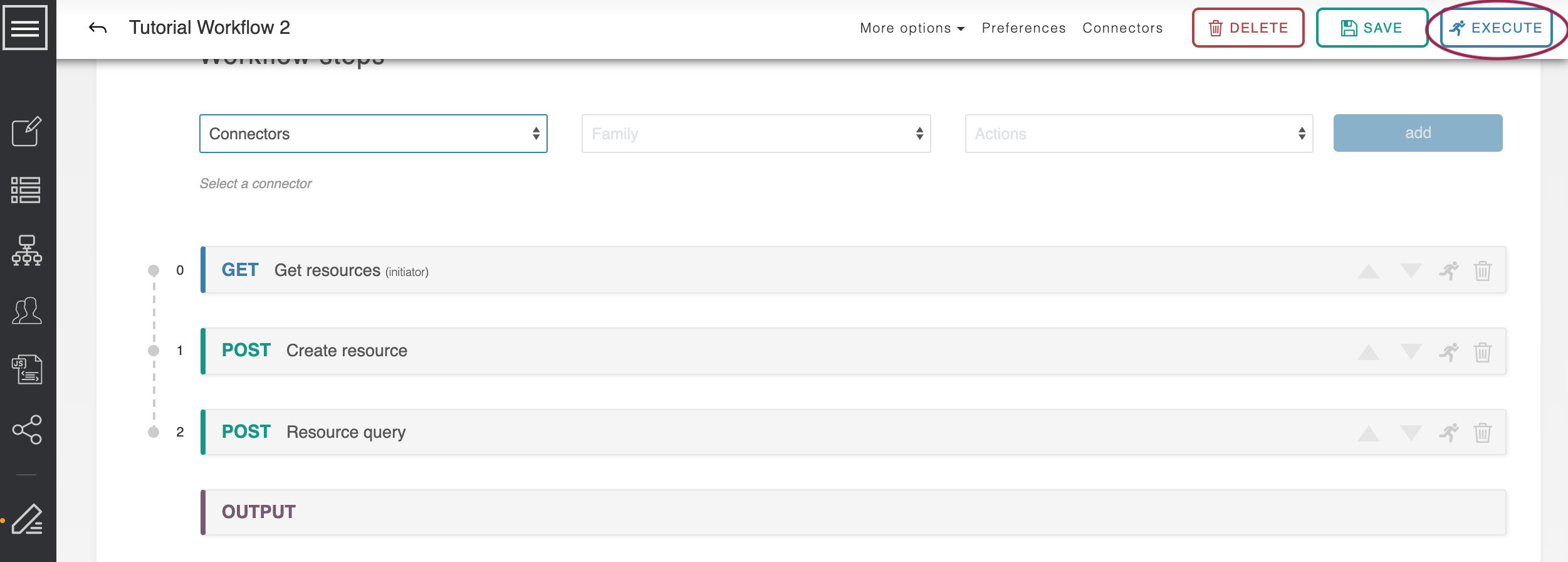
Workflows can be run from the Workflow page using the blue “Execute” button in the far upper right.
They can also be run from the Workflow list, by clicking the "Execute" button ("Run" icon)

When a Workflow is executed the system scans the Workflow’s structure to determine what information is required from the user and presents a modal screen requesting those inputs. Once this data is supplied, the screen scrolls to the Results area at the very bottom of the Step List and displays the results.
Execution Results
The Results section is broken into three sections: Status, Stepwise Debugging, and the Raw Output. The current section is underlined.
If Debug Mode (see: Workflow Overview) is enabled then the Steps and Raw Output sections are available.
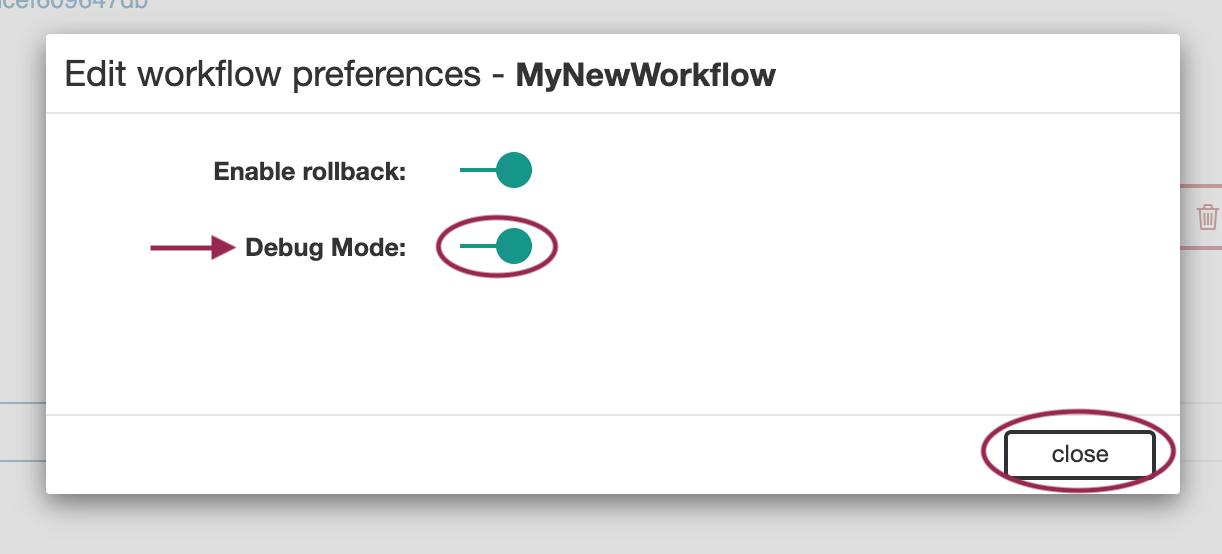
These areas provide additional information on how to diagnose issues with ACP Workflows.
Results Status
Results Status
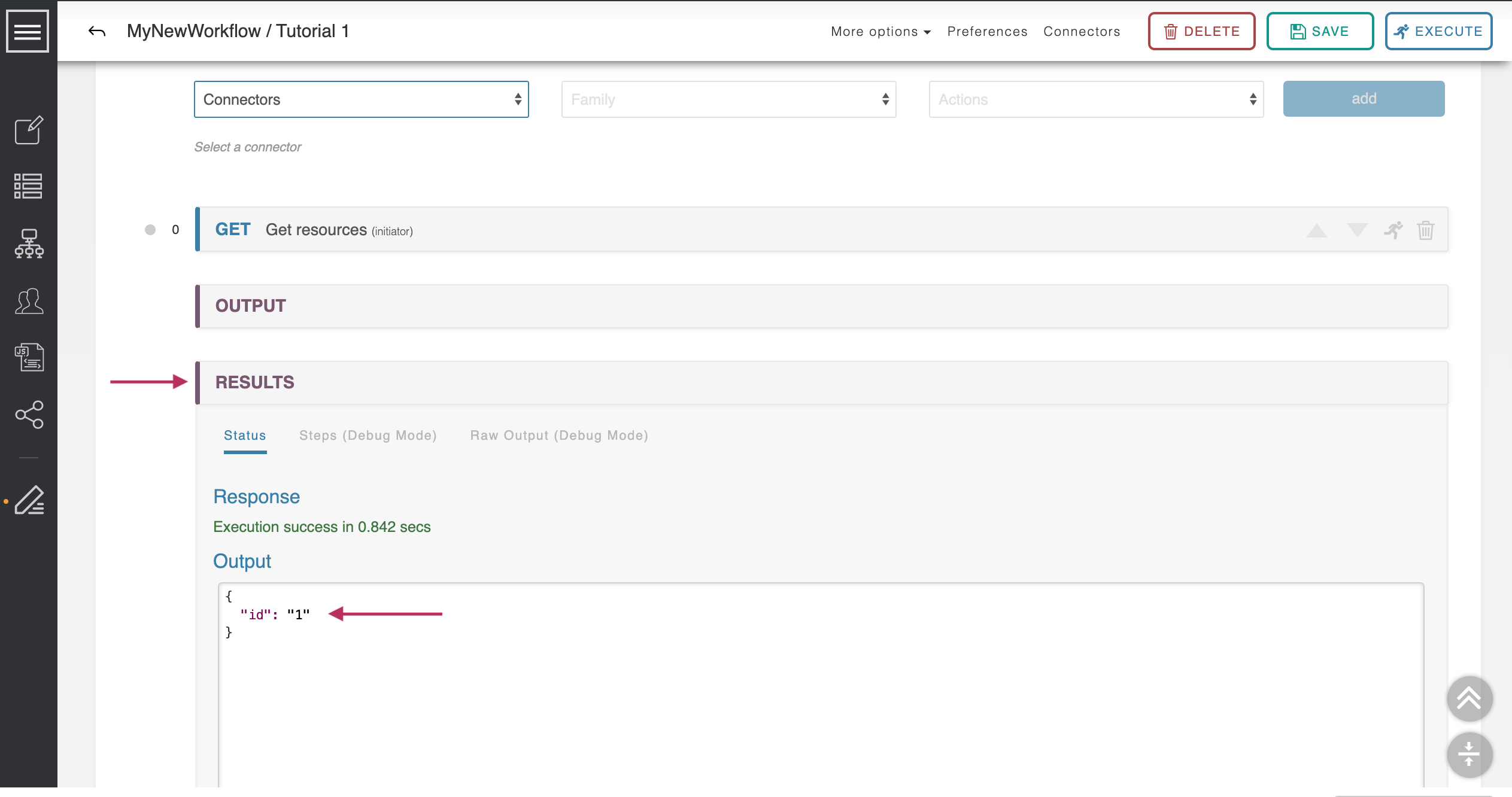
The Status screen shows the broad results of the Workflow. If the workflow executed successfully the amount of time it consumed will be displayed in green.
If the workflow encountered an error and halted, this error will be shown in red.
The output box below the response shows the data that has been returned by the Workflow. In the case of a successful execution, this will be the data described in the Workflow’s Output section. In the case of an error, it will return a JSON debugging structure which contains an error message and a summary of what calls were executed.
Steps (Debug Mode)
Steps (Debug Mode)
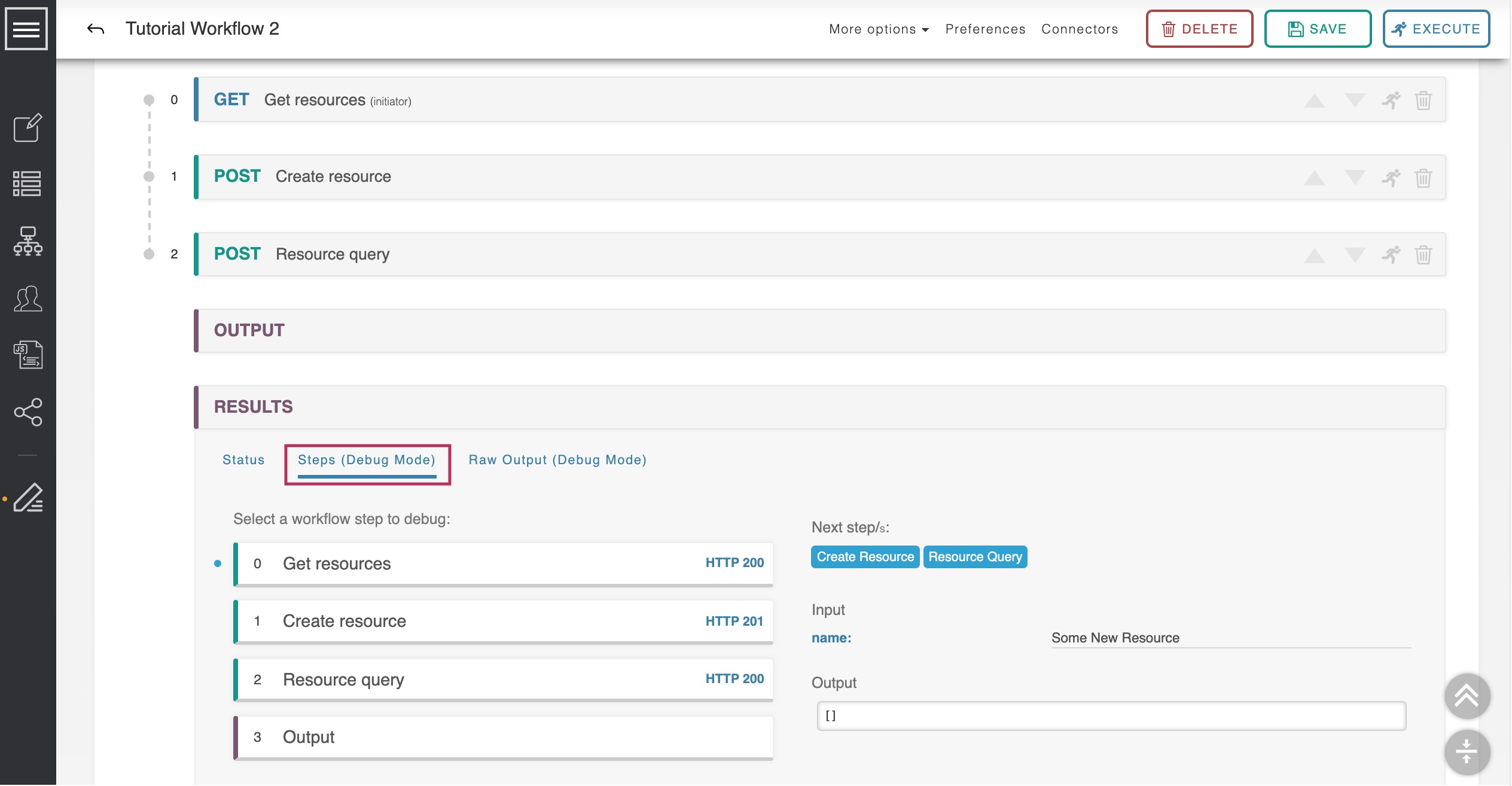
The Steps section shows the list of ACP Steps and lists the HTTP code returned at each step. If a step is not run, the HTTP code is listed as “HTTP N/A.”
Clicking on each step displays the variable values that were used in the execution of that step, as well as the output that was returned and the next step taken by the system. This can be used to trace the flow of data throughout a workflow to determine where an issue occurred.
Raw Output (Debug Mode)
Raw Output (Debug Mode)
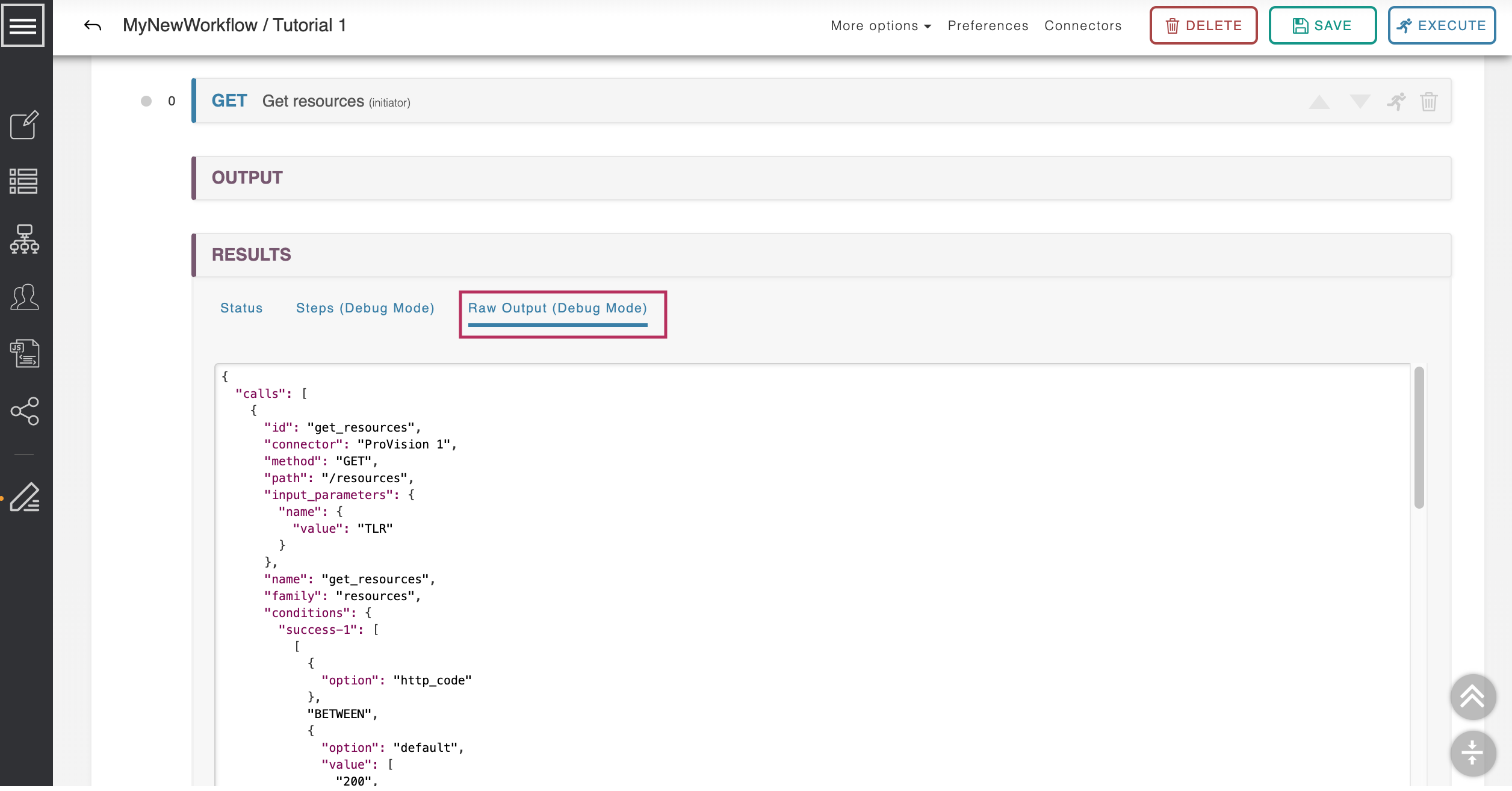
The Raw Output section displays the raw JSON returned by the ACP system. This data can provide additional insight into the behavior of the Workflow.
Workflow URL and External Execution
Once saved, every Workflow is assigned a distinct URL that can be used to execute it remotely by POST’ing data to it. This URL can be found by navigating to the header area of the Workflow and clicking on the ‘More options’ drop-down below the description area.
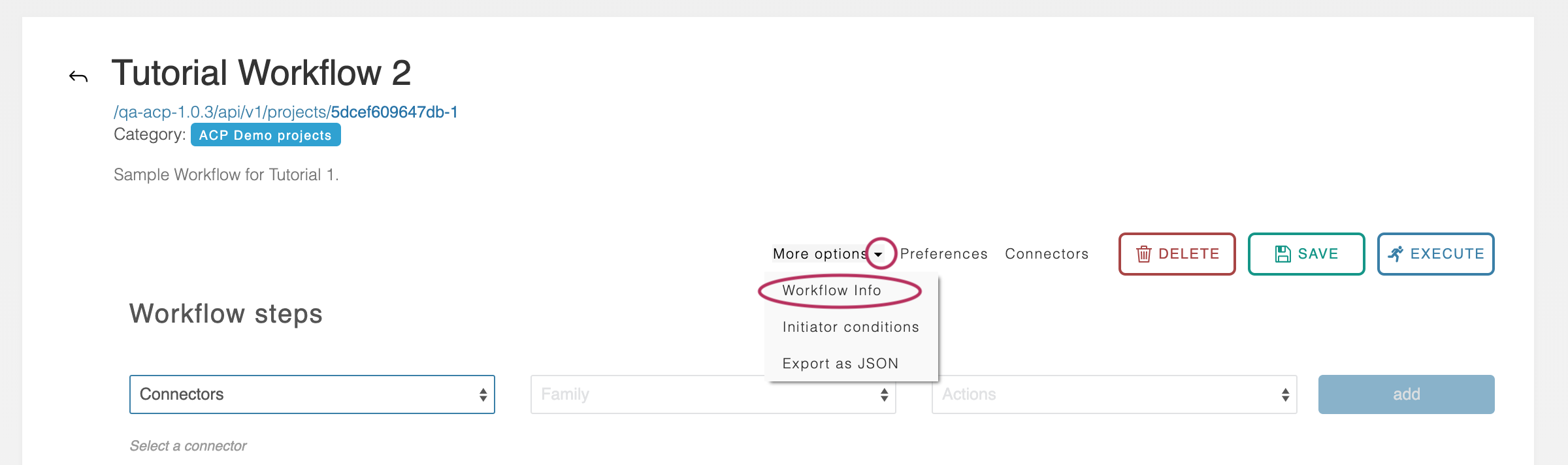
Then select the ‘Workflow Info’ option.
A modal window appears which displays the Workflow URL and the user-given variables required for the Workflow to run.
Export Workflows
Workflows can be exported in JSON format by navigating to the header area of the Workflow and clicking the ‘More options’ drop-down below the description area.
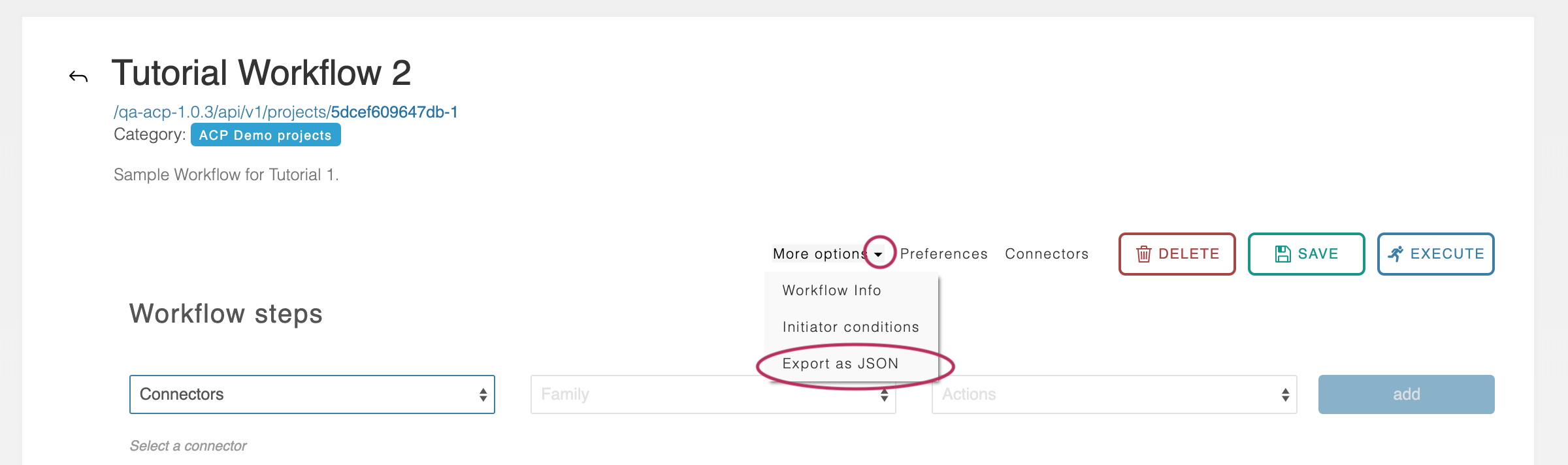
Then select the ‘Export as JSON’ option.
You may also export one or more Workflows as JSON from the Workflow list.
Export Details
To export an individual workflow from the workflow list, click the "Export as JSON" button at the right side of the workflow row.

To export multiple workflows, select the desired workflows by clicking check boxes next to the names, then click "Export All" at the top of the page.
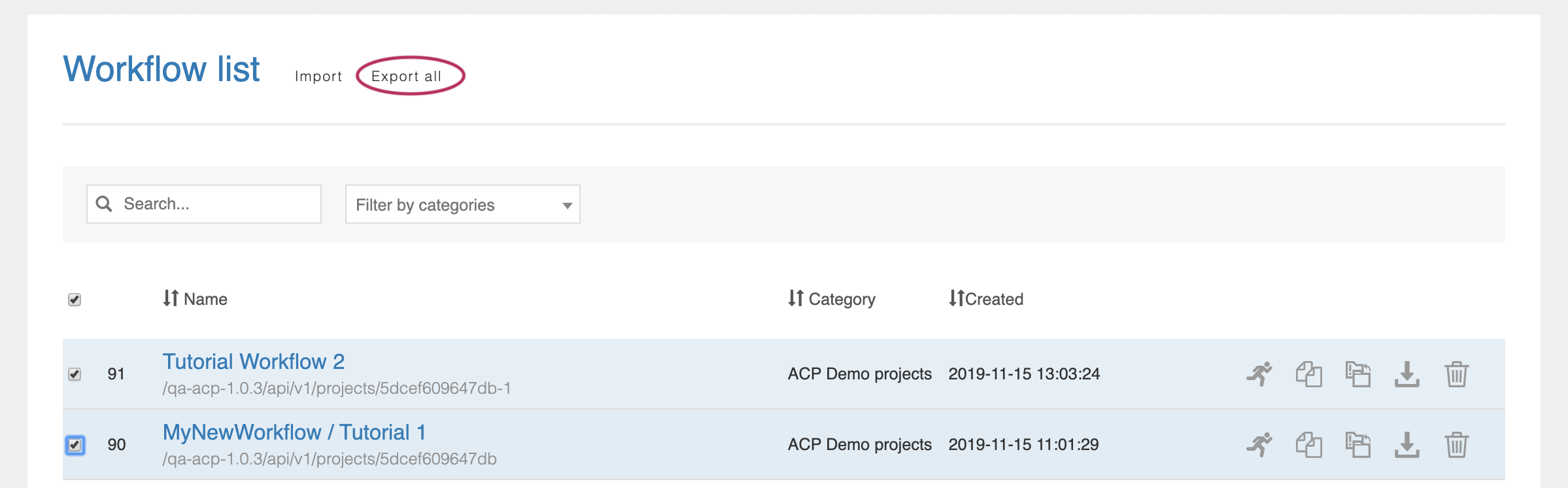
The Workflow JSON will be downloaded through the browser. This exported JSON can be saved as a backup, shared with coworkers, or sent to Support for assistance.